05:00
Lecture 8: Introduction to Quarto for Research
With Posit Cloud, we will see how to create Quarto files (.qmd) to embed text and code output and generate professional outputs.
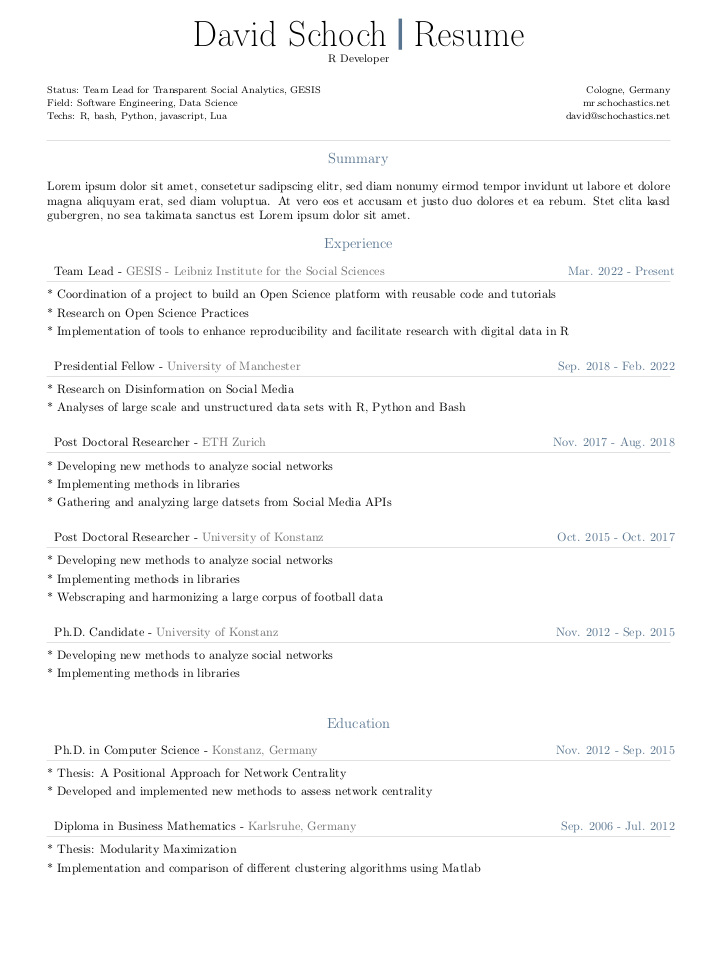
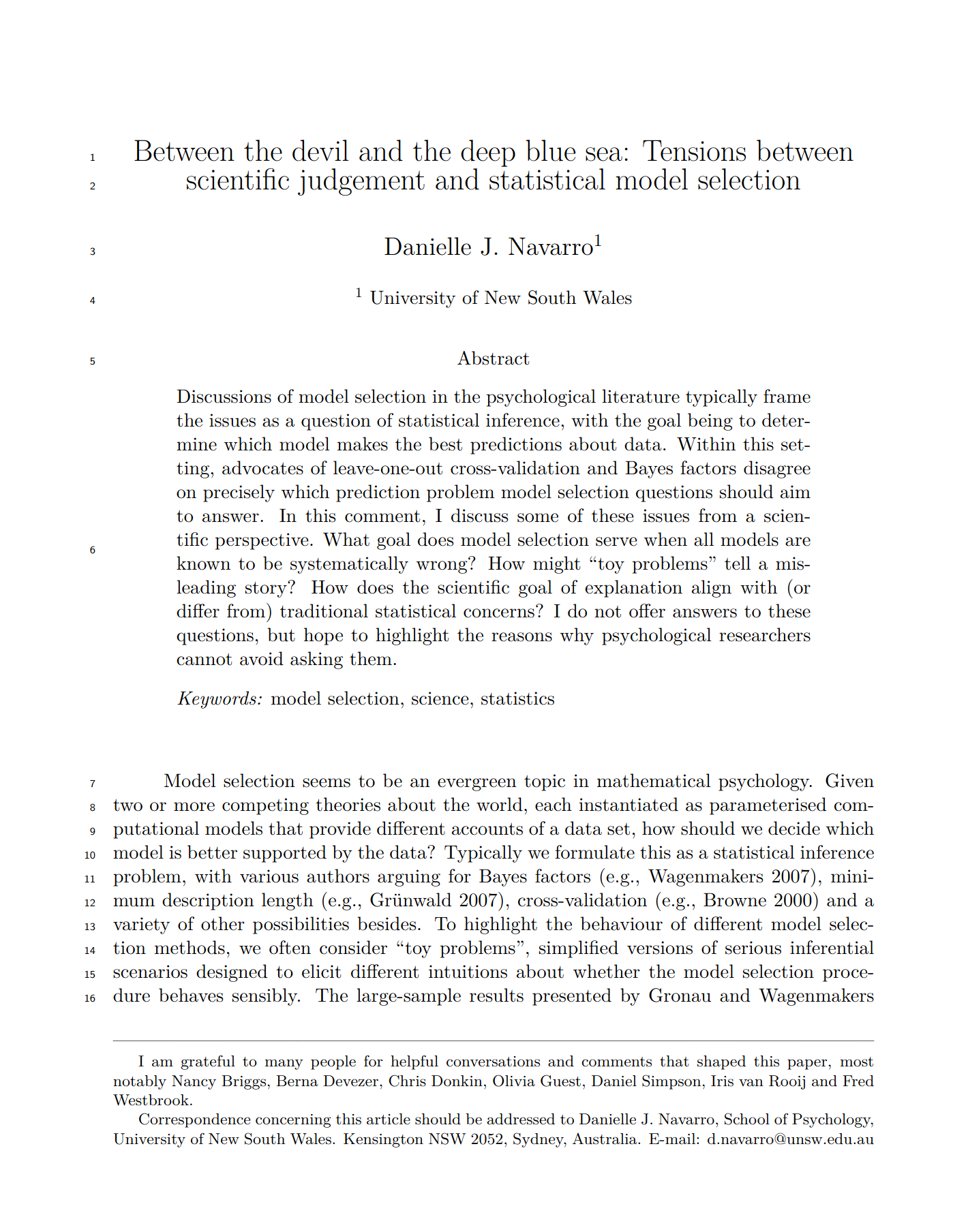
The goal is to create a document that is all-in-one:
Quarto is an open-source scientific and technical publishing system that builds on standard markdown with features essential for scientific communication.
See https://quarto.org for more details
Try it by yourself!
In your Posit Cloud:
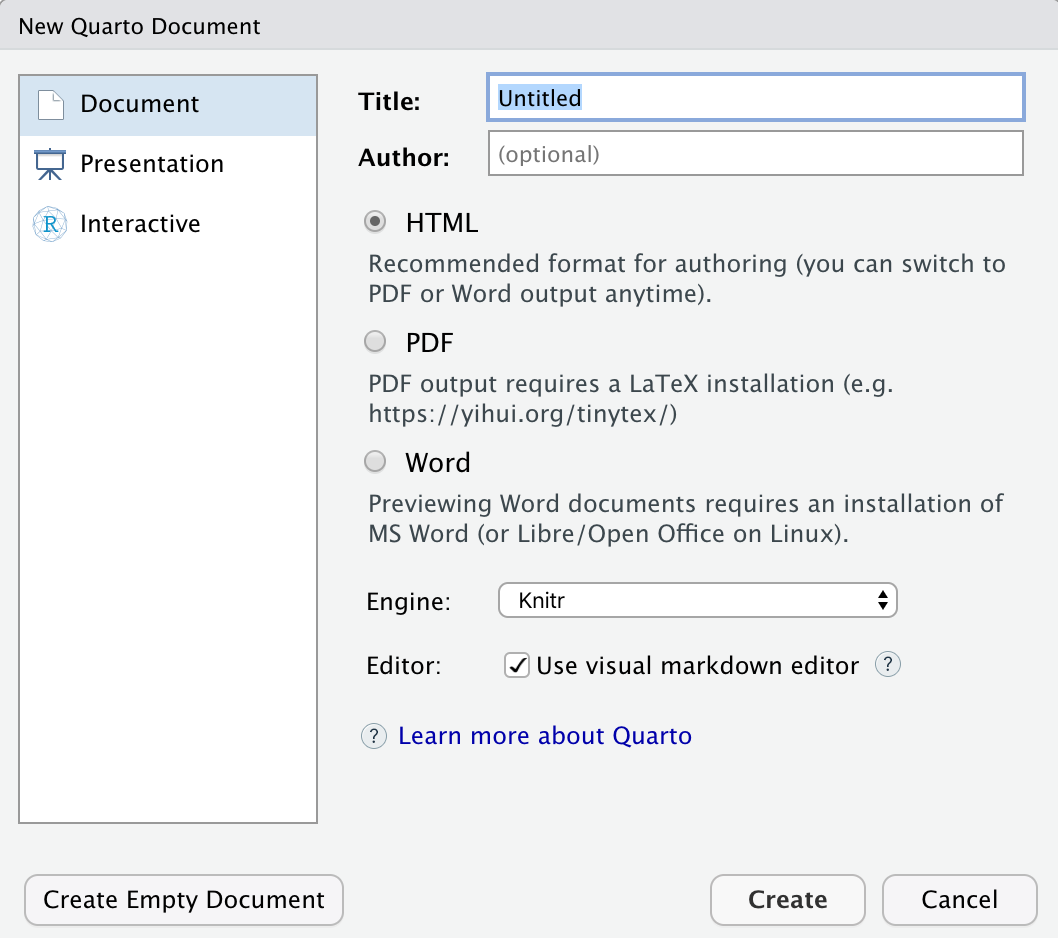
File > New File > Quarto DocumentCreateInstall on the message to install the {rmarkdown} packageRender and save the document as report.qmd05:00


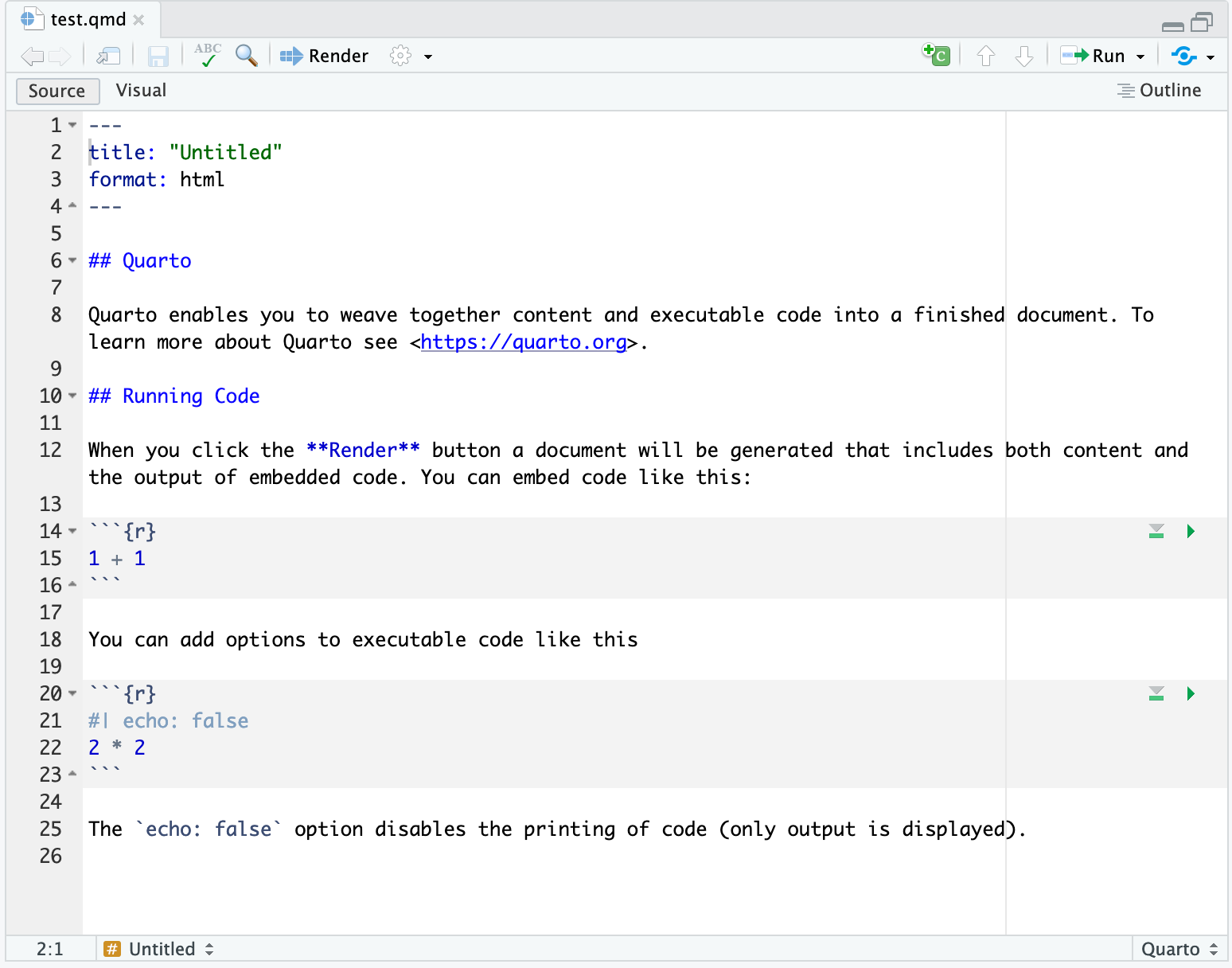
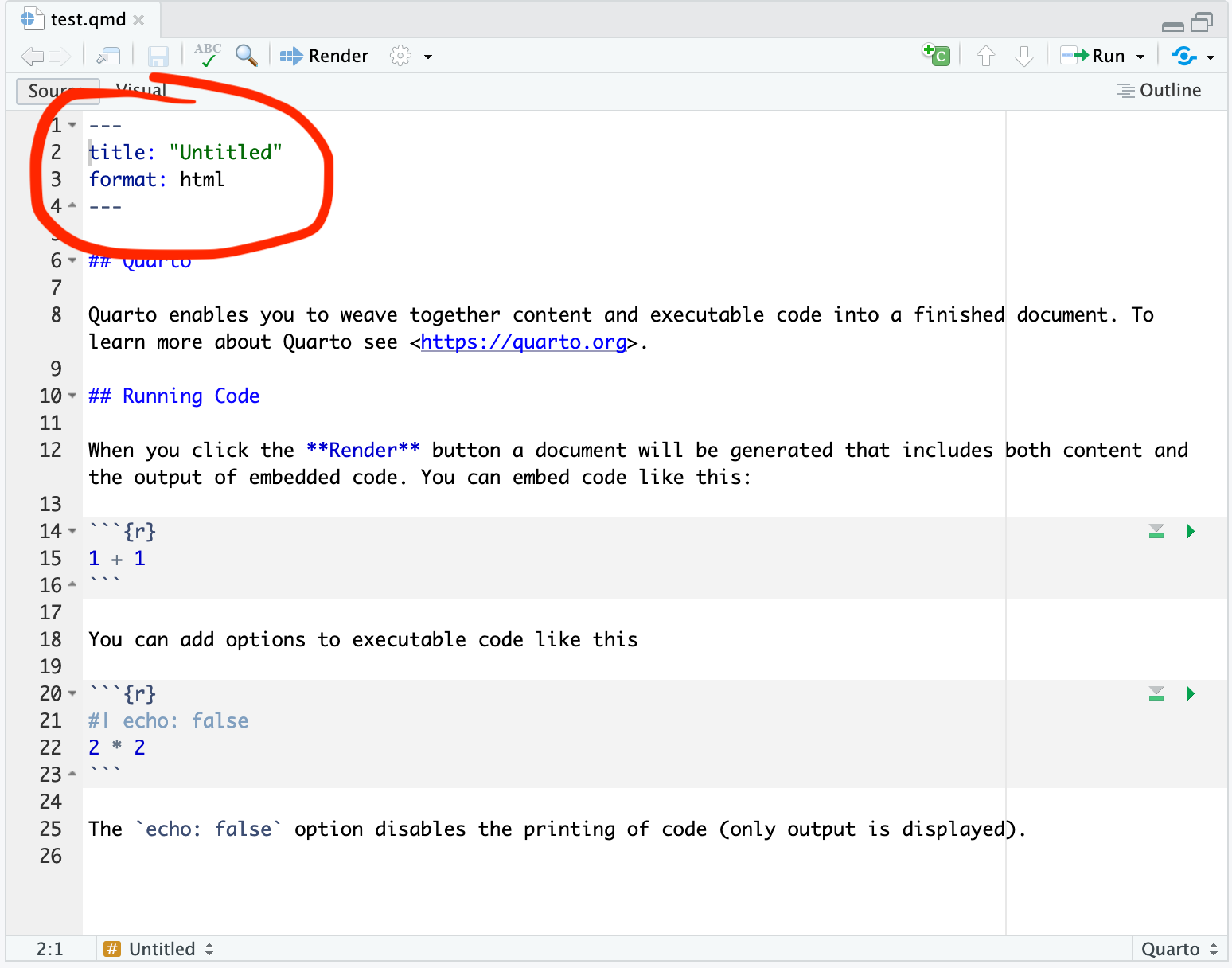
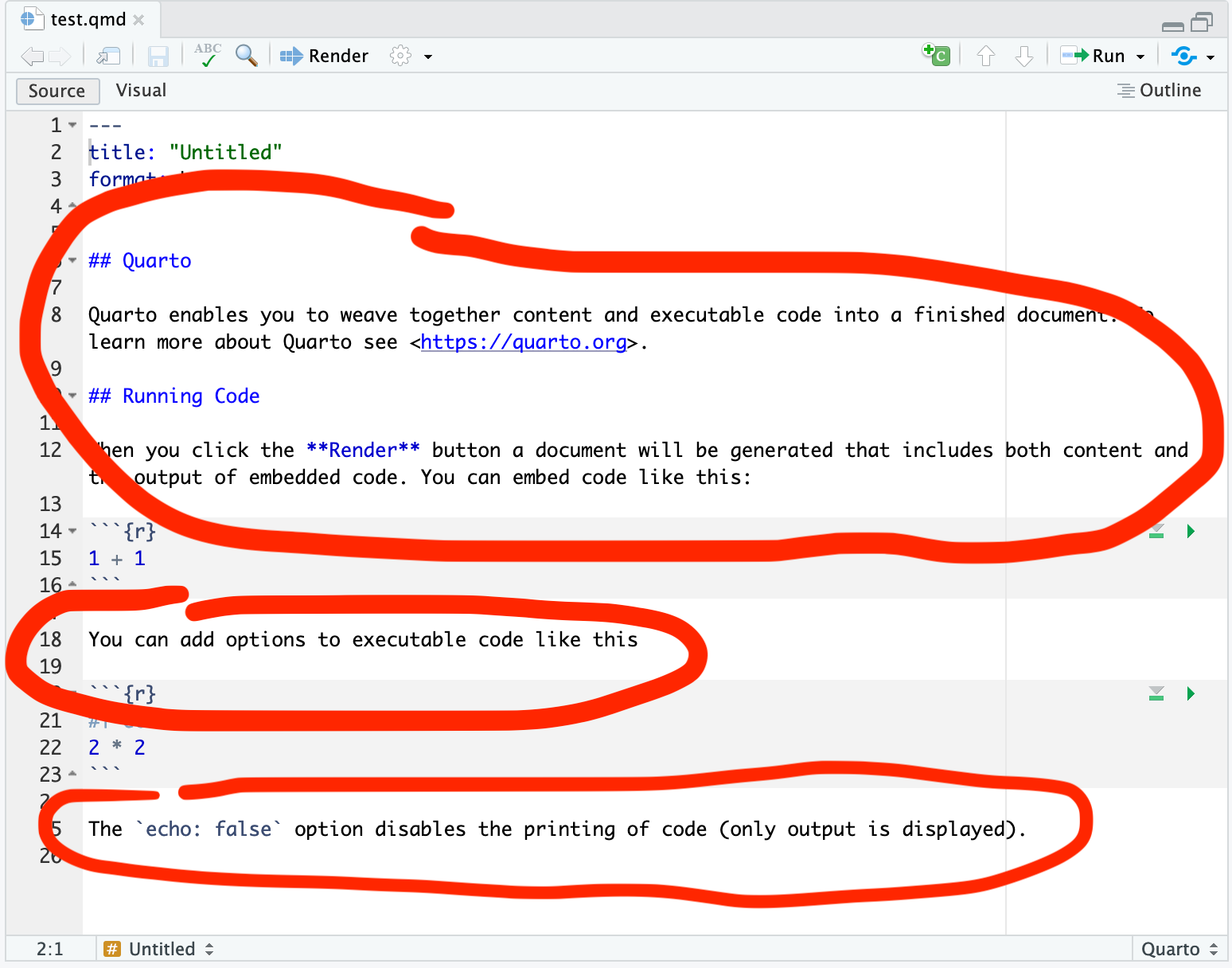
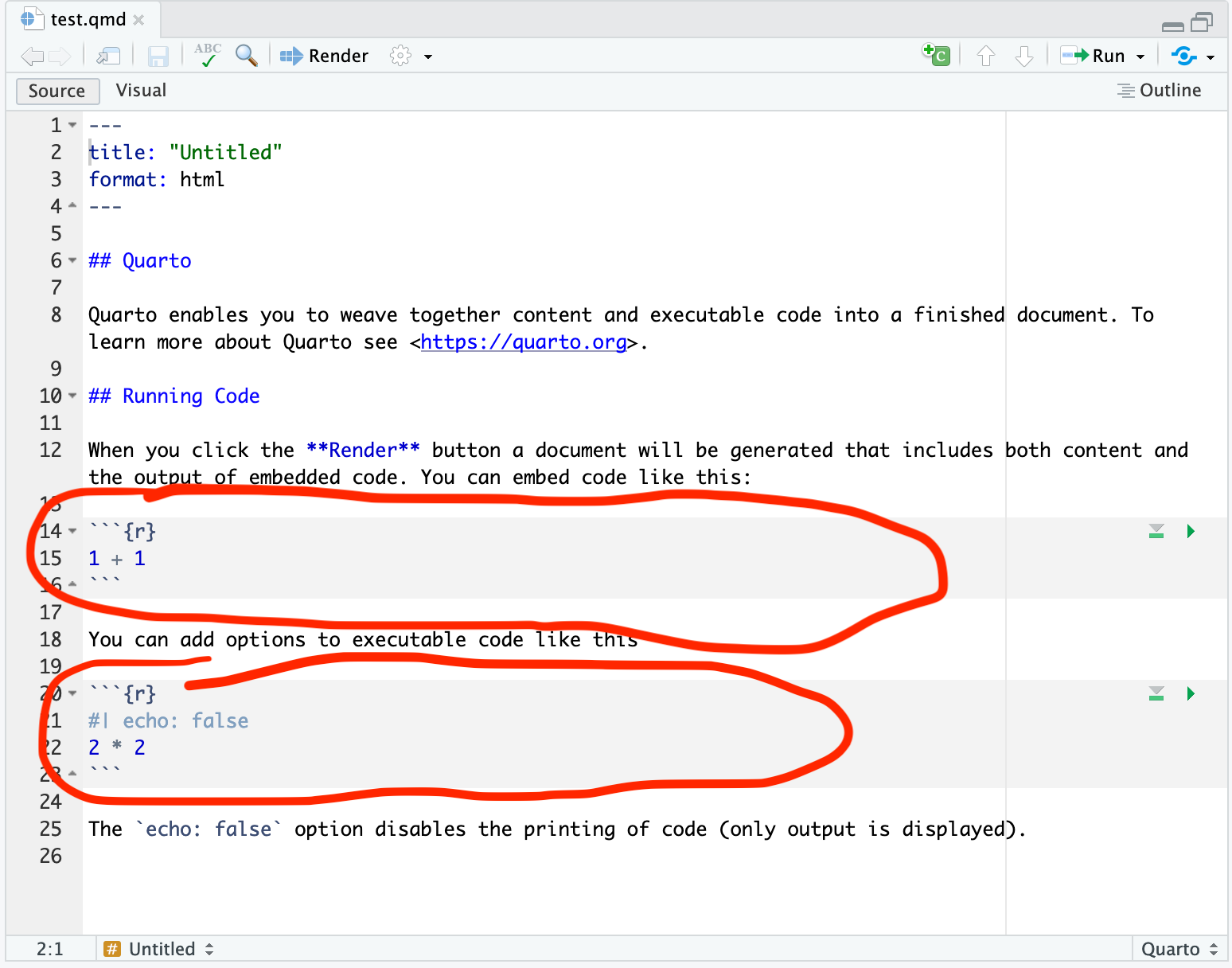
Quarto files have 3 different types of content:
Displayed between two series of --- signs, it corresponds to the metadata shown in the header of the output file (e.g., title, author, date, …) and the type of output (e.g., pdf, html, doc, …)
Written in Markdown style (i.e., text without formatting), it is used as core description in the output document
Inserted in the Quarto file inside “chunks”, the code is processed when creating the output and can display figures and tables
To generate the output file:
File > Render Document (a Render shortcut icon is also displayed in the menu bar)

OK, and voila!


Quarto can use R or Python to execute code:
{knitr} engineJupyter engine to execute Julia, Python, or other languages that Jupyter supportsIf R code is found first, it will default to knitr
Or you can force using knitr if you’re mixing R/Python content or if your first code chunk is not R.
Quarto also introduces some of these as options for execute: in YAML, for similar concepts in other languages.
Example of a markdown document…
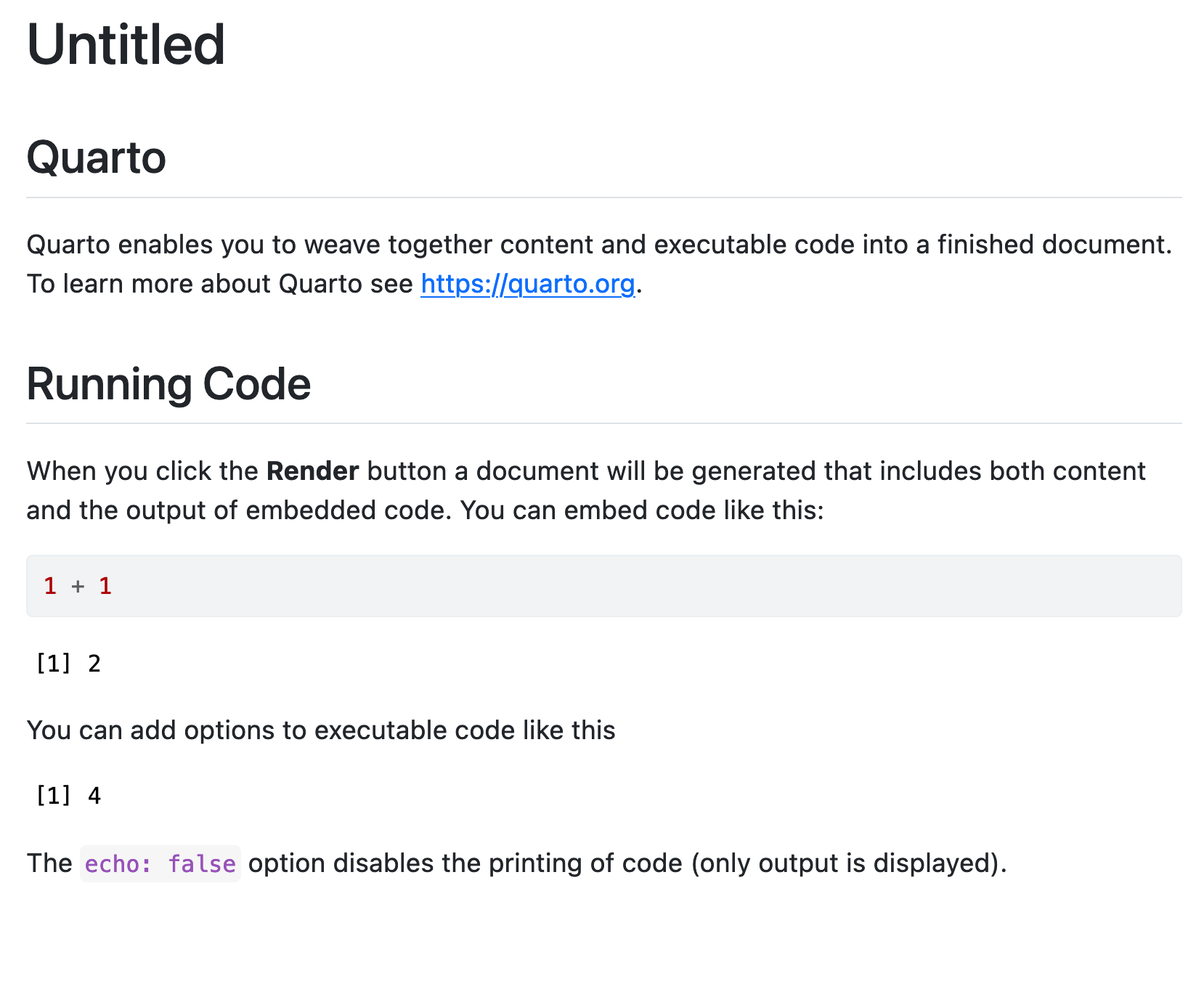
Here’s what the output looks like…
Welcome to my awesome class. You will learn all kinds of useful things about Quarto.
\[y=ax+b\]
In Posit Cloud, with the file that you have previously created:
Remove all content except the YAML
Modify the YAML to include:
* and ** to highlight some part of your text in italic and bold## and a subsection title with ###Render once finished05:00
```r) between curly braces {r}#| (hashpipe): #| option1: valueIn the first code chunk, all the actions that will be applied to the following chunks will be added (e.g., code options, libraries used, data downloaded, …).
Chunk output can be customised with hashpipe options (i.e., arguments set after the #|). Above, we use 1 argument:
#| include: false prevents code and results from appearing in the finished file. Quarto still runs the code in the chunk, and the results can be used by other chunks.Additional options can be turned on only for one chunk:
#| results: asis will display the output of the code as regular textSee the Quarto Reference Guide for a complete list of chunk options.
As long as the package {tidyverse} is loaded and the data object created in the first setup chunk, then a ggplot visualisation can be used in a separate chunk:
---
title: "Untitled"
format: html
execute:
echo: false
warning: false
---
```{r}
#| label: setup
#| include: false
library(tidyverse)
organisation_beta <- read_csv("/cloud/project/organisation_beta.csv")
```
# My Section Title
My text followed by my figure.
```{r}
ggplot(organisation_beta) +
aes(salary, js_score) +
geom_point()
```To display the output of your code in the final document, just include your code in a chunk:
Call:
lm(formula = js_score ~ salary + perf, data = organisation_beta)
Coefficients:
(Intercept) salary perf
-49.48511 0.00187 0.08285
Remember, when the code results in creating an object, while the object is created, no output is printed in the final document:
To create an object and print your code in the same chunk, the name of the object has to be included in the chunk. This will print the content of the object:
Call:
lm(formula = js_score ~ salary + perf, data = organisation_beta)
Coefficients:
(Intercept) salary perf
-49.48511 0.00187 0.08285
Some chunk options are specific to visualisation outputs:
Note, the default unit for height and width is inches.
Example Caption
In your report.qmd document:
setup. In this chunk, load the {report} packages and create your data object with the following code:#| results: asis in its options:05:00
03:00
The Quarto team has developed several Journal formats and made them available within the quarto-journals GitHub organization. These formats include the following Journal/Publisher:
Many more formats will be added over time.
The quarto use template command can be used to create an article from one of these formats from the terminal (and not the console). For example:
Terminal
quarto use template quarto-journals/acm
quarto use template quarto-journals/acs
quarto use template quarto-journals/agu
quarto use template quarto-journals/biophysical-journal
quarto use template quarto-journals/elsevier
quarto use template quarto-journals/jasa
quarto use template quarto-journals/jss
quarto use template quarto-journals/plosTerminal
quarto use template quarto-journals/acm
quarto use template quarto-journals/acs
quarto use template quarto-journals/agu
quarto use template quarto-journals/biophysical-journal
quarto use template quarto-journals/elsevier
quarto use template quarto-journals/jasa
quarto use template quarto-journals/jss
quarto use template quarto-journals/plosNote
Choose Y when asked if you trust the authors of this template and choose a directory name.
.qmd document obtained to observe it.05:00
In this new .qmd document:
Remove everything except the YAML
Create a first setup chunk. In this chunk, load the {report} packages and create your data object with the following code:
#| results: asis in its options:05:00
library(tidyverse) in the setup chunk03:00
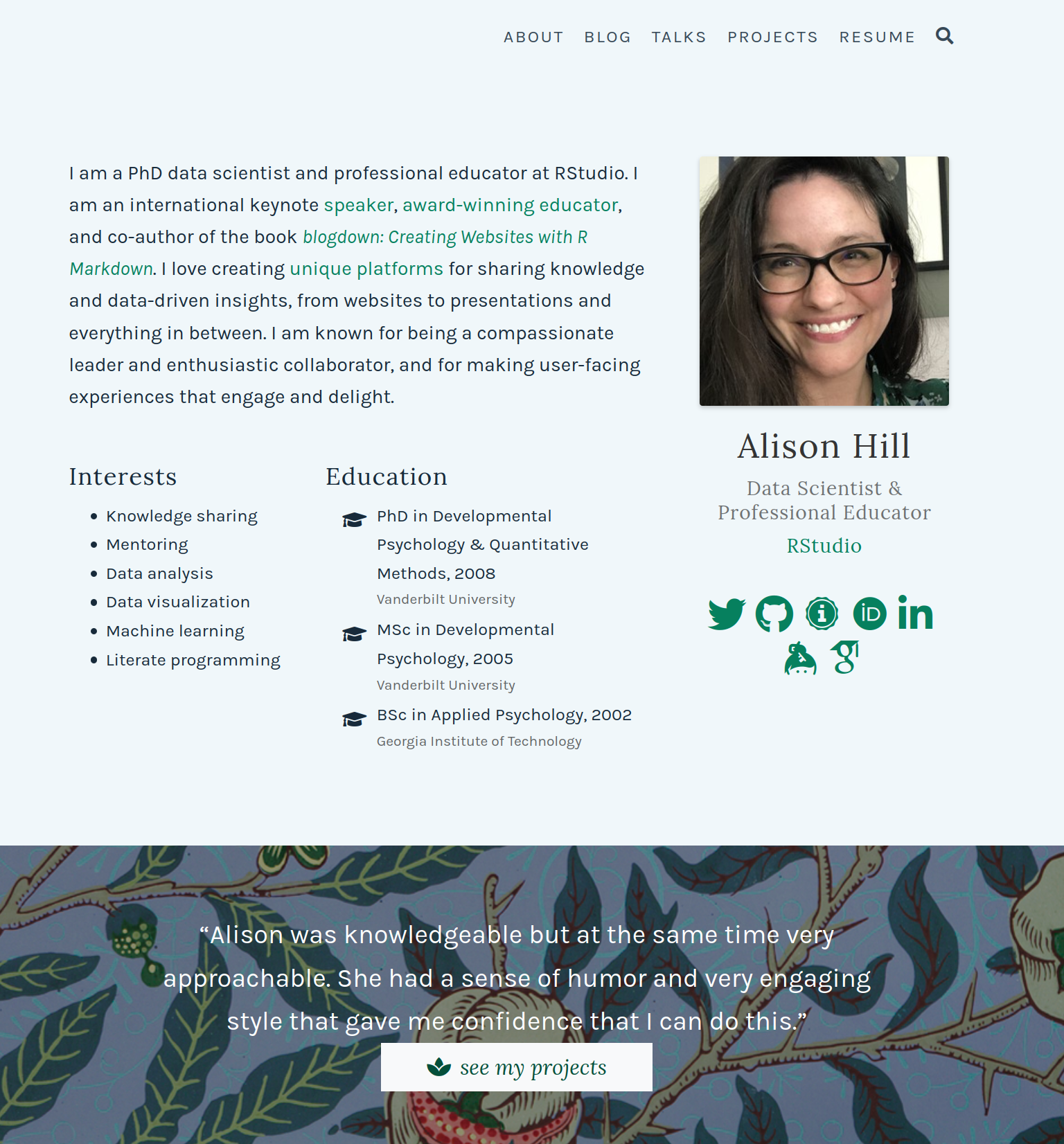
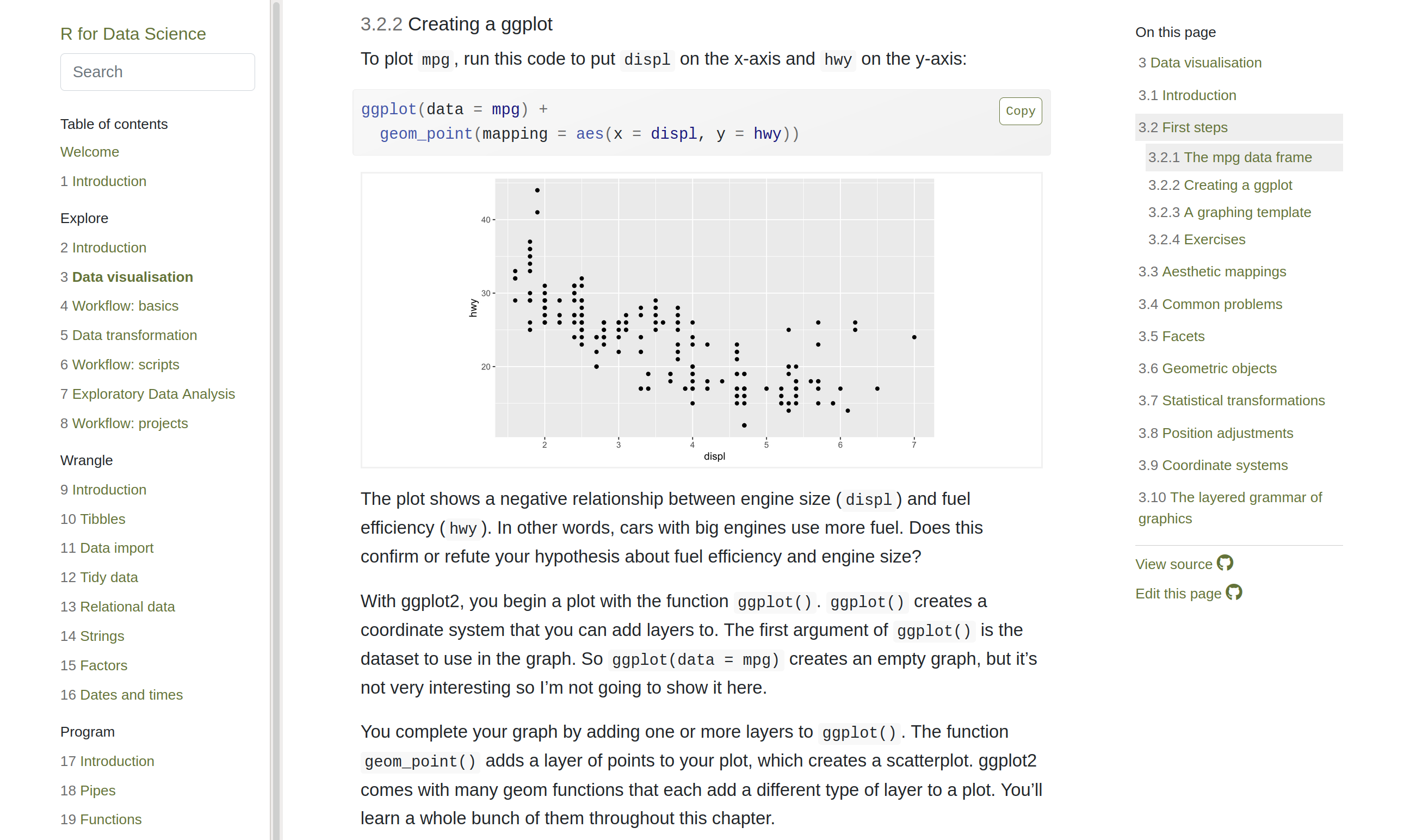
Quarto Websites are a convenient way to publish groups of documents. Documents published as part of a website share navigational elements, rendering options, and visual style.
Website navigation can be provided through a global navbar, a sidebar with links, or a combination of both for sites that have multiple levels of content. You can also enable full text search for websites.

Unfortunately, Quarto Websites cannot be visualised on Posit.cloud as it is not your computer.
If you want to give it a go:
Note
Among the Integrated Development Environment (IDE) there is also VScode, Positron, and many more.
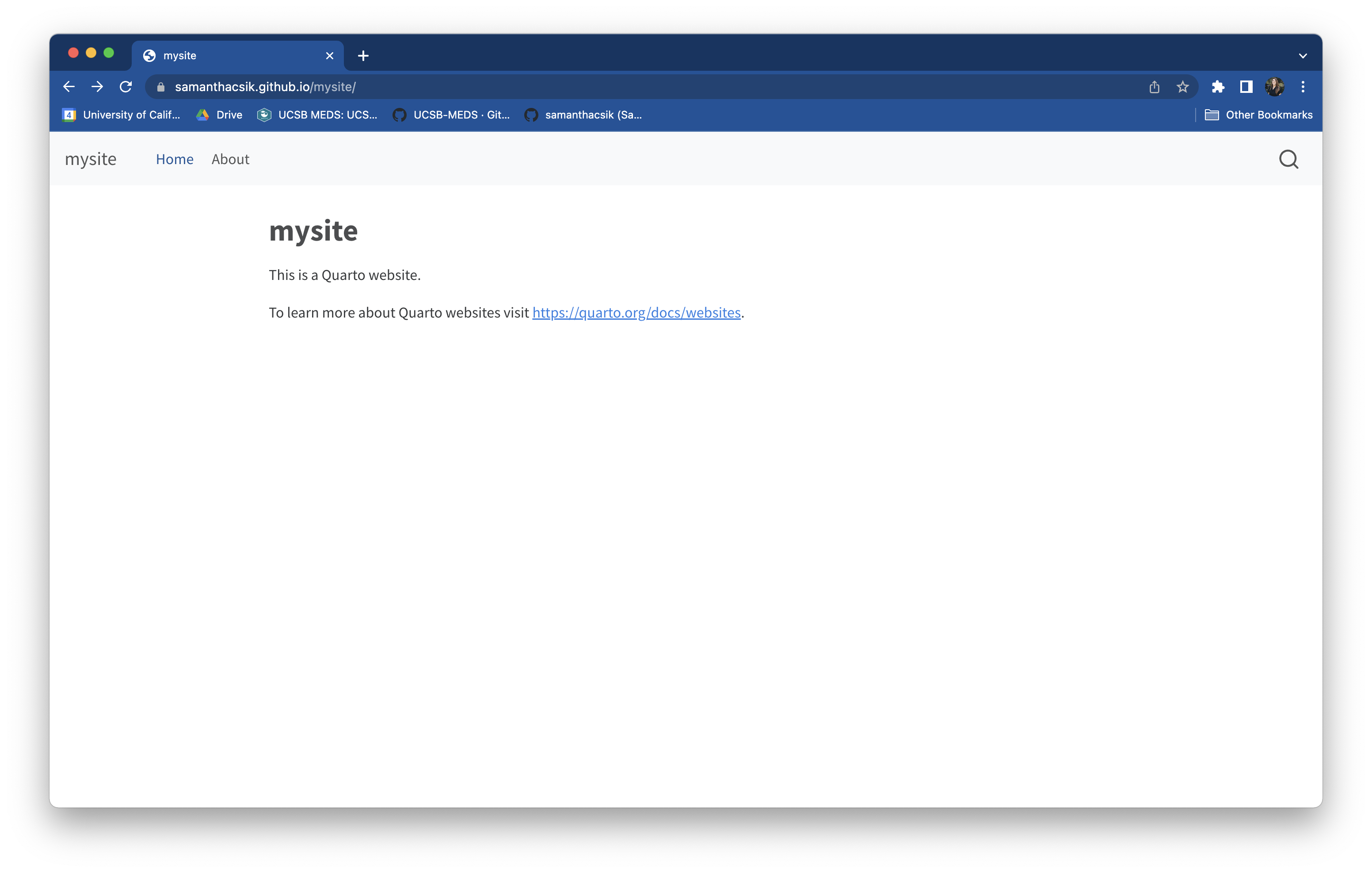
Creates a new website project from the Terminal. This website project is initiated by a folder called mysite located on the root of your terminal.
The folder contains only 4 files:
_quarto.yml designs the overall style and the navbarindex.qmd corresponds to the homepageabout.qmd is another pagestyles.css is for additional style not defined in _quarto.ymlImprove your Website:
These commands are used to render the website by converting all the .qmd files to .html files stored in a _site folder.
The website preview will open in a new web browser. As you edit and save index.qmd (or other files like about.qmd) the preview is automatically updated.
Warning
Only run on your own computer if R, RStudio (or equivalent), and Quarto are installed.
Terminal window, run the following instruction:_quarto.yml file, simply change the output directory folder to a folder named docs as follows:Then render the website:
Your website default folder should look like that →
Note
The old folder _site will not be used any more and is now useless.
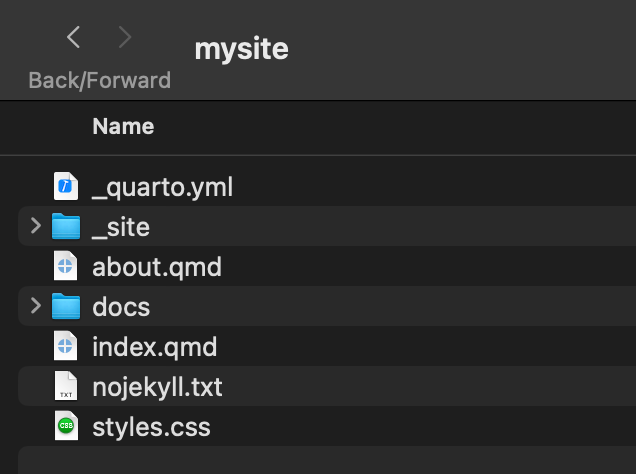
Add a .nojekyll file to the root of your repository that tells GitHub Pages not to do additional processing of your published site using Jekyll (the GitHub default site generation tool).
You can create it from the terminal when the website folder is the current directory:
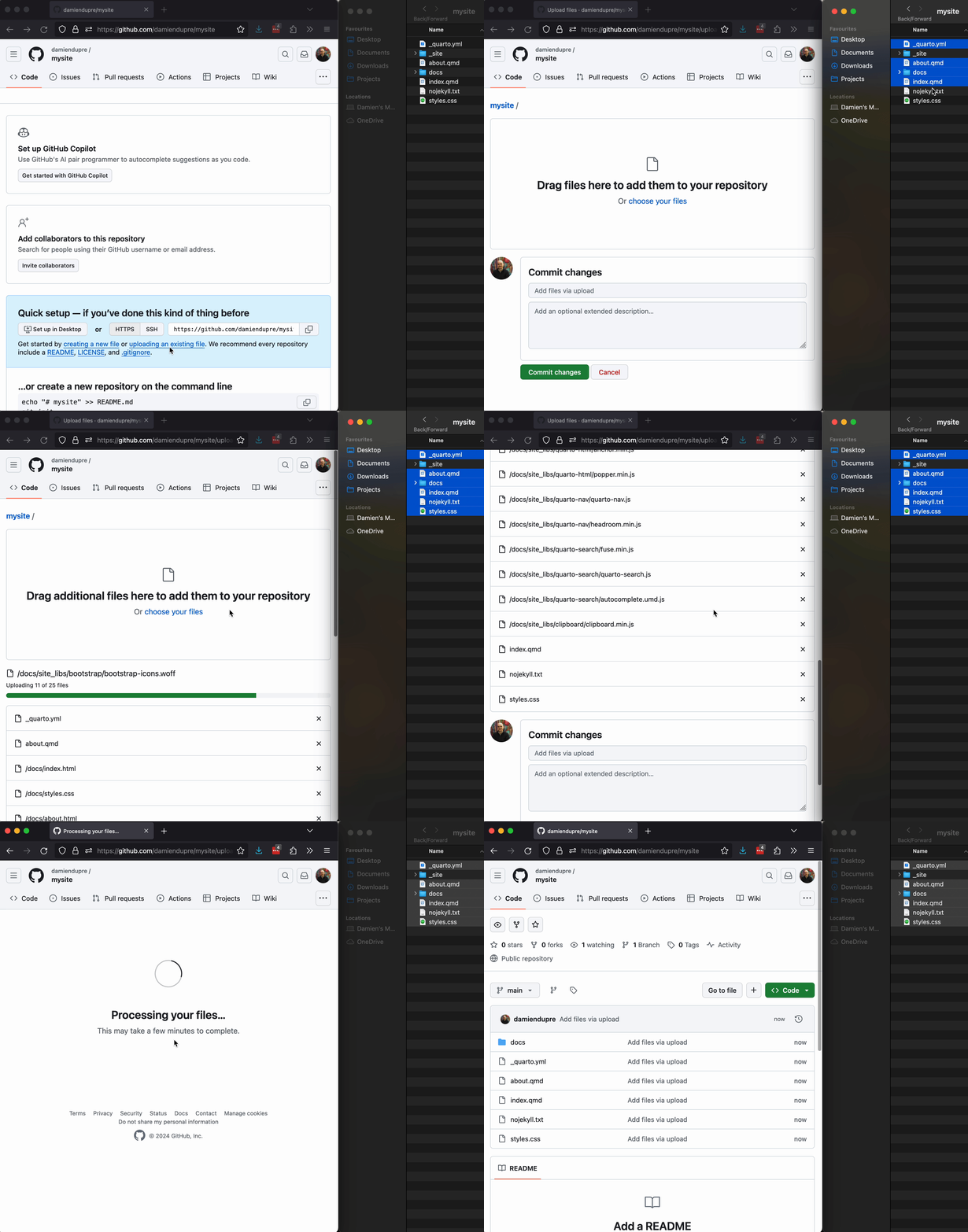
In GitHub, just drag and drop all the files at once like this:
Finally, click Settings -> Pages choose:
main branch/docs folderThanks for your attention
and don’t hesitate to ask if you have any questions!