STA1005 - Quantitative Research Methods

Lecture 3: Collect, Clean, and Transform Data

Damien Dupré | DCU Business School

Always Prepare the Data

To efficiently perform any kind of analysis on data, it is essential to format the data file in the most suitable way.

To do so, 3 steps are required:

  1. Understanding how data have been collected
  2. Cleaning the data from any noise
  3. Transforming the data in order to obtain the relevant variables

1. Collecting Data

Data Everywhere

What are Big Data?

  • In general Spreadsheet that are too large or too complex to be handled by conventional tools
  • For me Spreadsheet that are larger then Microsoft Excel’s Limits (2016)
    • Total number of rows: 1,048,576 rows
    • Total number columns: 16,384 columns

Collecting Data

A tool is required to collect data, but there are tools to measure anything:

  • Naturalistic Objects
  • Economic Status
  • Social Events
  • Psychological States

Focus on Psychometric Scales

A psychometric scale is a series of questions (items) used to measure a latent variable

A score has to be calculated from all the items to produce the variable to analyse:

  • Average of all items (equal contribution to the latent variable score)
  • Factor analysis (unequal contribution to the latent variable score)

Focus on Psychometric Scales

A scale should have been validated by its authors:

  • Don’t change the items except when possible
  • Don’t change items’ range of possibilities

To be analysed, a scale has some requirements:

  • All the items must have the same range of possibilities/modalities
  • All the items must be analysed in the same direction
  • All the items must correlate together (scale reliability)
  • A unique theoretical construct score has to be calculated from all the items

Focus on Psychometric Scales

Online Survey Software are replacing the paper-pencil method. Here is a list of some:

Focus on Psychometric Scales

Warning

  • Always ask for age and gender in a survey
  • Participant recruitment by list of contact/email has between 15% and 10% of answer rate

Platforms to find and reward participants:

Latent Variables

Scale to measure the “Perceived Ease-of-use” of MS EXCEL in 4 items were measured from 1 “totally disagree” to 7 “totally agree”:

  • q1. I think learning MS EXCEL is easy
  • q2. Understanding MS EXCEL is easy
  • q3. I am good at using MS EXCEL
  • q4. I think using MS EXCEL is easy

rmarkdown Perceived Ease-of-use\nof MS EXCEL Perceived Ease-of-use of MS EXCEL q1 q1 Perceived Ease-of-use\nof MS EXCEL->q1 q2 q2 Perceived Ease-of-use\nof MS EXCEL->q2 q3 q3 Perceived Ease-of-use\nof MS EXCEL->q3 q4 q4 Perceived Ease-of-use\nof MS EXCEL->q4

Latent Variables

Here are the results with 3 students. The score of the “Perceived Ease-of-use of MS EXCEL” latent variable is calculated using the average of all items.

employee q1 q2 q3 q4 peo_score
Sinead 7 5 7 7 6.50
Patrick 5 4 6 6 5.25
Damien 3 1 2 3 2.25

Validity and Reliability

Validity = is my variable measuring the construct that I think I am measuring?

  • Does the measurement make sense?
  • Would the results be reproduced with another scale measuring the same latent variable?
  • Are the results correlated to latent variables that are related?

Validity test is only performed when a scale is created (no need for existing scales)

Validity and Reliability

Reliability = consistency of items inside a measurement

  • Test-retest reliability
  • Inter-rater reliability
  • Correlation inter-item (Cronbach’s alpha)

Reliability test is performed every time a scale is used but only using Cronbach’s alpha

Validity and Reliability

Survey Example

Perceived Usefulness:

  • (PU1) Using MS EXCEL would improve my performance in statistical analysis
  • (PU2) Using MS EXCEL would increase my productivity in statistical analysis
  • (PU3) Using MS EXCEL would enhance my effectiveness in statistical analysis
  • (PU4) Using MS EXCELR would make it easier for me to engage in statistical analysis
  • (PU5) I think using MS EXCEL is very useful for me to engage in statistical analysis

Perceived Ease-Of-Use:

  • (PEOU1) I think learning to use MS EXCEL is easy
  • (PEOU2) I think doing what I want via MS EXCEL is easy
  • (PEOU3) I think becoming skilful at using MS EXCEL is easy
  • (PEOU4) I think using MS EXCEL is easy

Behavioural Intention:

  • (BI1) Assuming I had access to MS EXCEL, I intend to use it
  • (BI2) Given that I had access to MS EXCEL, I predict that I would use it

Survey Example

rmarkdown Perceived Ease-of-use Perceived Ease-of-use Perceived Usefulness Perceived Usefulness Perceived Ease-of-use->Perceived Usefulness Intention to Use Intention to Use Perceived Ease-of-use->Intention to Use Perceived Usefulness->Intention to Use Actual Use Actual Use Intention to Use->Actual Use PU1 PU1 PU1->Perceived Usefulness PU2 PU2 PU2->Perceived Usefulness PU3 PU3 PU3->Perceived Usefulness PU4 PU4 PU4->Perceived Usefulness PU5 PU5 PU5->Perceived Usefulness PEOU1 PEOU1 PEOU1->Perceived Ease-of-use PEOU2 PEOU2 PEOU2->Perceived Ease-of-use PEOU3 PEOU3 PEOU3->Perceived Ease-of-use PEOU4 PEOU4 PEOU4->Perceived Ease-of-use BI1 BI1 BI1->Intention to Use BI2 BI2 BI2->Intention to Use AU AU AU->Actual Use

Accessing your Data

From a Google Form

  1. Login Google Account (be sure to use the DCU account)

  2. Go to Drive
  3. Click on your Survey form
  4. Click on Response
  5. Download Response Spreadsheet as .csv

From a Qualtrics survey

  1. Login Qualtrics (DCU login/pwd) https://dcusurveys.qualtrics.com/
  2. Click on Data & Analysis
  3. Click on Export & Import > Export Data…> CSV (Use numeric values)

Warning

  • Always save the unmodified raw version of your data on the cloud (e.g., google drive, dropbox, one drive, …)
  • Make sure you can download them as a .csv file.

2. Cleaning Data

An Essential Step

Cleaning Data means removing any non-essential feature included in the spreadsheet

  • If you don’t have big data… then use Microsoft Excel!

  • If you do have big data, then use R or Python.

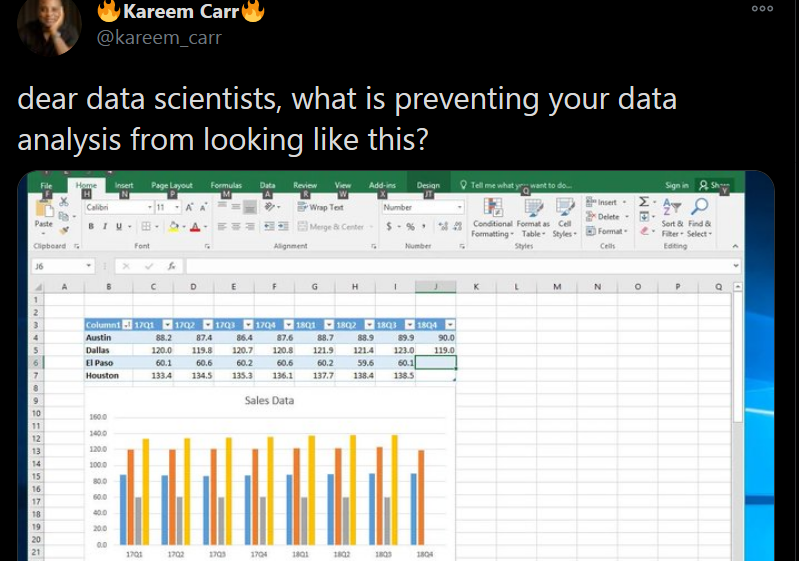
Question from Kareem

️ Your Turn!

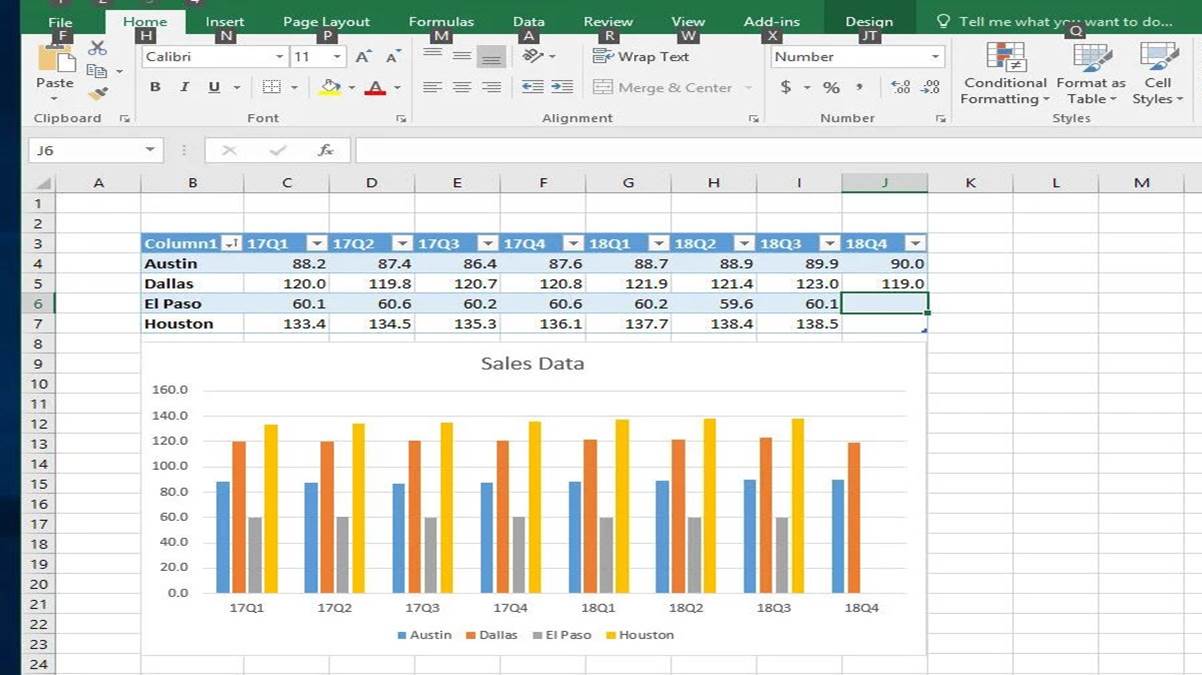
Find what is going wrong with this table

Answer from Michael

Use a Name Convention

An addition to Michael’s list would be to transform headers with a proper naming convention

My suggestion is snake_case: all small letter and words separated by “_”

To Clean Data …

1. Ditch the chart and all non values

Charts can mess up with other software

2. Column headings in row 1

No more than 1 heading row and remove blanks

3. Columns start at column A

Remove blanks before data

4. Use a naming convention

snake_case is preferable but any would do

5. Save as .csv file

Better format and keeps only the current sheet

️ Your Turn!

On the module Loop page, got to “Lecture Data” and download the document called “unicef.xlsx”

Open and clean the 1st sheet of this file but only until column P, remove all other columns

15:00

3. Transform Data

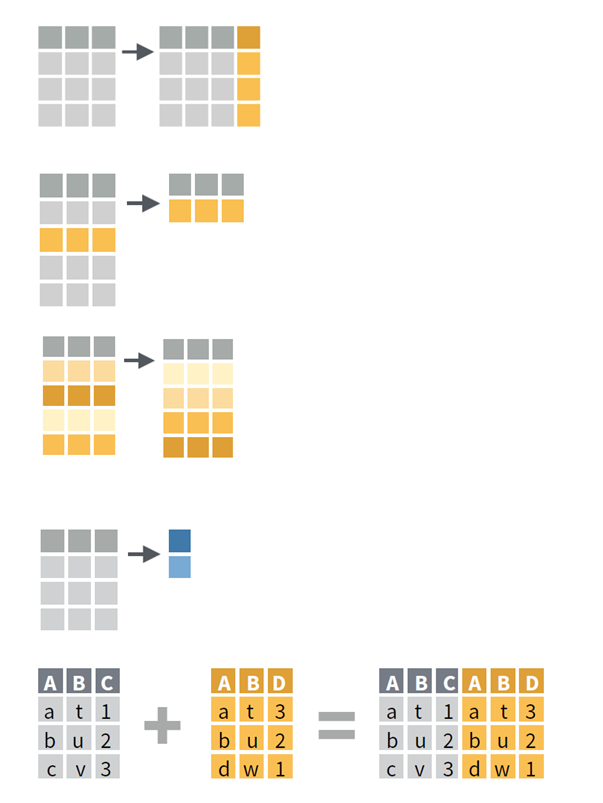
Master the Key Transformations

  1. Extension


  1. Reduction


  1. Direction


  1. Aggregation


  1. Combination

Extension

Extension = Create a new column

In MS Excel:

  • First row is row name (name convention)
  • Second row is the function (starts with = sign)
  • Following rows are applying the function (double click bottom right corner of the cell)

Excel Functions

For numeric values

  • Numeric operator ( + - / *)
  • $ (freeze row and/or column)
  • COUNT(), MIN(), MAX(), SUM(), AVERAGE (), STDEV()

For character strings

  • LEFT()
  • CONCAT()

Extra function

  • IF(condition, value if true, value if false)
  • IFS(condition 1, value if 1 true, condition 2, value if 2 true, …)

Reduction

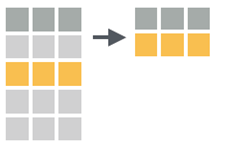
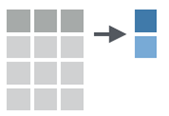
Reduction = Keep only certain values

In MS Excel:

  • Select header row
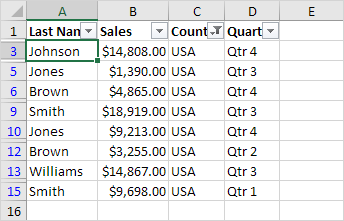
  • In Data tab, use Filter
  • Click the drop-down arrow for the column you want to filter
  • Choose values to filter

Excel Filters

Warning

  • Rows already filtered have a row index are coloured in blue
  • Copy-Paste filtered table in a new document if you want to work only on these values

Example of data filtered buy the column Country to keep only values corresponding to USA

Direction

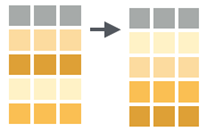
Direction = Arrange Row Order

In MS Excel:

  • Select table
  • In Data tab, use Sort
  • Choose column to sort and how to sort

Warning

  • Be careful of taking into account all the table (all rows & all columns)
  • Double check if all columns changed!

Aggregation

Aggregation = Summary of Column

In MS Excel:

  • Simple = use function at the end of a table
  • Complex = use pivot table

Pivot Table in Excel

  1. Select data
  2. In Insert, use Pivot Table
  3. Drag columns to sort by row/column
  4. Choose value column to be aggregated
  5. Choose type of aggregation

If you want to use the Pivot Table for further analysis:

  • Copy-Paste it in another document
  • Paste as value (removes dynamic link)

Combination

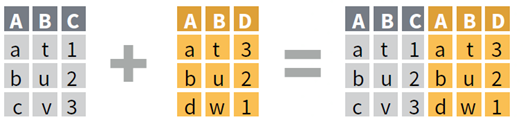
Combination = Join two tables

In MS Excel:

  • One Column = vlookup function
  • Multiple Columns = Power Query (Windows only)

=VLOOKUP(value, table, col_index, [range_lookup])

  • value: Value to look for in the first column of a table
  • table: Table from which to retrieve a value
  • col_index: Column in the table from which to retrieve a value
  • range_lookup: TRUE = approximate vs. FALSE = exact match

Demonstration

️ Your Turn!

On the module Loop page, got to “Lecture Data” and download the document called “organisation_alpha.xls”

  1. Extension: Create a new variable/column which is the average response to all the questions from the survey for each employee (q1 to q9)
  2. Reduction: Filter employee’s 2019 salary to keep only employees with a salary higher than 30k
  3. Aggregation: Calculate the average salary by gender and by location
  4. Combination: Using the VLOOKUP function, add to the table a column corresponding to the 2017 salary located in the 2nd sheet
15:00

Extra Analytic Tips

Tidy Data

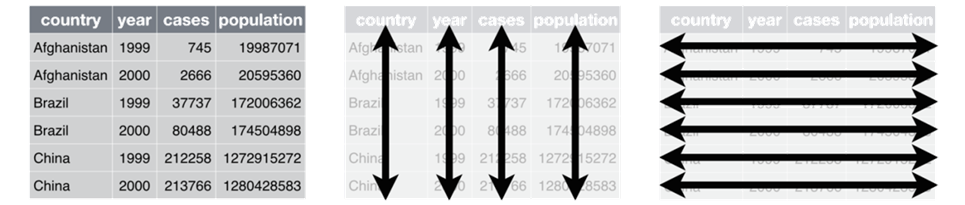
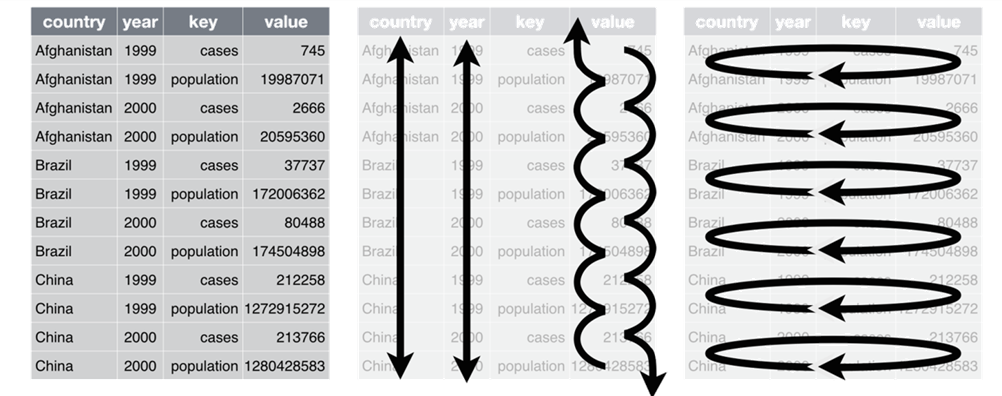
  • Each variable has its own column
  • Each observation is placed in its own row
  • Each value is placed in its own cell

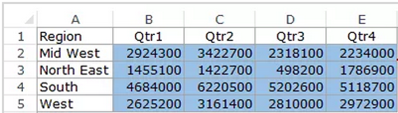
Long or Wide?

Long Format

Long or Wide?

Wide Format

Long or Wide?

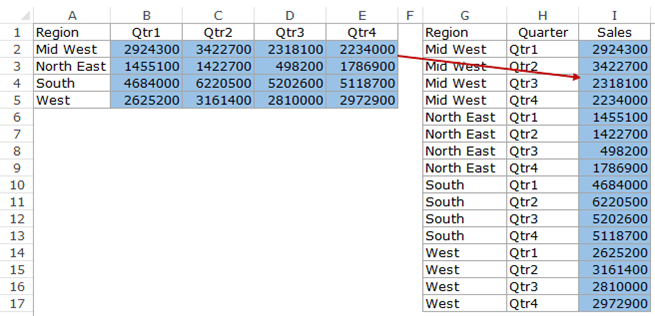
Reshape Table in Excel

In Data tab:

  1. Get Data/New Query> From File > From [Workbook/CSV]
  2. Select your file > Edit
  3. Select columns to be reshaped
  4. Transform
  • Pivot Columns: from long table to wide table
  • Unpivot Columns: from wide to long table

Demonstration

Repeat Action Automatically

In Excel, the Macro button allows to record a sequence of actions and to reproduce these actions:

  • VBA Code automatically recorded
  • Useful to process similar data files

Recording a Macro:

  1. View Tab
  2. Use Macros > Record Macro
  3. Do your actions
  4. Save the macro with a keyboard shortcut
  5. Use the macro again to reproduce your actions

️ Your Turn!

Researchers are measuring how good at chess are LLM Algorithms (ChatGPT, Gemini, …), they want to test the following hypotheses:

H1: The average number of move to win at a chess game is different for at least 1 of the LLM Algorithms

Reshape the datafile “chess_llm.csv” to have 1 predictor variable called “llm_algorithm” and 1 outcome variable called n_moves_to_win”

10:00


Thanks for your attention

and don’t hesitate to ask if you have any questions!