Lecture 5: Advanced Features in Tableau
STA1000 - Data Analytics and Metrics
Space and Time Variables
So far, we were only interested in two variable types:
- Categorical (made of characters), also called Dimensions in Tableau
- Continuous (made of numbers), also called Measures in Tableau
However, we have seen that sometimes…
- A categorical variable needs to be converted to continuous (e.g., an opinion scale)
- A continuous variable needs to be converted to categorical (e.g.,
Survived, coded 0/1, in the Titanic data)
In Tableau, change the type of a variable by drag-and-drop between Dimensions and Measures in the Data pane

Line and Area Charts
Date variables are usually used as the X axis (Columns in Tableau) to display the evolution of another variable over time.
The resolution of the chart can be adjusted by clicking on the + symbol of the date variable: from the year to the quarter, the month, the day …

Line and Area Charts
While the date variable is in one field, drag and drop the other variable in the other field. It uses a statistical aggregation: by default the sum (SUM), but it can be changed to count, median, average …
To add a second line in the same figure:
- Drag and drop the second variable in Rows, next to the first one
- Open the menu of its pill ( right-click / ⌃ Control + click) and select Dual Axis to merge them
- If both variables have the same unit (e.g., euros), open the menu of the right axis and select Synchronise Axis
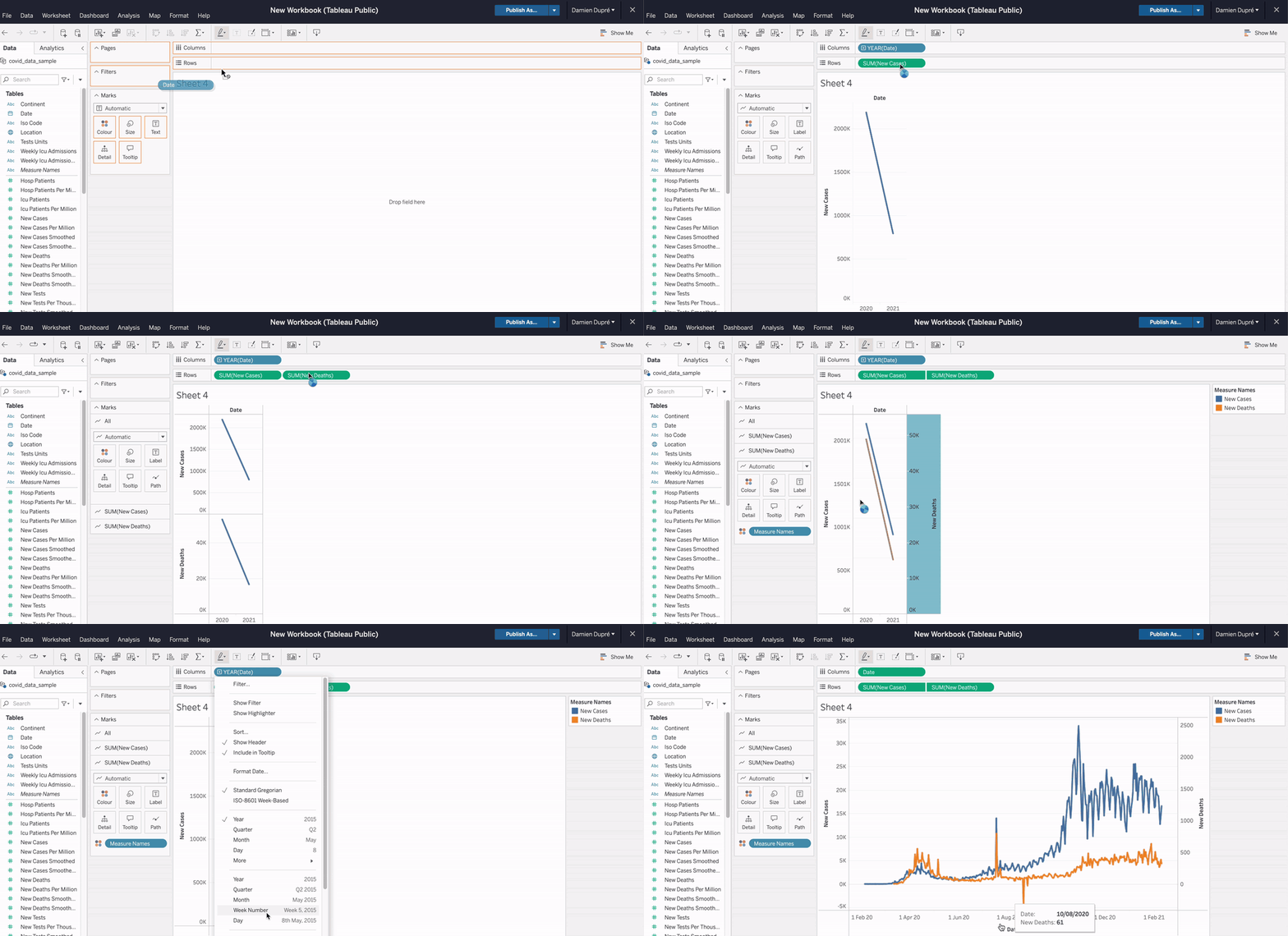
The recordings in this lecture use a Covid-19 sample: the clicks are the same with your own data.
Time as a Dimension or as a Measure
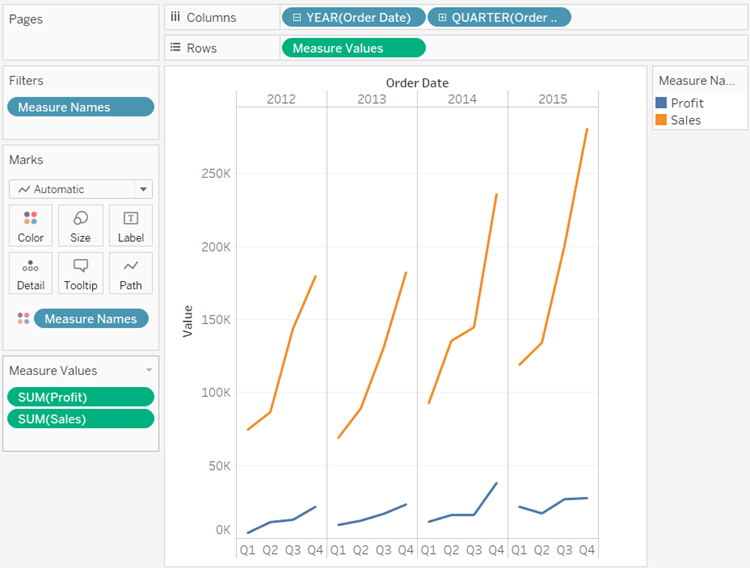
A date can be used as a Dimension (discrete, blue pill) or as a Measure (continuous, green pill). Switch from one to the other in the menu of the date pill: Discrete or Continuous.
As a Dimension: each unit of time (year, quarter, month …) is a category with its own header. The line stops at the end of each year: gaps between the units.
As a Measure: time is a continuous axis, a timeline. The line runs from the first date to the last: no gaps between the units.
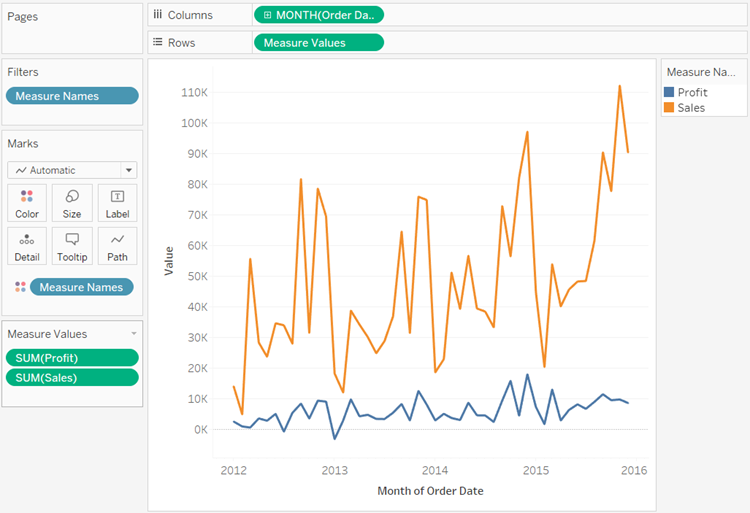
A Dimension compares the same units year by year; a Measure follows the trend over the whole period.
Line and Area Charts
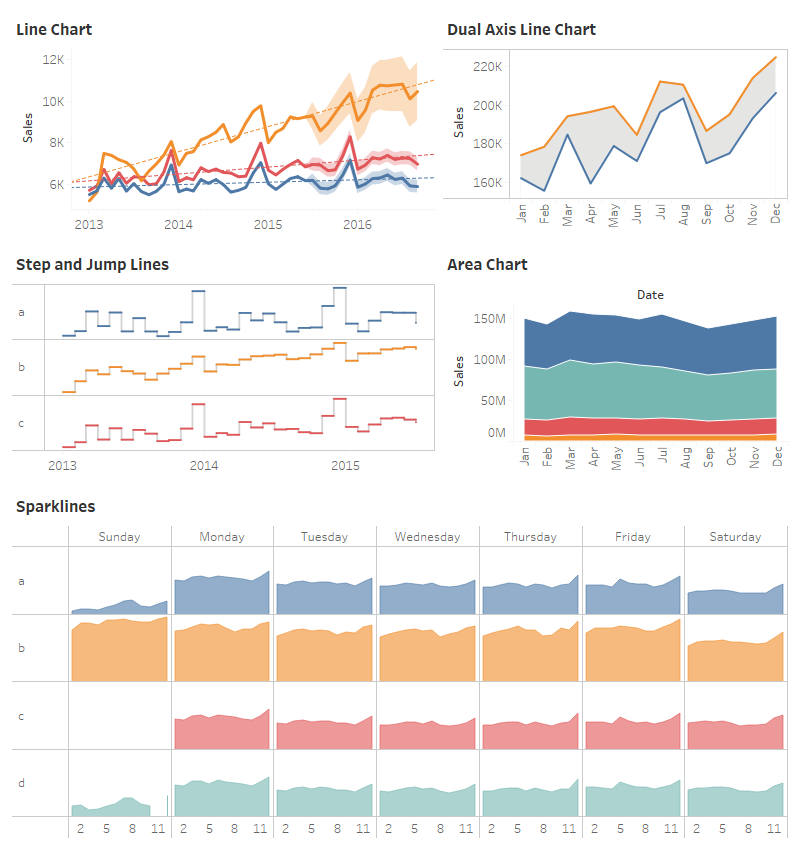
More details about Tableau and time series figures, among other resources found online:
- Building Line Charts by Tableau
- Change Date Levels by Tableau
- Date Functions by Tableau
- Tableau Playbook: Line Chart by Pluralsight
Location Type Variables
A list of geographical locations by:
- Continents (Europe, Asia, Africa, Oceania, North America, South America)
- Countries (Ireland, France, Spain, Germany …)
- States, regions, counties, cities …
By default, a location variable should be properly encoded: a globe icon appears before it. If it is encoded as categorical (made of characters) or continuous (made of numbers), give it a Geographic Role.

Mapping with Tableau
To create a map:
- Drag and drop the location variable in Rows or Columns of the worksheet
- Use Show Me and select one of the map figures (the Longitude and Latitude variables are generated automatically):
- Symbol map: the data are reduced to a point (good for cities)
- Map: the data fill the full shape of the location
- Drag and drop another variable in the Colour box of the Marks card, to display how its values change by location

Mapping with Tableau
More details about Tableau and maps, among other resources found online:
- Get Started Mapping with Tableau by Tableau
- Build a Simple Map by Tableau
- Tableau Maps: How to Create Stunning Maps in Tableau by Vizual Intelligence (video)
- Create a Map in Tableau by Tutorial Gateway
- Create a Map with Multiple Layers in Tableau by Anthony Smoak (video)


A symbol map (left) and a filled map (right)
Variable Alias
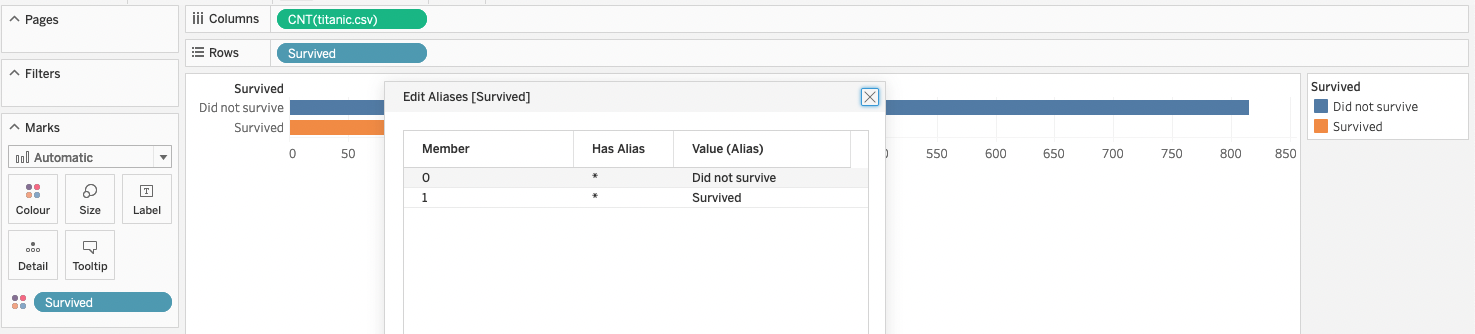
Not an interactive feature, but a simple and useful tip: an alias renames the categories displayed by a variable, while the calculations keep the original values.
How: in the Data pane, open the menu of the variable ( right-click / ⌃ Control + click) → Aliases…, then type the new names.
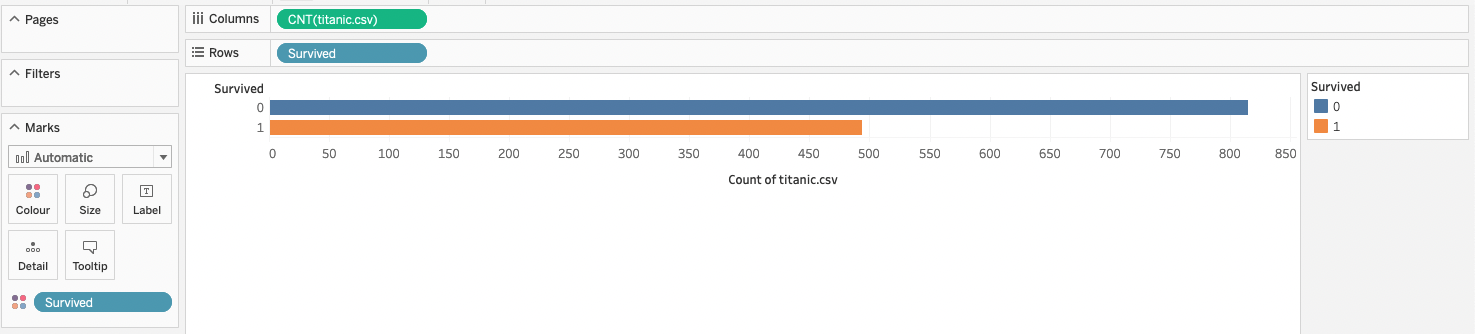
Without aliases: Survived (Titanic data) shows its codes, 0 and 1
With aliases: 0 is displayed as Did not survive, 1 as Survived
Groups
An alias renames one category; a group merges several categories into one: to correct spellings, or to compare families of categories.
How: in the Data pane, open the menu of the variable ( right-click / ⌃ Control + click) → Create → Group…, then:
- Select the categories to merge and click Group
- Rename the group
- Tick Include ‘Other’ to merge all the remaining categories
Shortcut: select marks in the figure, then click the paperclip icon of their tooltip.


Loomrow: campaign mixes three launches (SS25_Launch, AW25_Preorder, SS26_Launch) and three sales (Summer_Sale_25, Black_Friday_25, Deadstock_Drop_26), two groups to compare.
Marks Card
Tableau designs the default figure automatically, according to what it considers the most relevant. The Marks card changes this design:
- The type of mark: the drop-down at the top (Automatic, Bar, Line, Circle …)
- The design of the marks: Colour, Size, Label, Detail and Tooltip
Each property of the design can be set:
- For all the marks: click it, e.g., one colour for all the bars
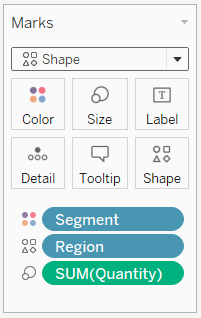
- By the values of a variable, already used or additional: drag the variable onto it, e.g.,
formaton Colour gives one colour per format,reachon Size bigger marks for a bigger reach
Labels and Annotations
Labels write the values on the marks. Click Label in the Marks card, then choose the marks to label: all of them, the minimum and maximum, the line ends, or only the selected or highlighted ones.
Annotations point at an insight. Open the menu of a mark ( right-click / ⌃ Control + click) → Annotate, then choose:
- Mark: attached to a mark, it follows it when the view changes
- Point: attached to a position in the figure
- Area: a box around a group of marks

Tooltip Principle
The tooltip is a series of information (numeric or graphic) displayed in a temporary box when the cursor goes over, or clicks on, an element of a figure. It gives the actual numbers behind the figure, and tells a short story about what is currently seen.
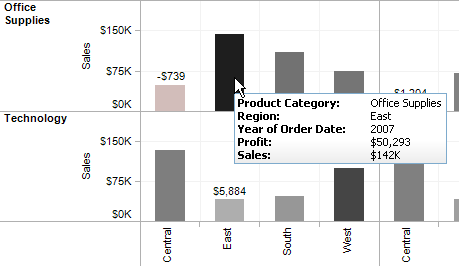
The default tooltip
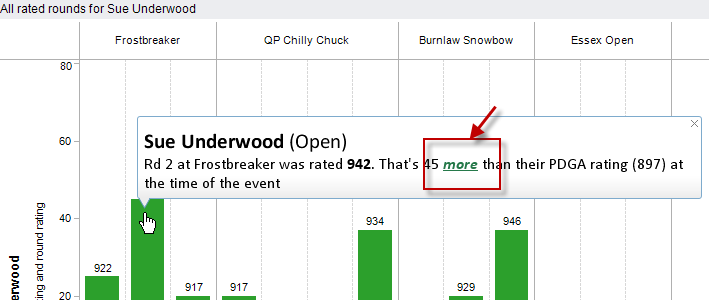
A tooltip with conditional formatting
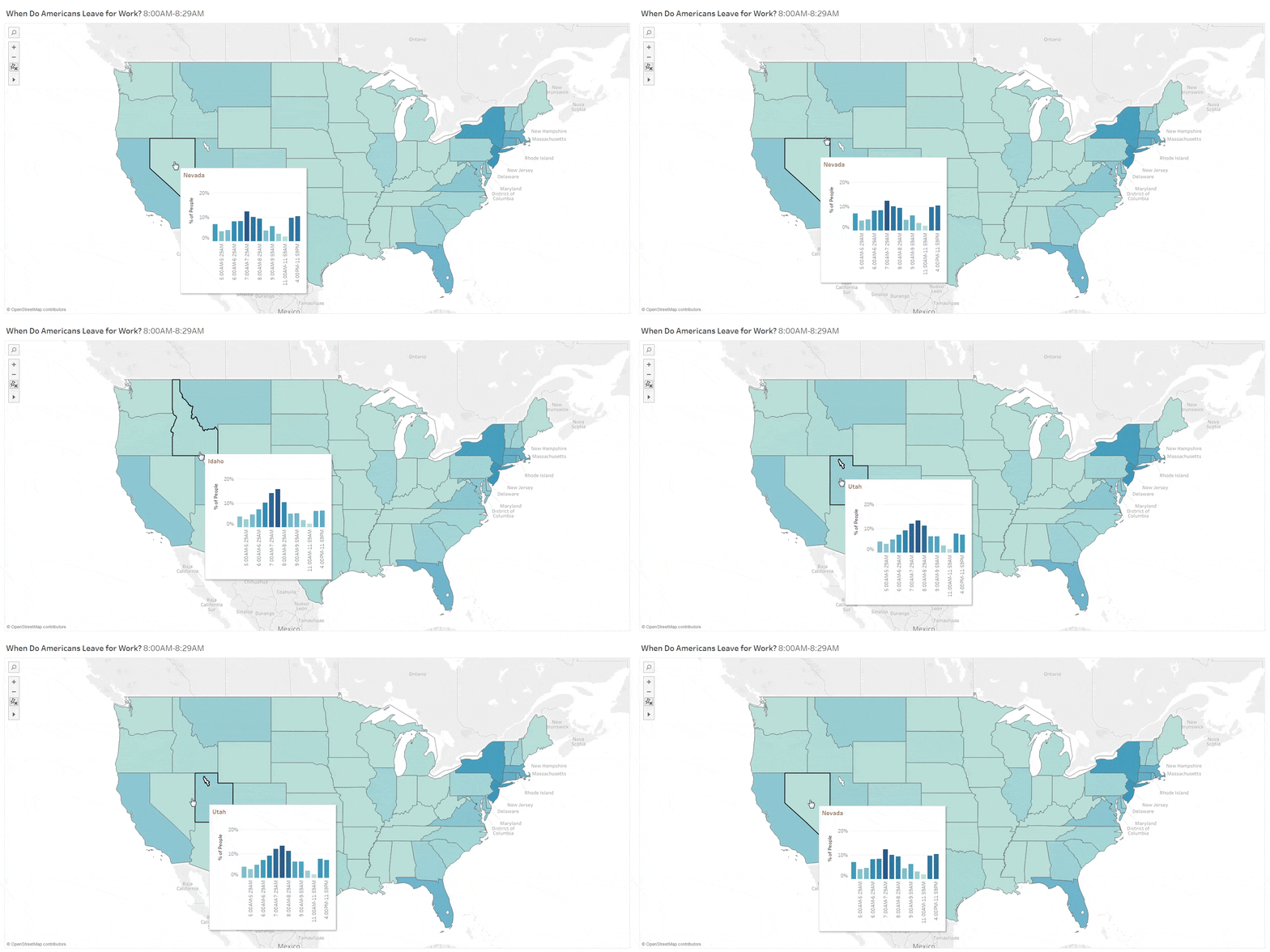
A figure in the tooltip
Tooltip Advanced
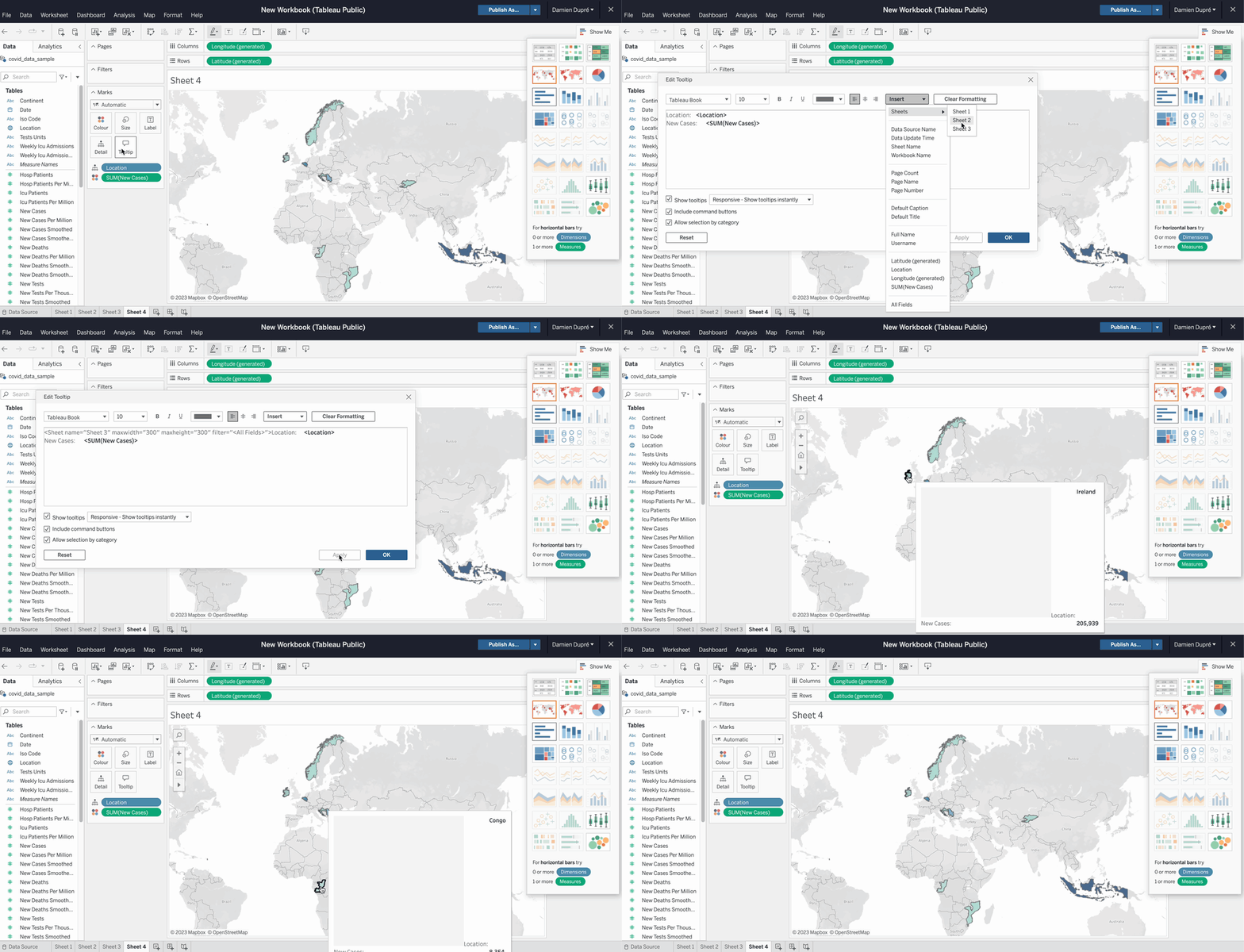
Two ways to put more in a tooltip:
- Another variable: drag it onto Tooltip in the Marks card, e.g.,
post_id, counted with Count (Distinct) - A full figure: when editing the tooltip, click Insert → Sheets → the name of the figure to add (Viz in Tooltip in Tableau Help)
Local Filters
A filter displays only specific data. Drag a variable onto the Filters shelf, then select what to keep: categories for a categorical variable, values for a continuous one.

Types of Filters
The filter dialog depends on the variable:
- A Dimension (categories) has four tabs:
- General: tick the categories to keep
- Wildcard: the names that contain, start or end with a text
- Condition: the categories whose measure meets a rule, e.g., a
SUM([Reach])of at least 10,000 - Top: the top or bottom N, e.g., the 10 posts with the highest
SUM([Reach])
- A Measure keeps a range of values: at least, at most, or between two values
- A Date keeps a range of dates, relative dates (e.g., the last 3 months), or date parts (e.g., the years 2025 and 2026)

Local Filter Menu
A filter menu (a filter card in Tableau Help) lets the readers make their own selection.
Add it:
- Click Analysis in the top toolbar → Filters → the variable the readers choose from
- Customise the menu from its drop-down arrow
Note: the same result comes from the Filters shelf: open the menu of the variable → Show Filter.
Choose its style:
- Single value: a list, a drop-down or a slider
- Multiple values: a list or a drop-down
- Range: a slider, for measures and dates
Tick Only Relevant Values to hide the values that the other filters exclude.

One Filter, Several Sheets
By default, a filter only changes its own sheet. On a dashboard, the readers expect one filter menu to change all the figures.
On the Filters shelf, open the menu of the variable → Apply to Worksheets:
- All Using Related Data Sources: every sheet using
insta-data.csvorads-by-country.csv, related onpost_id - All Using This Data Source: every sheet using the same data source
- Selected Worksheets…: the sheets you tick
- Only This Worksheet: the default
A filter shared by several sheets gets an icon on the Filters shelf.

Local Highlighter Menu
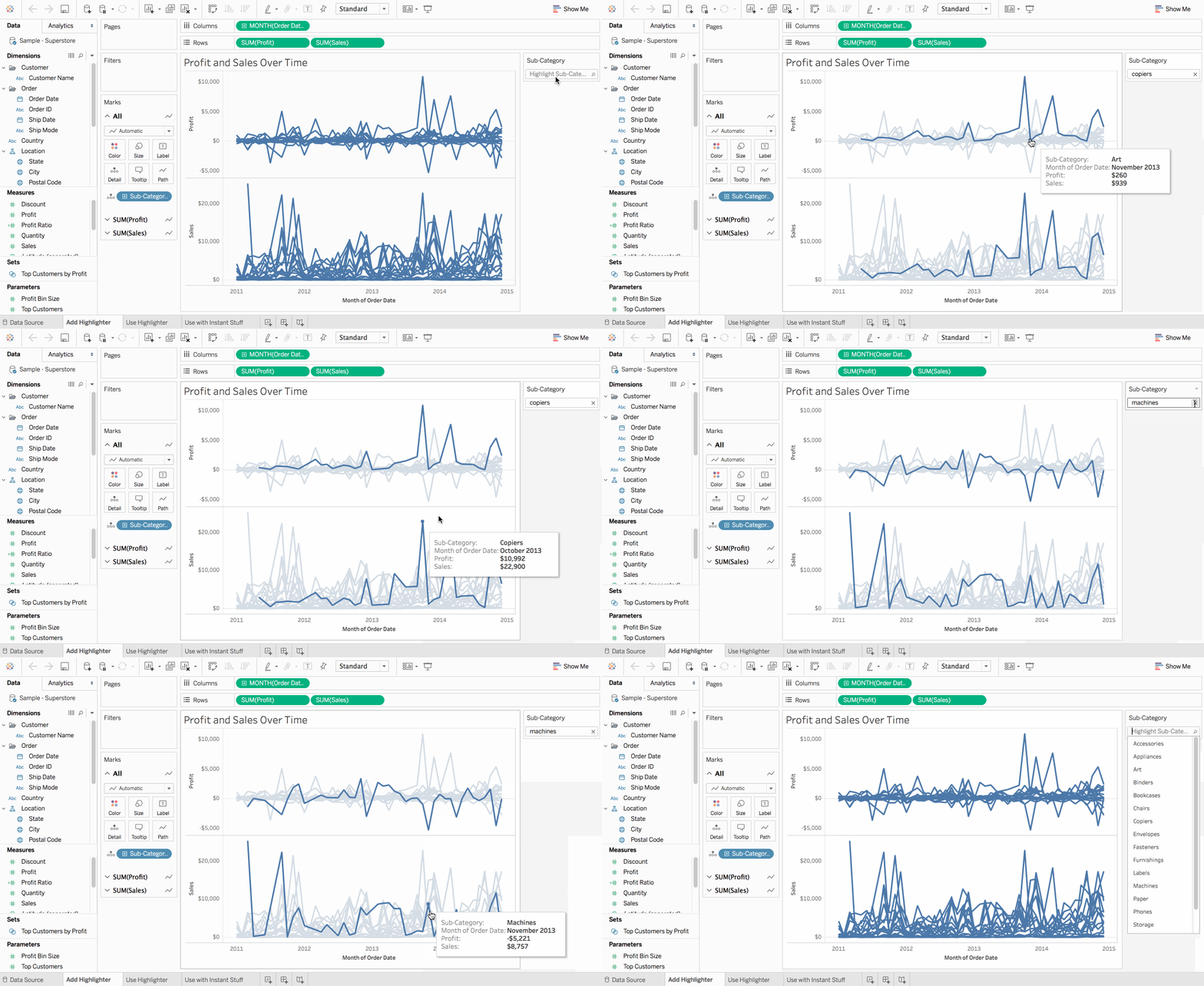
A highlighter menu lets the readers focus the figures on some categories. Unlike a filter, it keeps all the data in the figure: the categories not selected are only dimmed.
Add it:
- Click Analysis in the top toolbar → Highlighters → the variable the readers highlight from
- Customise the menu from its drop-down arrow (fewer options than a filter menu)
On a dashboard, the highlighter menu applies to all the figures that use the highlighted variable.
Time Animation Player
Drag a date variable onto the Pages shelf to play the figure over time:
- A player appears: play forwards or backwards, page by page, at the speed you choose
- Tick Show History to keep the marks of the previous pages as trails

What Is a Dashboard?
For Stephen Few, a dashboard is a visual display of the few things that matter to reach an objective, arranged on one screen and readable at a glance.
Like the dashboard of a car: the few numbers needed to drive, readable in a second, with warning lights when something goes wrong.
Few, S. (2006). Information Dashboard Design: The Effective Visual Communication of Data. O’Reilly.

Tableau Dashboard Showcase
Federica Pinza’s visualisation, DCU winner of the 2024 European Data Visualisation Challenge organised by EDHEC

Tableau Dashboard Showcase
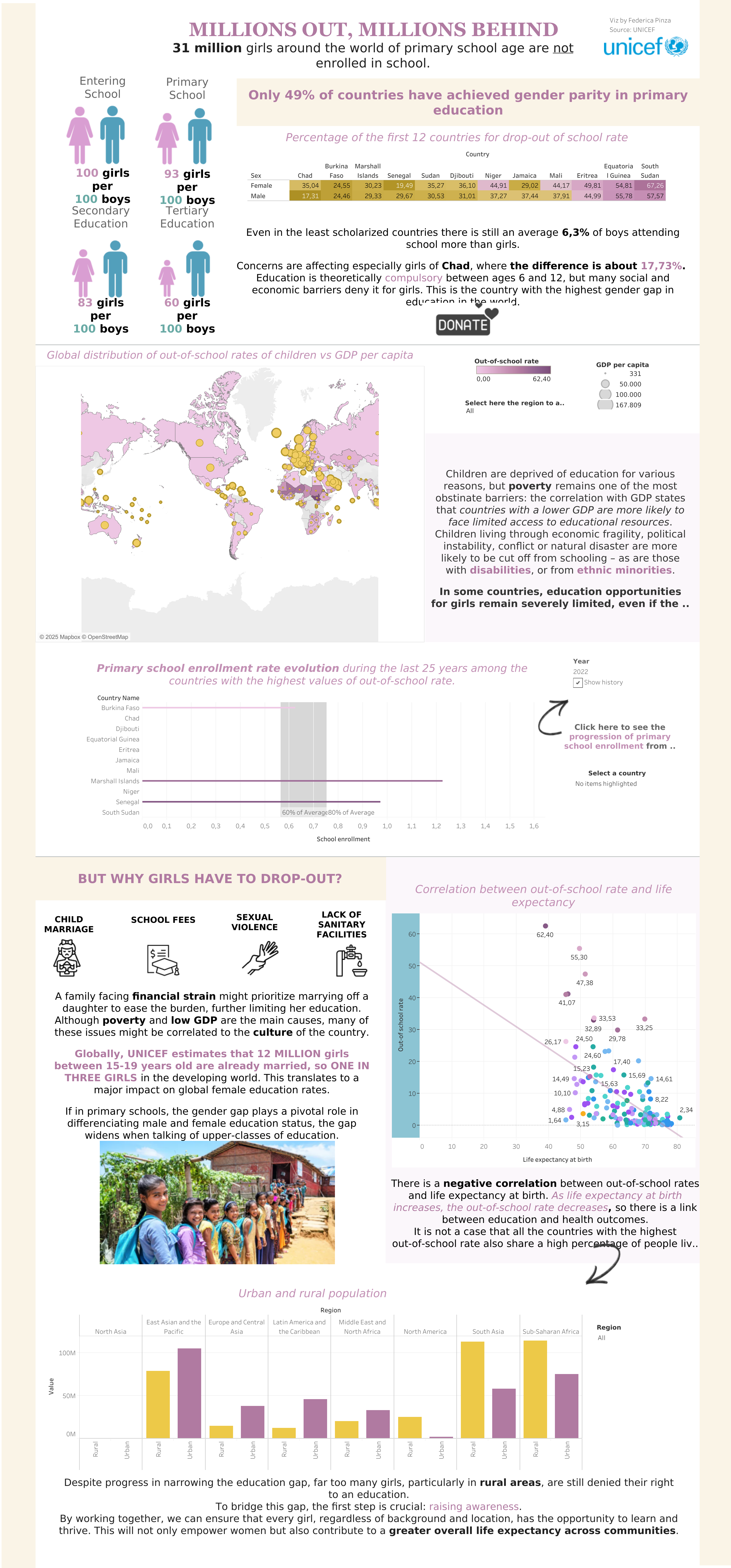
One long page, read from top to bottom:
- a headline and the key numbers
- a map, a trend and a correlation
- the causes, explained with icons and text
- a conclusion with a call to action
Nice Interactions and Design

Key numbers in colour inside the text, and a Donate button
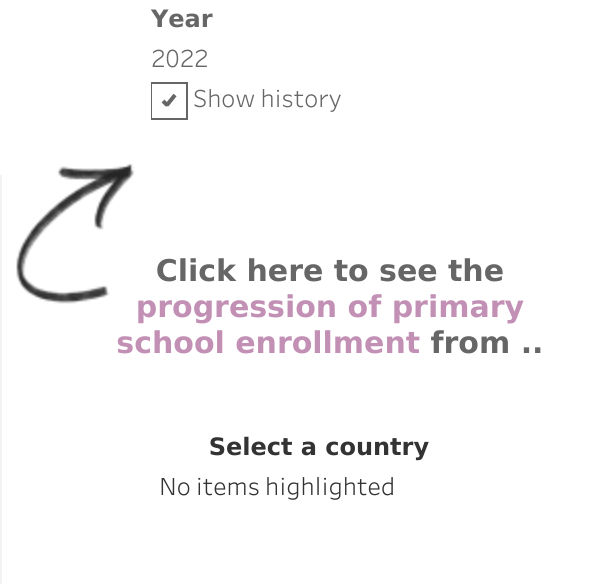
A year player with Show history, and a highlighter to select a country
Meaningful Visualisations
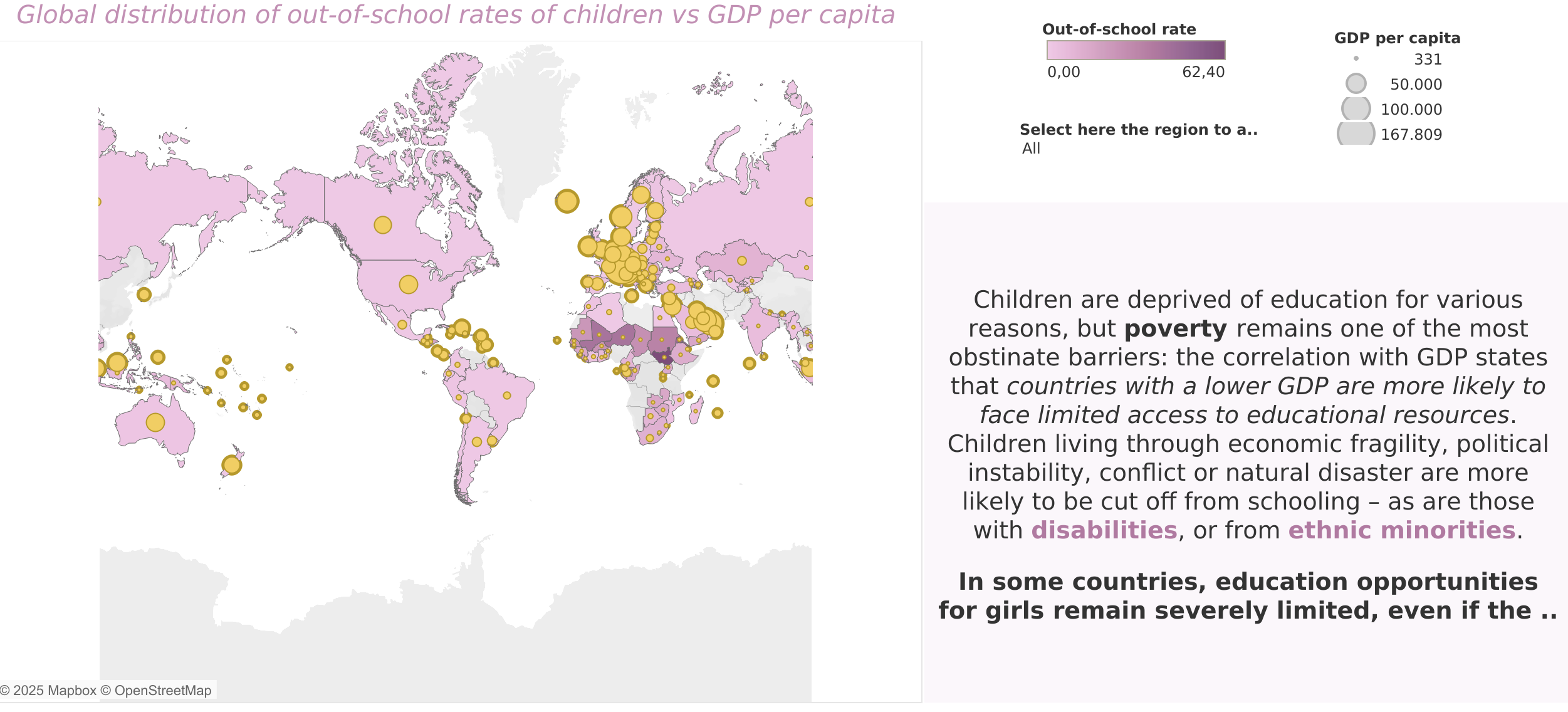
Two measures on one map, the out-of-school rate (colour) and GDP per capita (circles), with a text to read it
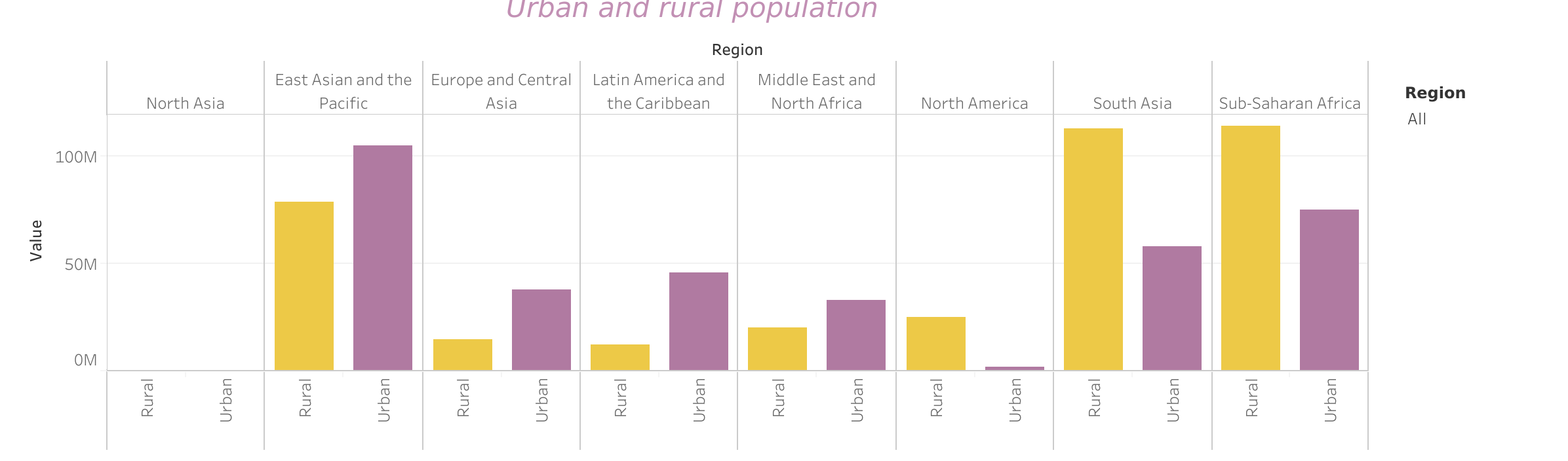
Rural against urban population by region, in the two colours of the dashboard
Insightful Storytelling

The causes: one icon each, short texts, and the key numbers in bold and colour

The conclusion: a summary, and a call to action, raising awareness
Example Not to Follow!
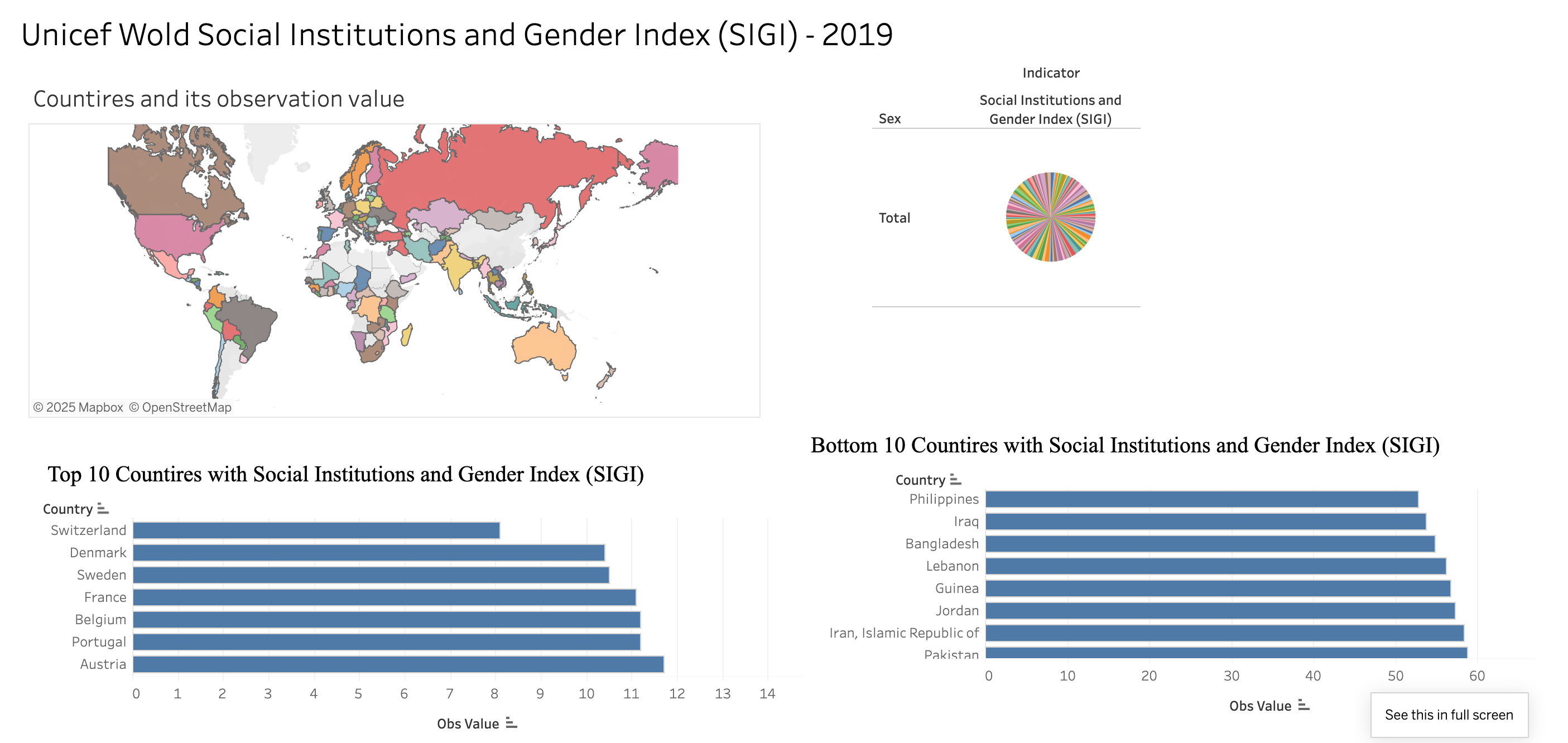
- Titles: typos, “Wold” and “Countires”
- Colours: one colour per country on the map, and a pie with one slice per country: the colours carry no information
- Axes and fonts: raw field names as axis titles (“Obs Value”), two bar charts on different scales, and two different fonts
- Story: no text to say what the index measures, or what to conclude
Before Building: Purpose and Audience
Tableau’s best practices for dashboard design:

Know your audience
Consider display size
Plan for fast load times
Leverage the sweet spot
Limit views and colours
The first one comes before the first sheet. Answer four questions:
- Who will read it, and what do they already know?
- What question does it answer, and what decision will it support?
- Where will it be read: on a laptop, a phone, a projector?
- Explore or explain? An exploratory dashboard lets readers search the data; an explanatory one tells them one story. Your assignment is explanatory: it ends with a recommendation.
The 5-second test: after looking at it for 5 seconds, a reader should be able to say what it is about.
Dashboard Types
Dashboards come in genres: curated ones tell one story (e.g., magazine, infographic), data collections let the readers explore (e.g., analytical, repository). Your assignment is a curated dashboard.

Key Elements
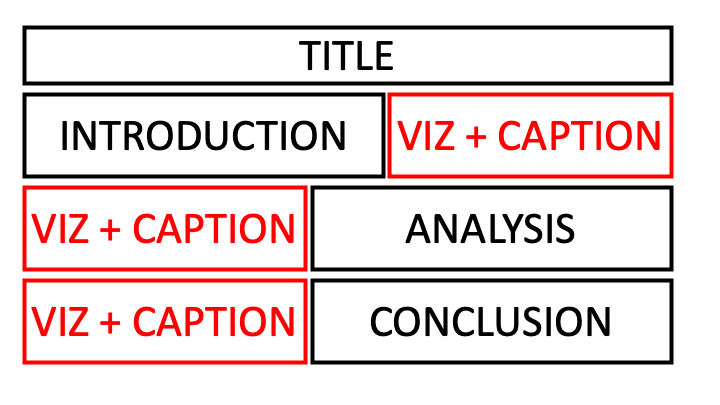
Every dashboard should include these key elements to fill its screenspace:
- A title
- A written story, with an introduction, an analysis and a conclusion
- Multiple visualisations
Optional elements can be added, such as images, buttons or menus.
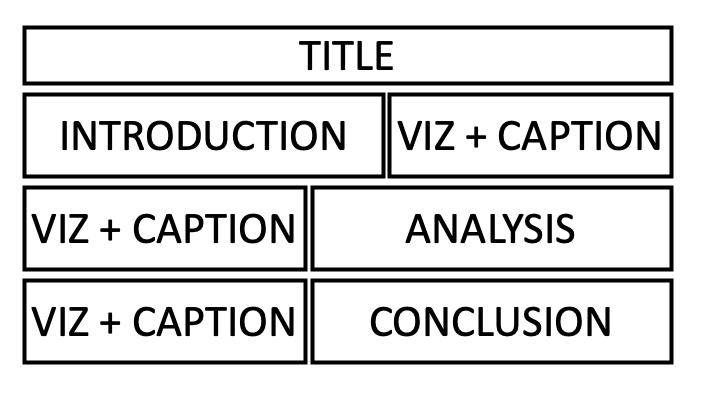
Example of a dashboard structure, for illustration only: not necessarily to follow.
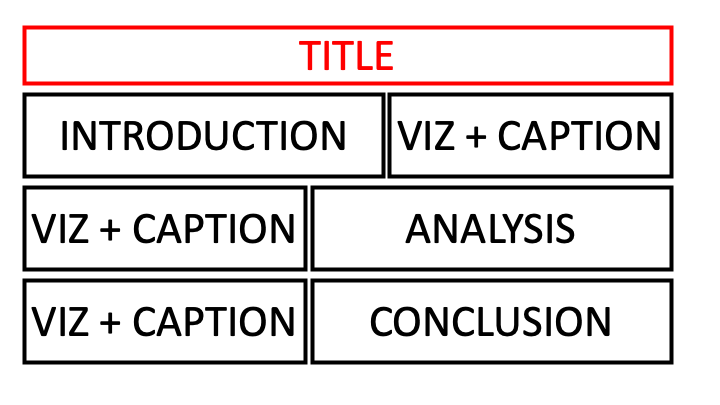
Key Elements: Title
A good title, as in these real dashboards:
- Pinpoints the problem: “Healthcare Crisis in Rural America”
- Makes a statement or asks a question: “#CollegeGameday: Can My Family Out-Pick the Pundits?”
- Is catchy: “NBA Lords of the Rings”
Key Elements: Story
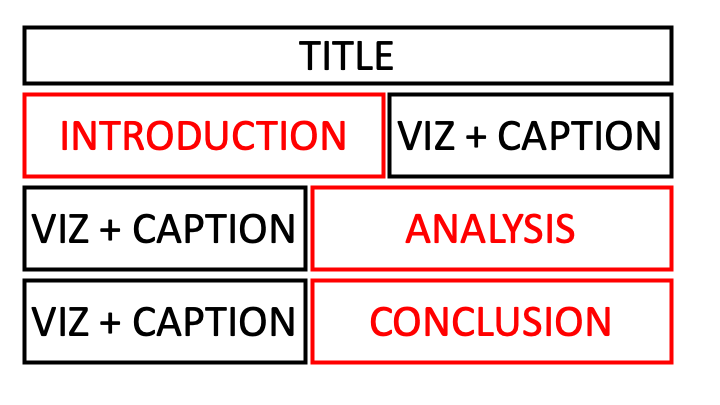
The story, the narrative conveying the information, has three parts:
- Introduction: presents the context of the issue investigated
- Analysis: extracts the relevant information from each visualisation, each piece linked to the others (temporal, geographical, logical …)
- Conclusion: summarises the information and provides recommendations to the reader
Key Elements: Visualisations
- Place your visualisations in a relevant order
- Make sure they are customised
- Add a caption
- Add global interactive features
Layout: the Sweet Spot
Readers scan a screen from the top left, then across and down: put the most important view (or the KPIs) in that corner, and the details below or to the right.
- Few views: Tableau suggests two or three main ones
- Align the views on a grid, with white space between the groups
- Place each legend and filter next to the view it controls
- Keep the same colour for the same category on every sheet
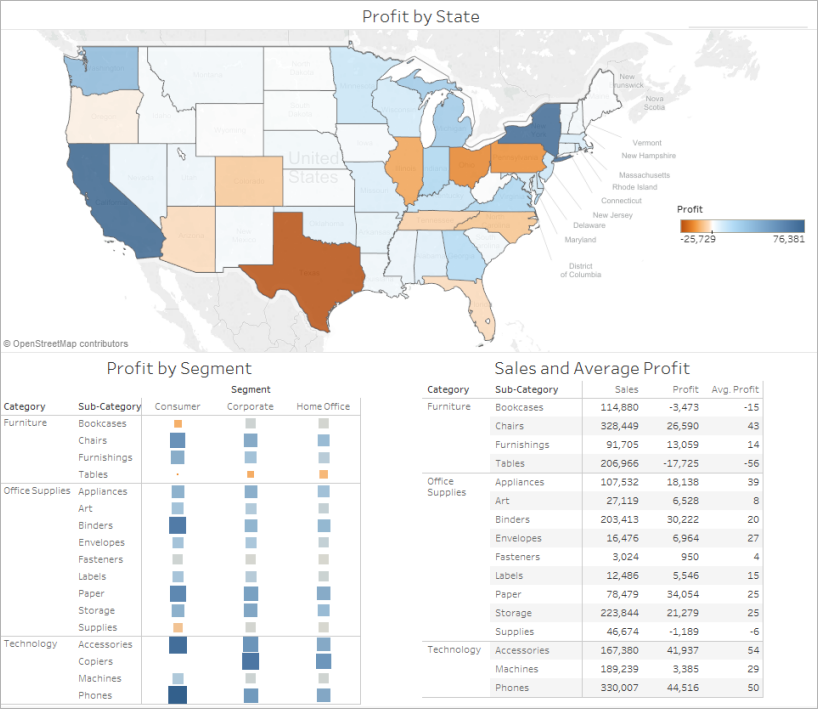
Tableau Dashboard
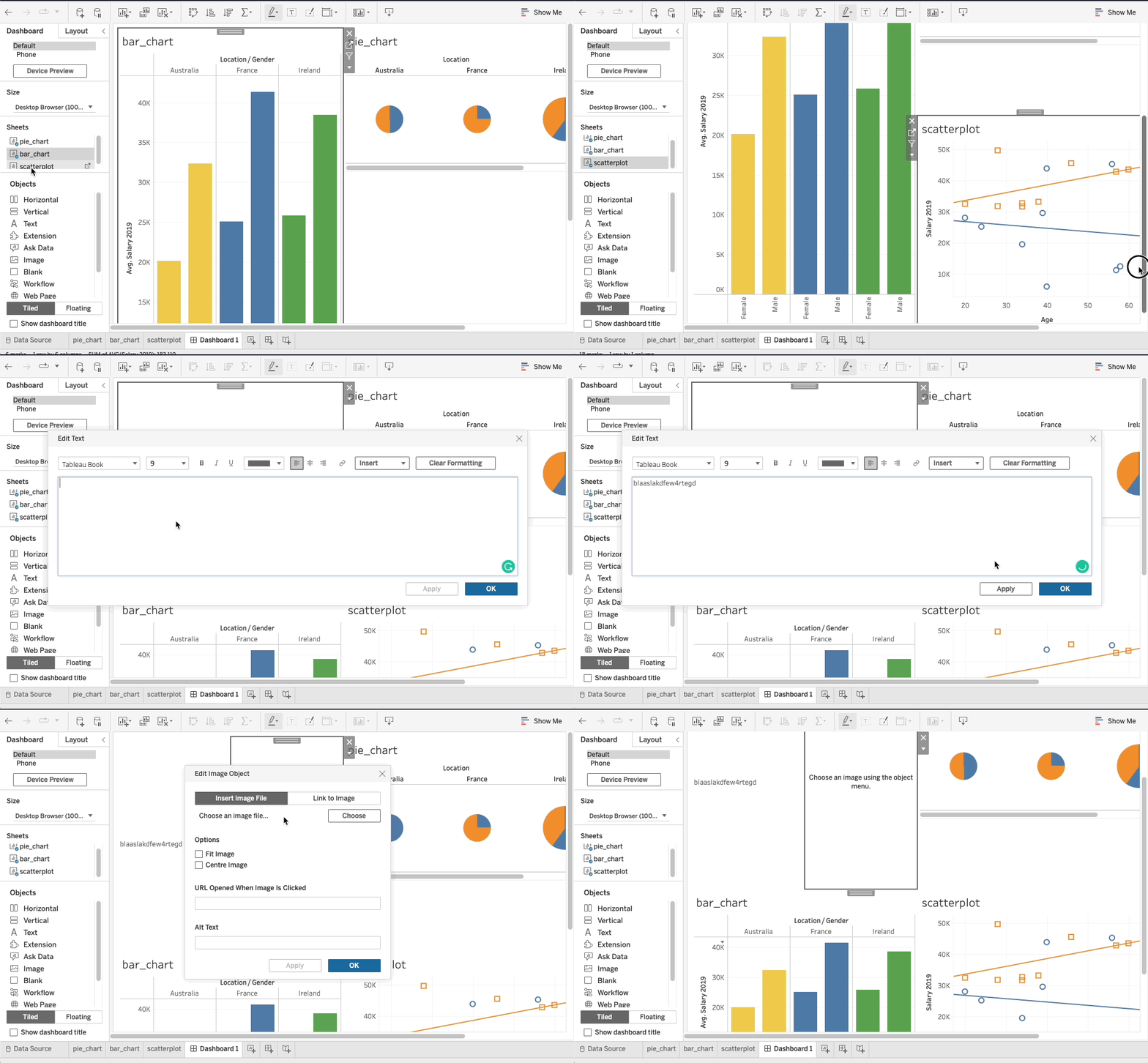
Click the New Dashboard icon at the bottom of the window, then drag the sheets from the left panel onto the page. Tiled keeps them in a tidy grid; Floating lets an object sit on top of the others.
Dashboard Size
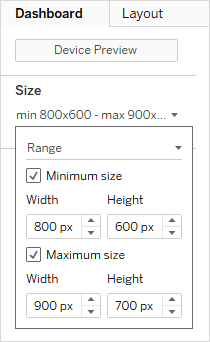
Set the size before placing anything, in the Size menu of the Dashboard pane:
- Fixed size (the default): the same on every screen, with scroll bars if the window is smaller. The safest choice for your assignment, e.g., 1200 × 800 px
- Range: between a minimum and a maximum size
- Automatic: fills the window, but the views can be squashed on a small screen
Device Preview shows the dashboard on a desktop, a tablet or a phone, and creates a layout for each device.
Layout Containers
A container groups objects that resize together: a Horizontal container shares its width between them (e.g., a row of KPIs), a Vertical one its height (e.g., a column of filters).

Horizontal: side by side

Vertical: one above the other
- Drag a container from Objects, then drop the sheets inside it; Distribute Evenly gives them the same size
- Tiled objects share the space without overlapping; a Floating object sits on top, at a fixed position (hold Shift / ⇧ Shift while dragging it)
- The Layout pane lists every object (the item hierarchy) and sets its position, size, background, border and padding
Dashboard Objects
The Objects of the Dashboard pane add everything that is not a sheet:
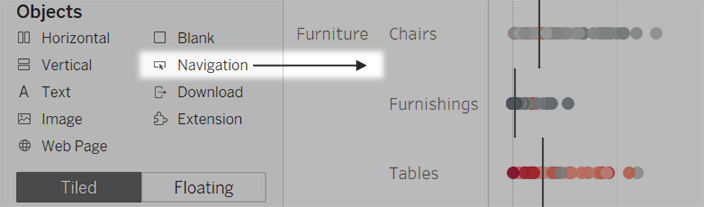
- Text: the title, the story, the sources
- Image: a logo, an icon, a photo
- Web Page: a web page shown inside the dashboard
- Blank: space between objects
- Navigation: a button to another dashboard or sheet
- Download: a button to export the dashboard as a PDF, a PowerPoint or an image
- Extension: a feature added by a third party
Any object or container can get a Show/Hide button, e.g., to hide a panel of filters.
Basic Actions
Filters and highlighters are set up in each sheet; actions are set up in the dashboard, and make all its figures react together.

Click Dashboard in the top toolbar → Actions → Add Action, then choose:
- How to trigger the action: when the cursor goes over a figure (Hover), when it clicks on a figure (Select), or from an added menu (Menu)
- Which figure it comes from
- Which figures it changes
Start with Filter and Highlight actions: they behave like filters and highlighters, but for the full dashboard. The other actions take more set-up, but they are essential to add buttons, for instance.
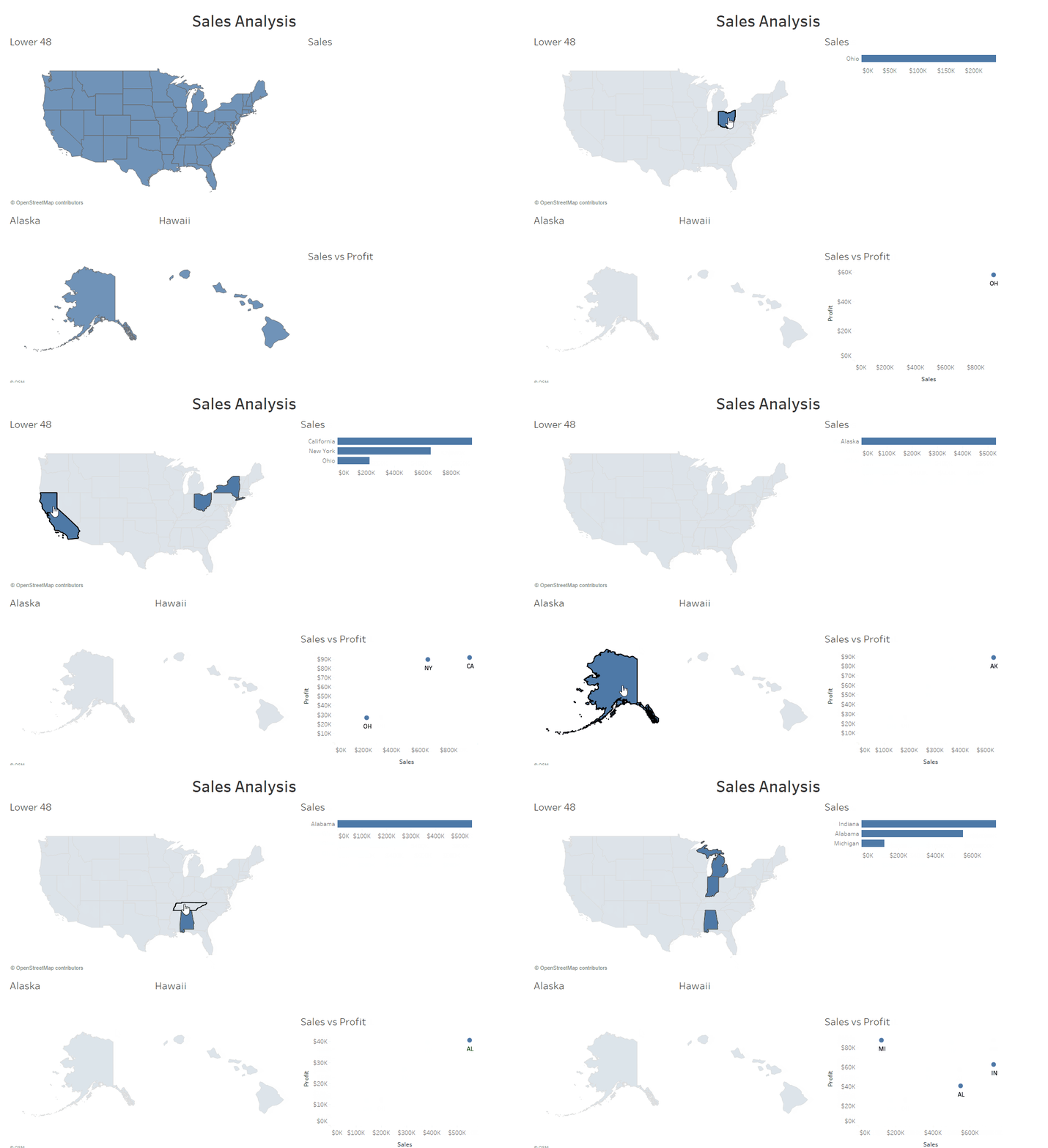
Global Filter and Highlight Actions
With the default settings, an action changes all the figures of the dashboard when the reader hovers over a figure, clicks on it, or selects a value from a menu.
Highlight actions are the easiest way to make a dashboard smart: with Hover as the trigger, the figures react together as the cursor moves.
Filter actions are useful too, but confusing with Hover or Select as the trigger, as the figures keep changing: trigger them from a Menu instead.
Use as Filter, and Other Actions
The quickest filter action: select a sheet on the dashboard and click its Use as Filter icon (a funnel). A click on one of its marks then filters all the other sheets.
The other actions of the Actions dialog:
- Go to URL: opens a web page, e.g., the post on Instagram
- Go to Sheet: moves to another sheet or dashboard
- Change Parameter and Change Set Values: a click changes a parameter or a set (advanced features)

Publish
Publishing saves the dashboard online, where everyone can open it.
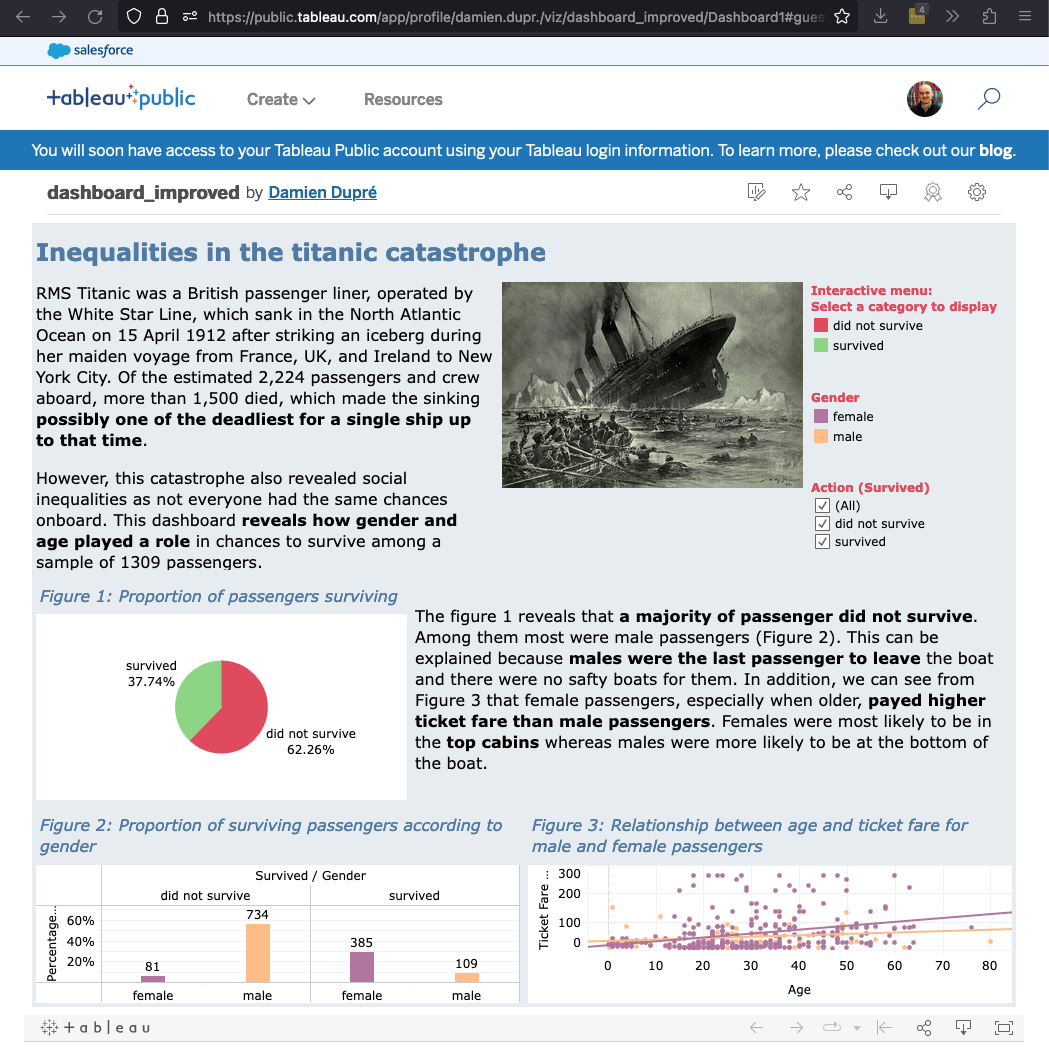
In Tableau Public in the browser, publishing is saving: click Publish As…, top right.
Warning: everything you publish is public, the data included.
For your assignment, publish your dashboard and submit its URL on Loop.
Get Inspired
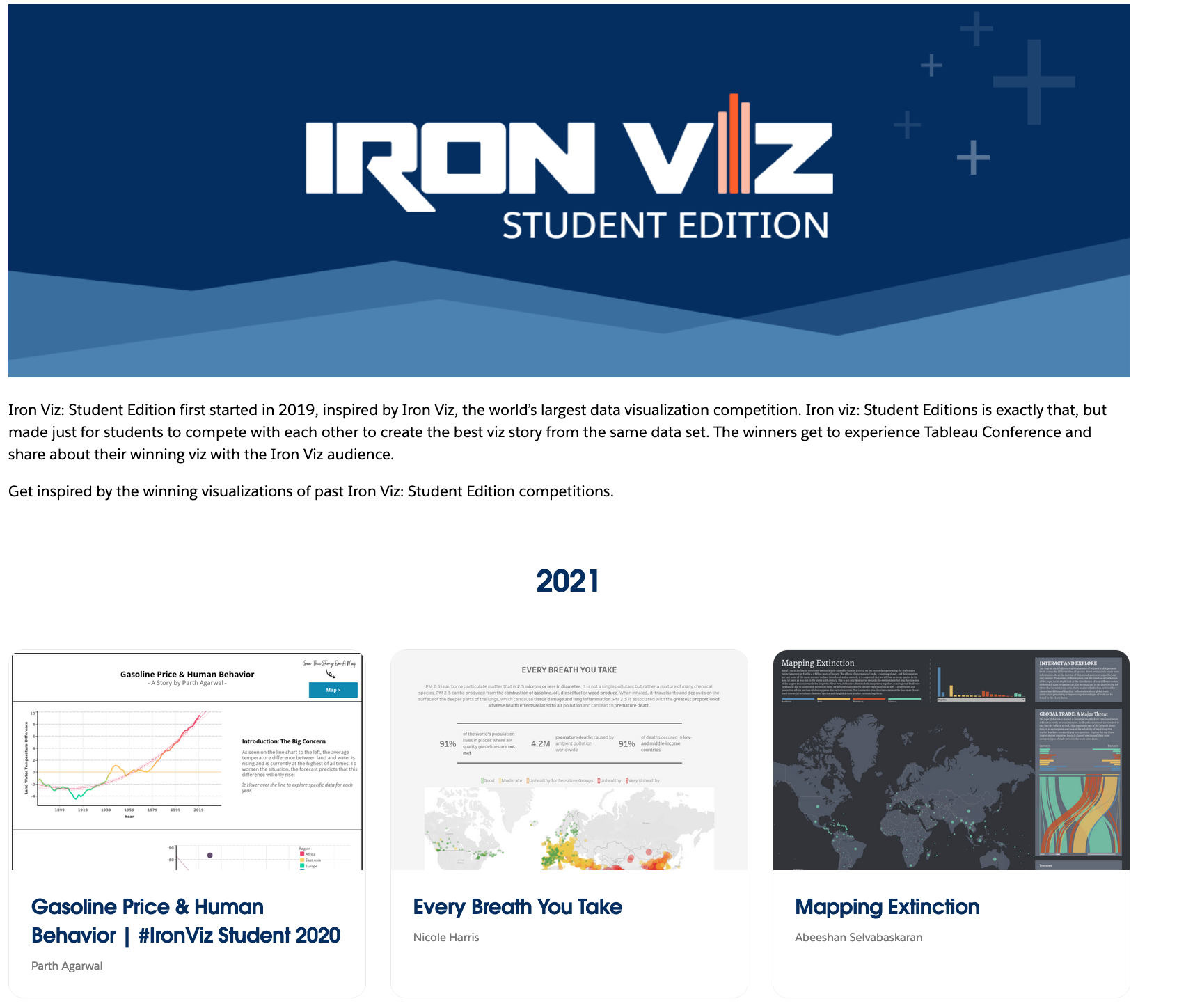
Past challenges are an excellent way to see outstanding dashboards:

Keep Practising
- Viz of the Day: a visualisation featured every weekday on Tableau Public
- #MakeoverMonday: every week, a dataset and a chart to remake
- #WorkoutWednesday: every week, a dashboard to rebuild, with its solution
- Iron Viz: Student Edition: Tableau’s competition for students

Thanks for your attention and don’t hesitate to ask if you have any questions!