Lecture 4: Visualisation Principles and Tableau II
STA1000 - Data Analytics and Metrics
Customise Figures
- Colours
- Size of the dots
- Shapes
- Position (stack or dodge)
- Orientation (vertical or horizontal)
- Text content and font
- Figure legend
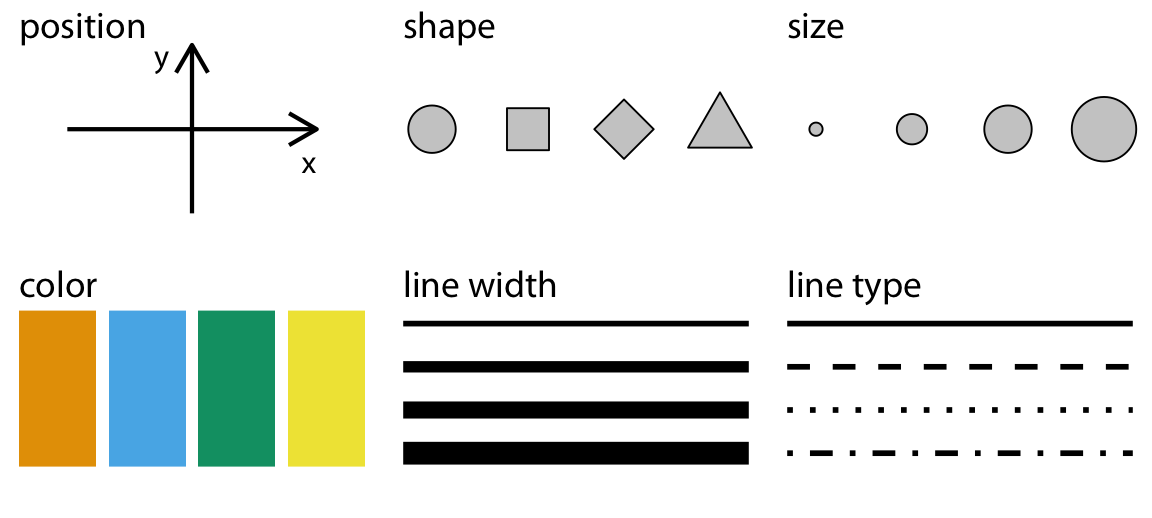
Fundamentals of Data Visualization
Fundamentals of Data Visualization by Claus O. Wilke
Free online at clauswilke.com/dataviz
It sets out the basic principles of data visualisation. The next slides take five of them, each shown as a bad figure next to a better one.
Principle 1: Axes
Don’t cheat with axes: include 0 when 0 is meaningful
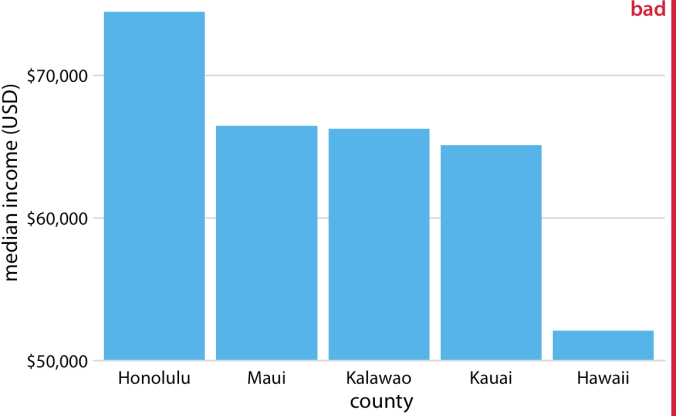
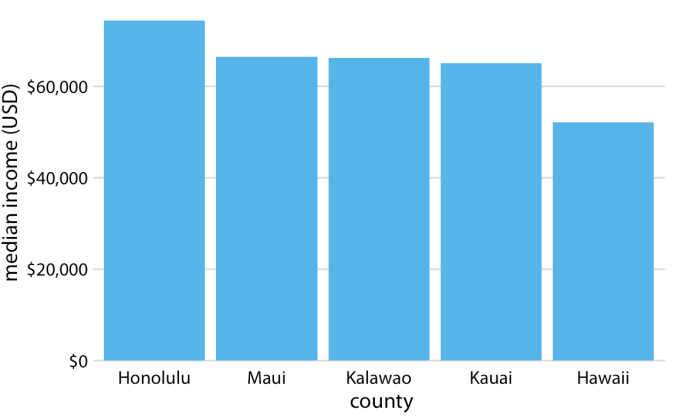
A bar shows its value with its length, so it has to start at zero.
Principle 1: Axes
A shaded area shows its value too: it also starts at 0
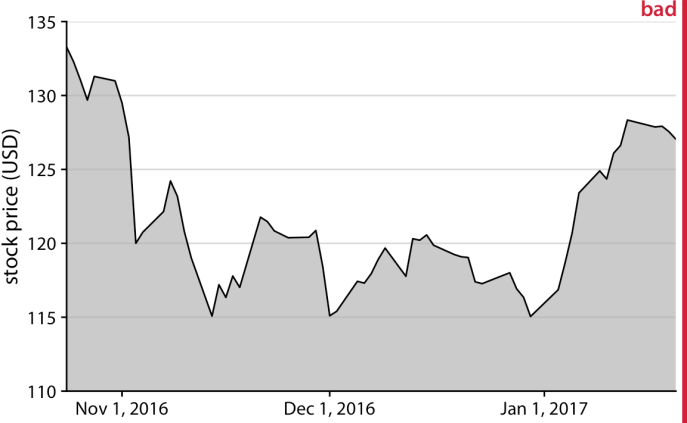
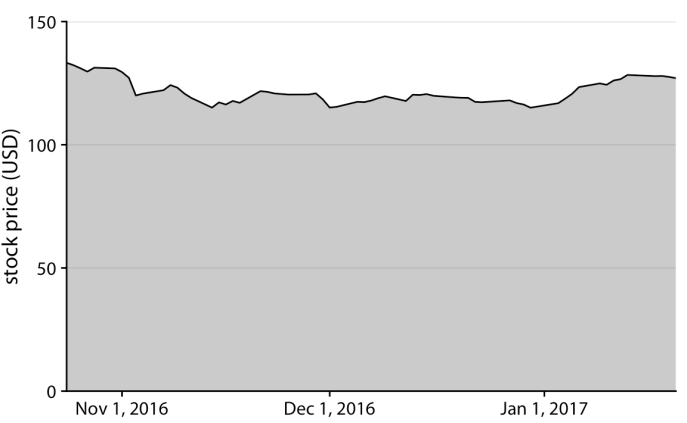
To zoom in on small changes, drop the shading and keep the line.
Principle 1: Axes
Panels you compare must share the same axis
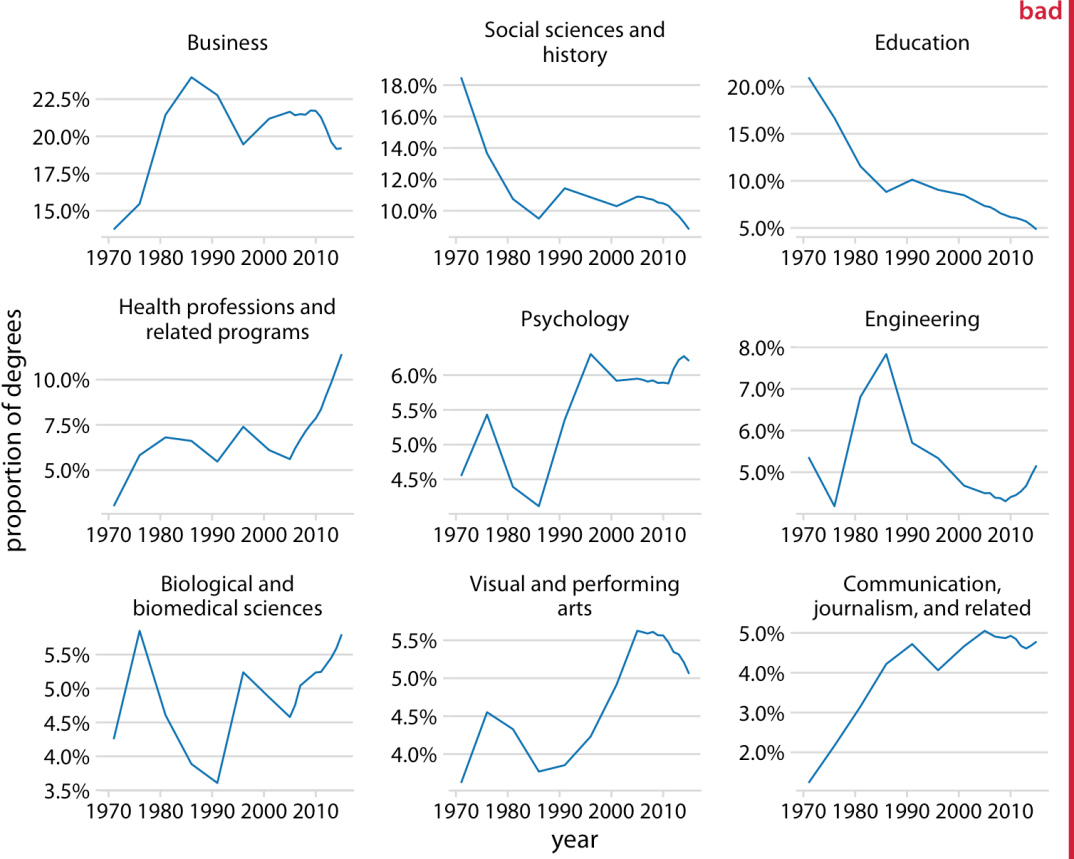
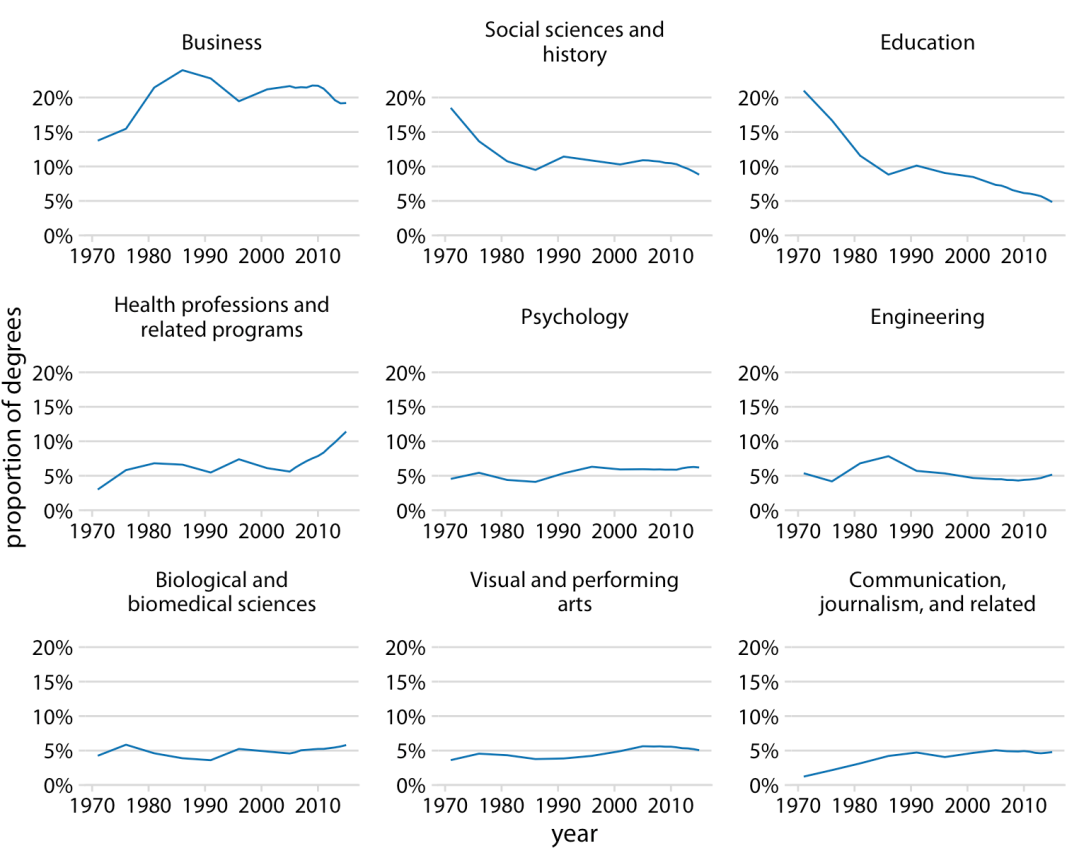
With its own axis in each panel, a 2-point change looks as big as a 10-point one.
Principle 2: Make It Easy
Make your figure easy to read and to understand
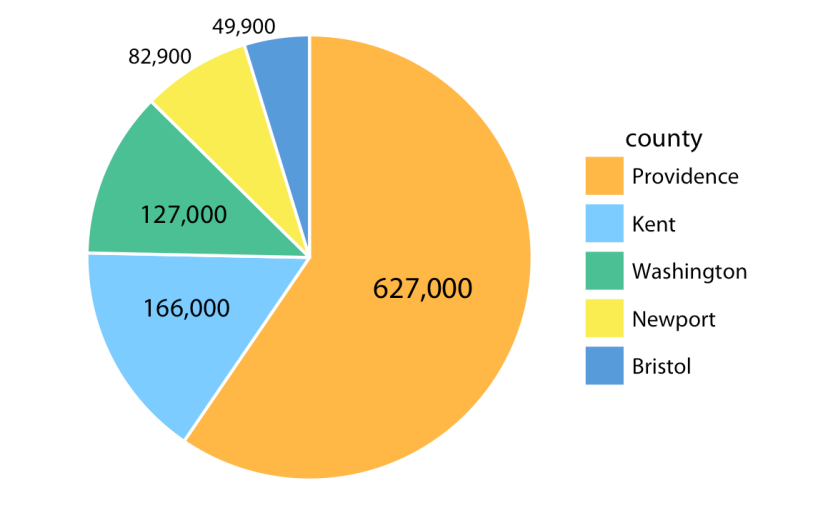
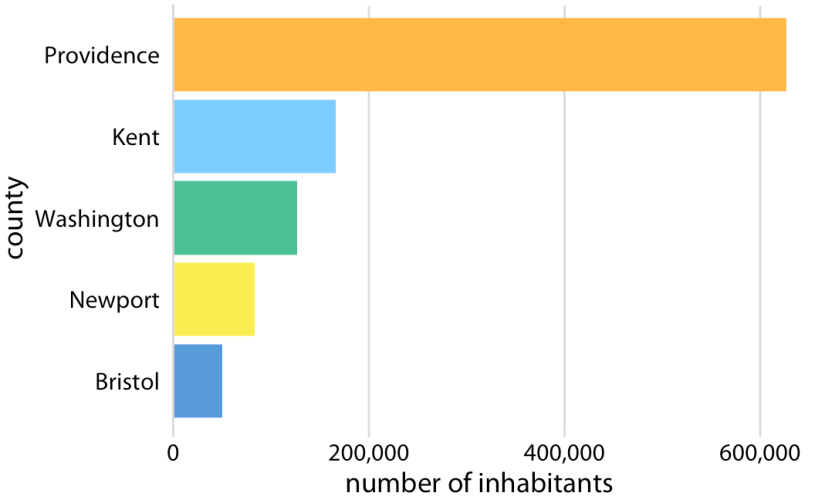
The same five numbers: sorted bars let you compare Kent and Washington at a glance.
Principle 3: Be Fancy
Use extra features when they help, such as transparency and jitter
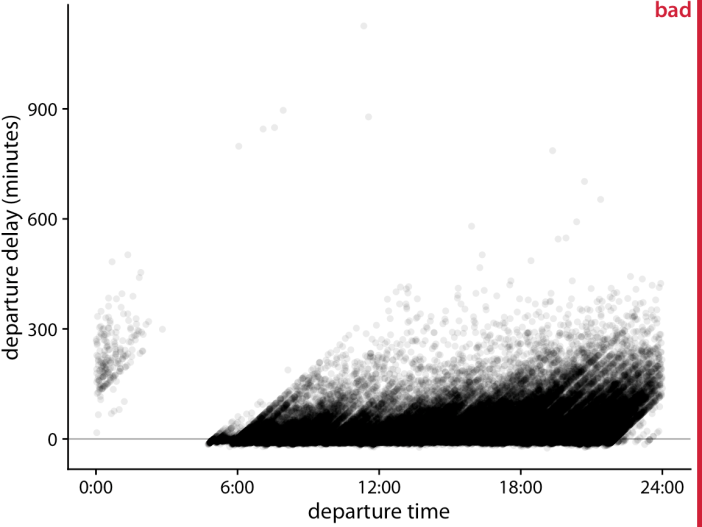
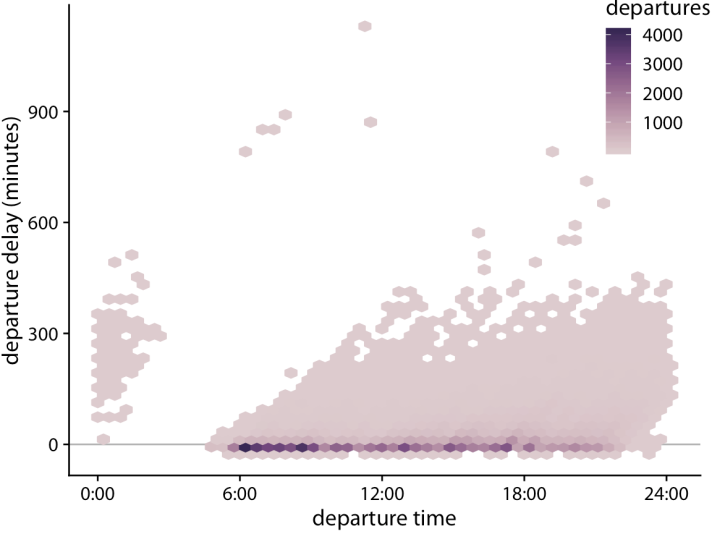
When points pile up, even transparency is not enough: count them in small hexagons instead.
Principle 3: Be Fancy
Use extra features when they help, such as transparency and jitter
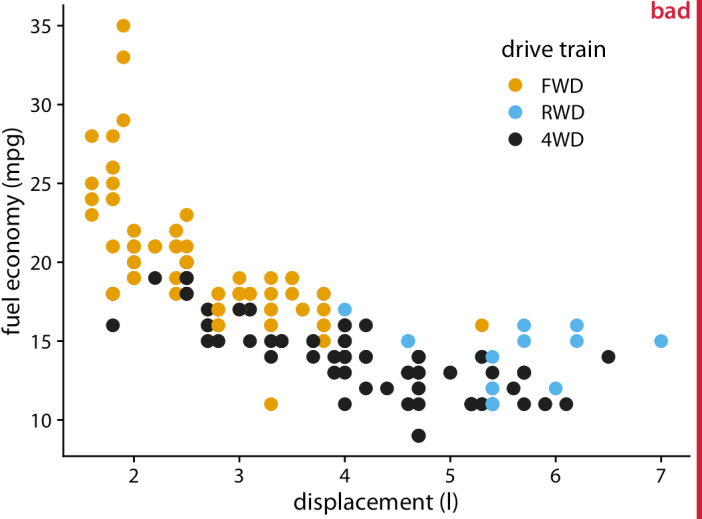
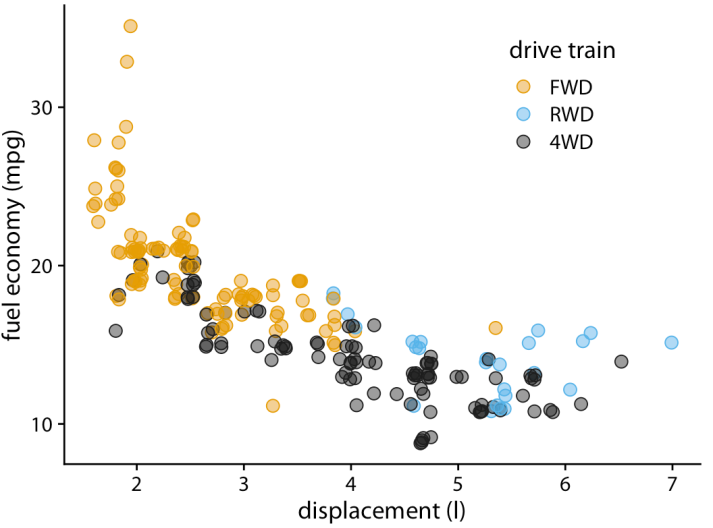
Transparency and a little jitter reveal the points hidden behind each other.
Principle 4: Colours
Use colours, but not too many
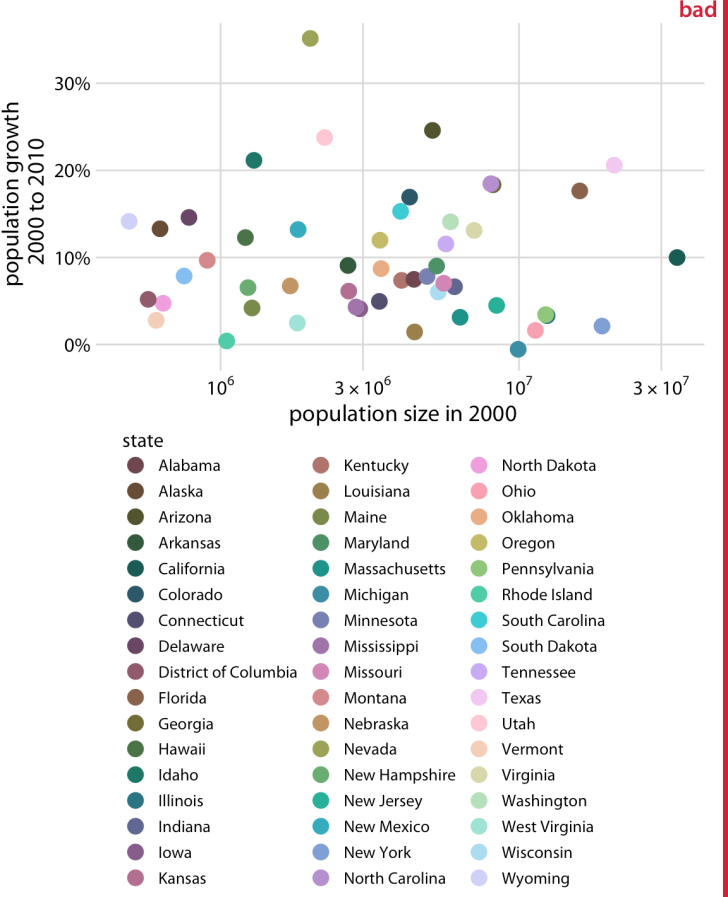
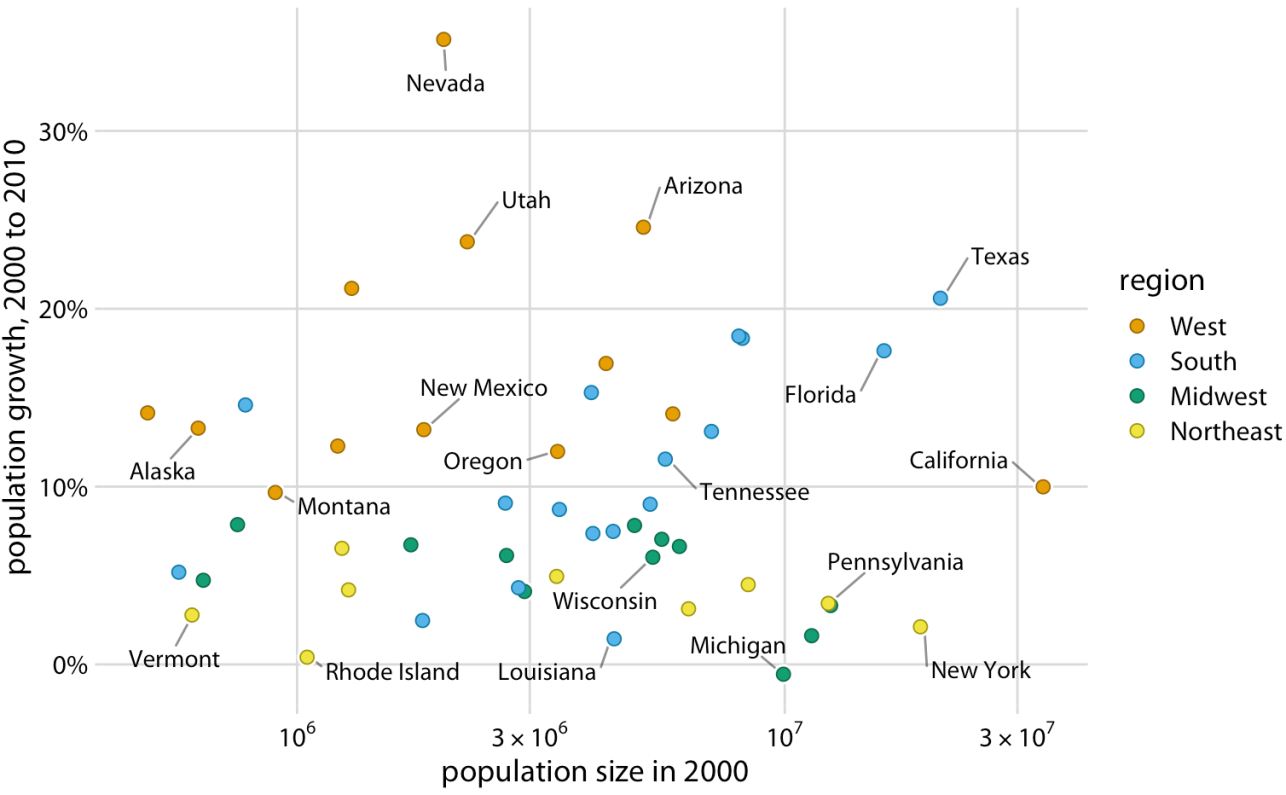
51 colours need a legend nobody can read: group them, and label the points that matter.
Principle 4: Colours
Keep the same colours for the same variables
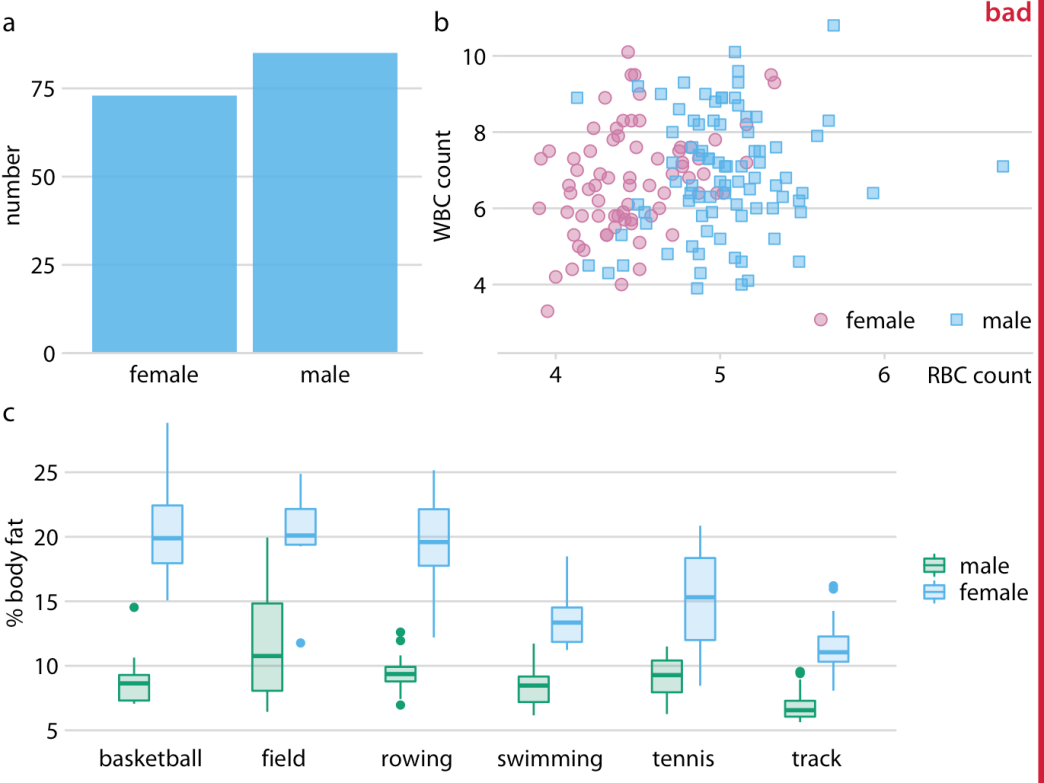
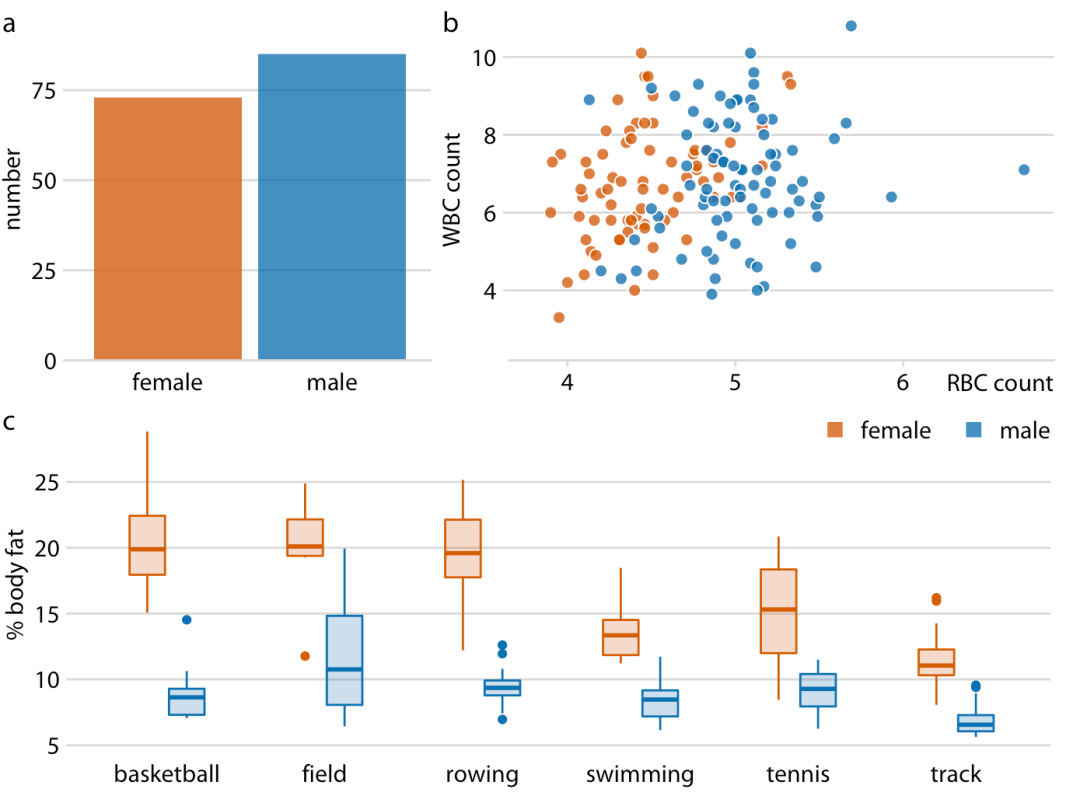
And check the palette for colour-blind readers: about 1 man in 12 cannot tell red from green.
Principle 5: Details
Every detail counts, and lazy work is easily spotted
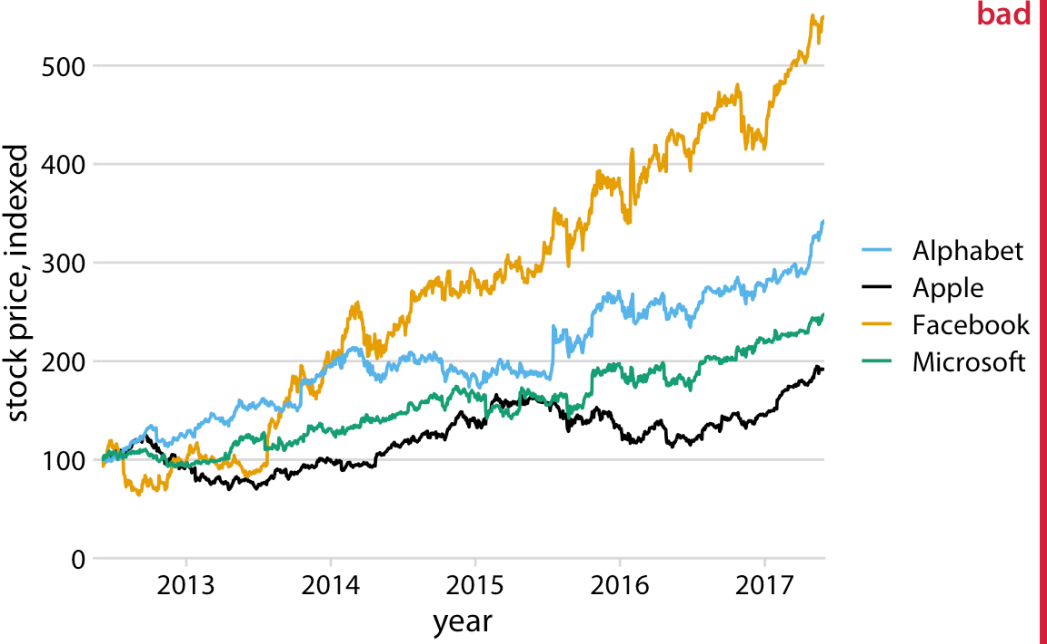
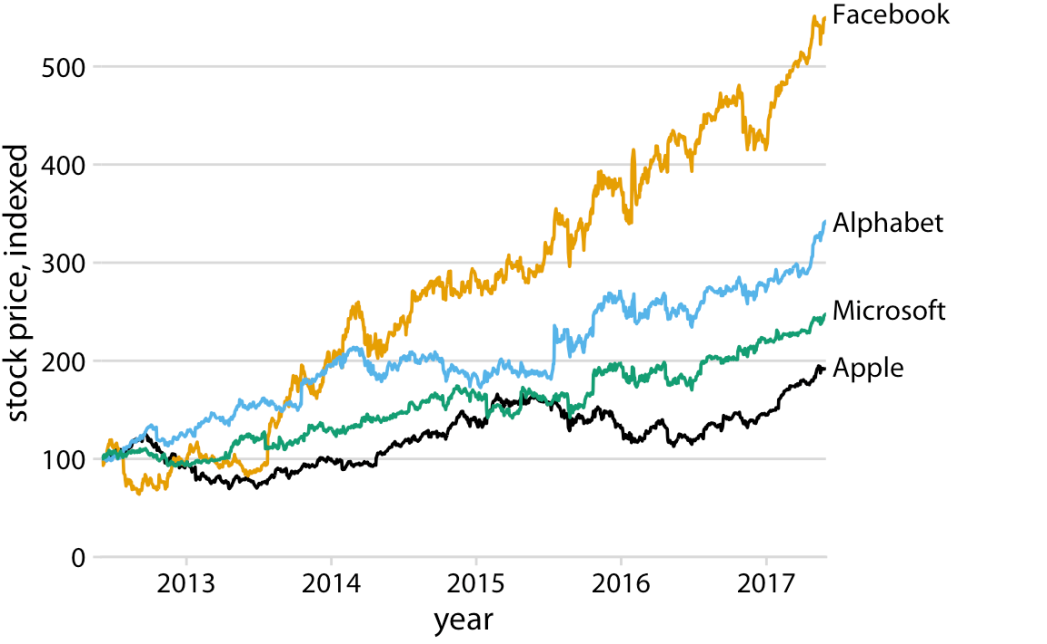
Label the lines directly: a legend sends the eye back and forth, here in a different order from the lines.
Principle 5: Details
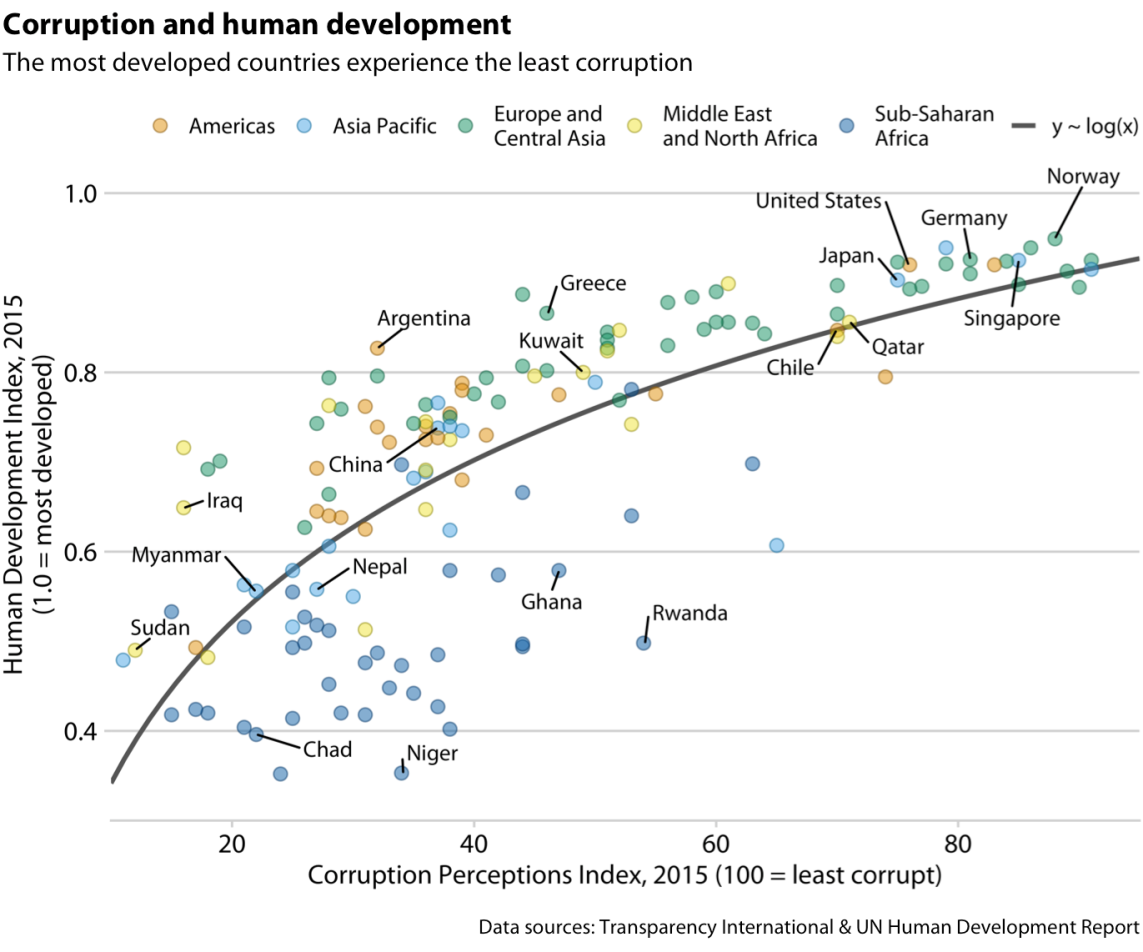
Be precise, and use the title, axes and captions to do it:
- a title and a subtitle that state the finding
- axis titles with their units
- labels on the few points worth naming
- sensible precision: 10.4%, not 10.4056%
- the data source
What’s Wrong Here?
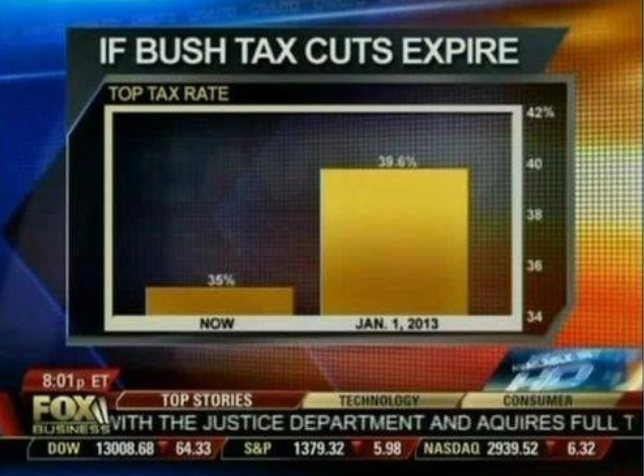
Principle 1. The axis starts at 34%, so a rise from 35% to 39.6% is drawn as a bar more than five times taller.
What’s Wrong Here?
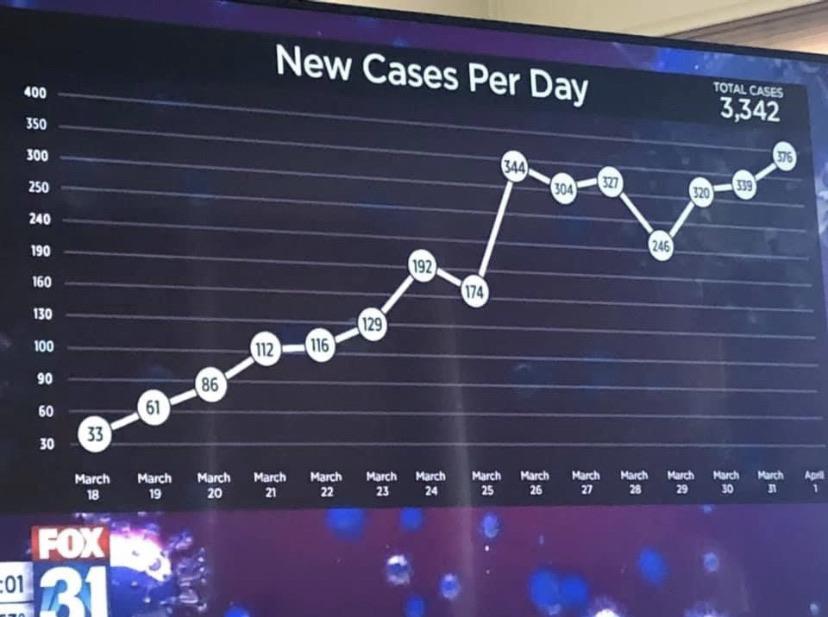
Principle 1. The steps of the axis are uneven (30, 60, 90, 100, 130, 160, 190, 240, 250, 300, …): equal distances do not mean equal numbers, and the growth looks steadier than it was.
What’s Wrong Here?
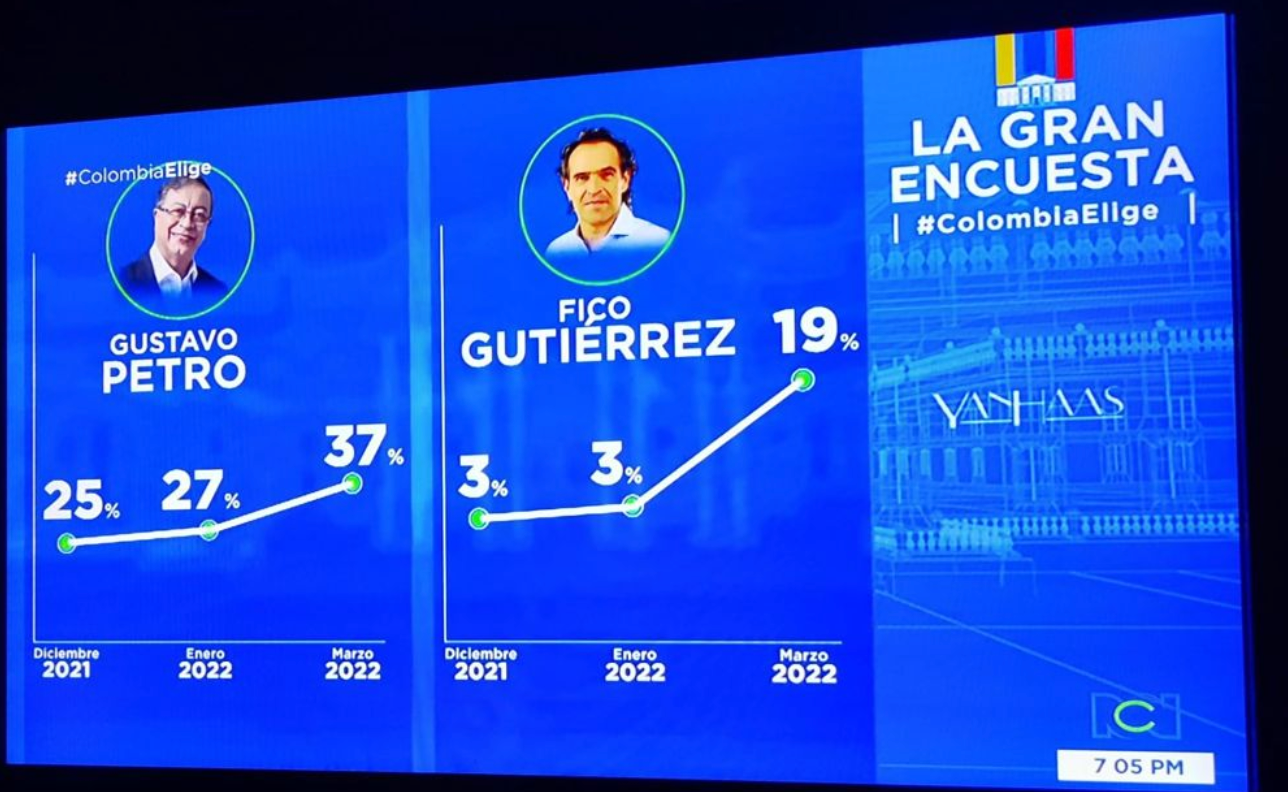
Principle 1. Each panel has its own scale, so Gutiérrez’s 19% is drawn higher than Petro’s 37%. And December, January and March are equally spaced, although February is missing.
What’s Wrong Here?
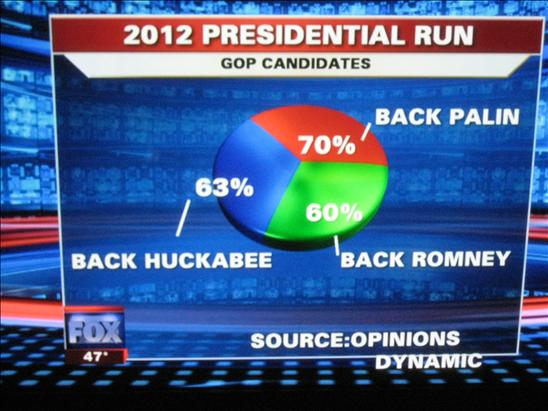
Principles 2 and 3. A pie shows the parts of one whole, but these slices add up to 193%, and the 3D tilt distorts their sizes.
What’s Wrong Here?
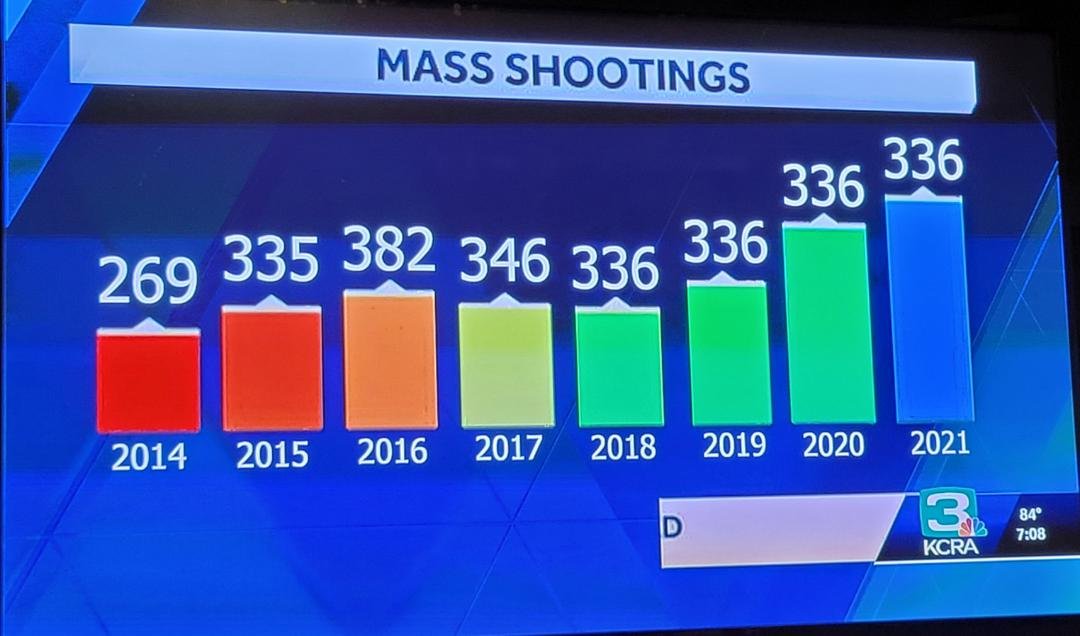
Principles 4 and 5. The rainbow colours mean nothing, and three bars are labelled 336 with three different heights: 2020 and 2021 are drawn taller than the 382 of 2016.
What’s Wrong Here?
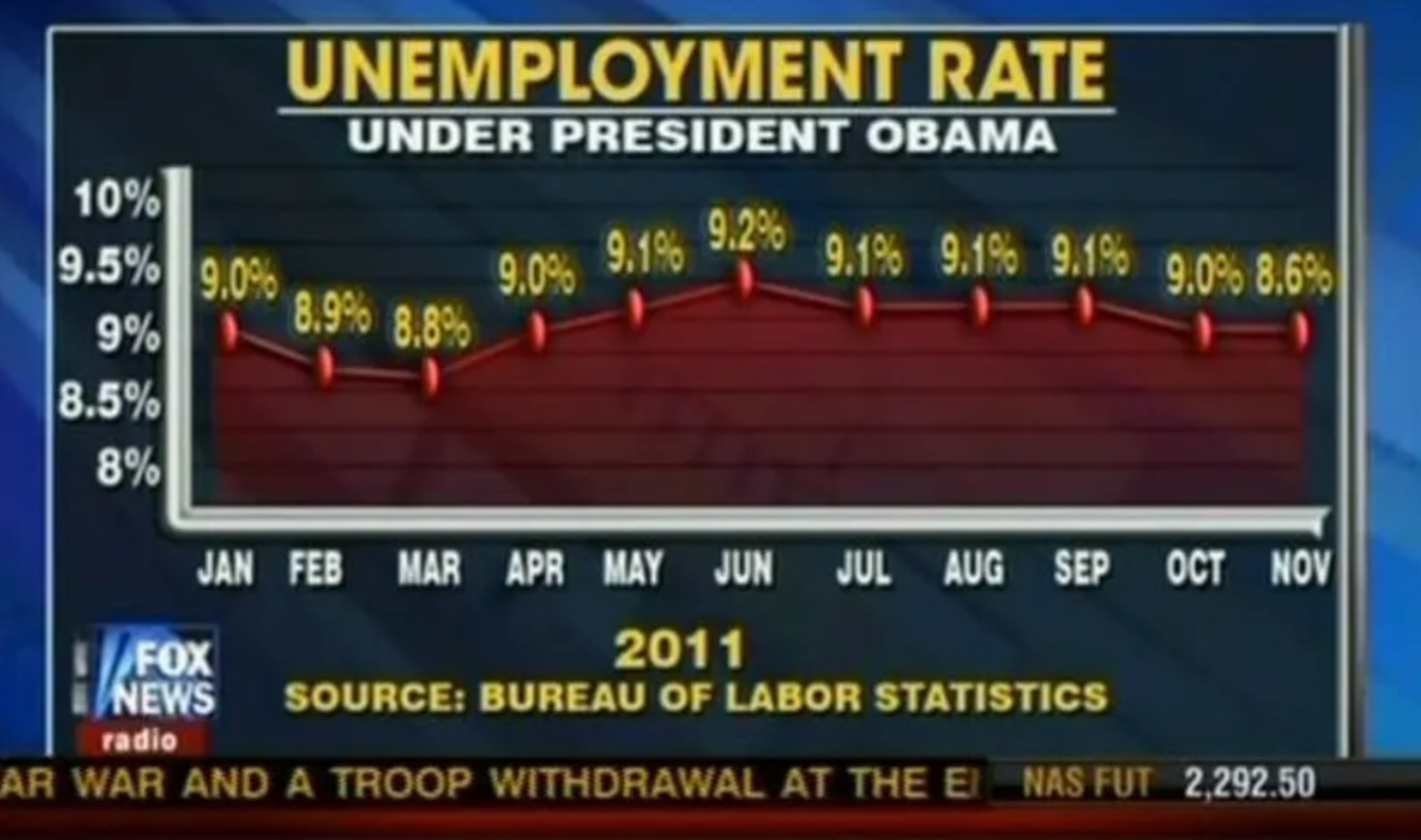
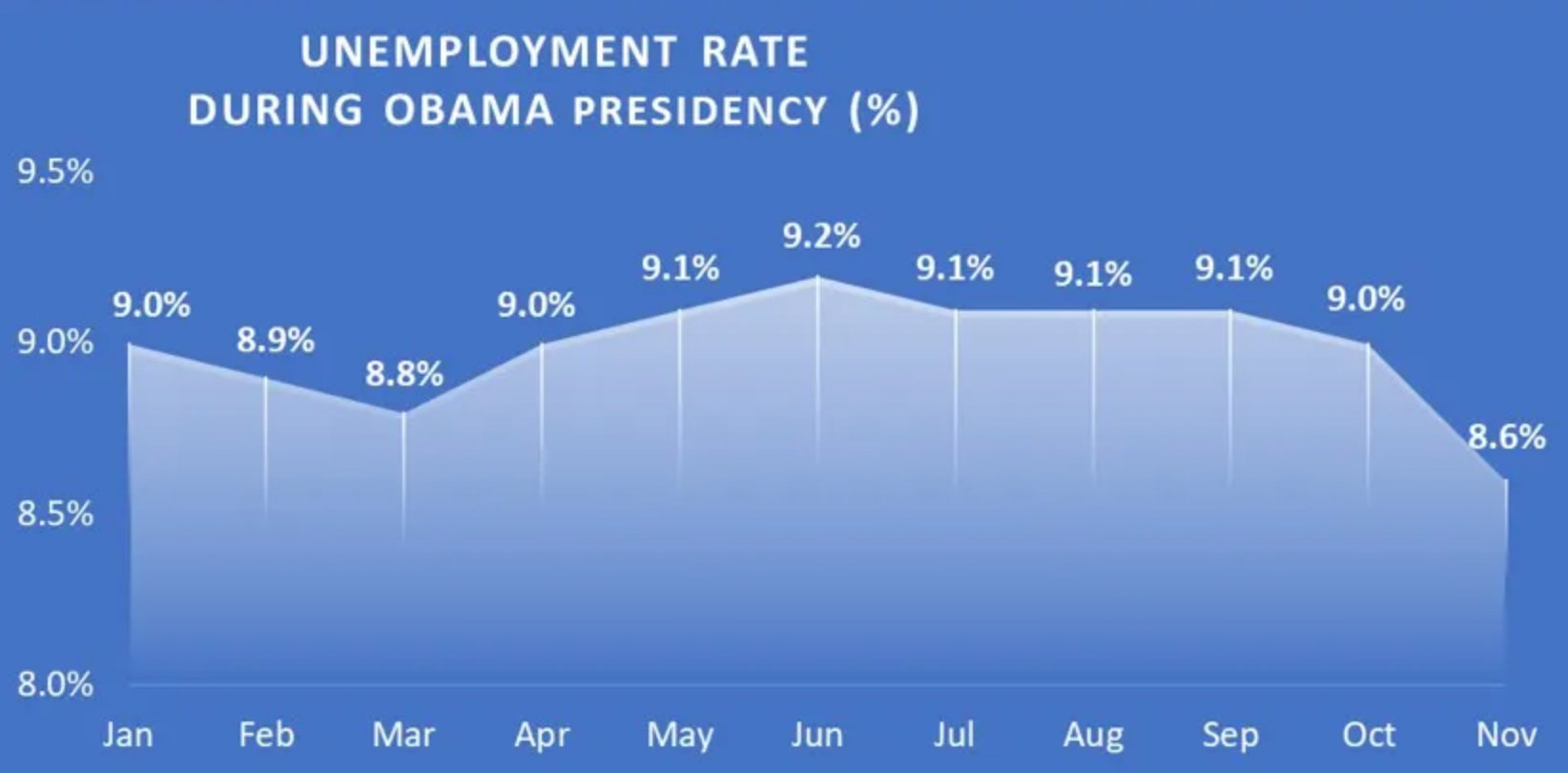
Principle 5. The last point, 8.6%, is drawn at the level of 9.0%. Placed correctly (right), November is the largest change of the year.
What’s Wrong Here?
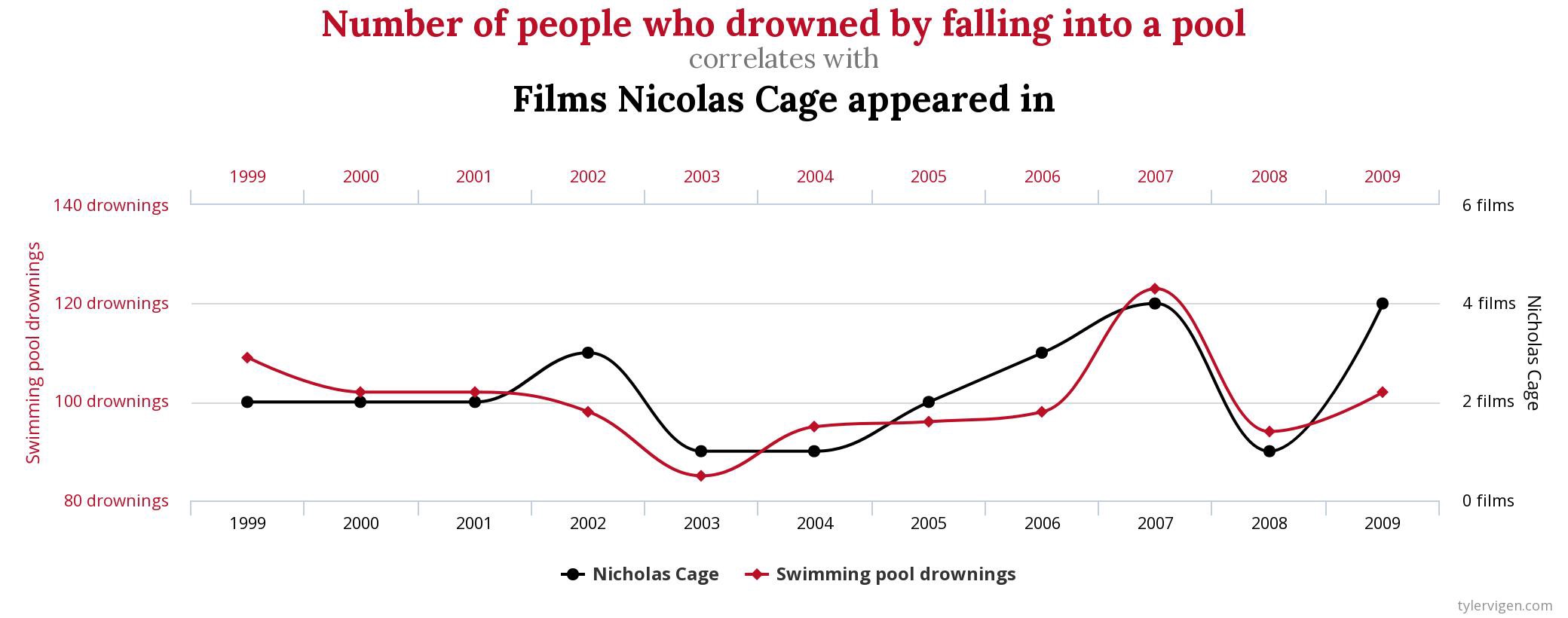
Relationship is not causation. Two series that move together need not be linked: Nicolas Cage films do not drown people. The two y-axes (Principle 1) also let you make any two lines look alike.
Land Doesn’t Vote, People Do

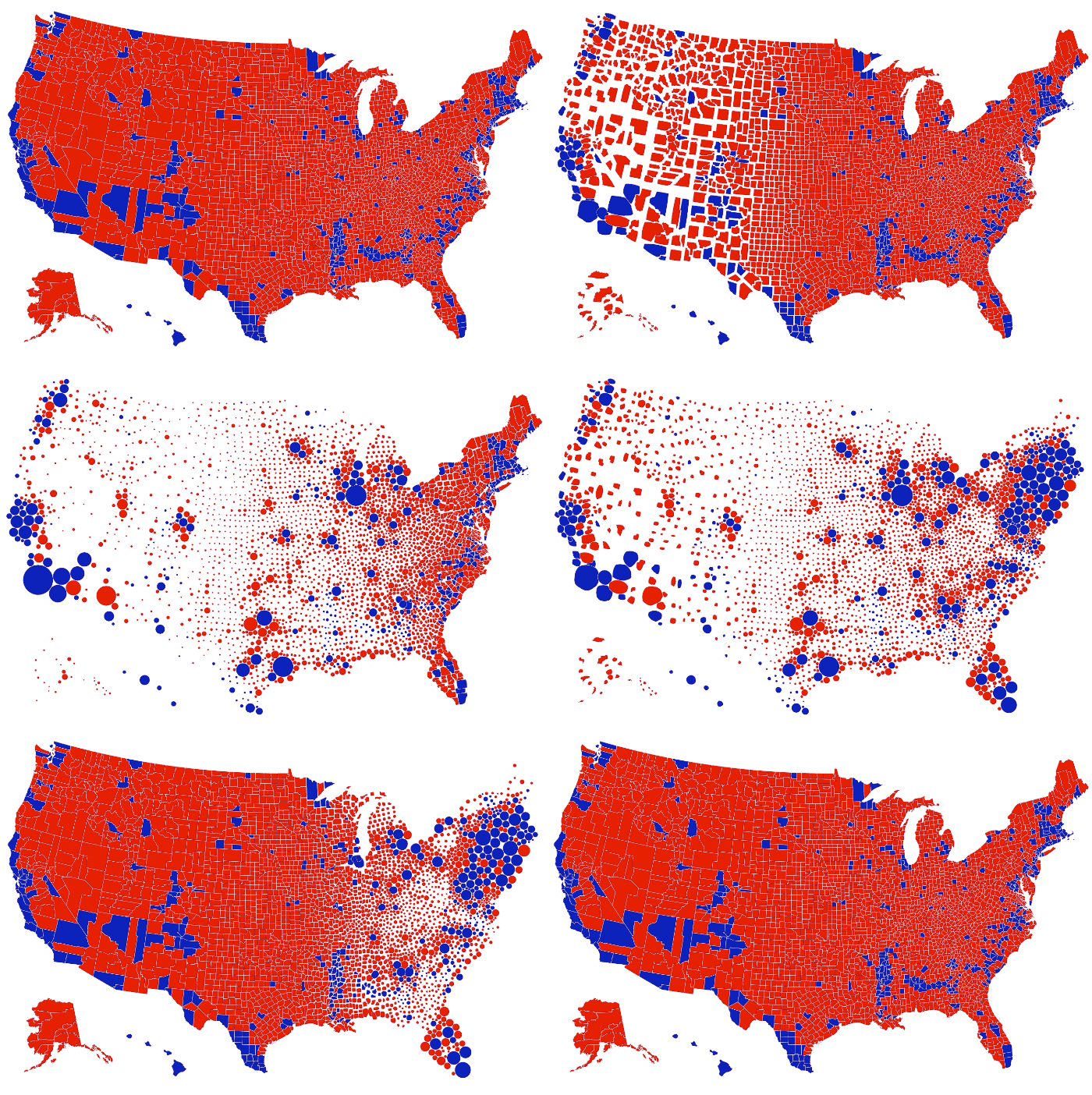
A Must Read
“Mistakes, we’ve drawn a few”: The Economist learning from its own errors in data visualisation
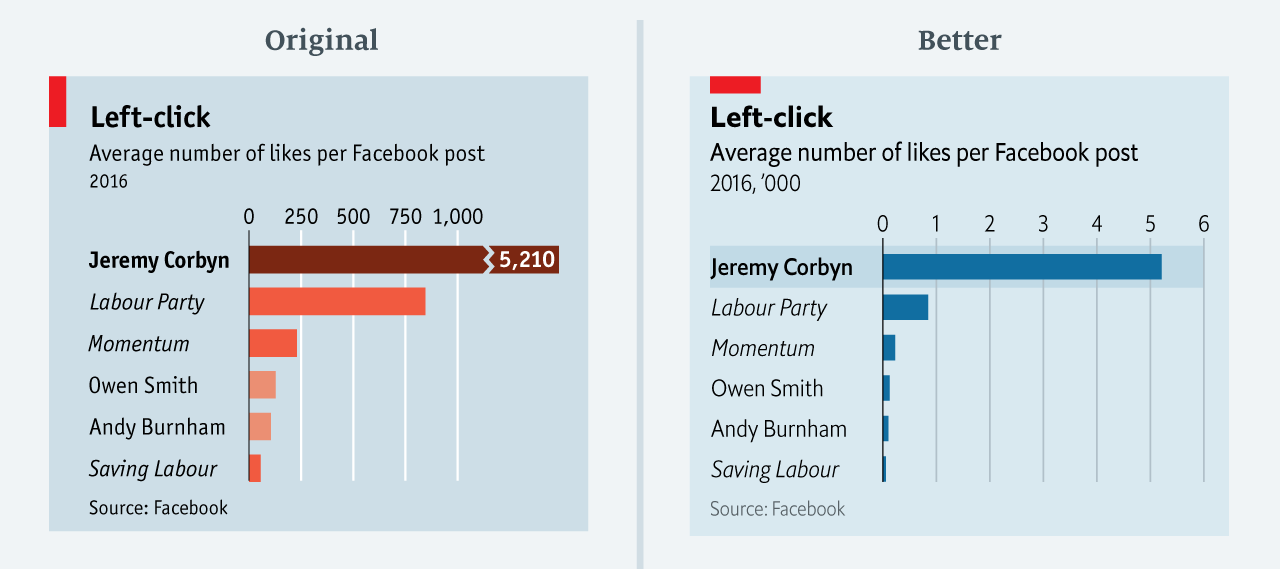
The original breaks Jeremy Corbyn’s bar to fit it on the axis, so 5,210 likes is drawn only a little longer than the Labour Party’s bar (Principle 1). The better version gives every bar the same scale, in thousands.
Your Turn!
Ask an AI what’s wrong
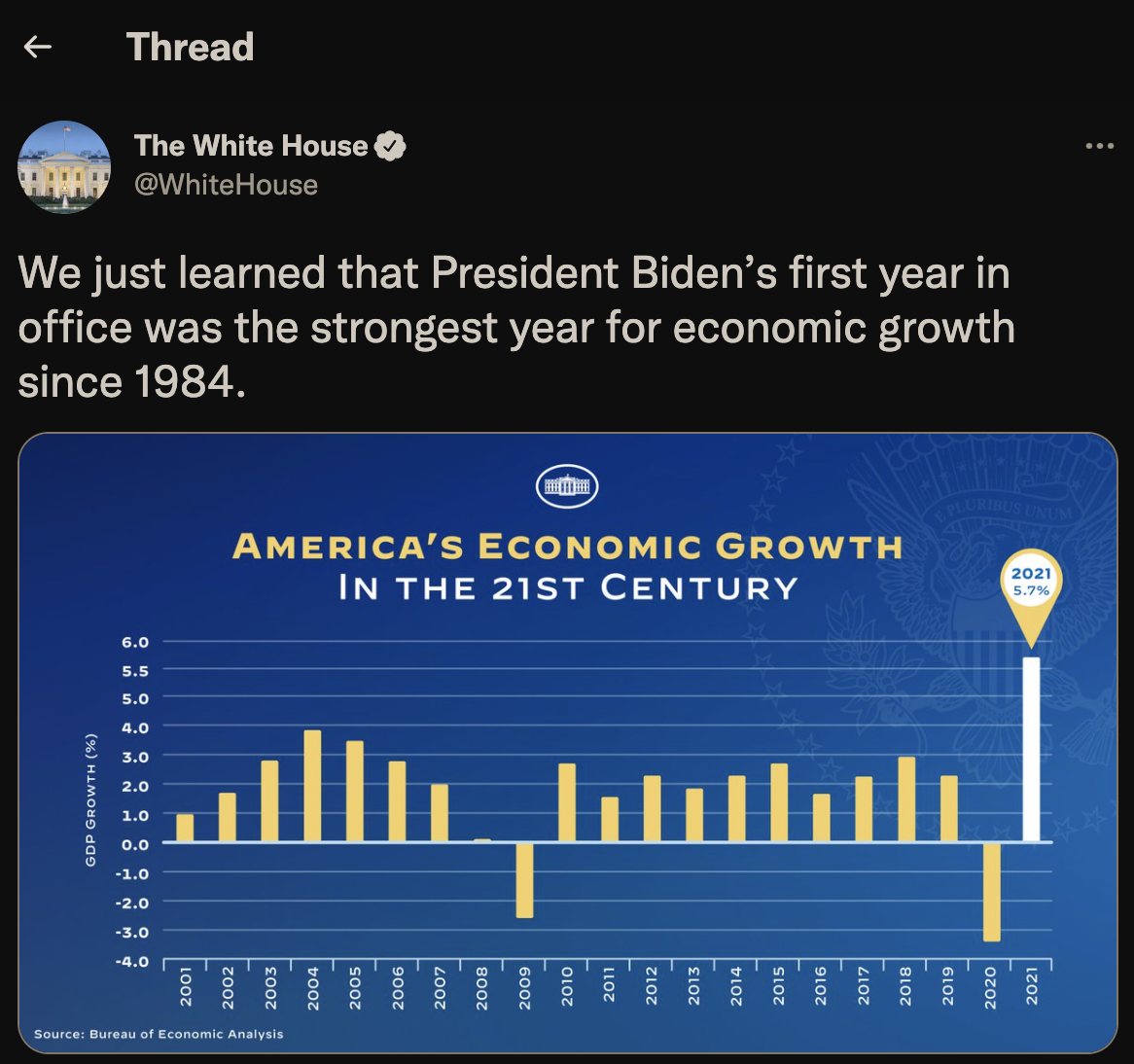
- Copy this chart: ⊞ Win + ⇧ Shift + S or ⌘ Cmd + ⌃ Control + ⇧ Shift + 4
- Paste it into an AI assistant and ask: “What is wrong with this chart?”
- Compare with your own answer: what did it find that you missed? What did it miss? Did it invent a fault?
What’s Wrong Here?
- The y-axis is inconsistent. It shows 0.5-point intervals from 6.0 to 5.0, then switches to 1-point intervals. This distorts the 2021 bar.
- The chart only shows 2001 to 2021, so it cannot demonstrate the claim “since 1984”. The years 1984 to 2000 are missing.
- The 5.7% figure is real GDP growth, not a general measure of economic performance. The BEA reports 5.7% growth in 2021 after GDP fell 3.4% in 2020, so the result partly reflects a post-pandemic rebound and a low comparison base.
- 2021 is a calendar year, not entirely Biden’s first year in office, so attributing all of that growth to his presidency is misleading.
- The oversized white bar and callout visually promote the desired conclusion rather than presenting the comparison neutrally.
The Key Transformations in Tableau
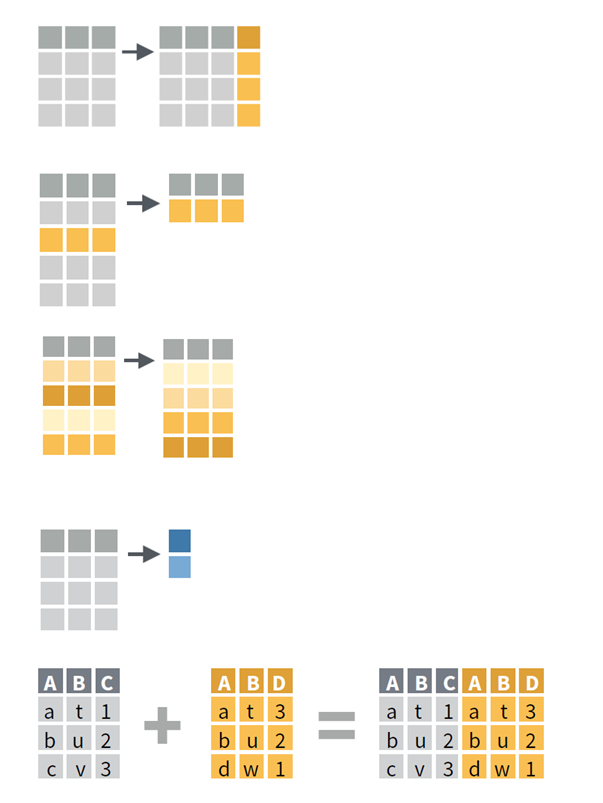
| Lecture 2 | In Tableau |
|---|---|
| 1. Extension: create a new column | a calculated field |
| 2. Reduction: keep only certain values | a filter, on the Filters shelf or the Data Source page |
| 3. Direction: arrange the row order | a sort, from the toolbar or the axis |
| 4. Aggregation: summarise a column | the aggregation of a Measure: SUM, AVG, MEDIAN, … |
| 5. Combination: join two tables | a relationship or a join (section 4) |
And long or wide? becomes a pivot, on the Data Source page.
Long or Wide?
Lecture 2: the same data can be wide, one column per quarter, or long, one row per region and quarter.
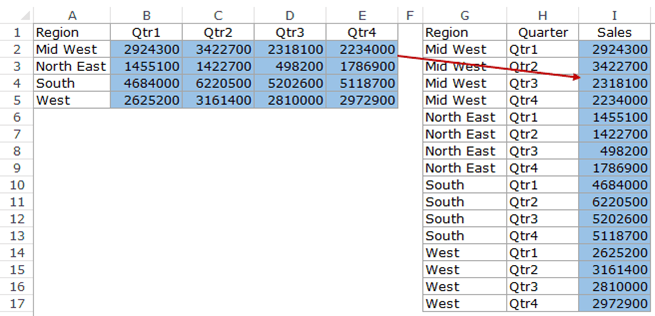
Tableau prefers long: one variable, one column, which you can put on Colour, Columns or Filters. In Excel this arrow takes a lot of copy and paste; in Tableau it takes one click: Pivot.
Relating Multiple Data
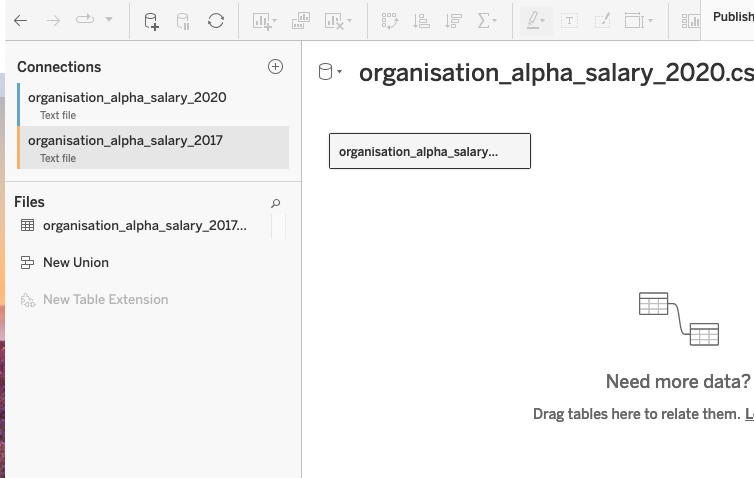
- Connect your first data file/database. In the Data Source window, beside Connections, click on the plus sign to “Connect to Data”
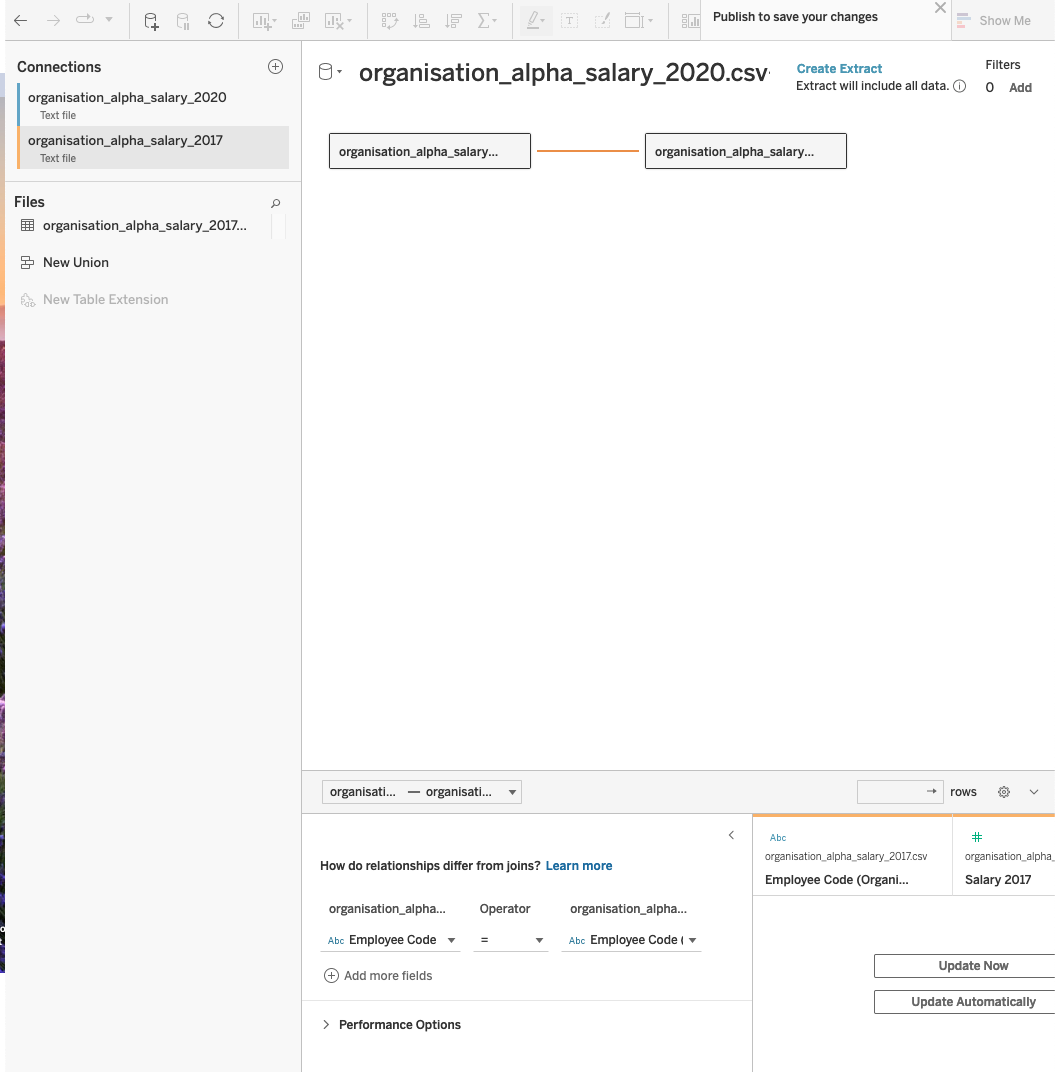
- Drag and drop the second file next to the box representing the first file
- Set the variables that link the two files, here
Employee Codein both: the line between the two boxes is the relationship
Inner and Left Joins
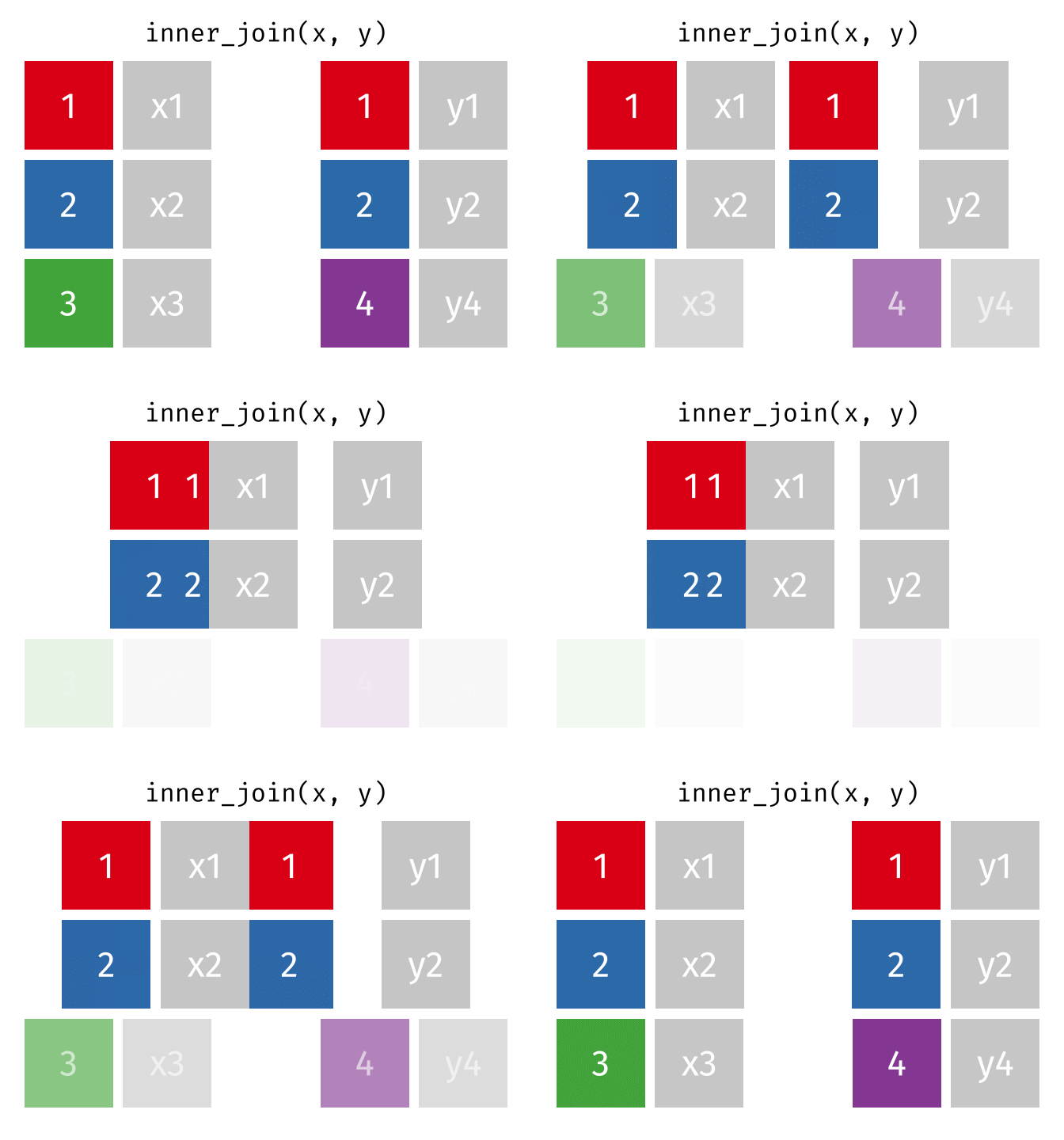
Inner: only the keys found in both tables, here 1 and 2
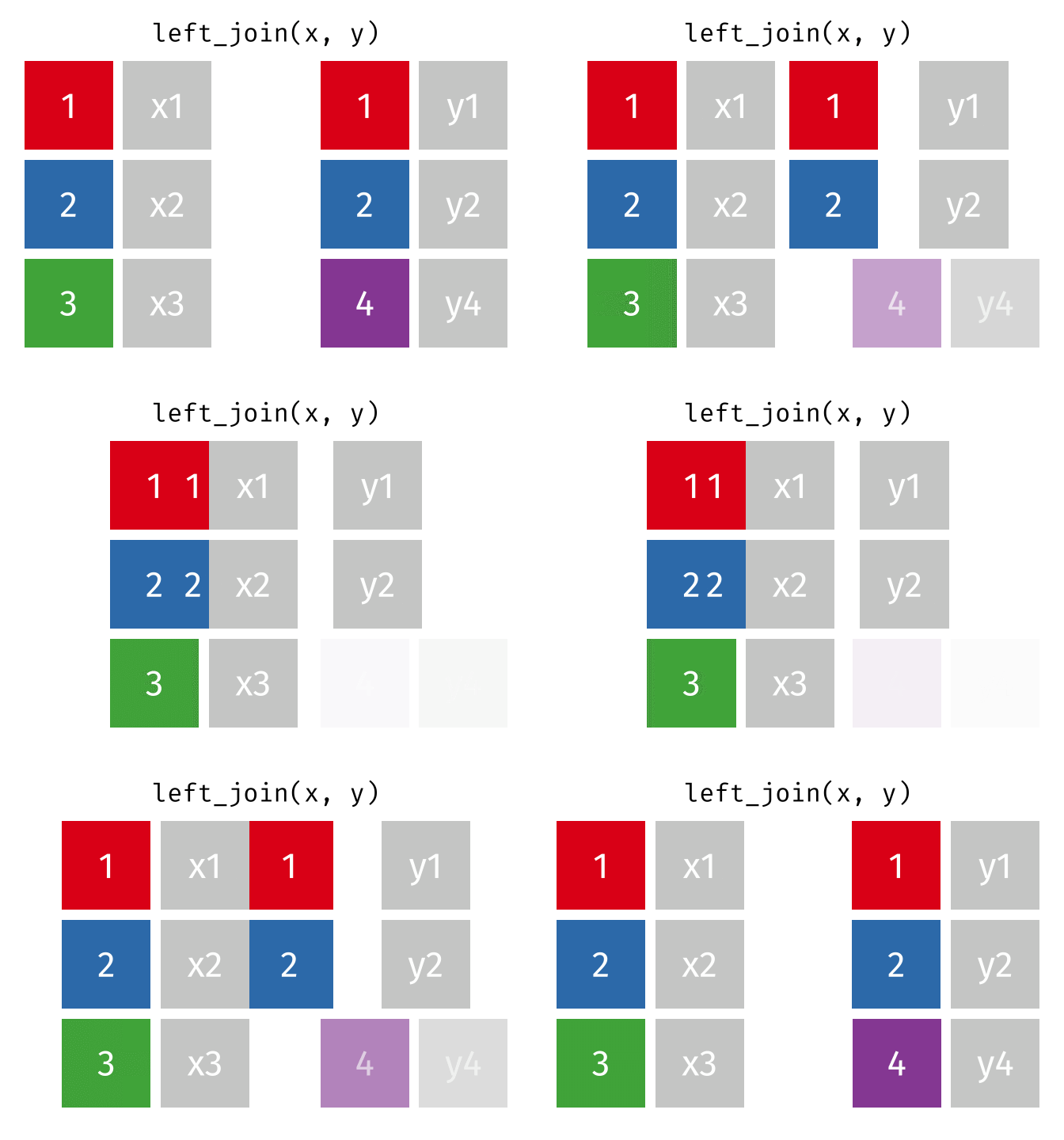
Left: every row of the left table; 3 has no match, so its y stays empty
Right and Full Outer Joins
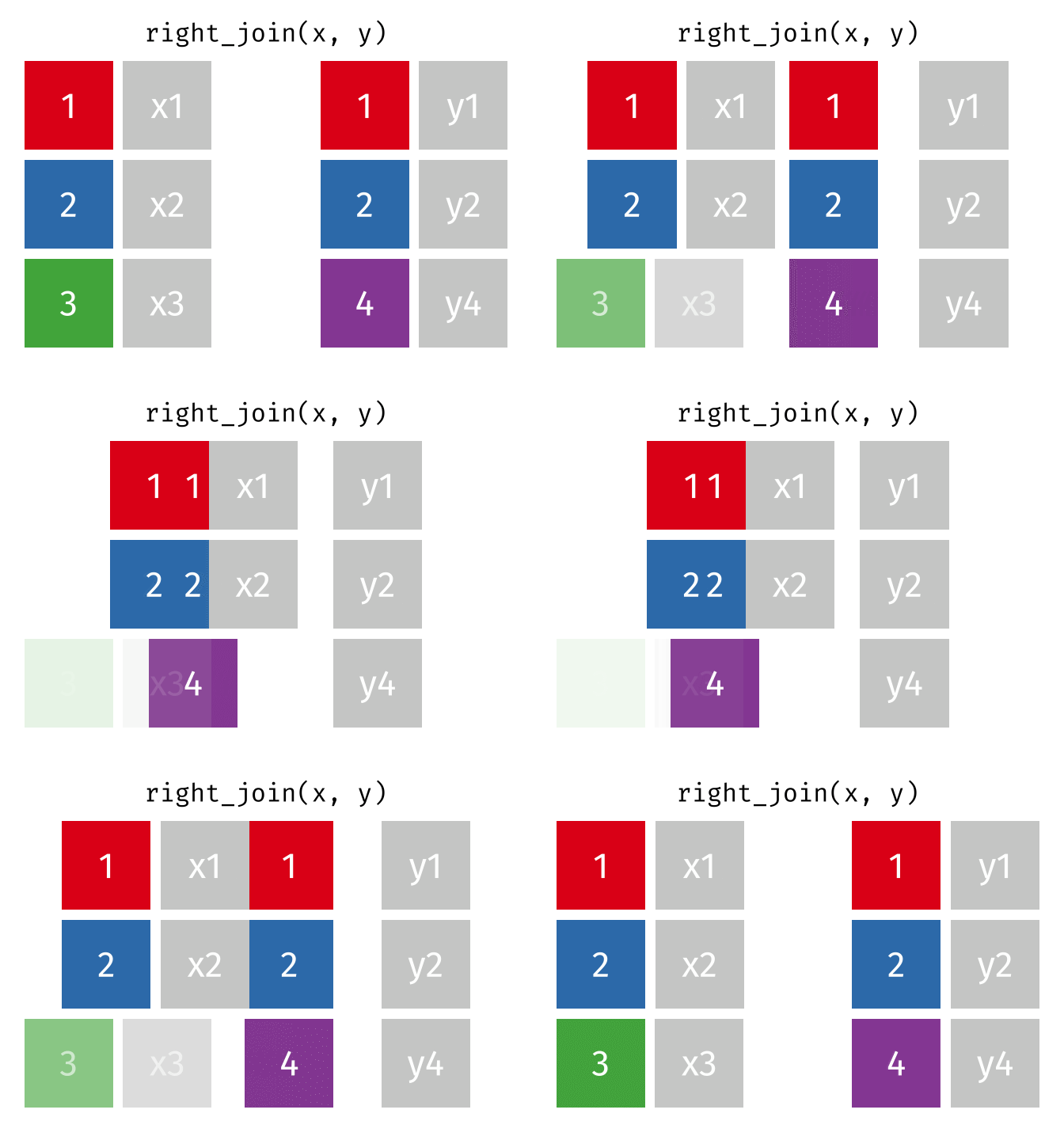
Right: every row of the right table; 4 has no match, so its x stays empty
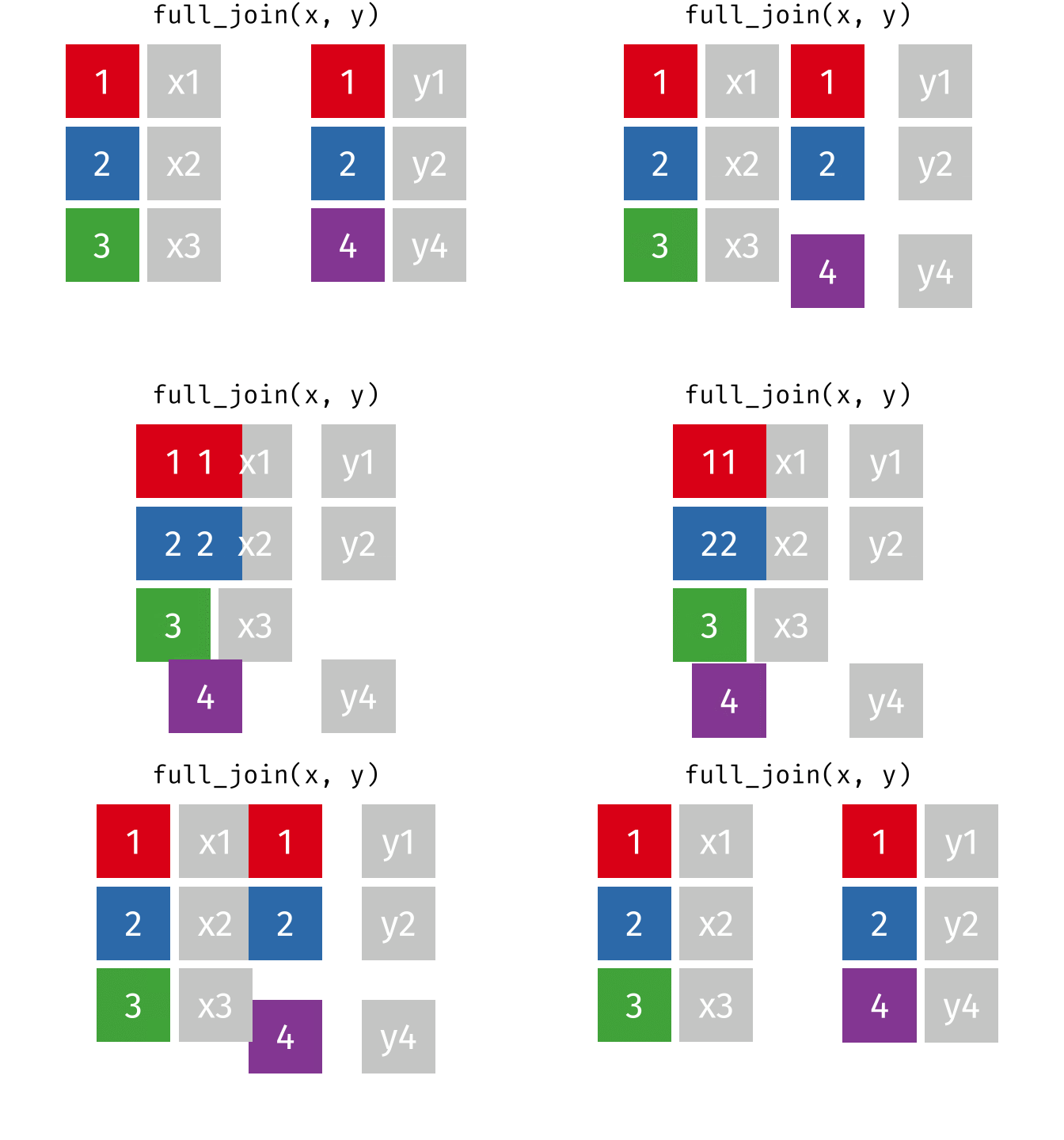
Full outer: every row of both tables, empty wherever a key has no match
When a Key Appears Twice
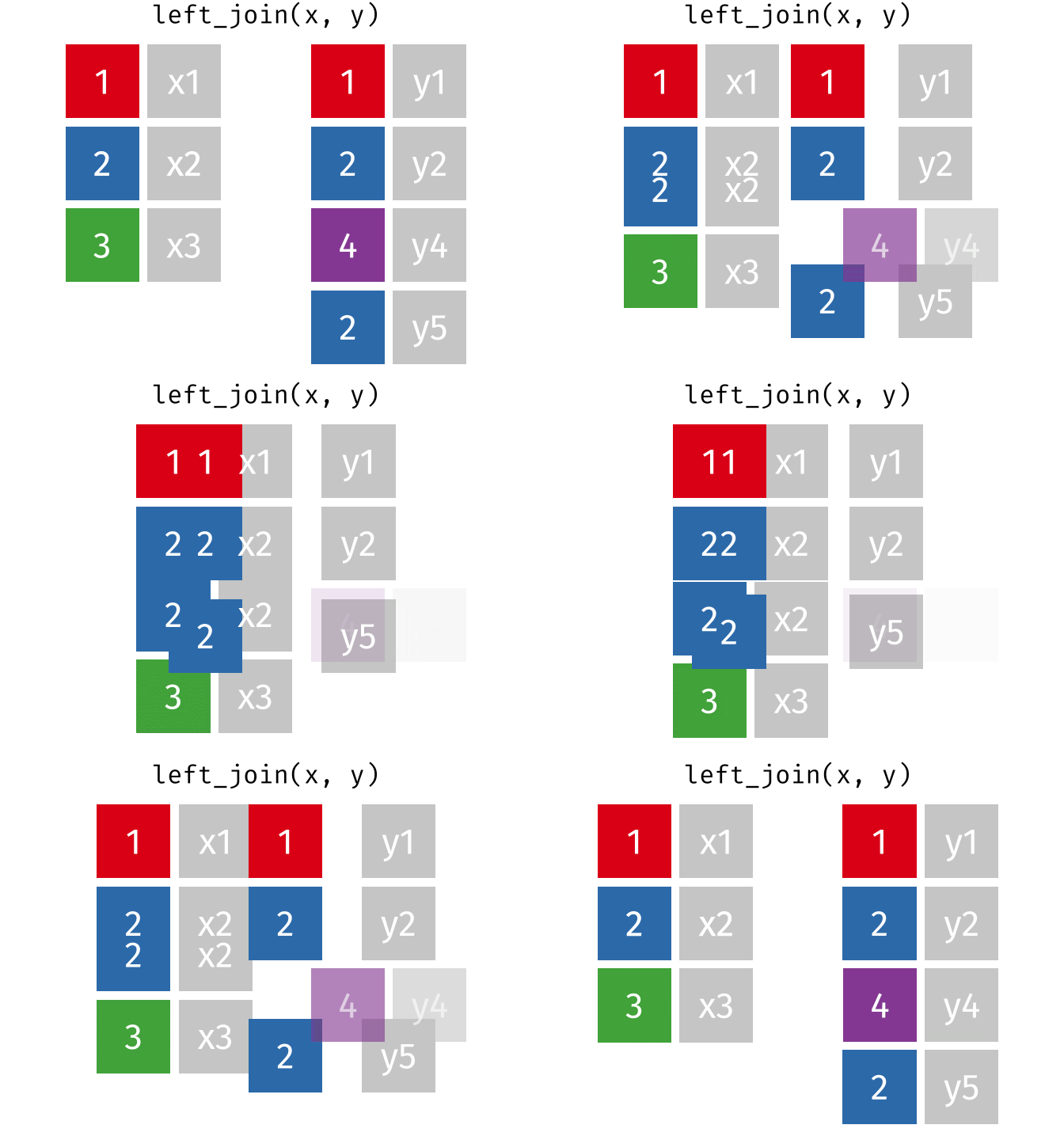
Key 2 appears twice in y, so the join copies x2: 4 rows instead of 3.
Every value of x2 now counts twice, and no error message warns you.
A relationship does not copy rows: one more reason it is Tableau’s default.
In Lecture 5, a join with Loomrow’s ads by country turns €24,345.78 of spend into €106,899.36.

Thanks for your attention and don’t hesitate to ask if you have any questions!