Lecture 3: Master the Key Figures
STA1000 - Data Analytics and Metrics
What Would You Like to Show?
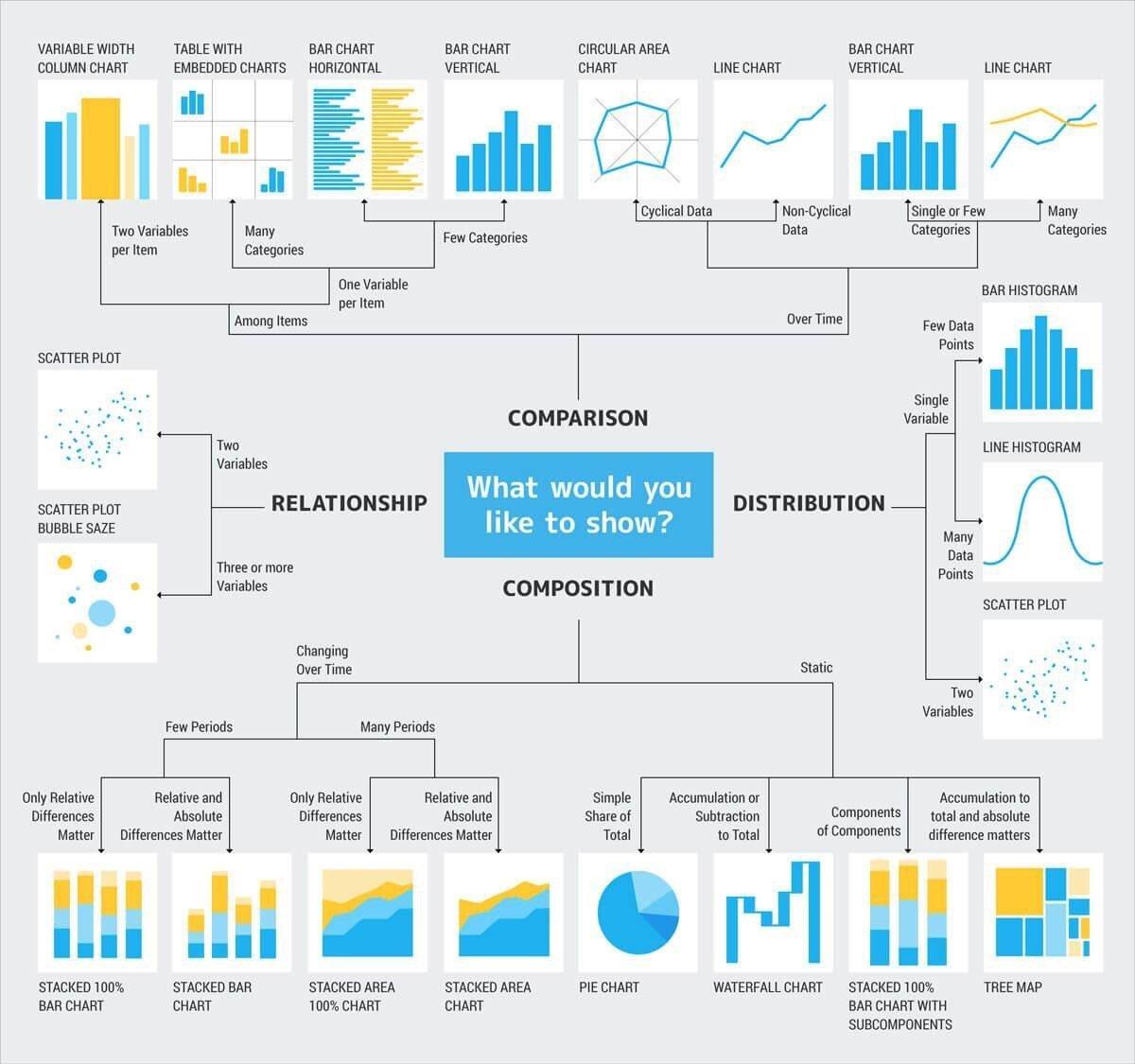
Based on Andrew Abela’s Chart Chooser: start from the question, not from the chart
Keep Your Figures Clear and Self-Explanatory
Zoom on Median and Quartiles
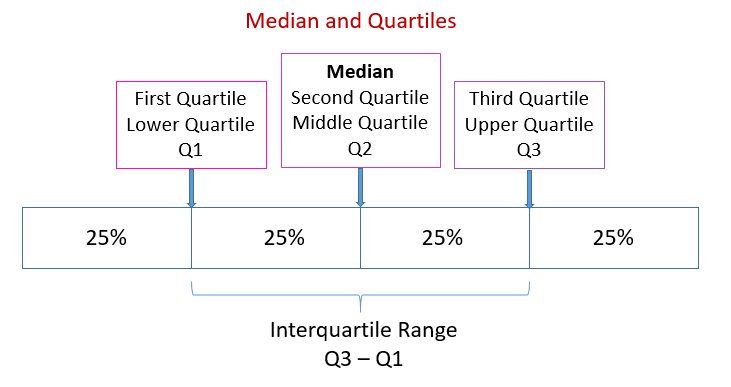
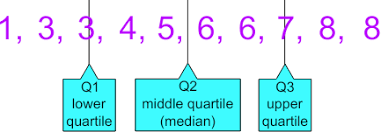
Sort the values, then cut them into four groups of equal size. The interquartile range (IQR = Q3 - Q1) holds the middle 50% of the data.
Zoom on the Box Plot
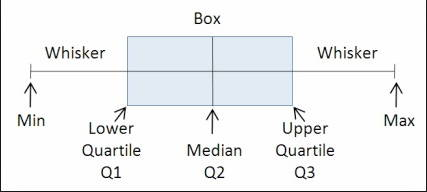
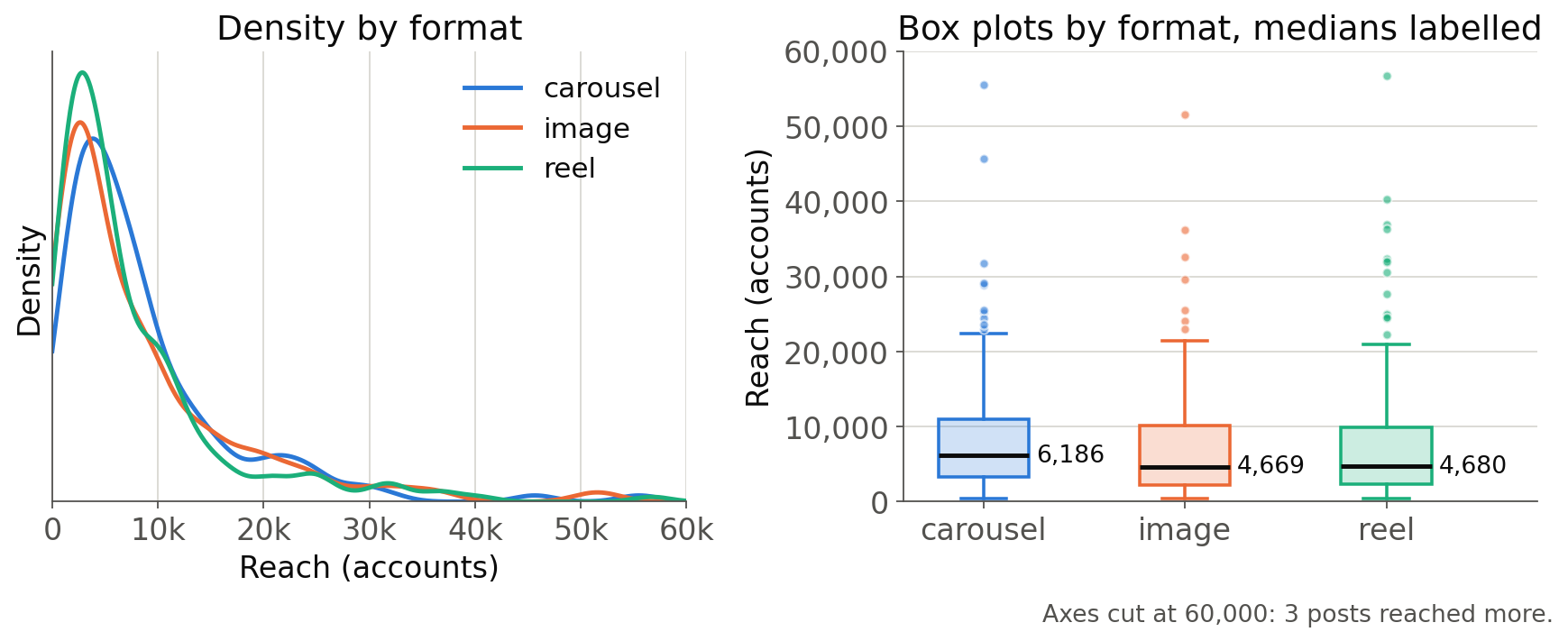
- The box runs from Q1 to Q3, and the line inside is the median
- The whiskers stop at the most extreme values within 1.5 × IQR of the box
- Anything further away is drawn as a dot: a possible outlier
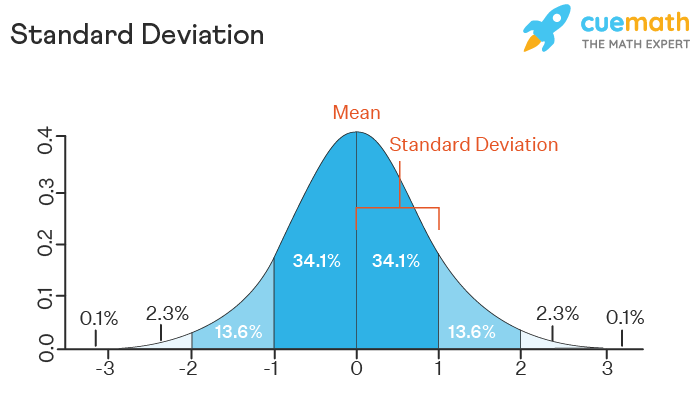
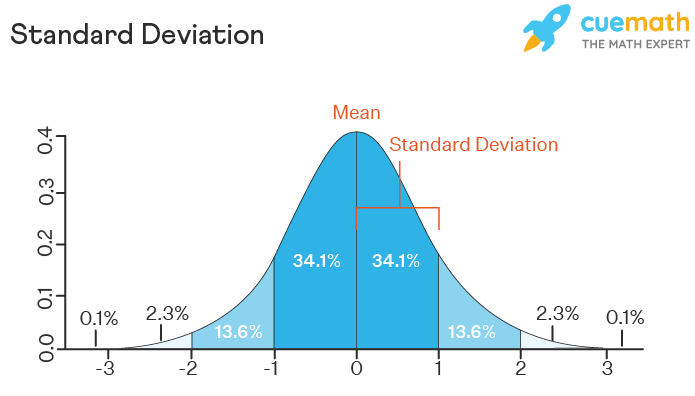
Zoom on Mean and Standard Deviation
- Mean (or average) is the sum of all the values divided by their number
- Standard deviation (SD) is the typical distance to the mean: the square root of the average squared distance
Zoom on Regression
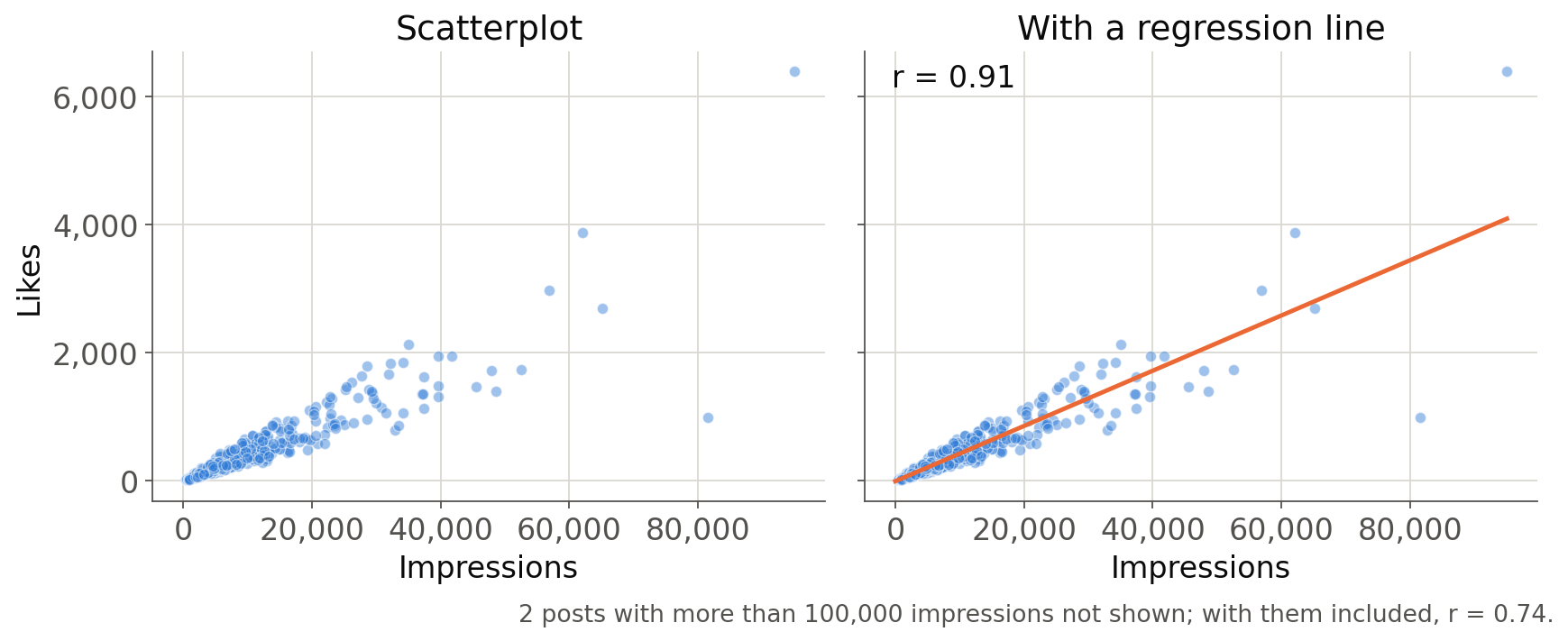
The line that best fits the points of two continuous variables is a regression line: Y = b₀ + b₁X + e
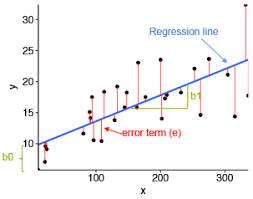
- b₀ is the intercept: the value of Y when X is 0
- b₁ is the slope: how much Y changes when X increases by 1
- e is the error (or residual): the distance between each point and the line
Zoom on Correlation
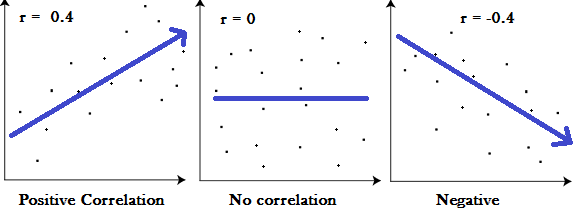
The correlation (r) is the slope of the regression line once both variables are on the same scale. It measures how closely the points follow a straight line, from -1 to +1:
Composition Figures
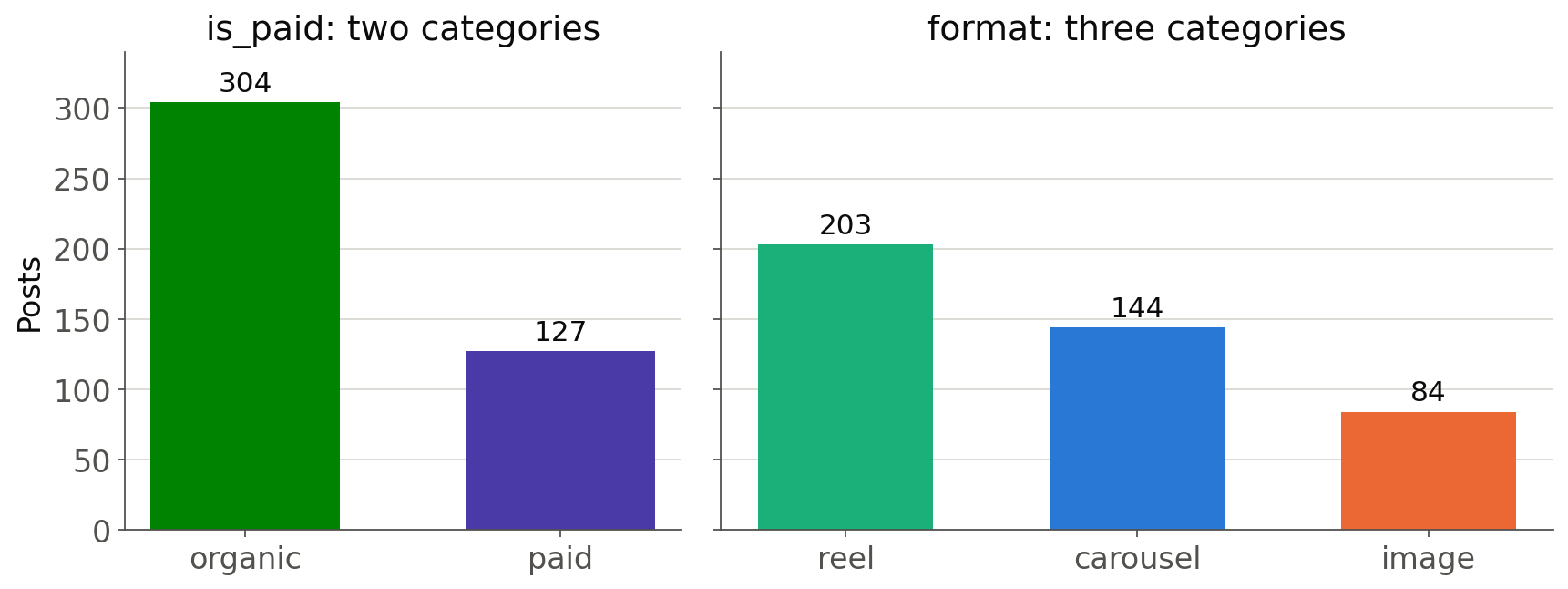
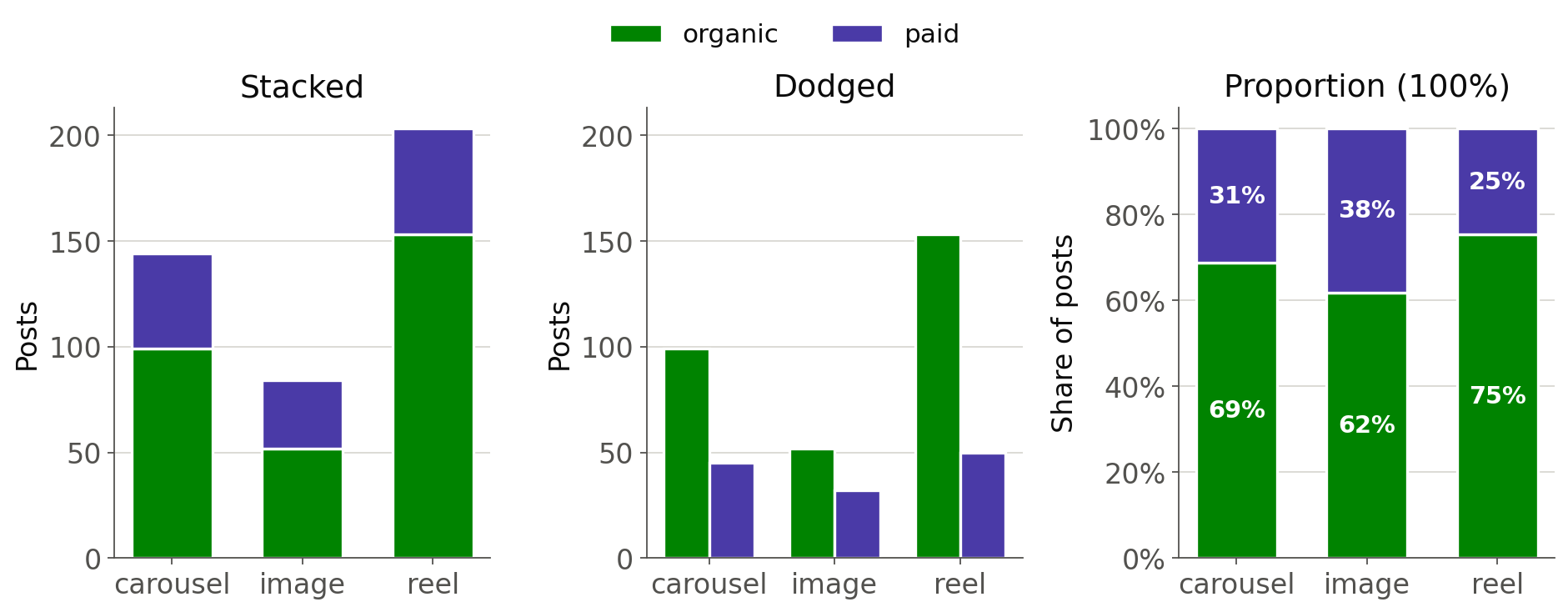
Count of the different categories
Composition Figures
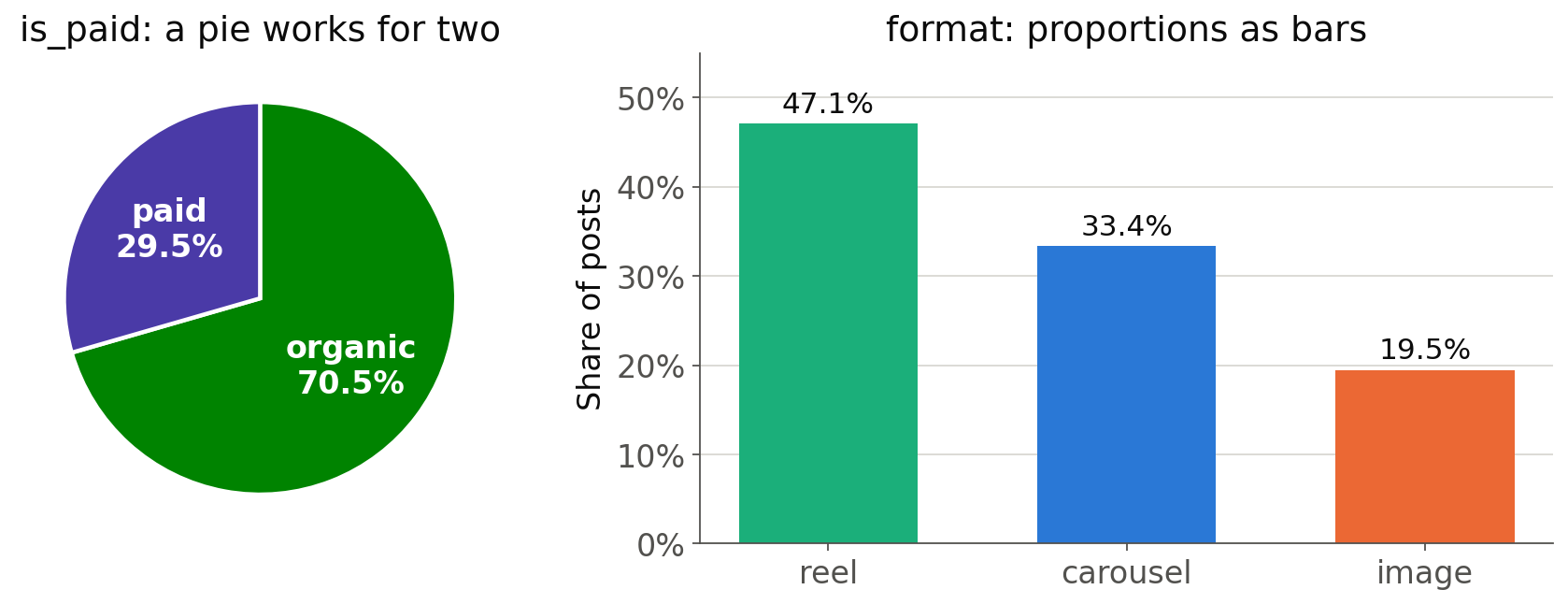
Proportion of the different categories
When to Use a Pie Chart?
Only when the variable has two categories
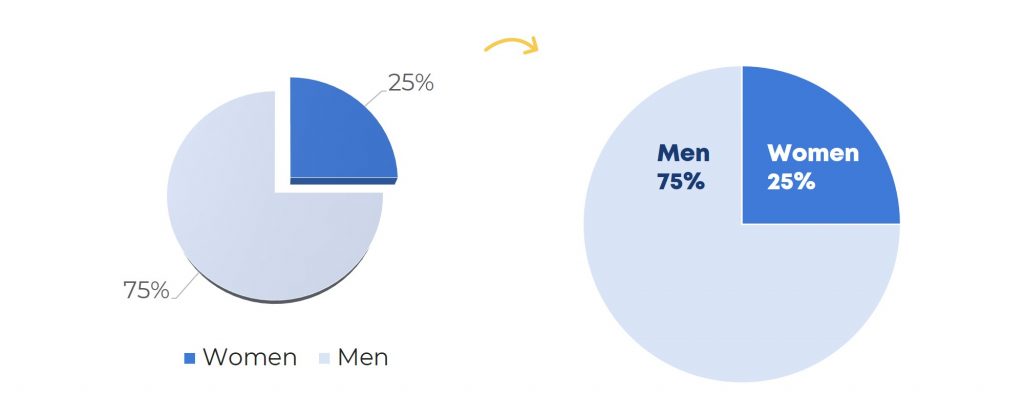
With more categories, use a bar chart
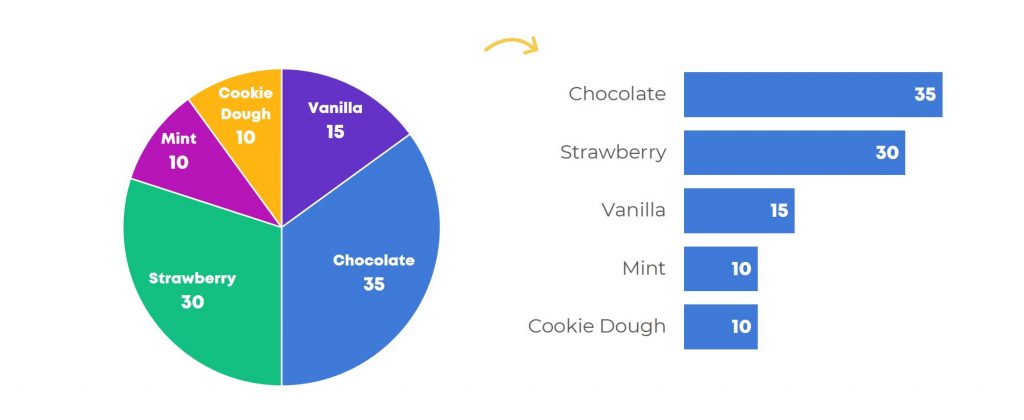
When to Use a Pie Chart?
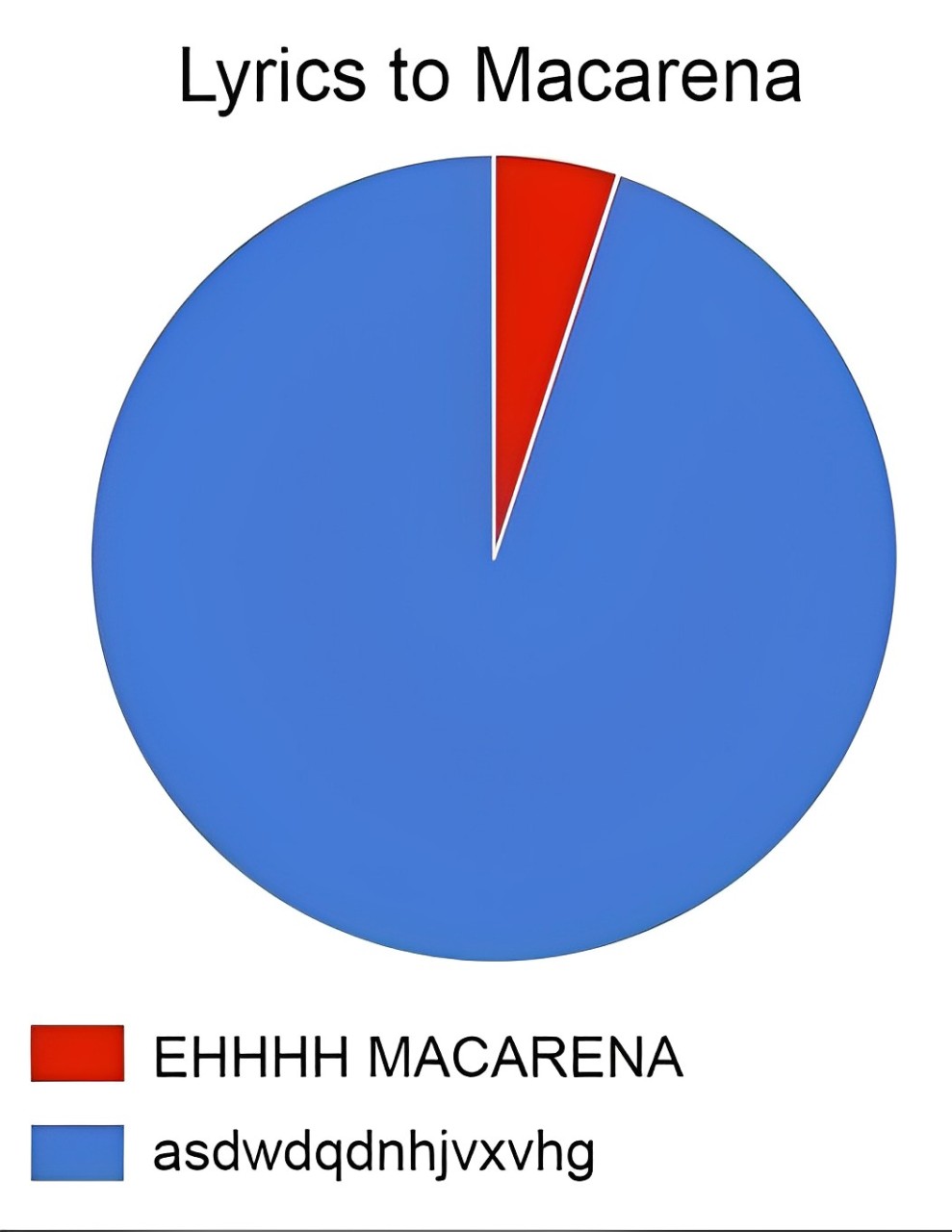
Here is a pie chart that works:
Distribution Figures
Four figures of one continuous variable, reach
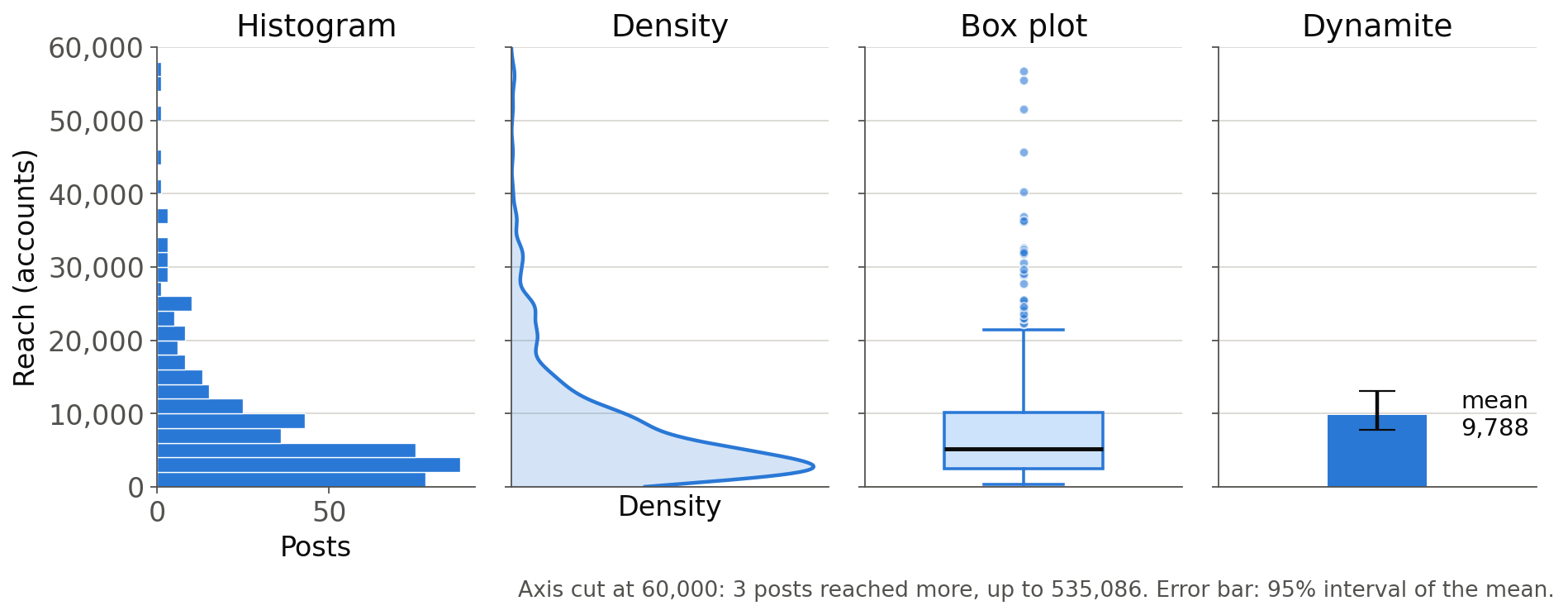
Each figure keeps something and throws the rest away: the dynamite keeps only the mean.
Mean or Median?
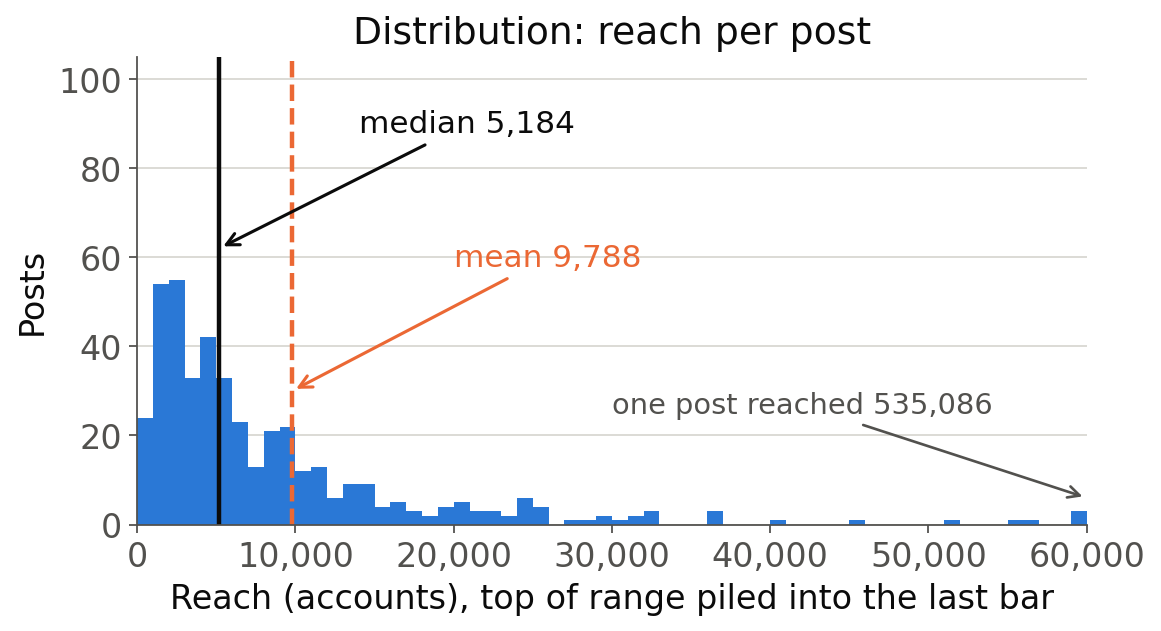
Reach is right-skewed: most posts reach a few thousand accounts, a few reach tens of thousands, and one reel reached 535,086.
The mean (9,788) is pulled towards that tail. The median (5,184) is the typical post.
Mean ± SD = 9,788 ± 27,748: a range that goes below zero, for a count that cannot be negative.
Comparison Figures
Two categorical variables: format and is_paid
Comparison Figures
A categorical and a continuous variable: format and reach
Relationship Figures
Two continuous variables: impressions and likes
Relationship Figures
Adding a categorical variable: one panel per format, same axes
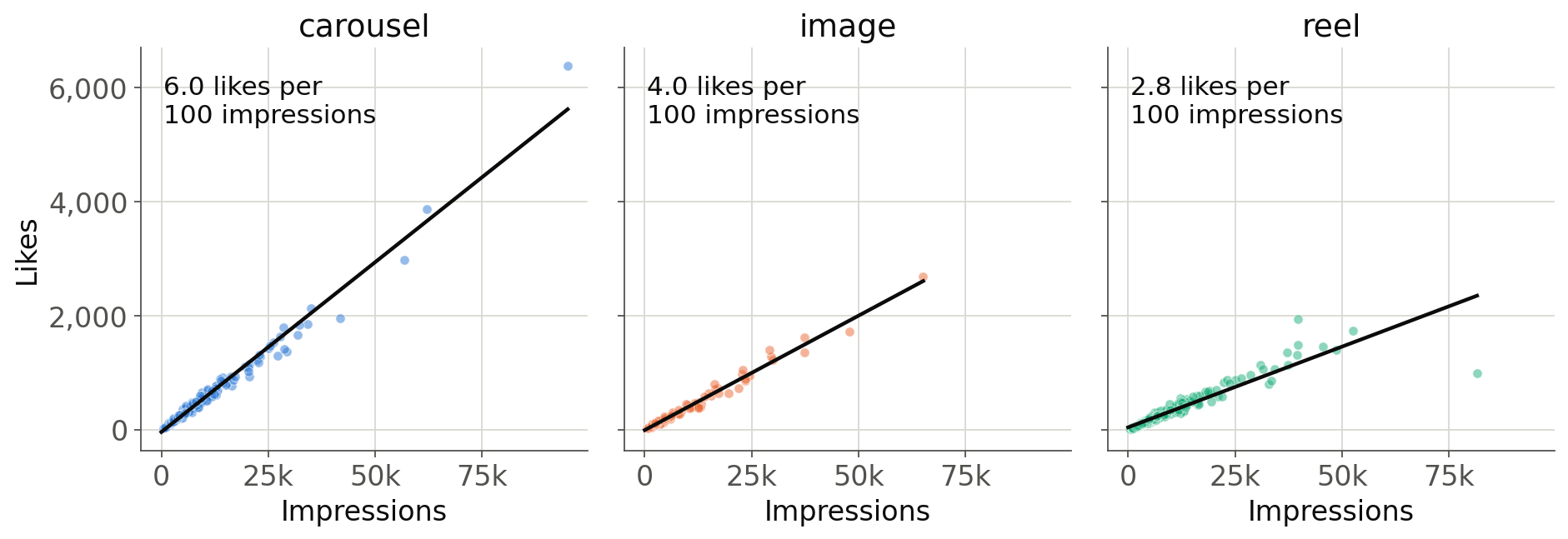
For the same impressions, carousels earn about 6 likes per 100 impressions and reels fewer than 3.
Variable Types and Tableau Figures
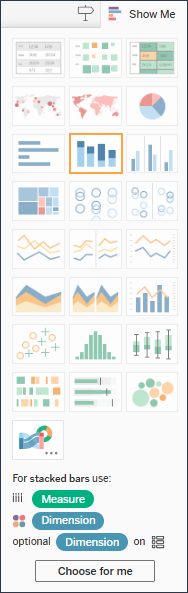
A family of figures for each type of variable:
- Composition: 1 Dimension
- Distribution: 1 Measure
- Comparison: 2 Dimensions, or 1 Dimension and 1 Measure
- Relationship: 2 Measures
Show Me highlights the figures they allow, it also explicitely indicate what combinaison of Dimension and Measure is needed.
Composition in Tableau
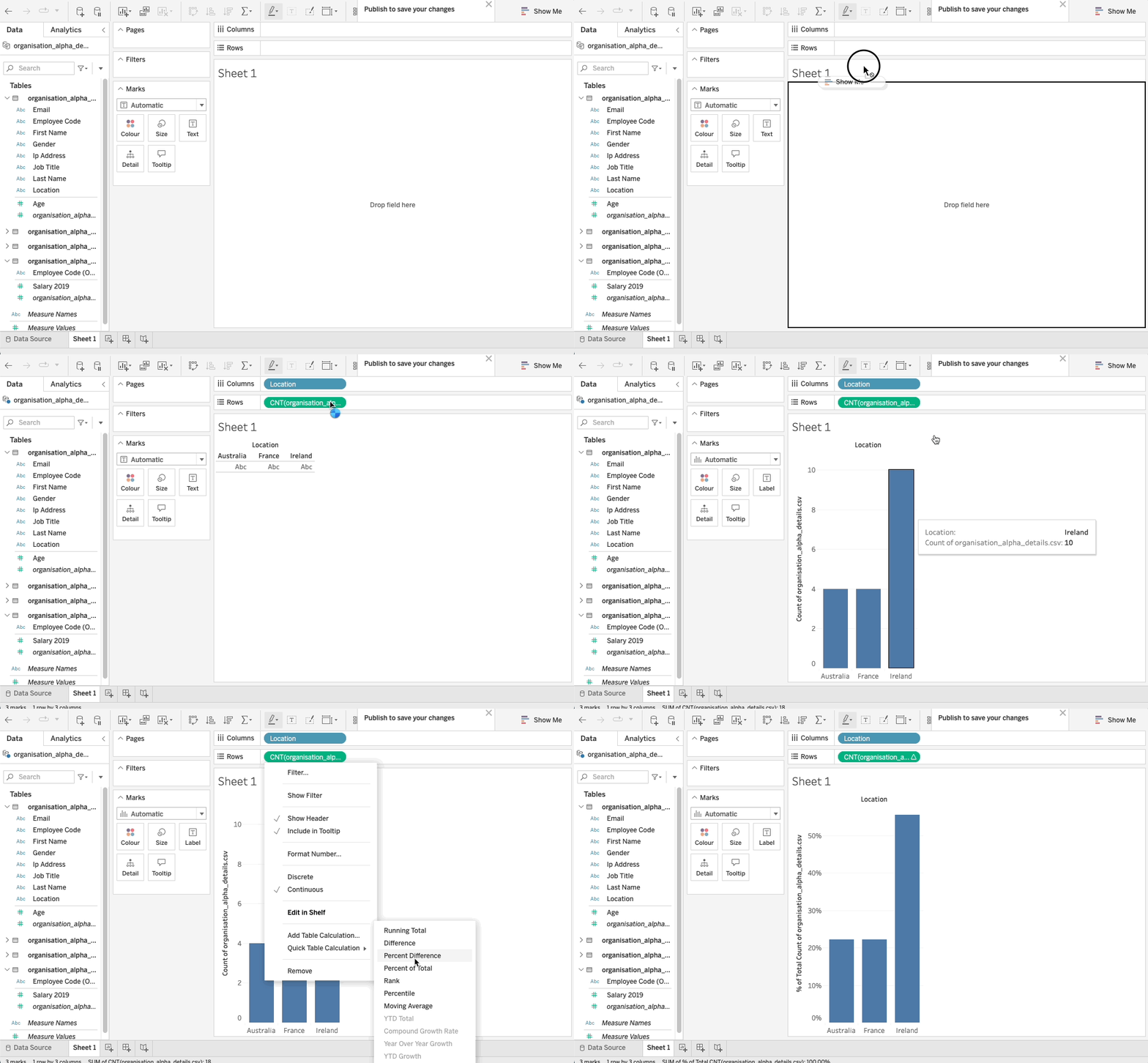
A Dimension on Columns and the count field on Rows. For percentages, open the menu of the count pill (click its arrow, or right-click / ⌃ Control + click) → Quick Table Calculation → Percent of Total.
The recordings in this section use another dataset: the clicks are the same with insta-data.csv.
Composition in Tableau: Pie Chart
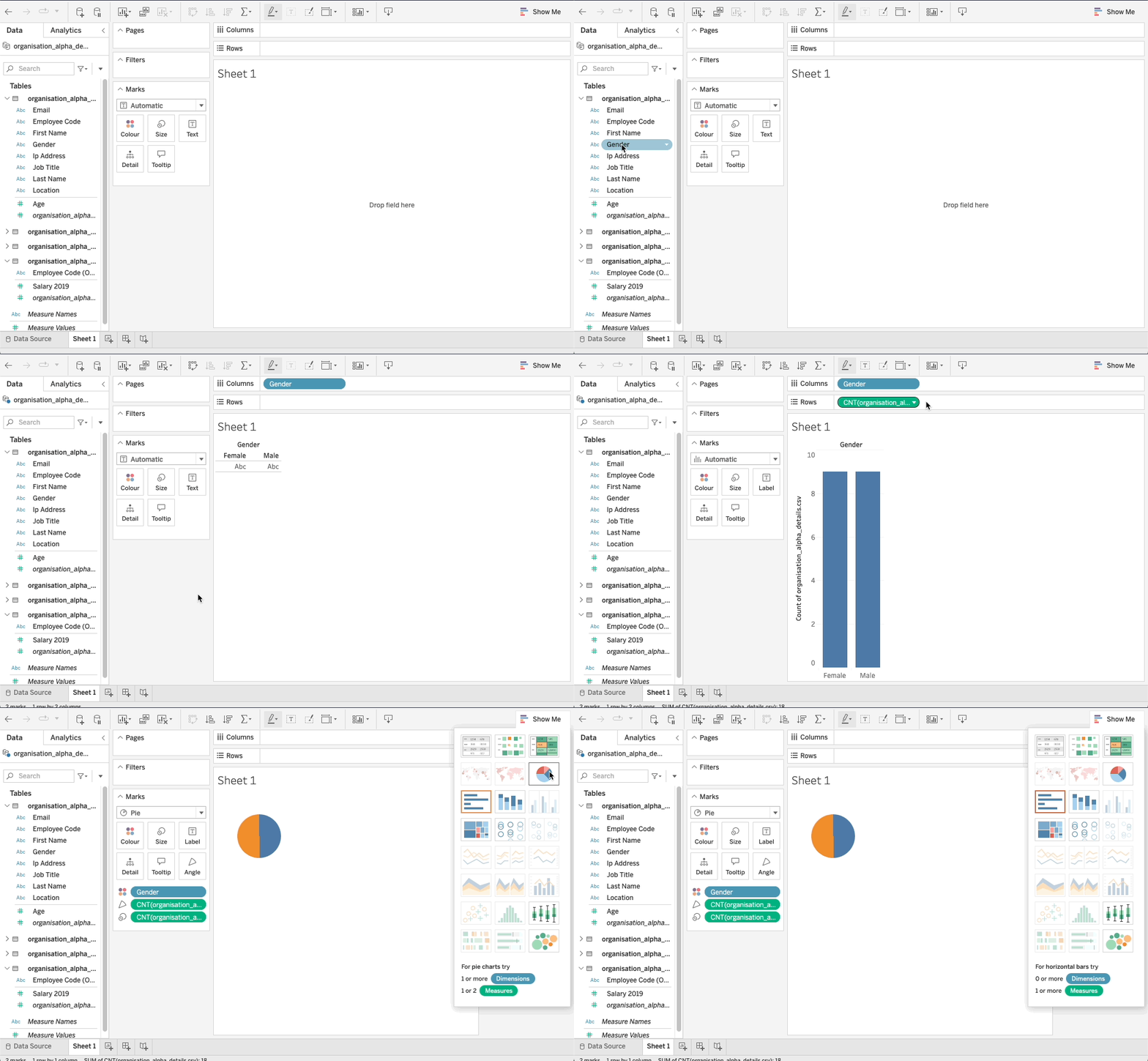
Only for variables with two categories: the Dimension on Columns, the count on Rows, then Show Me → pie chart.
Distribution in Tableau
Tableau does not draw every distribution figure:
- Histogram: yes, with Show Me
- Density: no density curve out of the box
- Box plot: yes, with Show Me or the Analytics pane
- Dynamite: an average bar, but no error bars

Distribution in Tableau: Histogram
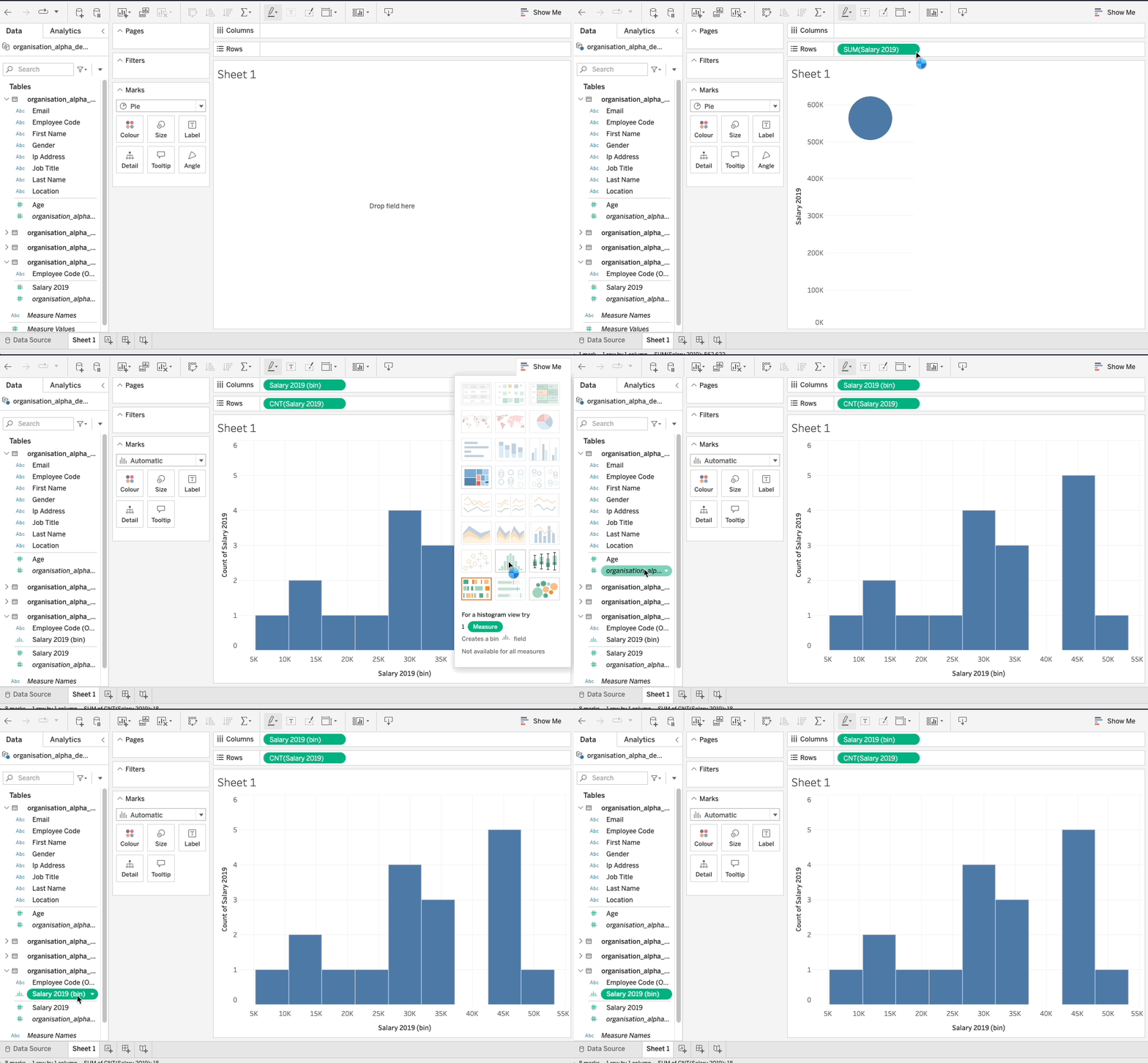
A Measure on Rows, then Show Me → histogram.
Tableau creates a new field,
variable (bin): to change the width of the bars, open its menu → Edit.
Distribution in Tableau: Box Plot
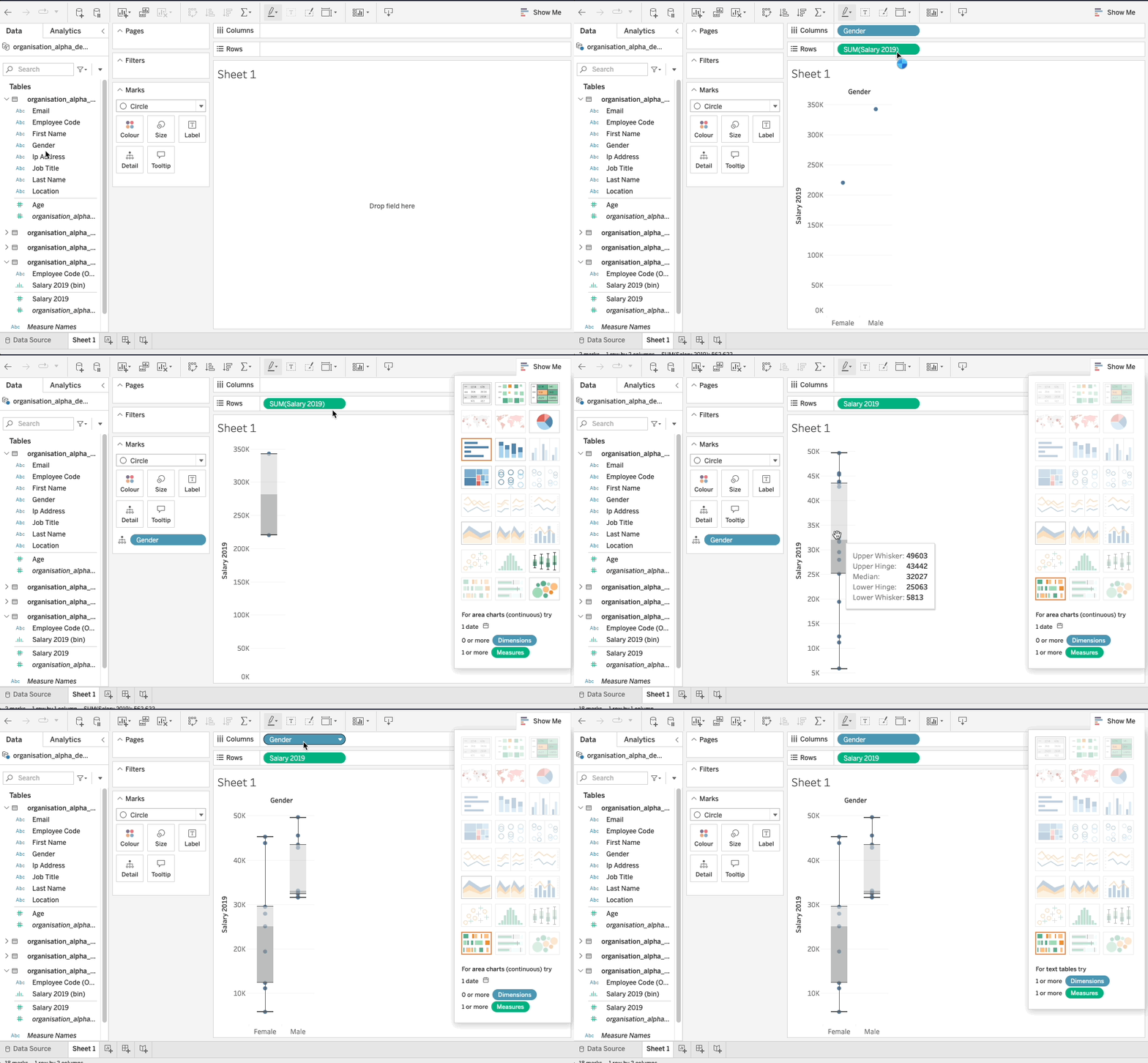
- A Measure on Rows, then Show Me → box-plot
- Use dimension to display all the values and the 2 whiskers.
Distribution in Tableau: Average Bar
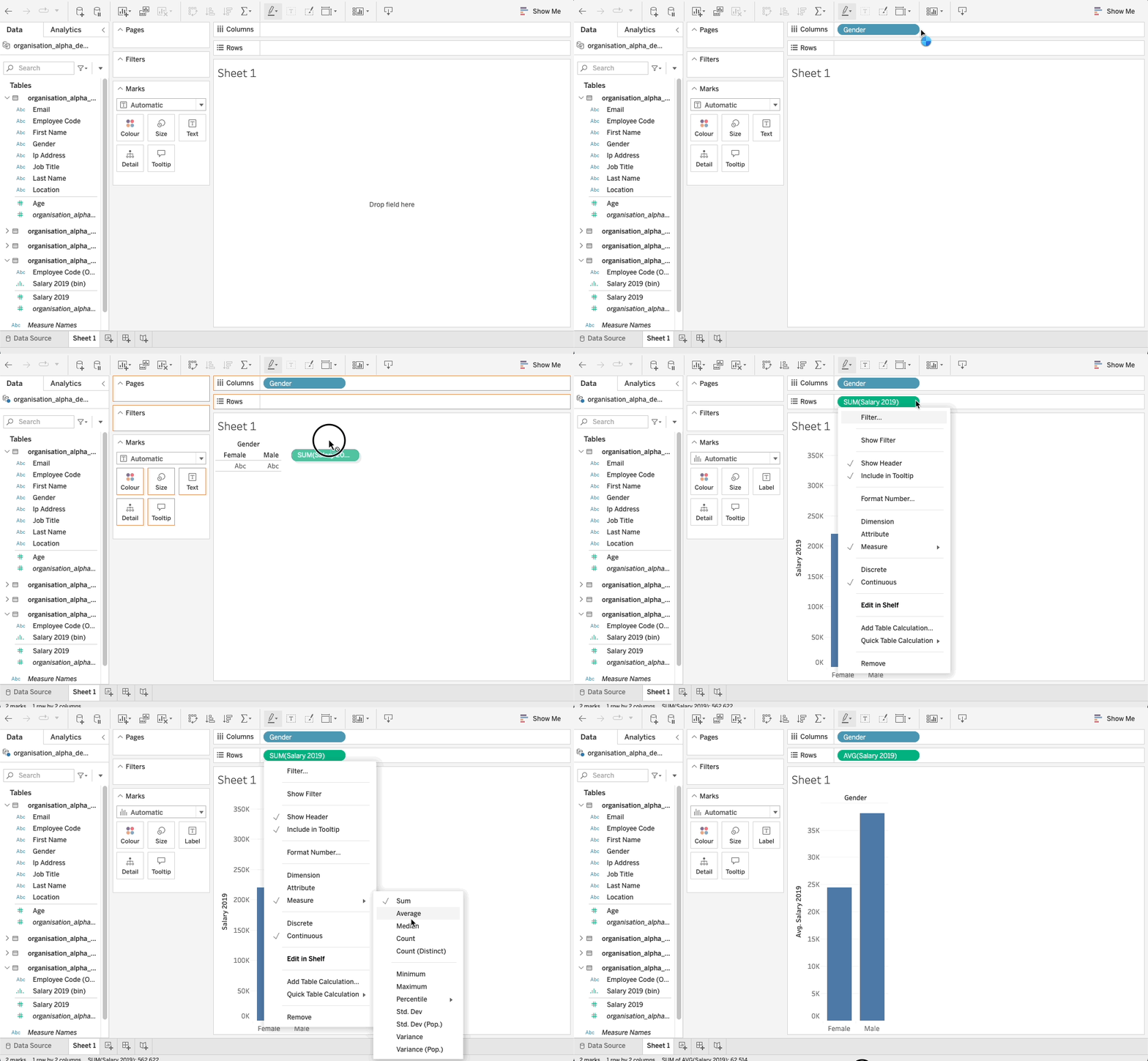
- A Measure on Rows is a SUM by default: open its menu → Measure → Average.
- Alternatively, the same menu offers Median if needed.
Comparison in Tableau
Add a Dimension on Colour, Columns or Rows to any of the previous figures: bar or pie charts with the count, histograms, box plots, bar charts with the average.
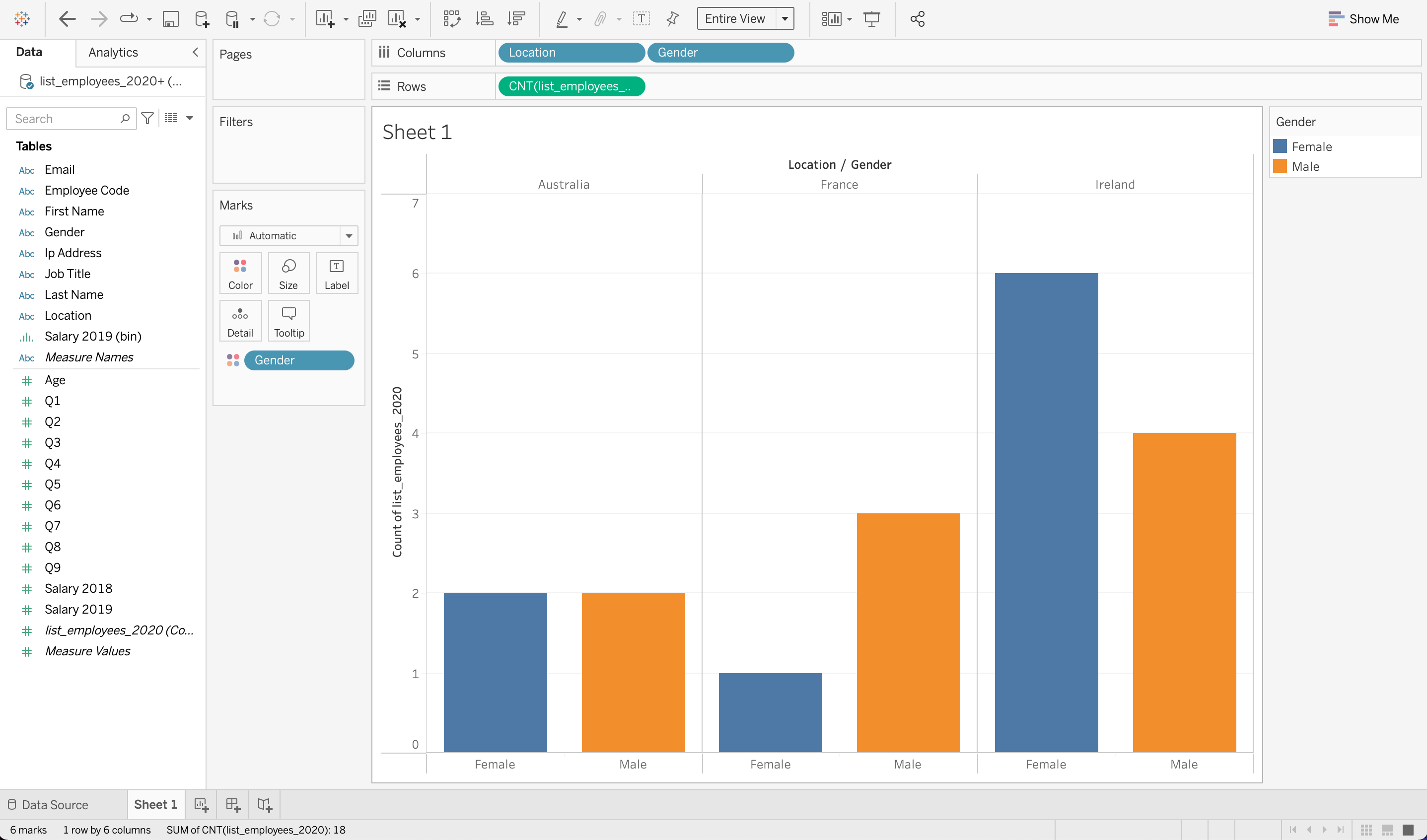
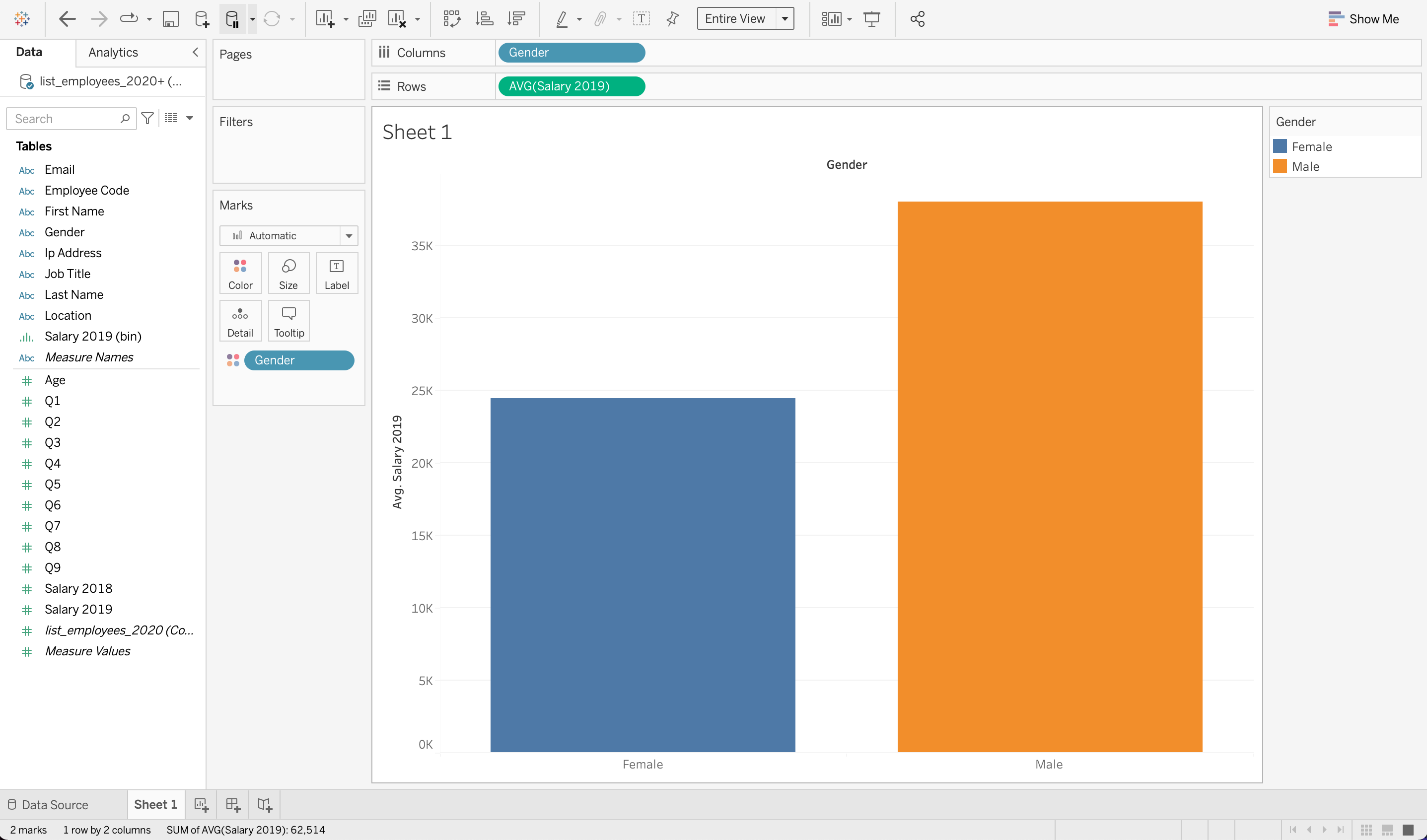
Comparison in Tableau: Multiple Bars
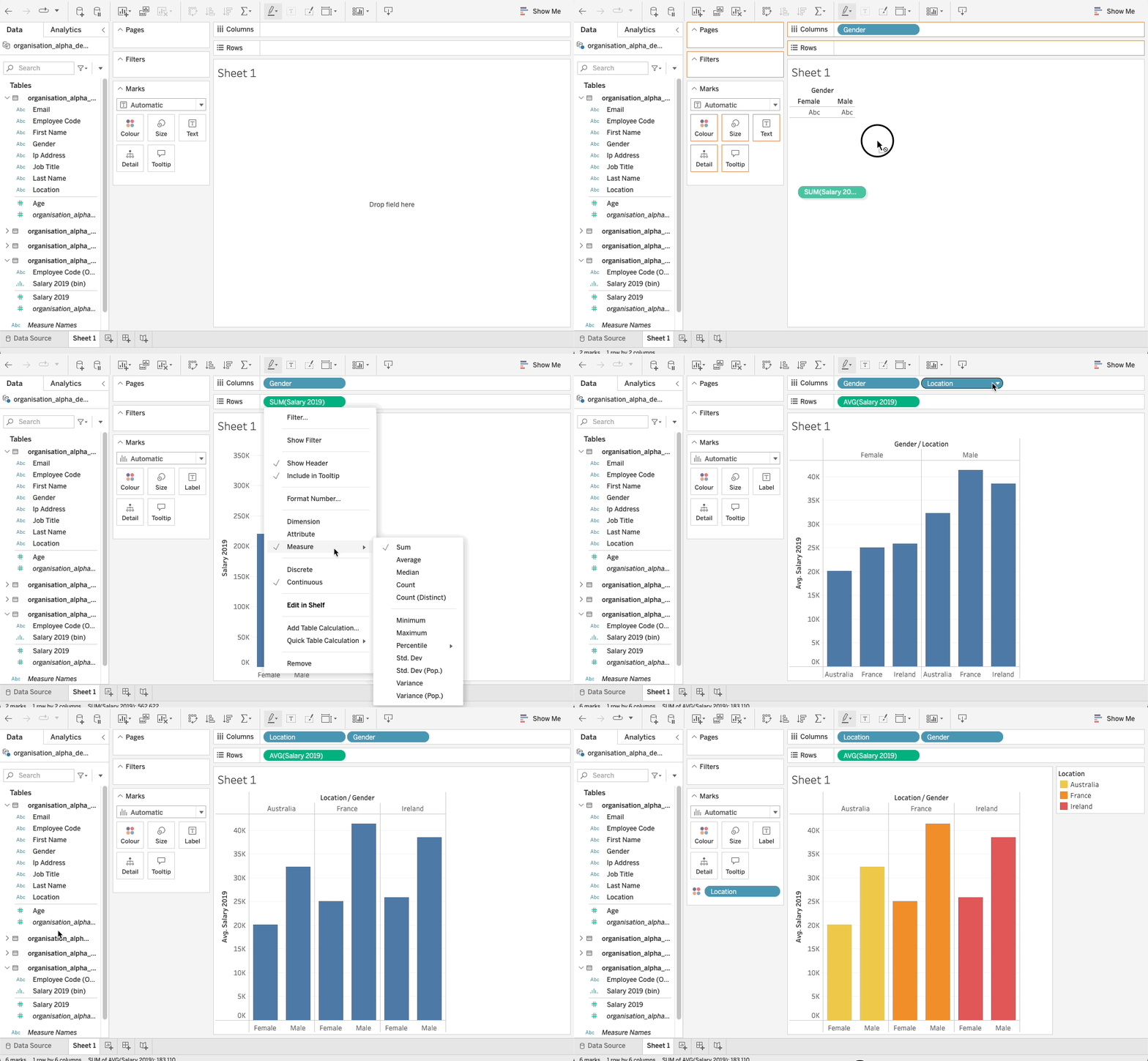
A second Dimension on Columns puts the bars side by side; on Colour, it tells the groups apart.
Comparing Distributions in Tableau
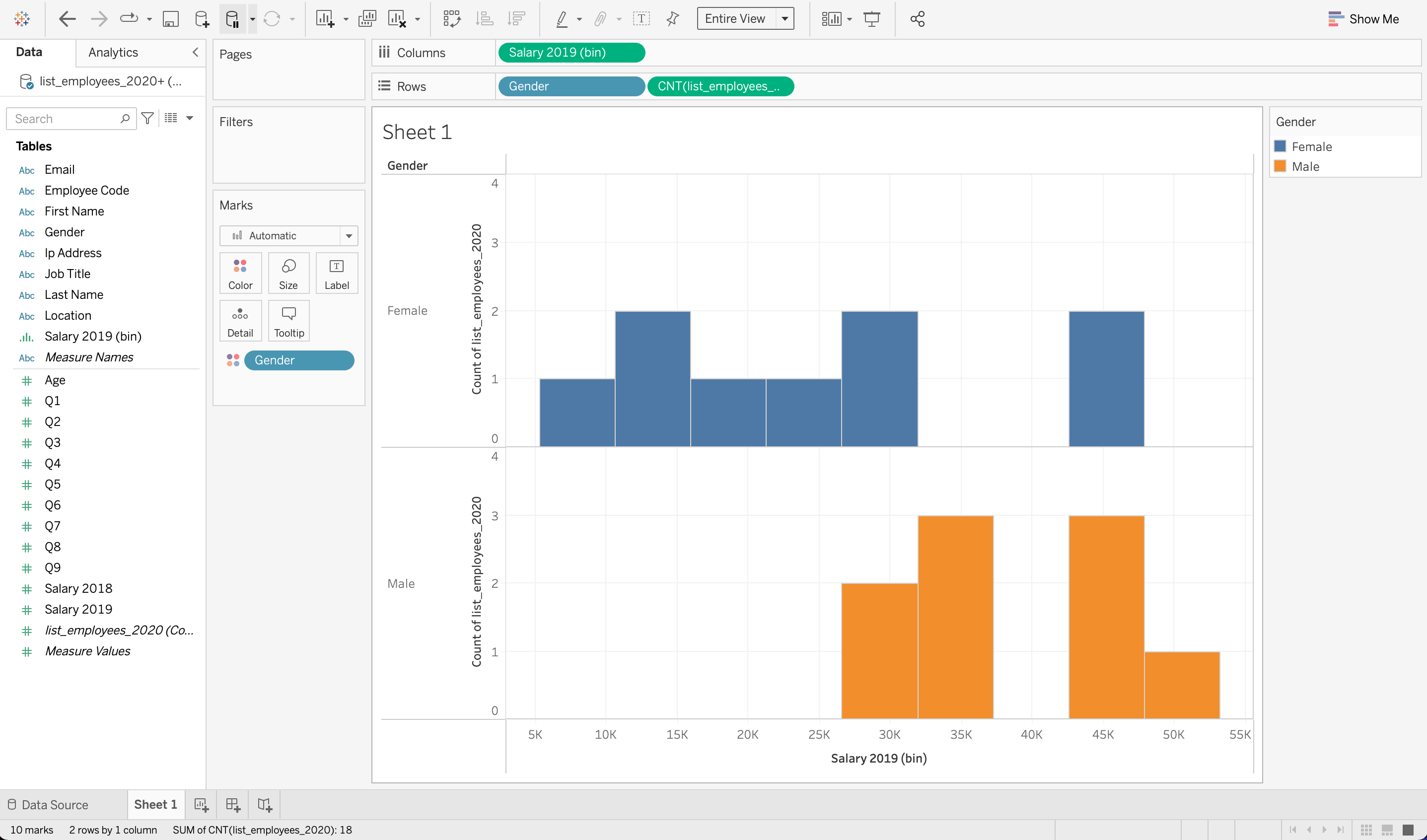
A Dimension on Rows: one histogram per group
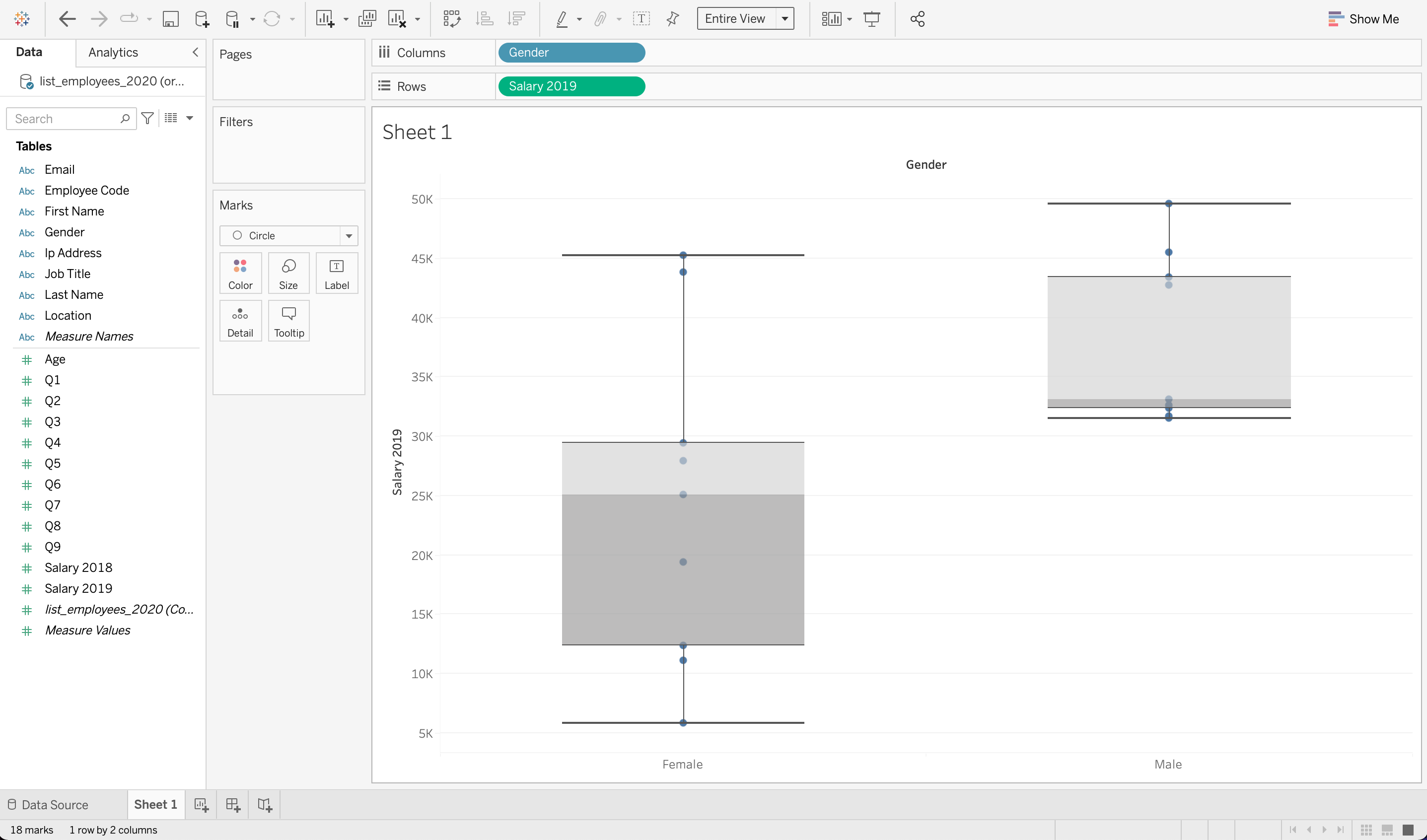
A Dimension on Columns: one box per group
Relationship in Tableau
The scatterplot is the best way to show the relationship between 2 Measures, but:
- switch both from the default SUM to Dimension (pill menu), or Tableau draws a single dot for the sum of everything
- add a Trend Line from the Analytics pane
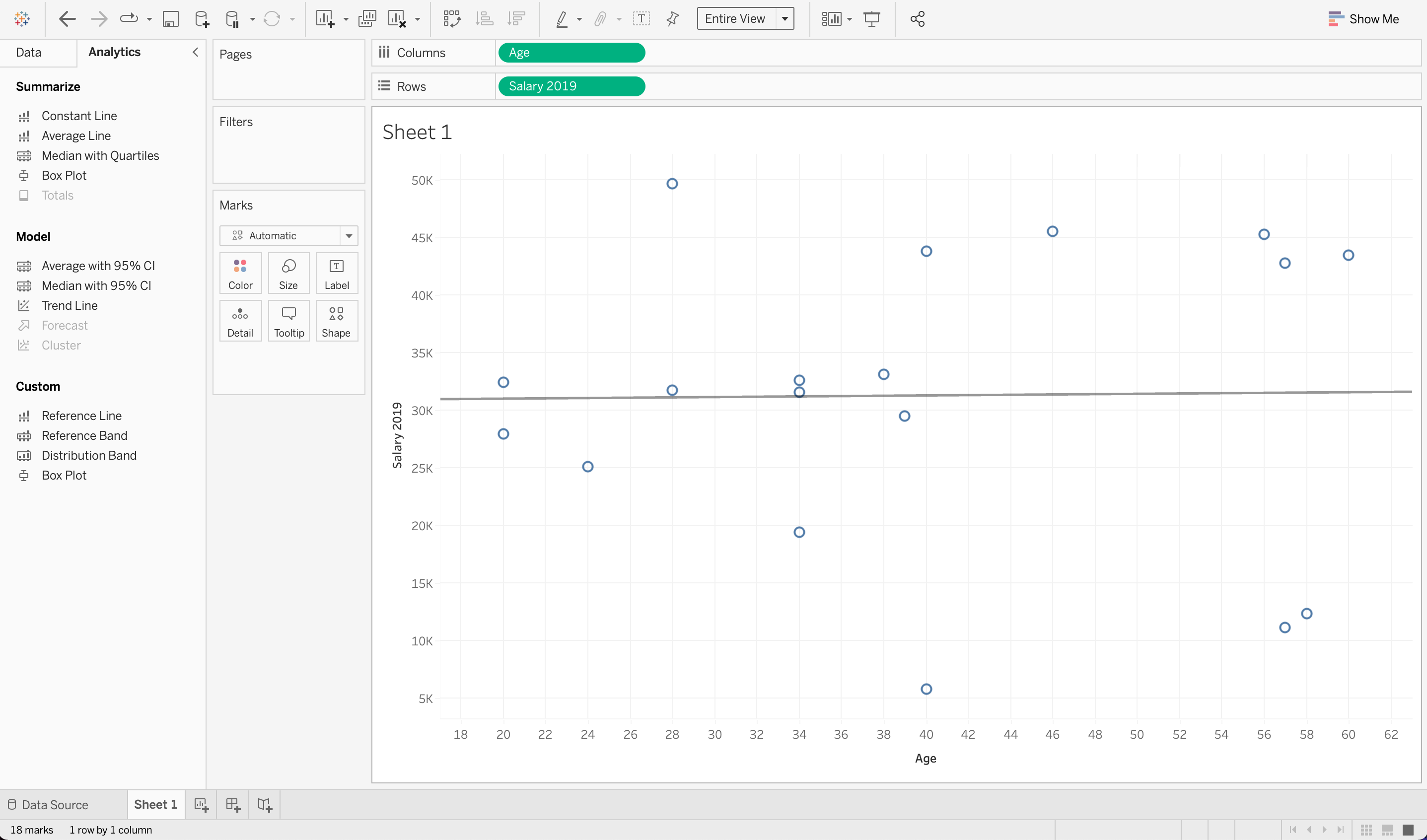
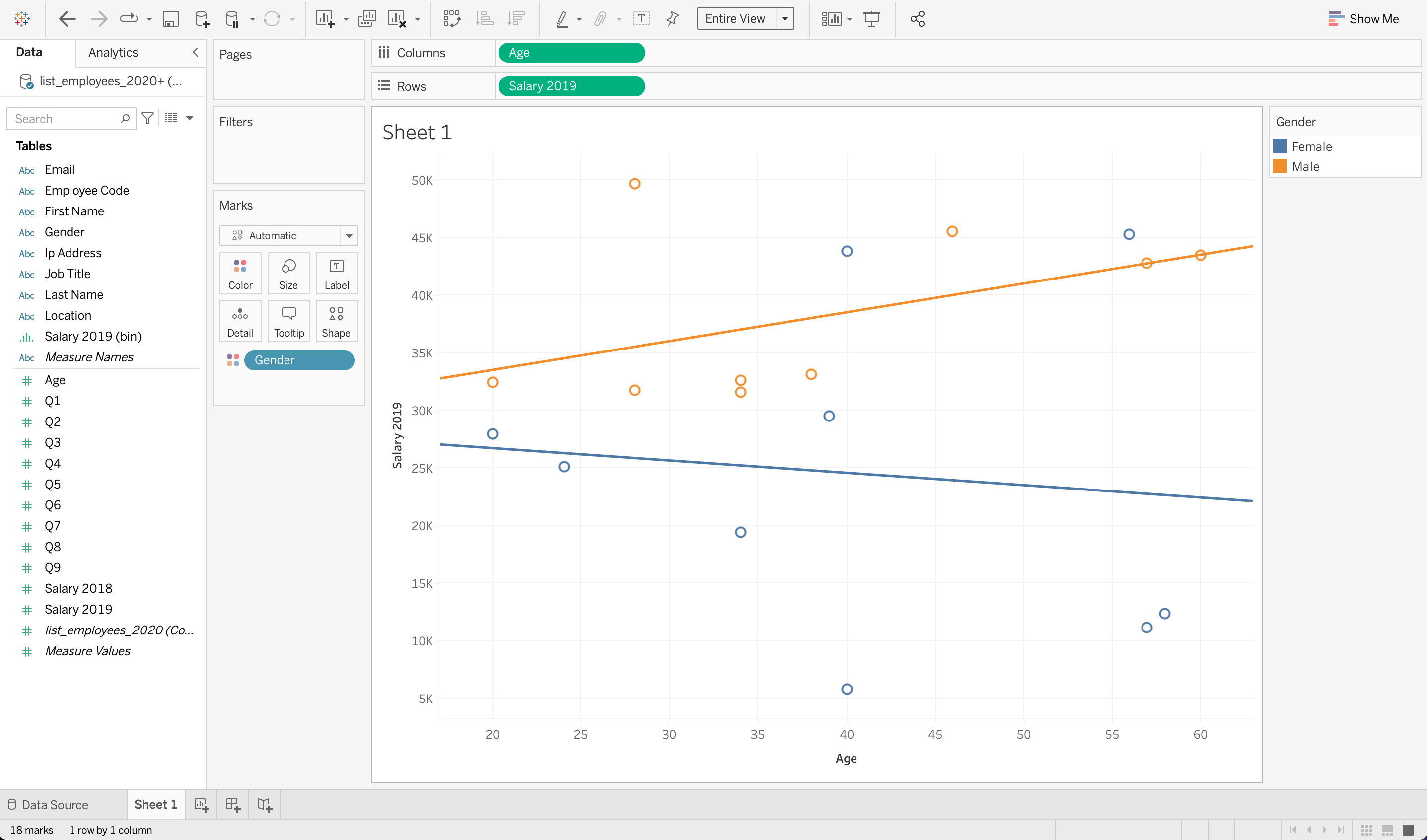
Relationship in Tableau: Scatterplot
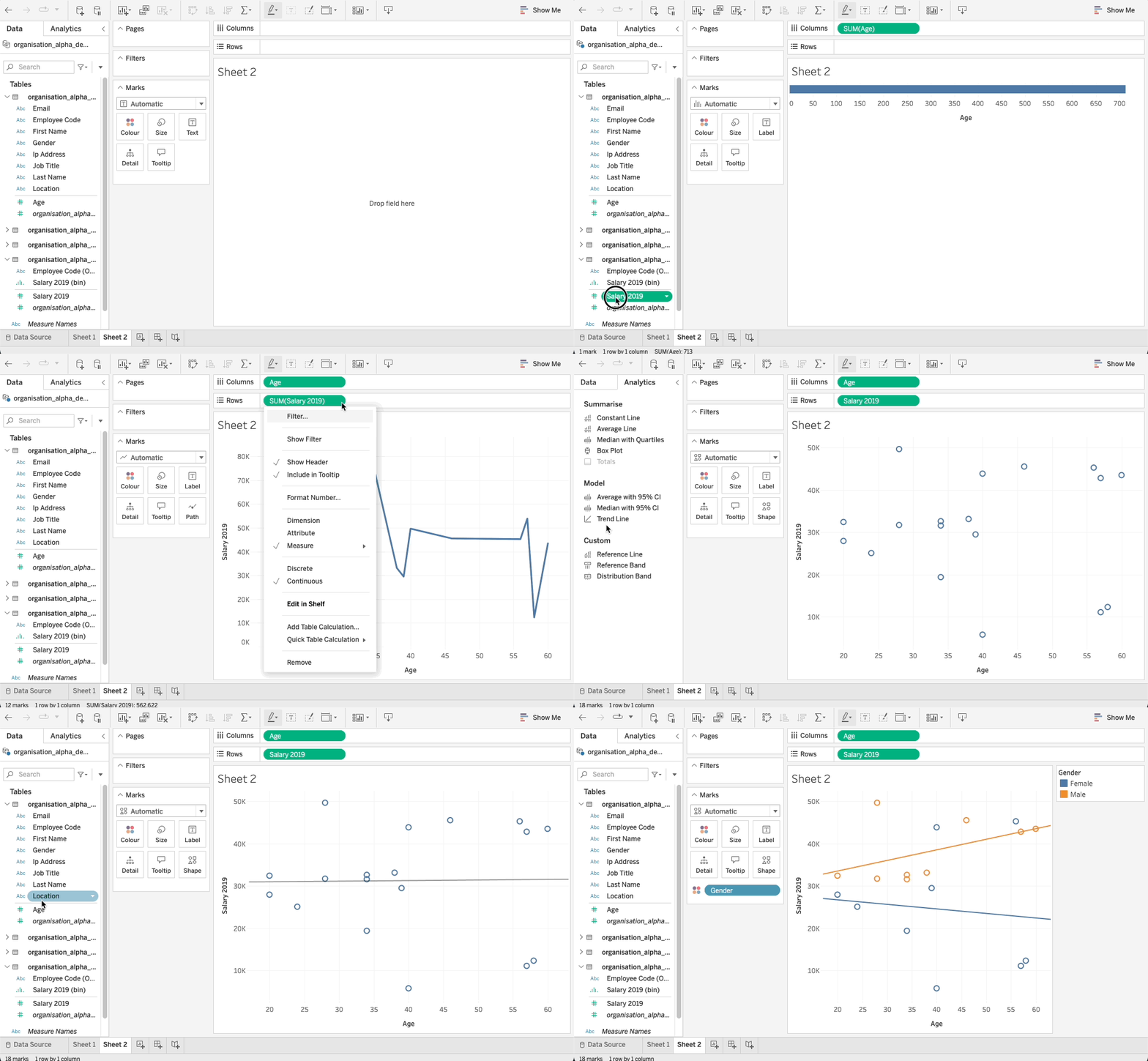
Two Measures on Columns and Rows, each switched to Dimension. Analytics pane → Trend Line → Linear. A Dimension on Colour gives one line per group: hover a line to read its R² and p-value.

Thanks for your attention and don’t hesitate to ask if you have any questions!