Lecture 2: Data Files, Structures, and Tableau

STA1000 - Data Analytics and Metrics

Damien Dupré

Previously …

  • In Lecture 1 we have seen that Analytics is the process to transform Data to Information. Once done, Information should be structured in a convincing story bringing textual with values and visusal evidence with graphs. Ultimately, this should be use to make decisions.

  • You also met Loomrow, and were handed insta-data.csv. We have seen how good AI is but also that you will have to stand behind everything you submit, including AI outputs.

Today we open that file, decide what can be drawn from it, and build the first views in the tool your first assignment is marked in.

1. The Files Data Arrives In

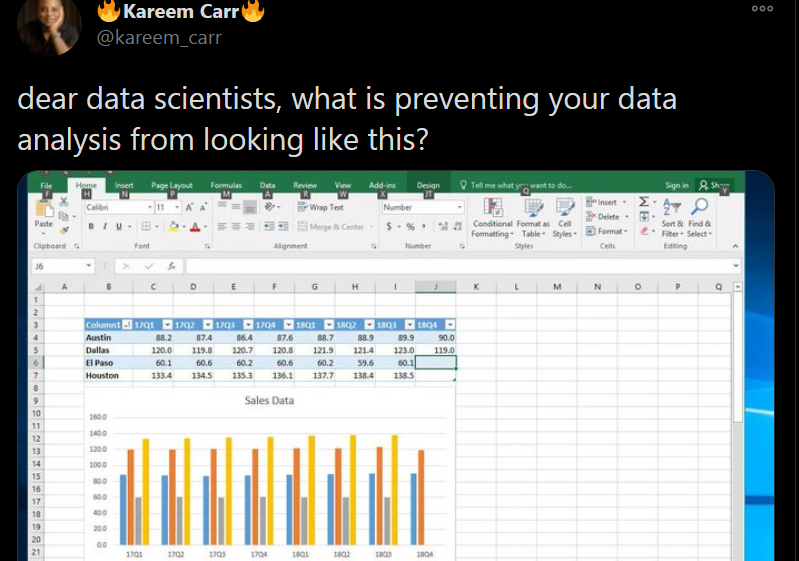
Question from Kareem

️ Your Turn!

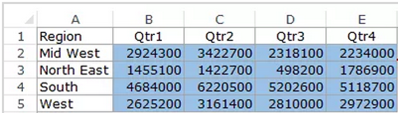
Find what is going wrong with this table
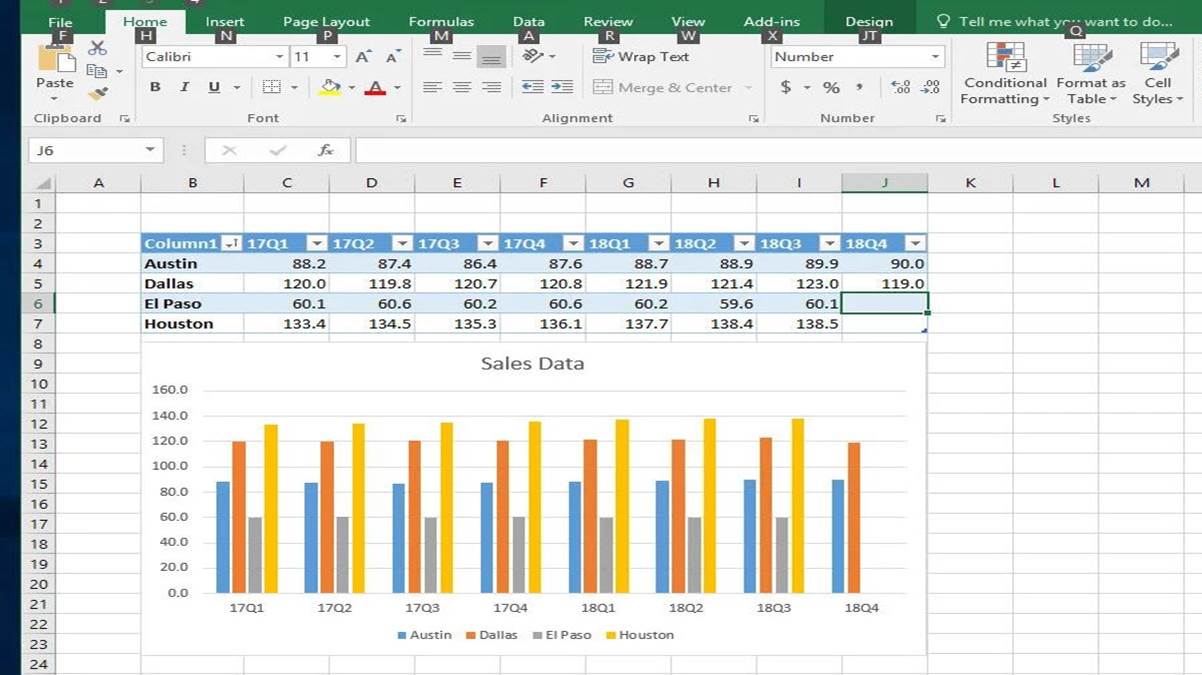
Answer from Michael

Use a Name Convention

An addition to Michael’s list would be to transform headers with a proper naming convention

My suggestion is snake_case: all small letter and words separated by “_”

To Clean Data …

1. Ditch the chart and all non values

Charts can mess up with other software

2. Column headings in row 1

No more than 1 heading row and remove blanks

3. Columns start at column A

Remove blanks before data

4. Use a naming convention

snake_case is preferable but any would do

5. Save as .csv file

Better format and keeps only the current sheet

️ Your Turn!

On the module Loop page, got to “Lecture Data” and download the document called unicef.xlsx:

1. Using AI, clean the 1st sheet of this file but only until column P, remove all other columns.

2. Calculate the sum of the 2nd column to obtain the world population in 2018.

2. Data Files

CSV: Comma/Colon Separated Values

post_id,posted_at,format,product_line,reach,spend_eur
LR0001,2025-01-08 20:00:00,reel,Knitwear,735,0.0
LR0002,2025-01-10 18:00:00,carousel,Dresses,1042,0.0

Every tool on earth reads it. Nothing is hidden. It diffs cleanly in version control. It is the default answer.

What it does not carry:

  • data types,
  • formatting,
  • formulas,
  • multiple sheets,
  • or any record of where it came from.

Delimiters, Decimals, Dates and Encoding

A value containing a comma must be quoted: LR0184,"Back in stock, finally",535086. Some exports forget, and the row silently gains a column.

A European Excel writes LR0203;124,50;18422: the decimal separator is a comma, so the delimiter becomes a semicolon. Load it with default settings and 124,50 becomes text, or 12450.

Dates. 03/04/2026 is 3 April in Dublin and 4 March in Boston. Insist on YYYY-MM-DD, which sorts correctly as text and cannot be misread.

Encoding. Read a Latin-1 file as UTF-8 and €180 becomes €180, Dupré becomes Dupré. Called mojibake, and not fixable by find-and-replace once saved twice. Use UTF-8.

Excel, JSON, Parquet, Connectors

Excel carries types, sheets, formulas and formatting, and is what your stakeholders usualy use.

JSON is nested rather than rectangular, and it is what APIs return, including GA4 and Meta in Semester 2. Carries types, costs four times the space, has to be flattened to do analytics.

Parquet is columnar, typed, compressed and binary: reading three columns of a hundred never touches the other ninety-seven.

Connectors (Google Sheets, SQL, BigQuery) are live. A file is a photograph; a connector is a window.

Your Turn!

Download data/formats/ from Loop. In pairs:

  1. Open insta-data.csv in a text editor, then in Excel. What did Excel change?
  2. Open insta-data-european.csv in Excel. What went wrong, and why?
  3. Open insta-data.json. How many rows does it have, and how can you tell?

3. Data Transformations

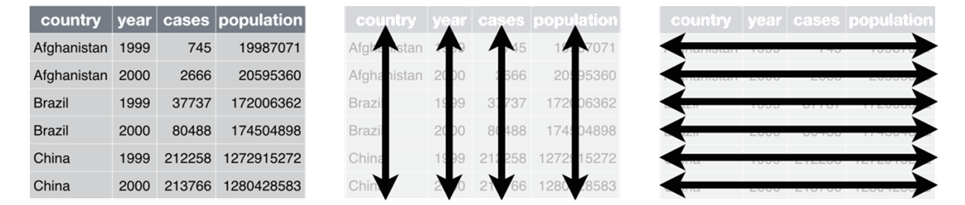
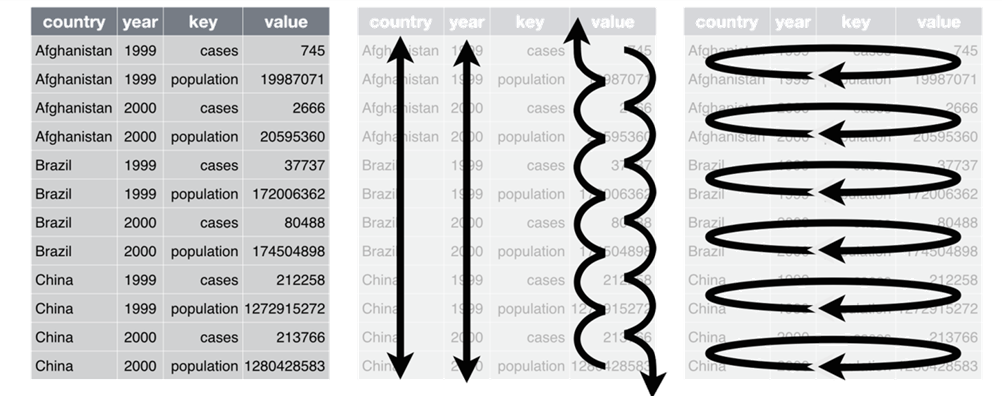
Tidy Data

  • Each variable has its own column
  • Each observation is placed in its own row
  • Each value is placed in its own cell

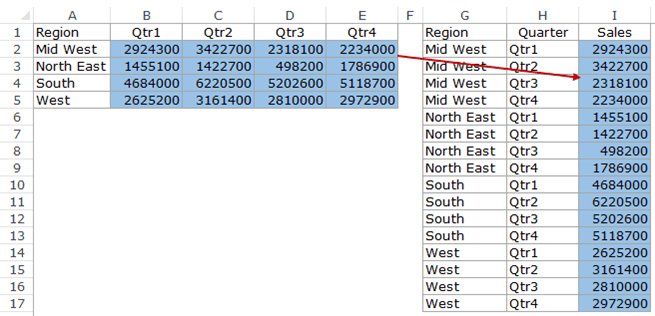
Long or Wide?

Long Format
Long or Wide?

Wide Format

Long or Wide?
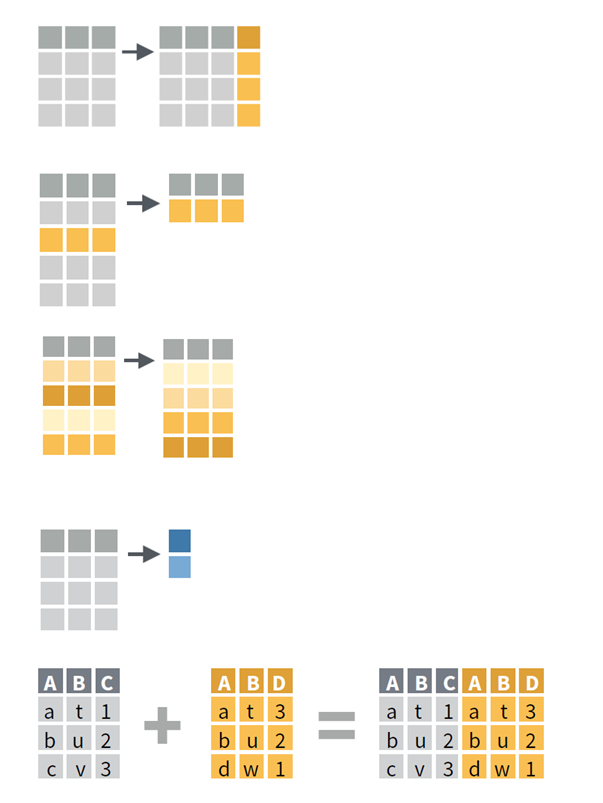
Master the Key Transformations

  1. Extension


  1. Reduction


  1. Direction


  1. Aggregation


  1. Combination

4. Data Structure

Variables have different types

  • Categorical: If the variable’s possibilities are words or sentences (character string)
    • if they cannot be ordered: Categorical Nominal (e.g., gender)
    • if they can be ordered: Categorical Ordinal (e.g., opinion scales)
  • Continuous: If they are numbers (e.g., age or temperature)

Variables can be converted to either Categorical and Continuous but it is always better to keep them in their correct scale. Example:

Likert items are Categorical Ordinal but are analysed as Continuous.

Gender item is Categorical Nominal but can be recoded as 1 and 2.

Guess Variable Type (1)

Variable Name Variable Range Variable Type
Gender Male/Female/Other
Country Ireland/France/USA
Age 0 to Inf
Age 0-19, 20-29, 30-39, 40-49
Price 0 to Inf
Temperature -Inf to Inf
IQ Low/Mid/High
Results 0 to 100
Results Fail/Pass/2:1/First

Guess Variable Type (1)

Variable Name Variable Range Variable Type
Gender Male/Female/Other Categorical Nominal
Country Ireland/France/USA Categorical Nominal
Age 0 to Inf Continuous
Age 0-19, 20-29, 30-39, 40-49 Categorical Ordinal
Price 0 to Inf Continuous
Temperature -Inf to Inf Continuous
IQ Low/Mid/High Categorical Ordinal
Results 0 to 100 Continuous
Results Fail/Pass/2:1/First Categorical Ordinal

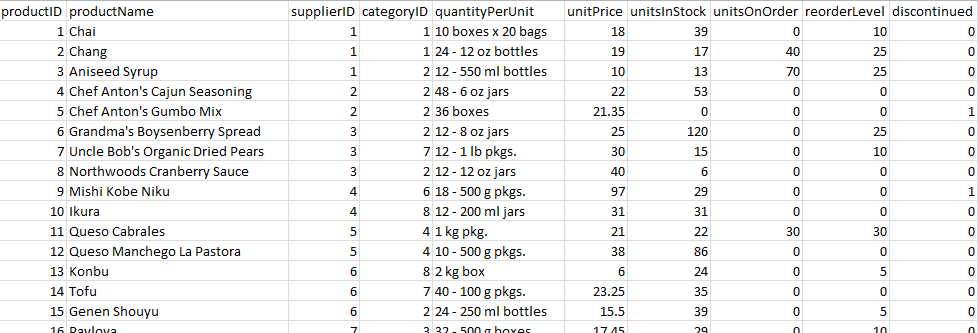
Guess Variable Type (2)

Variable Name Variable Type
productName
supplierID
categoryID
quantityPerUnit
unitPrice
unitsInStock

Guess Variable Type (2)

Variable Name Variable Type
productName Categorical Nominal
supplierID Categorical Nominal
categoryID Categorical Nominal
quantityPerUnit Categorical Nominal
unitPrice Continuous
unitsInStock Continuous

5. Tableau

What is Tableau?

Tableau Software is an interactive data visualization software company focused on business intelligence:

  • Created in 2003
  • Acquired by Salesforce 2019

Tableau is a set of different product which aims to create interactive data visualisation dashboard.

Among these product, you will find:

  • Tableau Prep (dedicated to cleaning data - no use here)
  • Tableau Desktop (the main software - not free but can be access with a student license)
  • Tableau Public (exact same a Tableau Desktop but free and the only way to save your work is by publishing dashboard online)
  • Tableau Server & Tableau Online (alternative to Tableau Desktop without local installation)

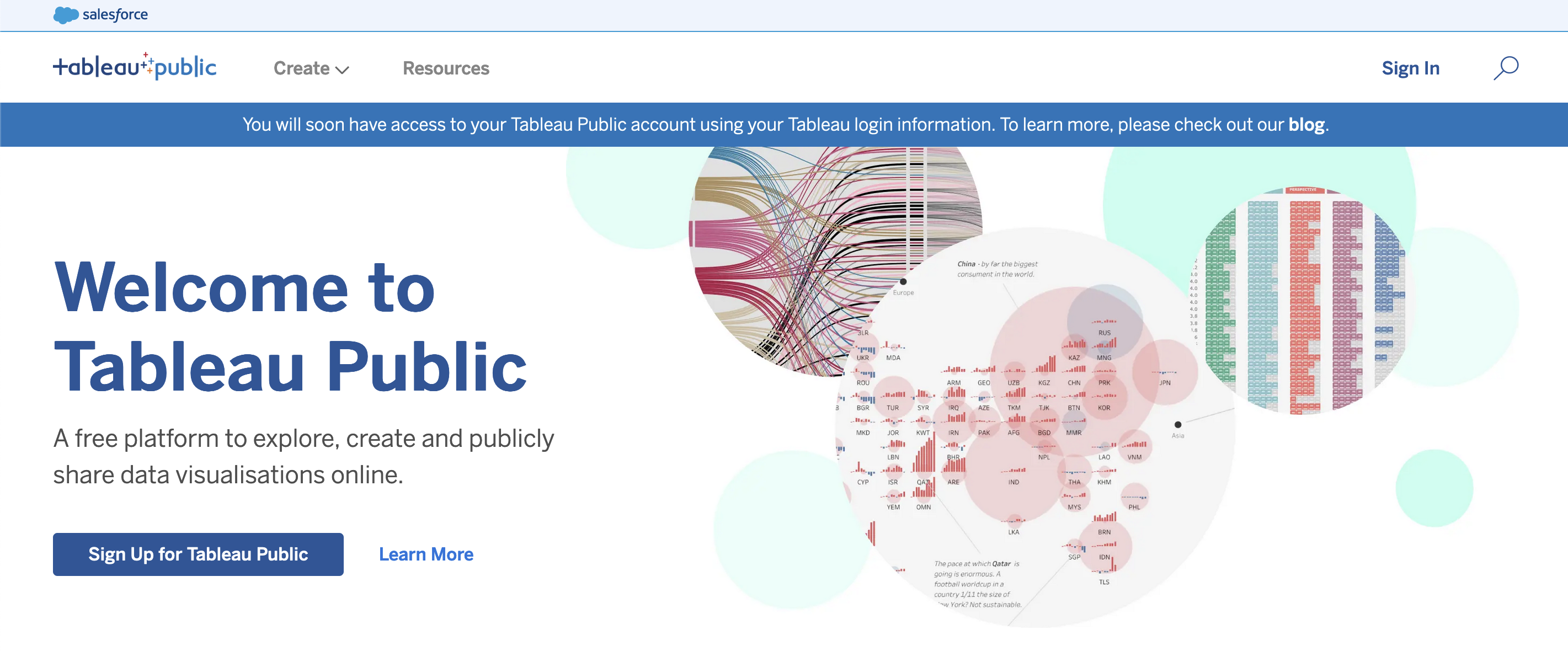
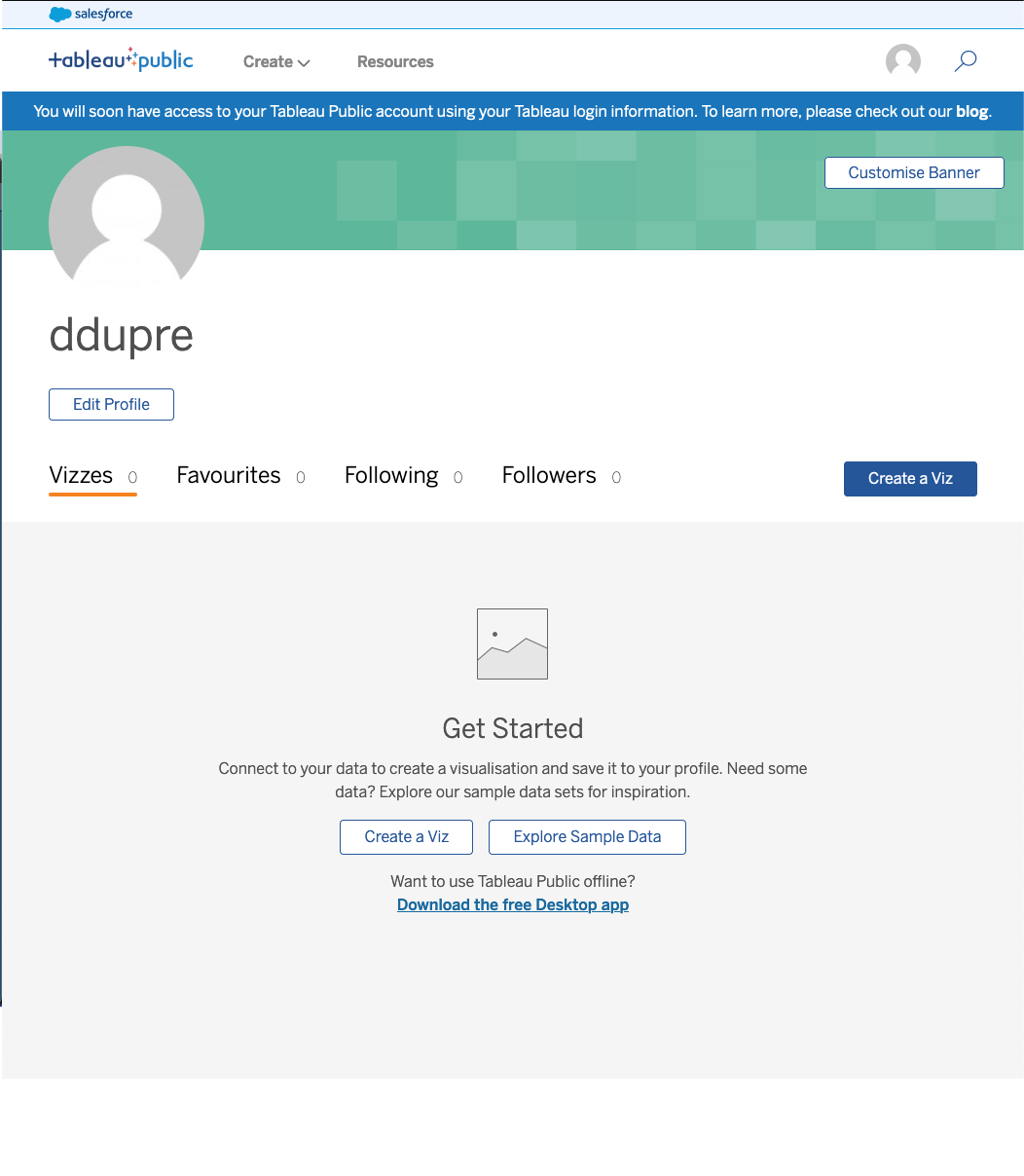
How to Use Tableau Public

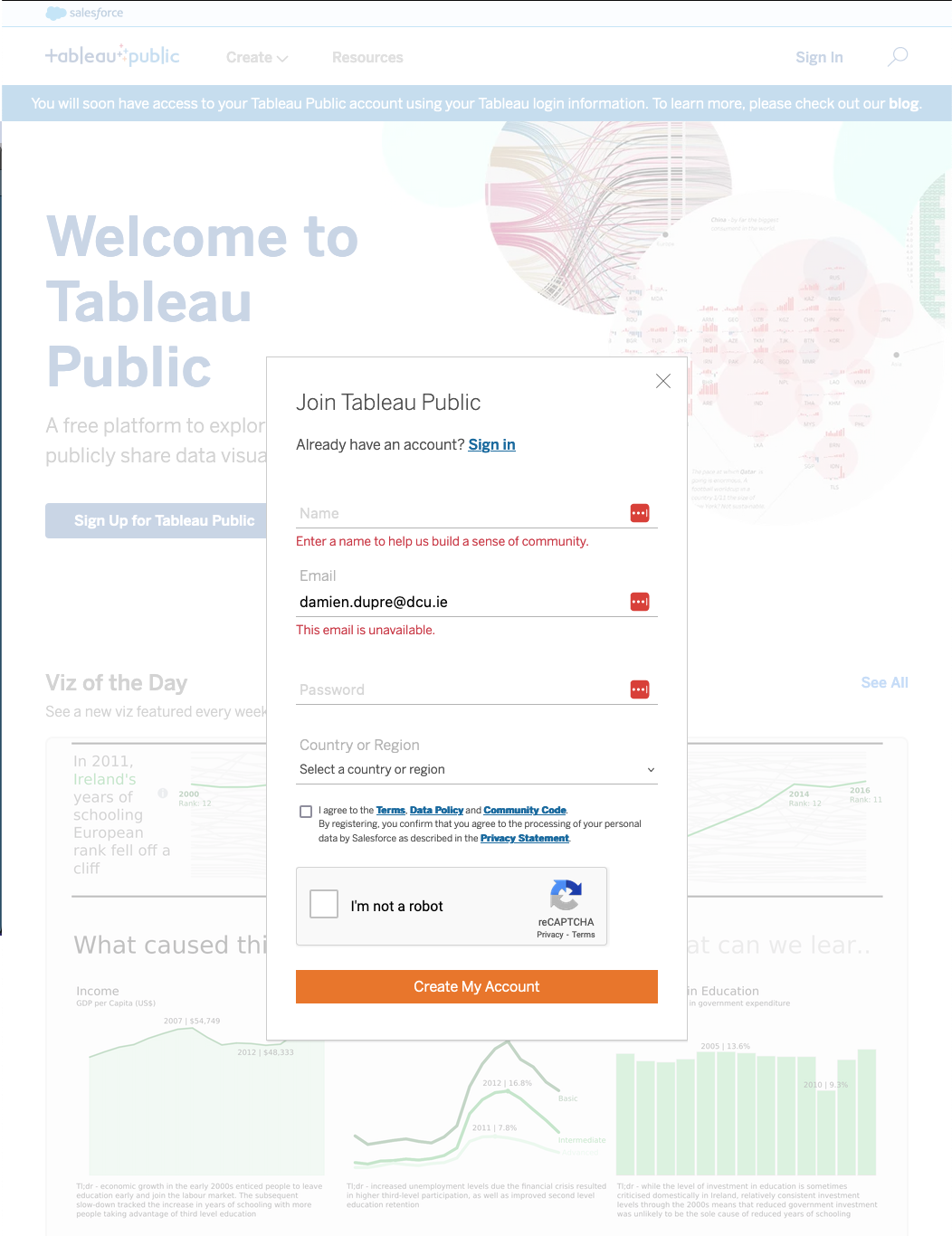
  1. Go to https://public.tableau.com
  2. Sign in
  3. Enjoy full features of Tableau Desktop (except saving file, only public publication online)

Source: How I Came to Choose One out of Sixty Two Data Visualizations

How to Use Tableau Public

How to Use Tableau Public
How to Use Tableau Public
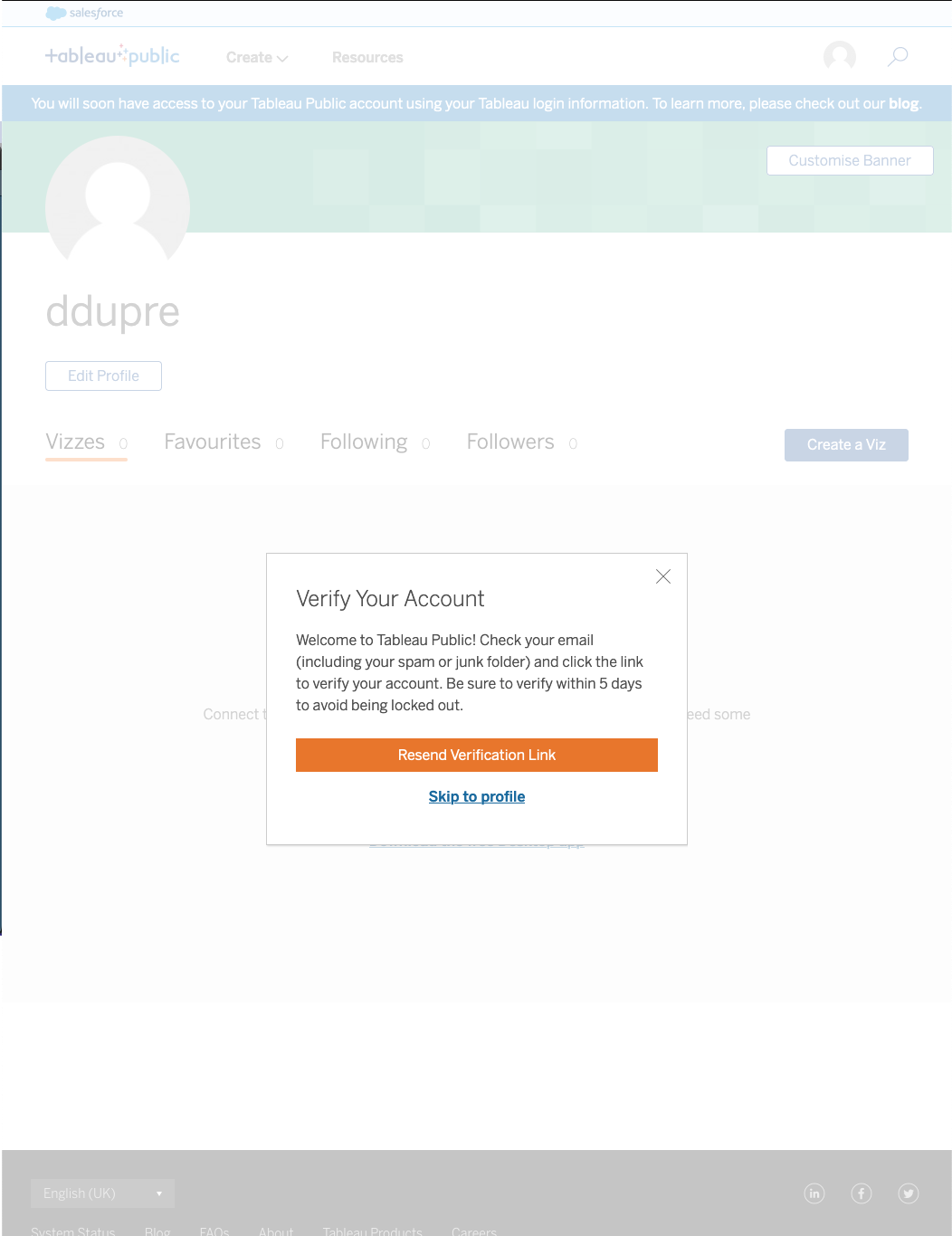
Tableau in a Nutshell

Tableau is very similar to Power BI but it actually simpler in its structure (but the visualisation capabilities are more complex):

There are 4 types of areas:

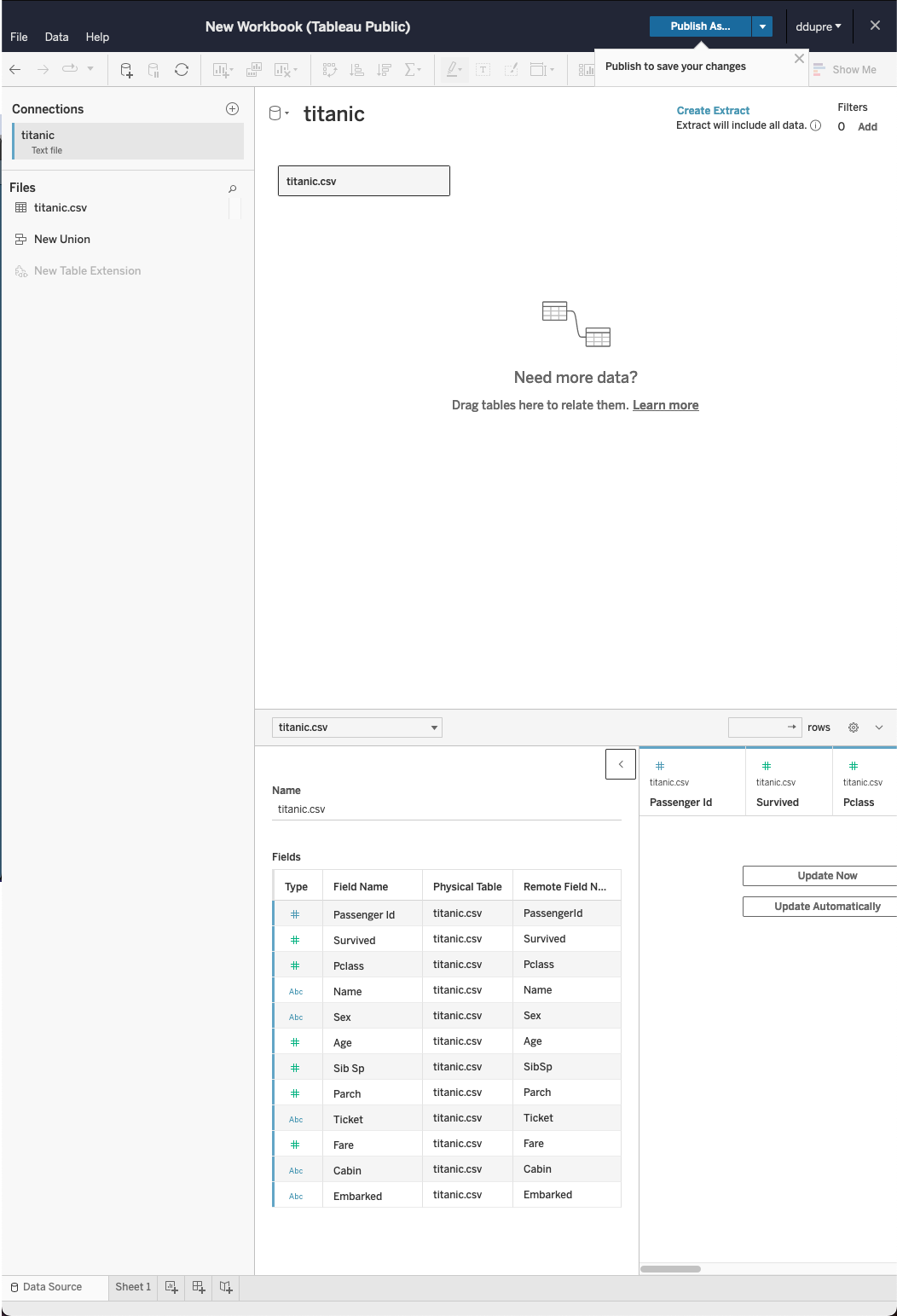
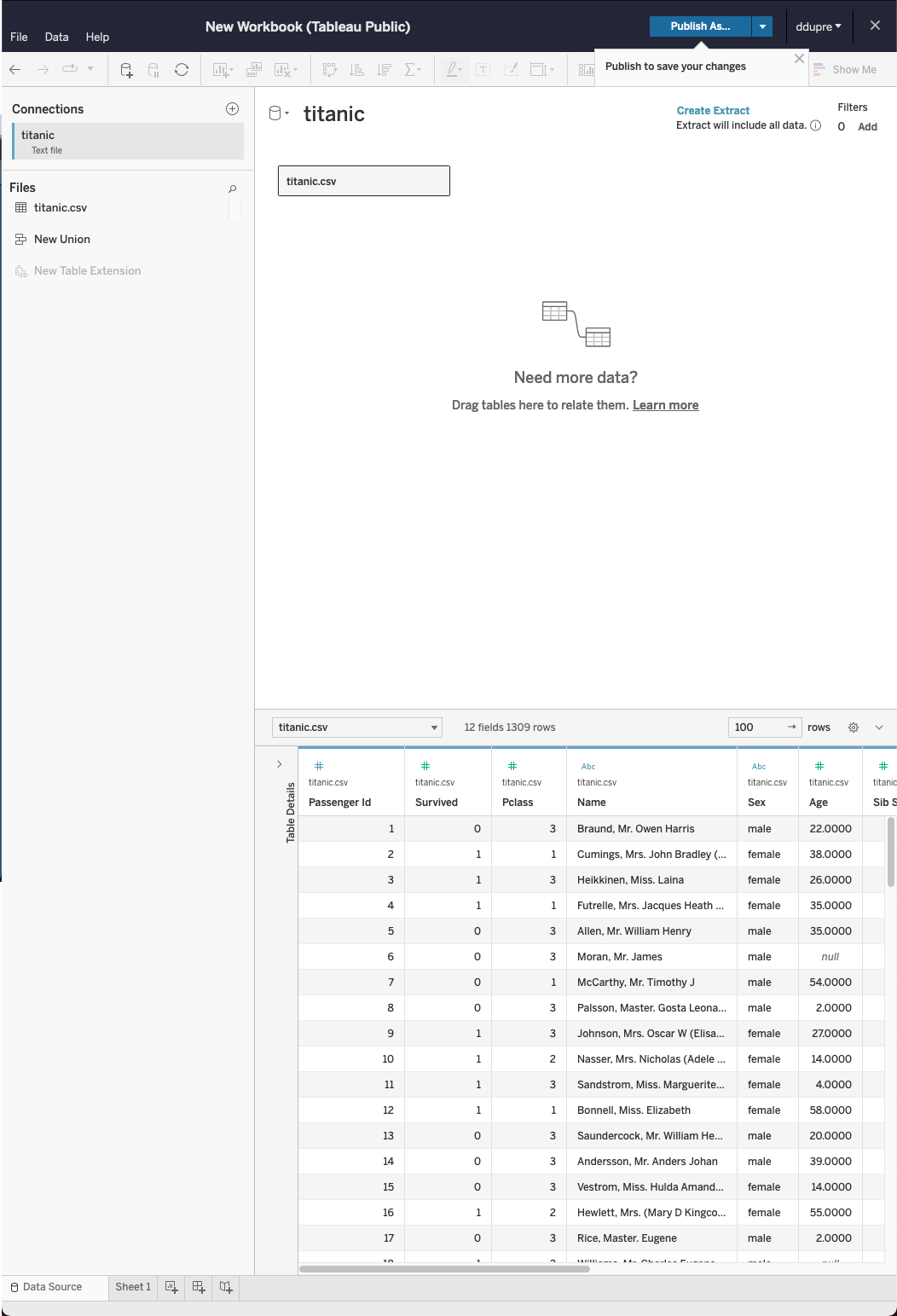
  • Data Source is where you check the type of variables and where you can do basic transformations
  • Worksheet is where you build each individual visualisation (1 worksheet per visualisation)
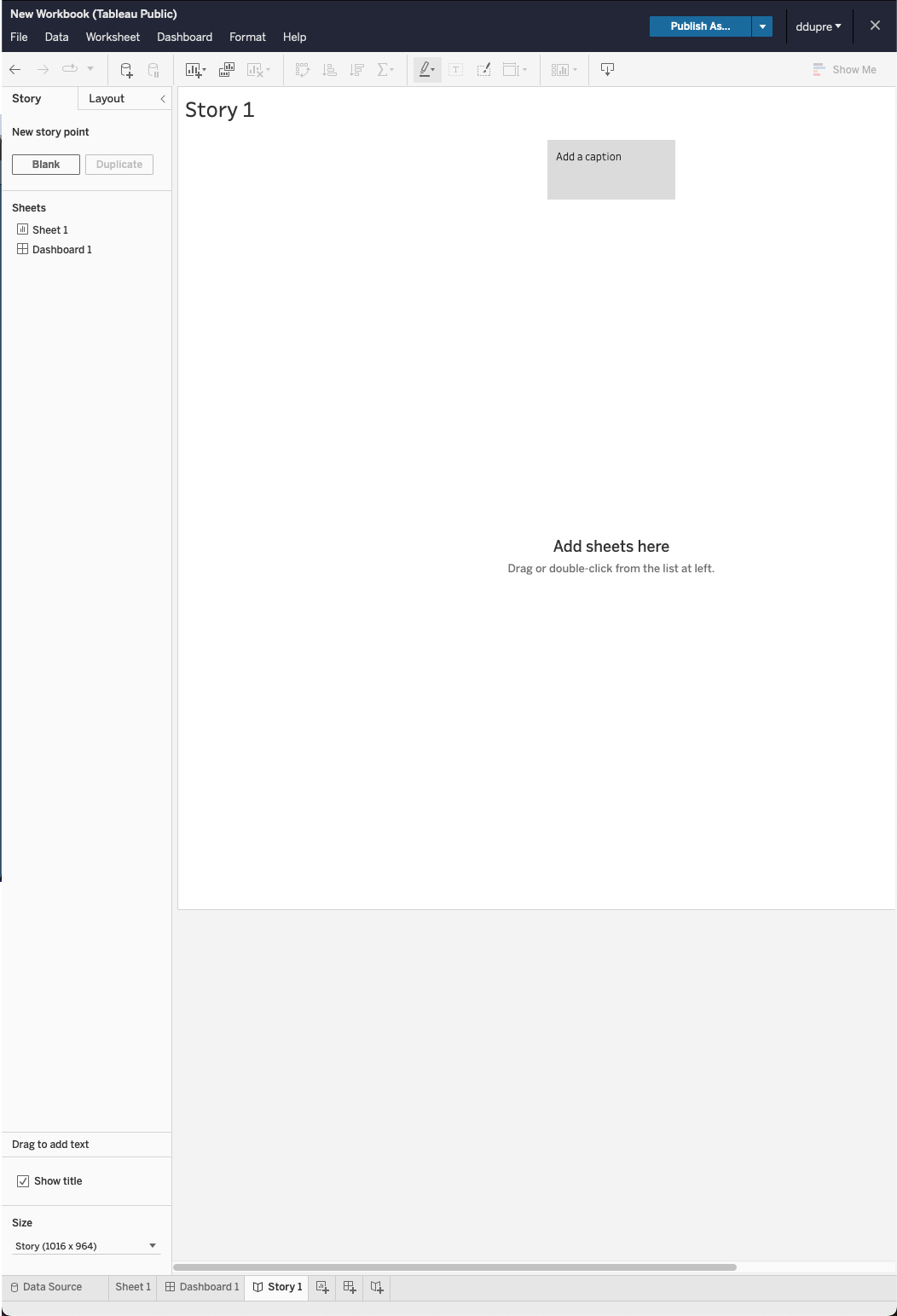
  • Dashboard is where you combine all the visualisations in 1 interactive page
  • Story is where you create interactive presentation with multiple slides (no use here)

Tableau Data Source

Tableau Worksheet
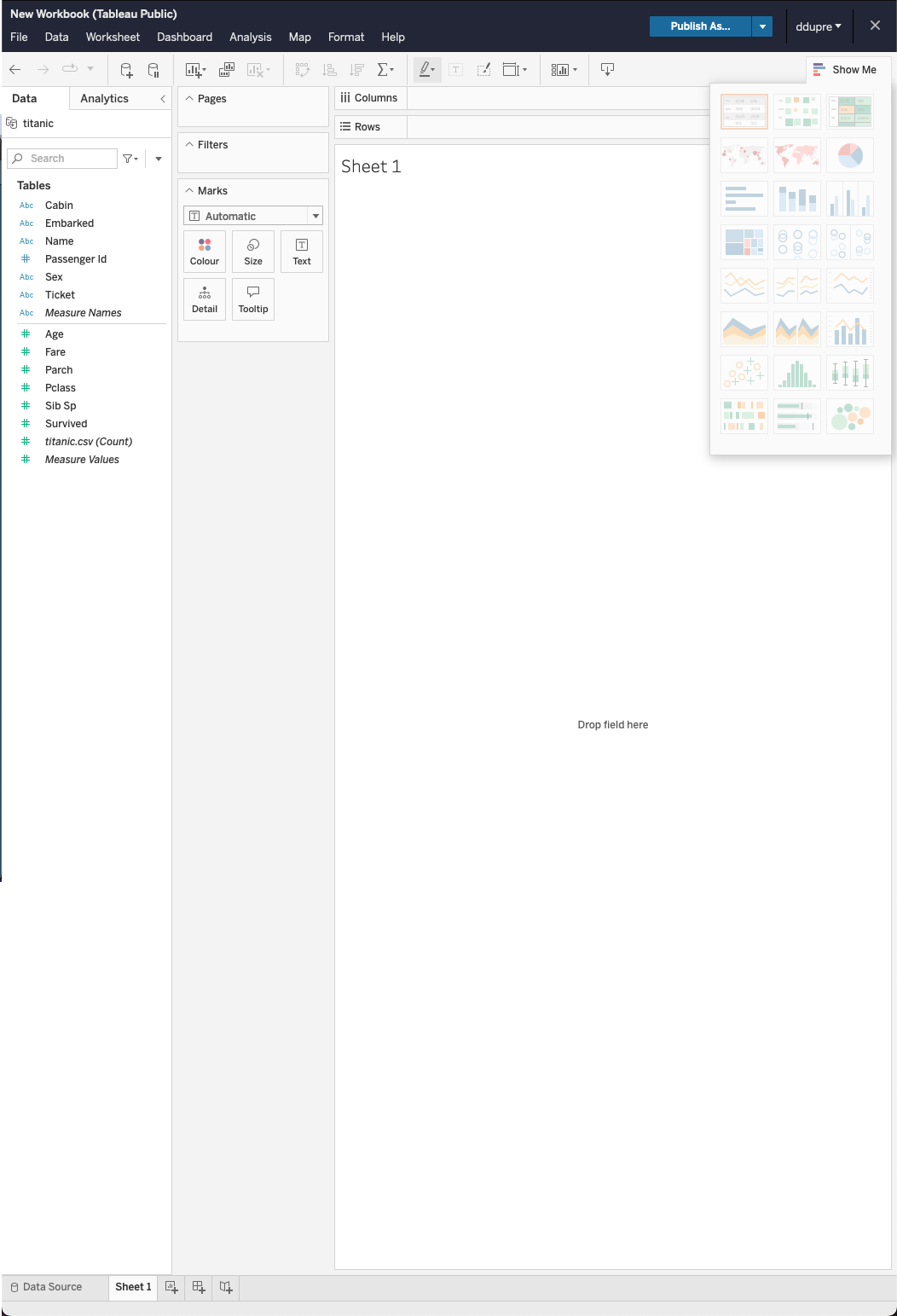
Tableau Dashboard and Story
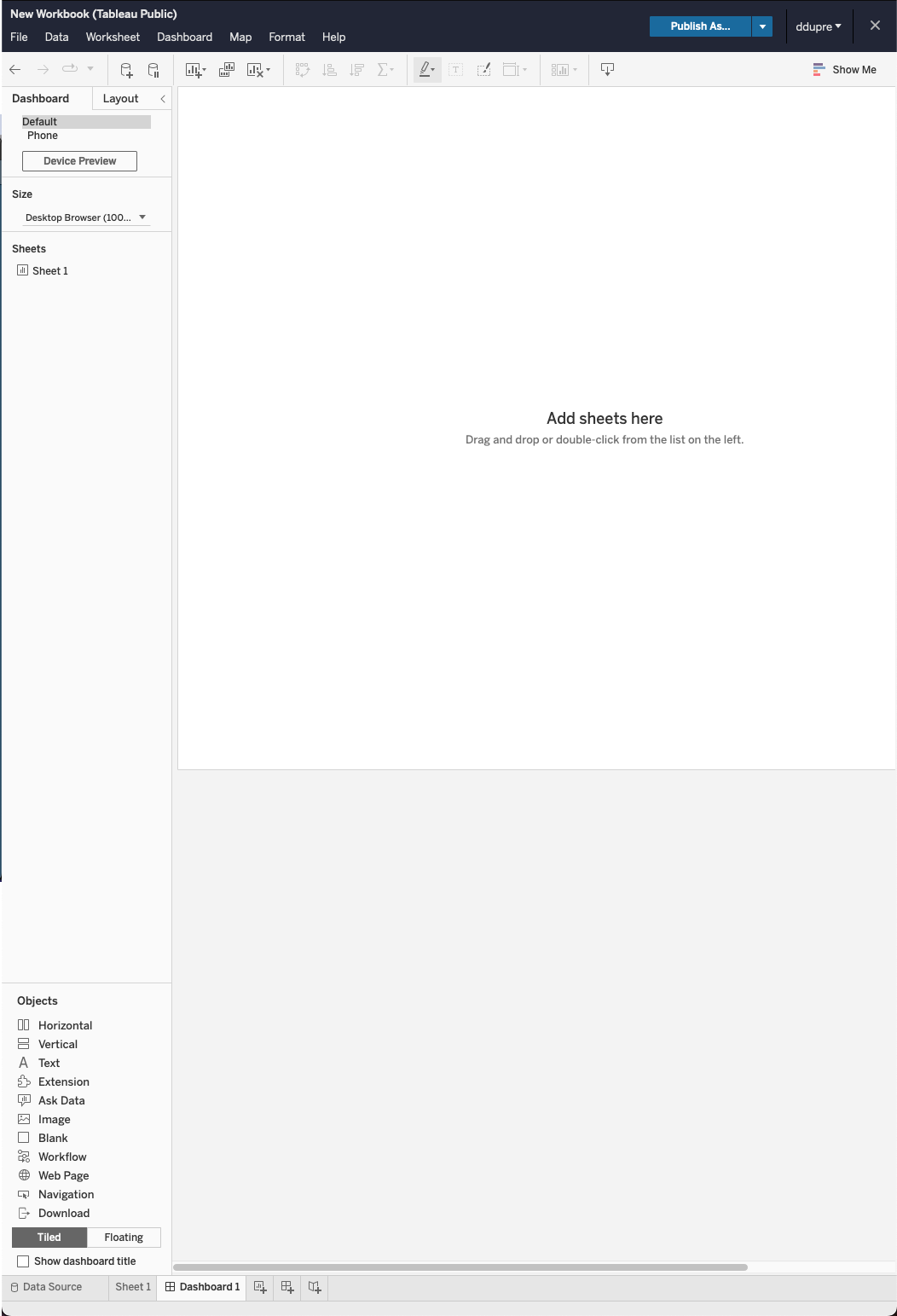
Principles

Tableau is only about:

  • Dragging & dropping from variable list to plot (no-code software)
  • Selecting the right data summary
  • Creating independent figures and organising them on a page

Files or Connectors?

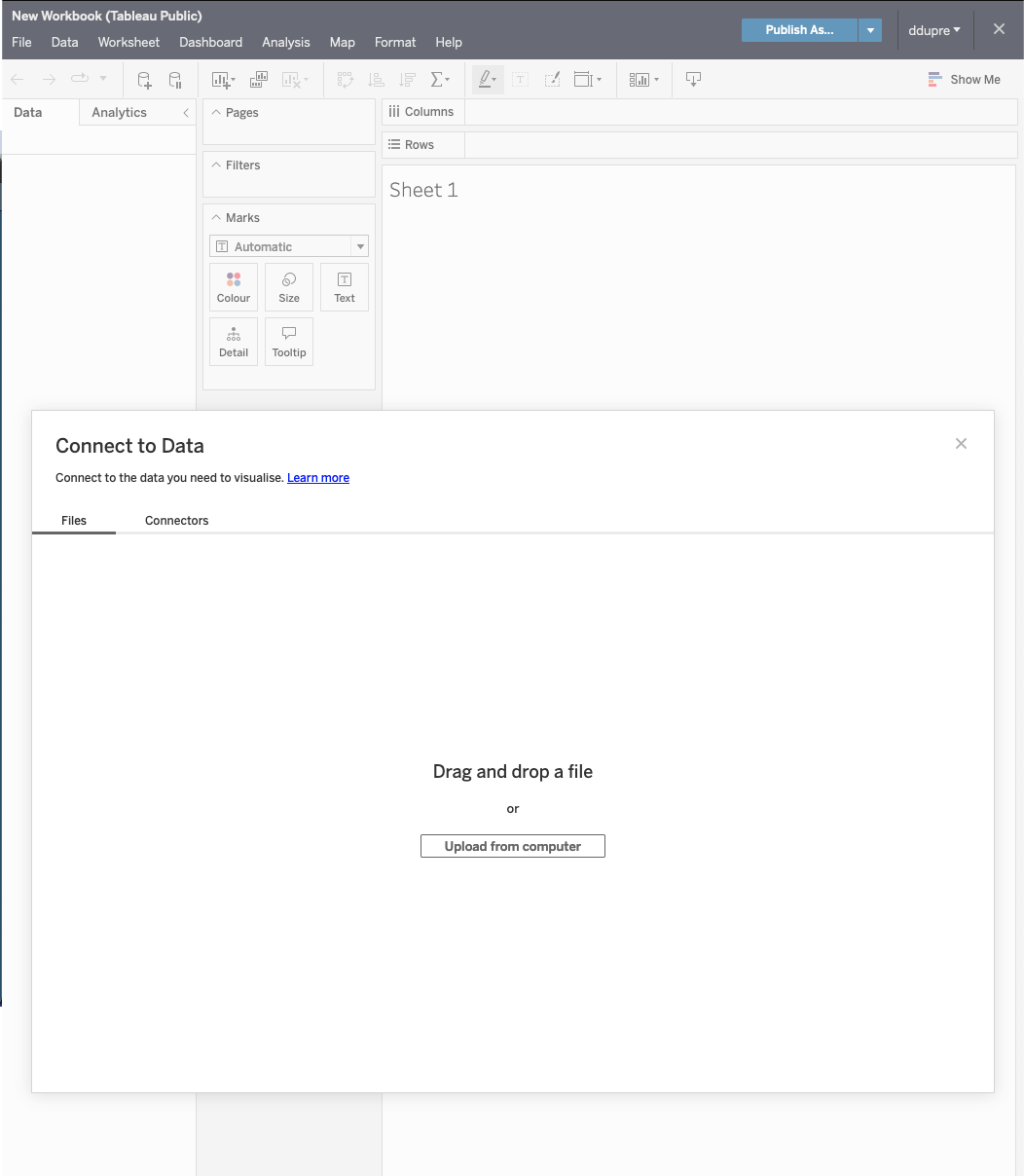
Without being too complicated, there is two major ways to connect data in Tableau:

  • From a File which won’t be modified
  • From a database through a connector (i.e., interface) to obtained data stored on a remote server (e.g., Covid Dashboards)

Files can be of format .csv, .xls, .xlsx, .json, …

Databases cloud hosted on google drive or with OData protocol (url access to the data)

More details about Tableau data connection possibilities with the following contents among others found online:

Live Demo

Your turn

From the loop page, on the tile “Lecture Data”, use the file insta-data.csv

  1. Open it in Tableau Public (do not save it as .xlsx first)

  2. Try to figure out how to create your first visualisation.

6. Understand the Worksheet

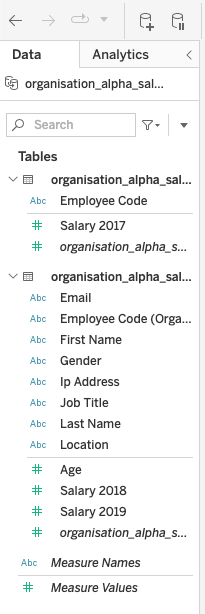
Variable List Tab

Dimensions = Categorical Variables

  • Made of character string (most of the time)
  • Can be numeric if refers to an ID

Measures = Continuous Variables

  • Made of numbers
  • Special cases of Measure Names, and Measure Values

Analytics Tab
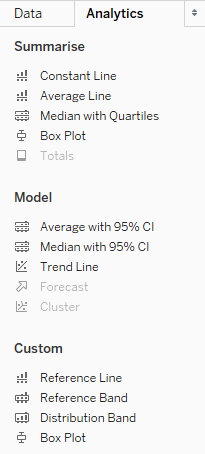
Special features behind the Data Tab:

  • Box Plot
  • Median and Quartiles
  • Average
  • Regression Line (Trend Line)

Plot Configuration
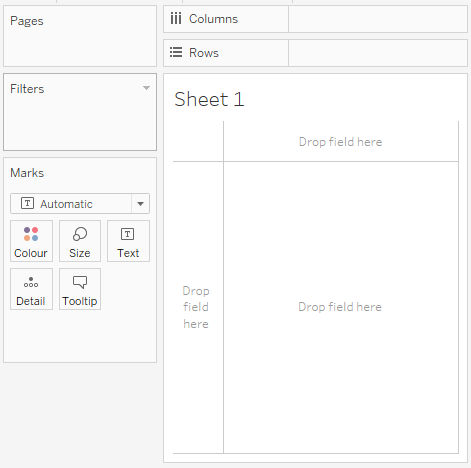
Equivalent to Excel Pivot Table but for visualisations

  • Columns = X axis
  • Rows = Y axis
  • Pages = 1 plot per values (categories)
  • Filters = Keep specific values
  • Marks = Design of representation
    • Colors
    • Size
    • Texts
    • …

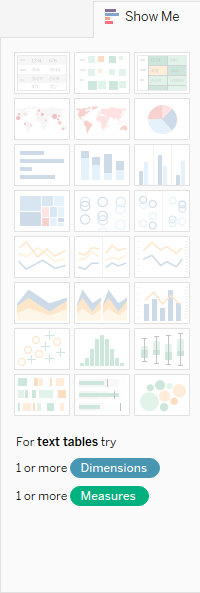
Show Me: Additional Design

  • Tables
  • Maps
  • Histograms
  • Pie charts
  • Line charts
  • Bar charts
  • Scatterplots
  • Box plots
  • …

Aggregation Method

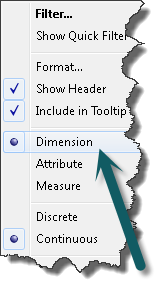
When selected as Rows or Columns, double click/click left on a Measure variable (green variable)

Choose between:

  • Dimensions (raw data, equivalent of “Don’t summarize” in PowerBI)
  • Measure (COUNT, AVERAGE, STD, …)

Live Demo

Your Turn

With the insta-data.csv file, create:

  • 1 worksheet with a bar chart using the variables theme and likes
  • 1 worksheet with a line chart using posted_at and impressions
  • 1 worksheet with a scatterplot using likes and impressions

Then, create a dashboard with these visualisations an publish your dashboard.

Thanks for your attention and don’t hesitate to ask if you have any questions!

@damien_dupre

@damien-dupre

https://damien-dupre.github.io

damien.dupre@dcu.ie