Lecture 8: Displaying Projects in a Quarto Website

BAA1104 - E-Portfolio and Business Analytics Challenges

Damien Dupré

Before we proceed…

Start again from scratch!

You have made incredible progress with your eportfolio but you should not mess it up. Let’s practice on a fresh website!

In the terminal of VS Code type:

Terminal
quarto create project website baa1028-lecture8
quarto preview

Today, we will learn how to add and modify a “Projects” list of multiple projects pages

Let’s Add a Page!

  • Create a new page: /projects.qmd
  • Add some content
  • Preview: < site url >/projects.html
projects.qmd
---
title: Projects
---

{{< lipsum 1 >}}
{{< placeholder 400 400 >}}

Adding Pages

Two decisions:

  1. Structure Where will it live in your website project?
  2. Navigation How will people discover it on your website?

Structure

File path becomes URL path

File location

projects.qmd

projects/projects.qmd

URL

{ site url }/projects.html

{ site url }/projects/projects.html

index.html is special

File location

index.qmd

projects/index.qmd

URL

{ site url }

{ site url }/projects

index.qmd (or .md, or .ipynb) -> index.html

index.html acts like a default page for the site or directory.

But you aren’t limited to .html!

File location

data/monthly.csv

cv.pdf

URL

{ site url }/data/monthly.csv

{ site url }/cv.pdf

Structure helps …

  • You: Navigate and organize your content

  • Your readers: Understand context of content from its URL

Your Turn

Add a new subfolder projects to your site and, inside this subfolder, a new page index.qmd:

index.qmd
---
title: Projects
---

{{< lipsum 1 >}}
{{< placeholder 400 400 >}}
05:00

Your Turn

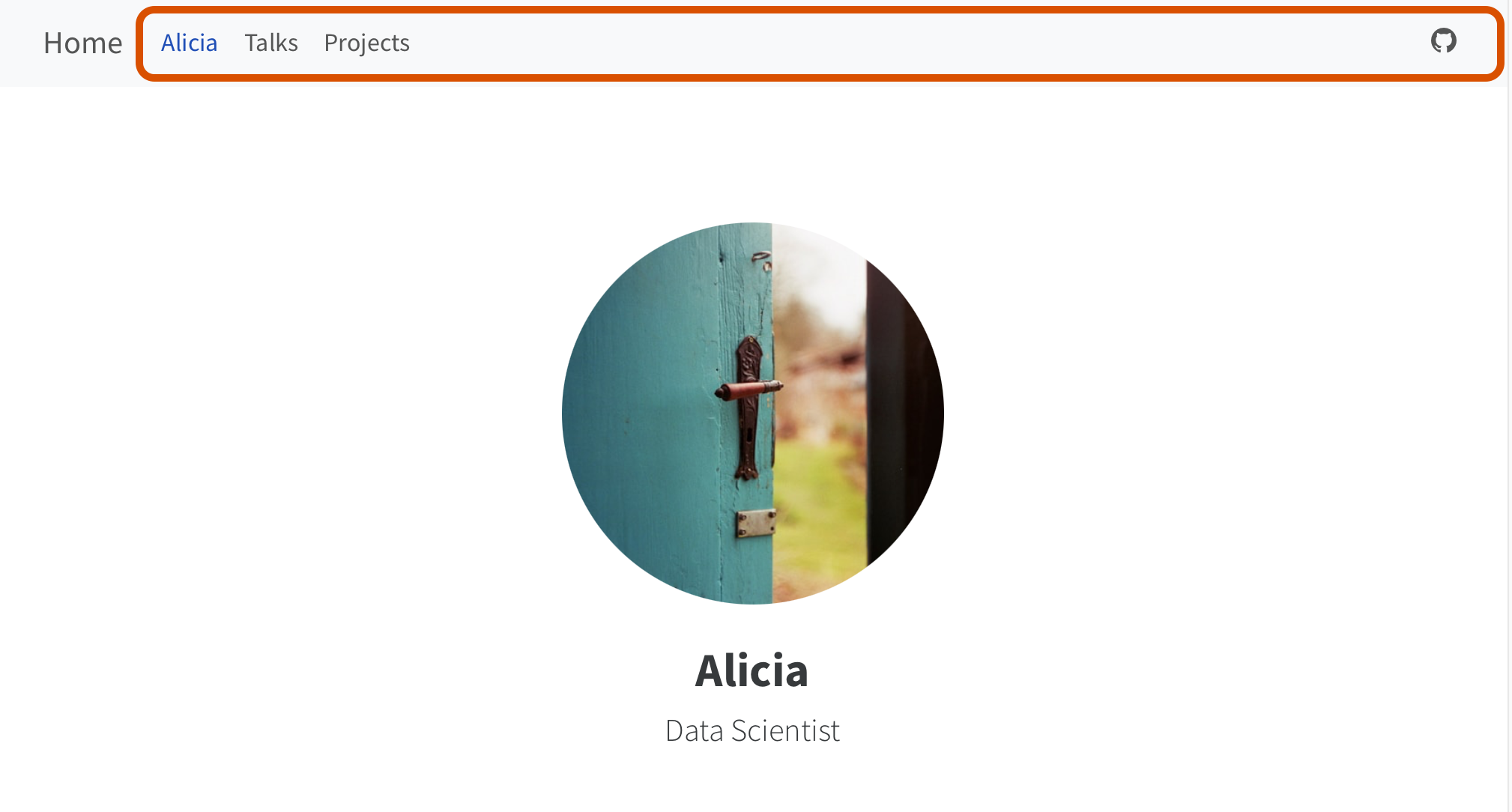
Provide links to your new page:

  • From somewhere in the content of index.qmd
  • After “Home” in the navigation bar
05:00

When things get more complicated…

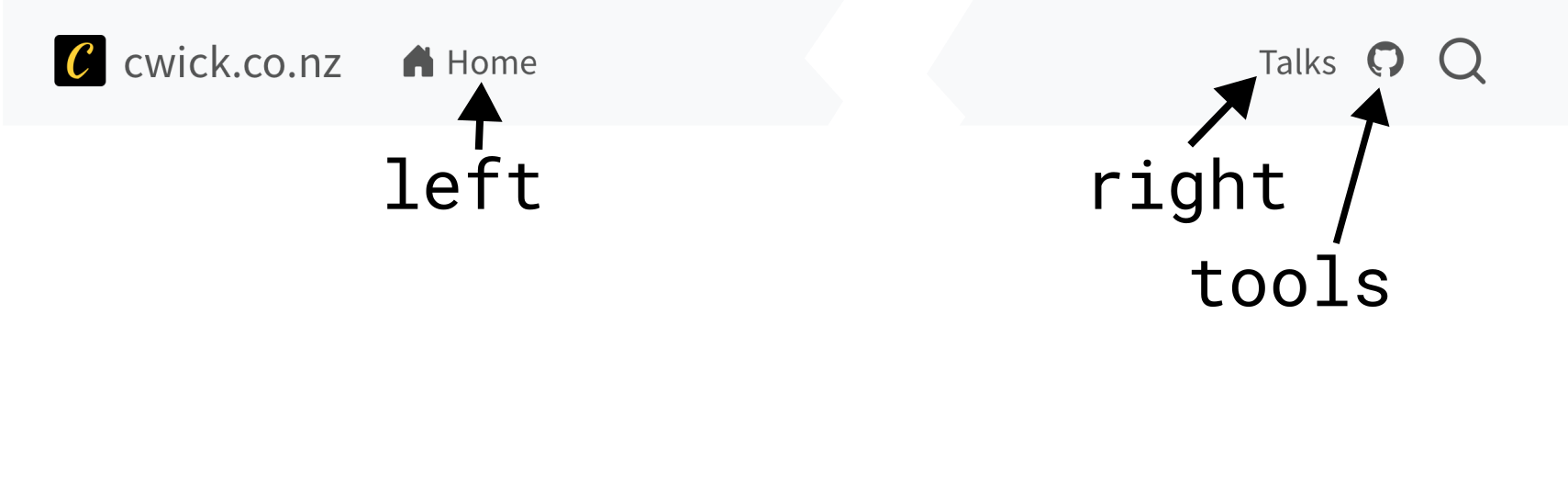
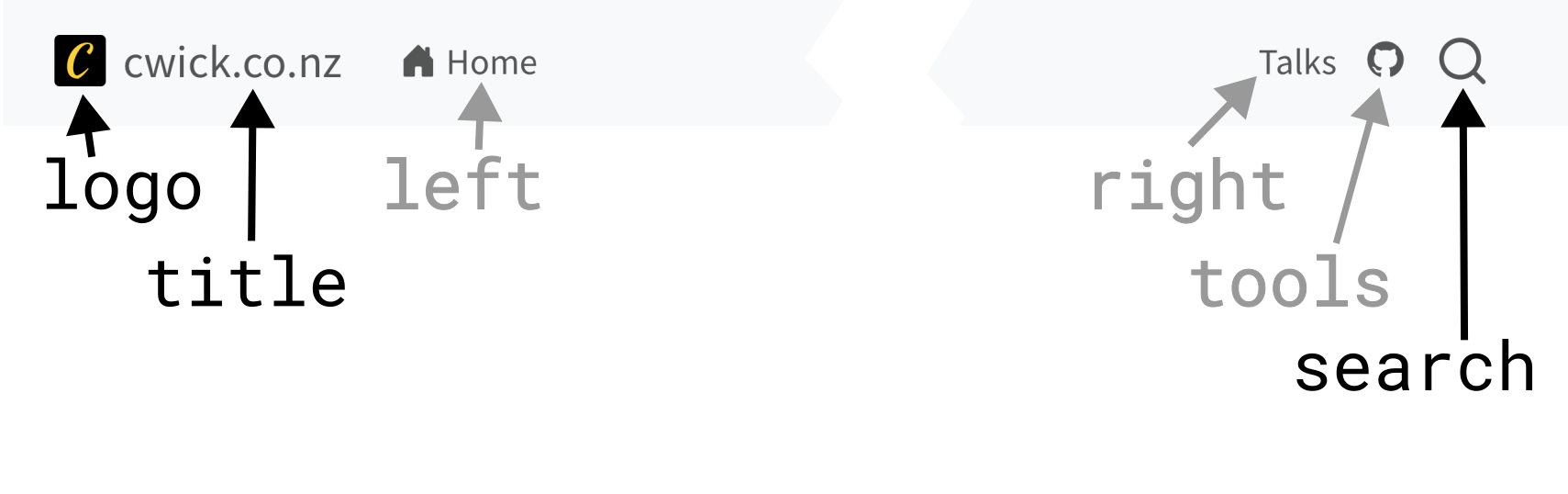
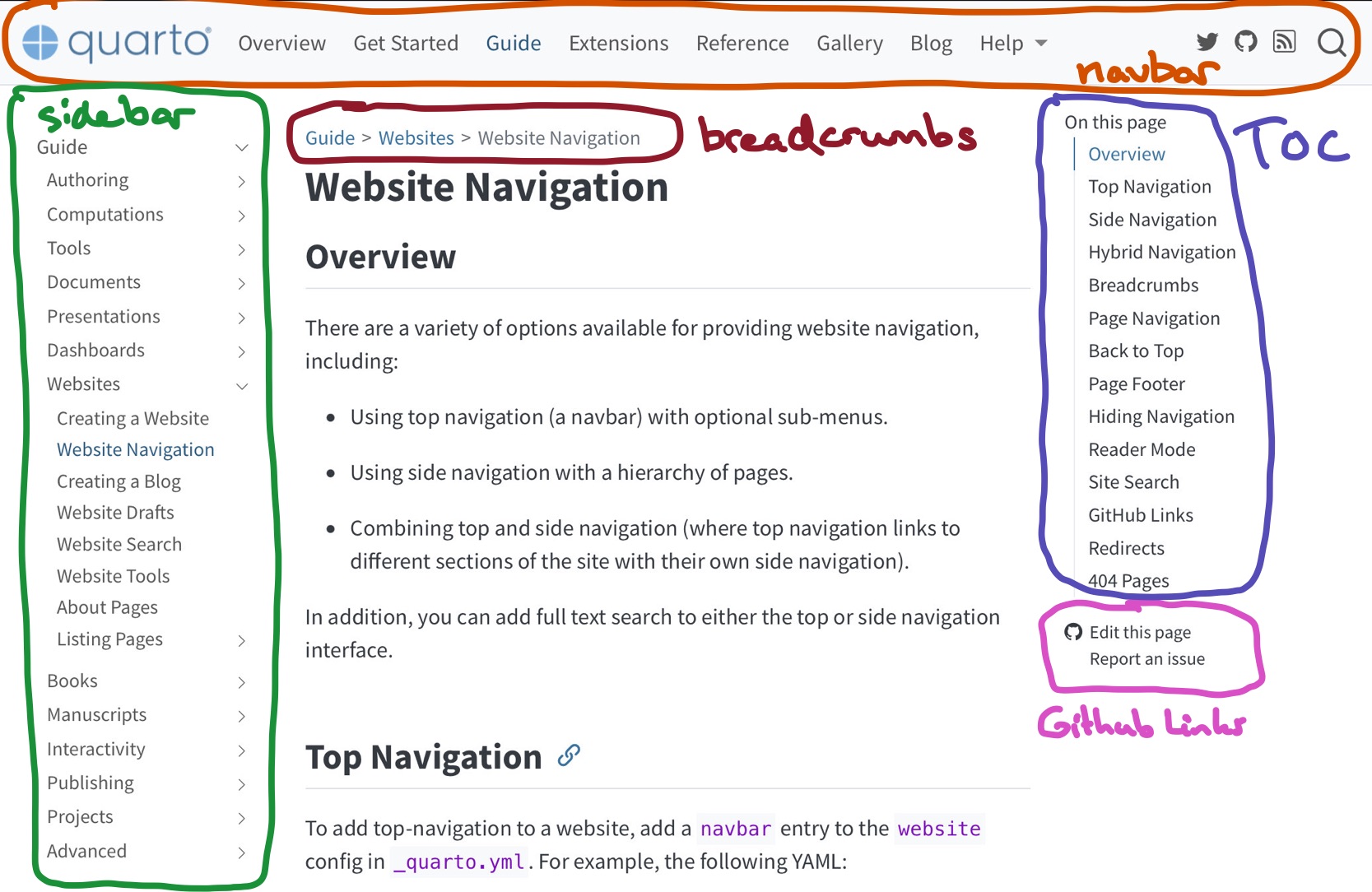
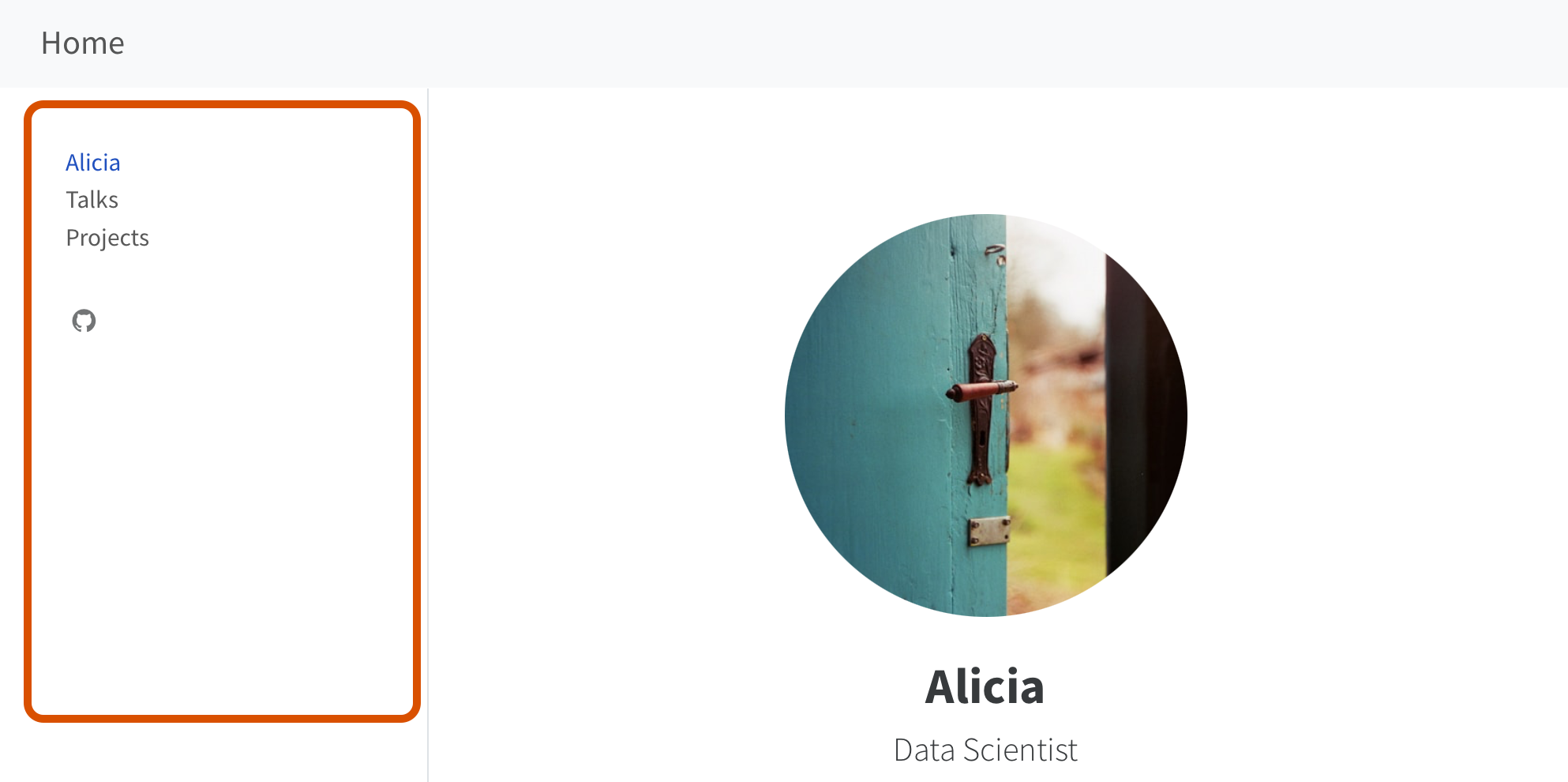
Primary Navigation

Top navigation

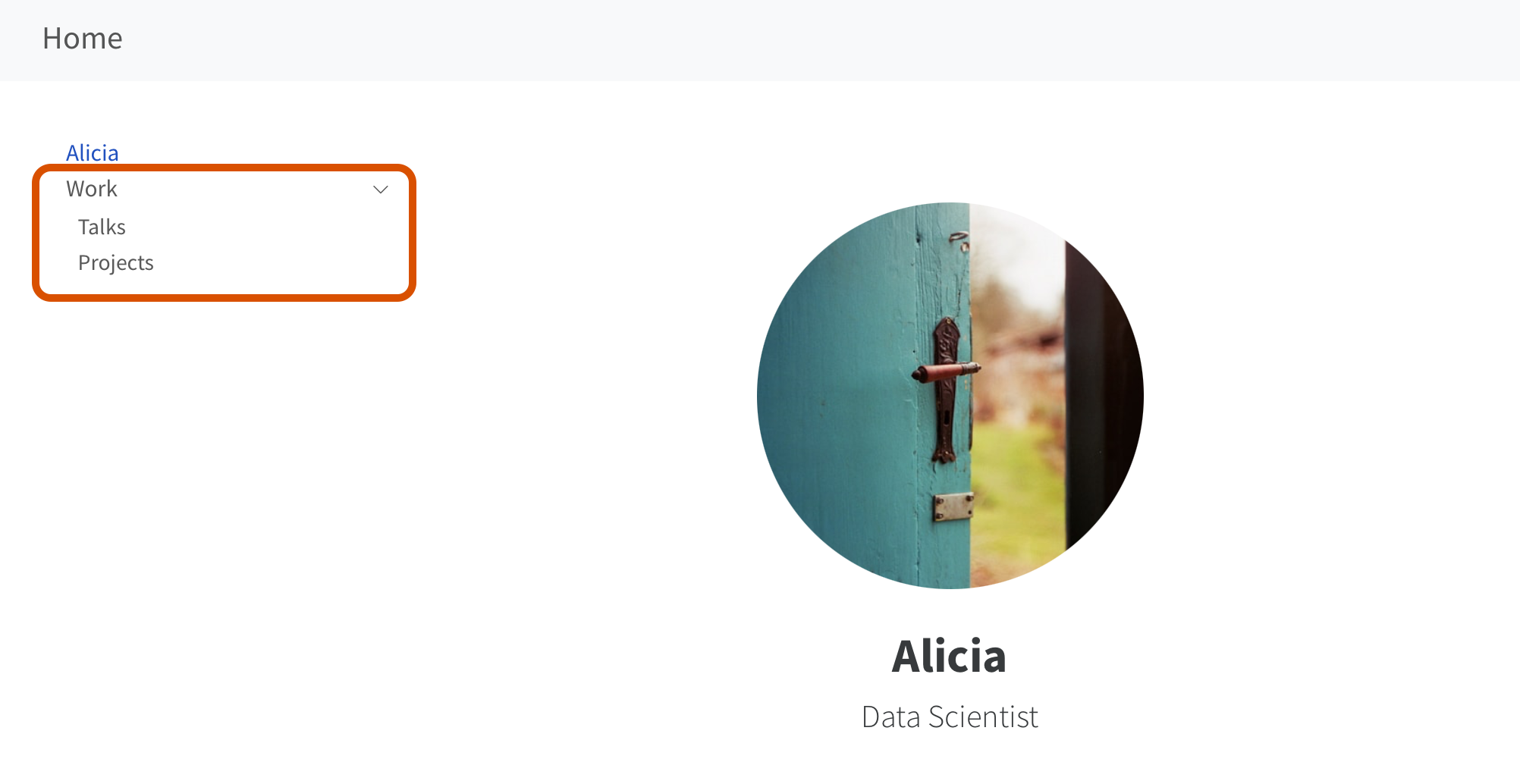
Side navigation
Primary Navigation

Top navigation

_quarto.yml
website:
  navbar:
    left:
      - index.qmd
      - talks.qmd
      - projects/index.qmd
    tools:
      - text: GitHub
        href: http://github.com
        icon: github        

Add items to left, right and tools

Side navigation

_quarto.yml
website:
  sidebar:
    contents:
      - index.qmd
      - talks.qmd
      - projects/index.qmd
    tools:
      - text: GitHub
        href: http://github.com
        icon: github    

Add items to contents and tools

Nested Navigation

Top navigation

Side navigation

Nested Navigation

Top navigation
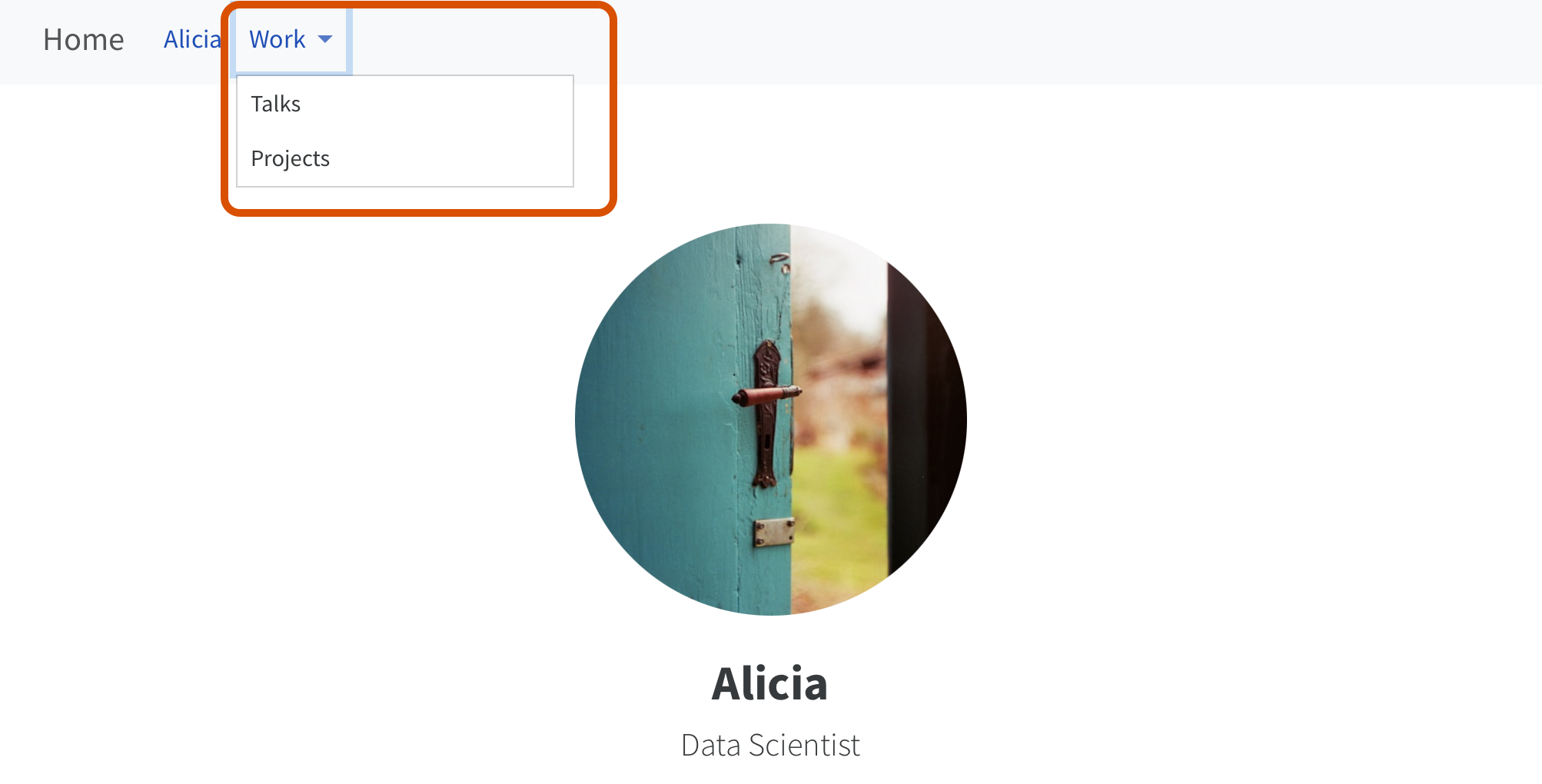
_quarto.yml
website:
  navbar:
    left:
      - index.qmd
      - text: Work
        menu: 
          - talks.qmd
          - projects/index.qmd

Add a text item along with menu

Side navigation

_quarto.yml
website:
  sidebar:
    contents:
      - index.qmd
      - section: Work
        contents: 
          - talks.qmd
          - projects/index.qmd

Add a section with its own contents

Hybrid Navigation

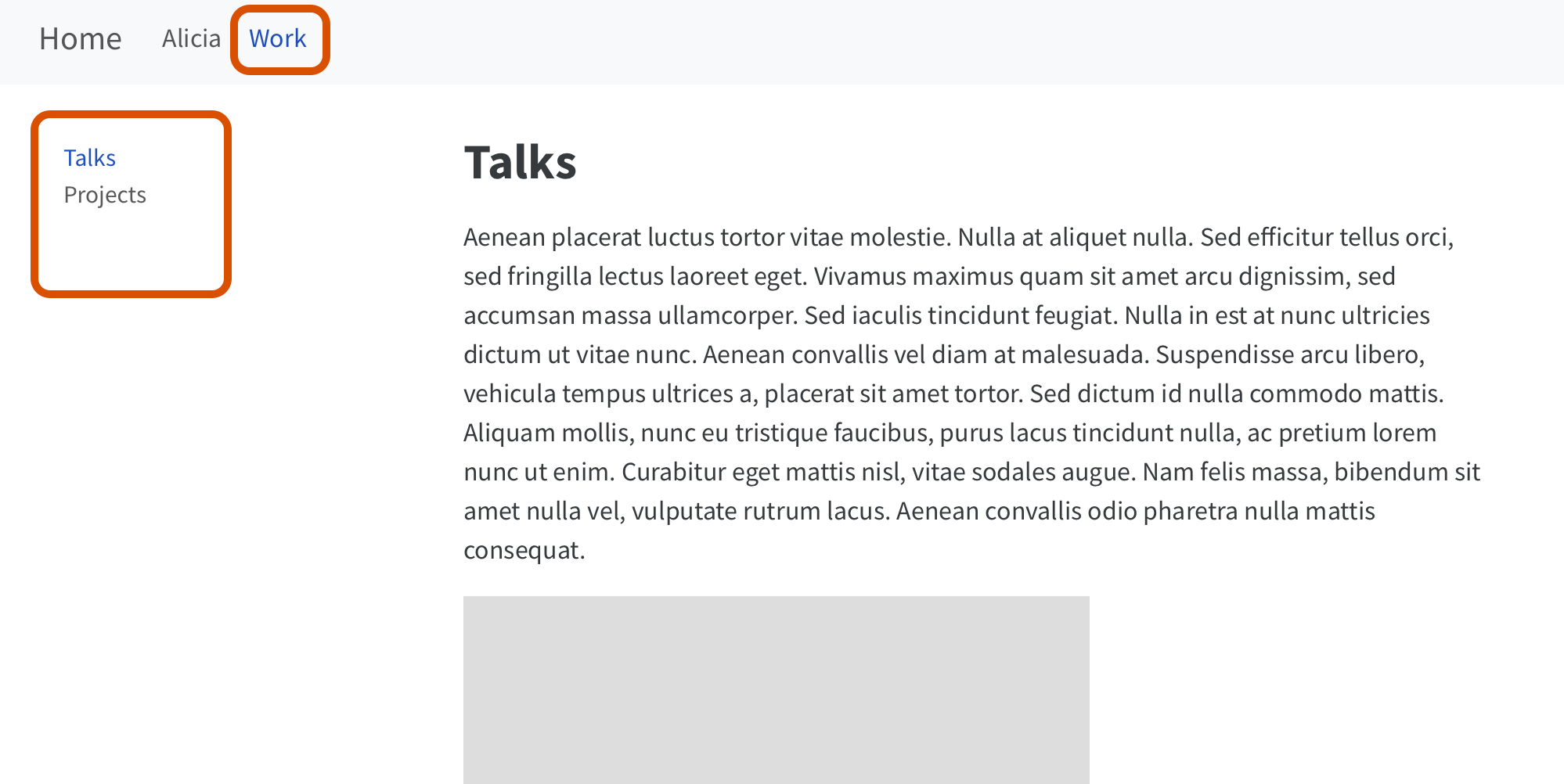
Top navigation navigates between the different “sections” of the website.

Each “section” has its own side navigation.

Hybrid Navigation

_quarto.yml
website:
  navbar:
    left:
      - index.qmd
      - text: Work
        href: talks.qmd

  sidebar:
    - title: Work
      contents:
        - talks.qmd
        - projects/index.qmd
  1. Match navbar item text to a sidebar item title
  2. List navbar item href as first value in sidebar item contents

Automatic Sidebar

If your structure is good, an automatic sidebar can go a long way:

_quarto.yml
website:
  sidebar:
    contents: auto

Pro and Cons

Side nav

  • auto: easy to generate and maintain
  • Linearly present linear content (e.g. a progression through a tutorial)
  • Can be deeply nested
  • Can handle longer entries
  • However, may show too much detail for sections that aren’t of immediate interest |

Pro and Cons

Top nav

  • First place most people look
  • However, not good for long entries, e.g. keep to short single words
  • Can’t be nested beyond one level
  • Nested content is hidden unless clicked on

Pro and Cons

Hybrid

  • Organize lots of content without overwhelming viewer
  • Harder to build and maintain |

Other navigation elements

For reference

Table of Contents

https://quarto.org/docs/output-formats/html-basics.html#table-of-contents

Controlled by format not website:

_quarto.yml
format:
  html: 
    toc: true

Project Listings

Before we proceed…

We have created a subfolder projects at the root of the website with quarto file index.qmd inside this folder.

We have referenced this projects/index.qmd in the navbar inside the _quarto.yml file.

Today, we will populate the content of projects/index.qmd with a list of different projects!

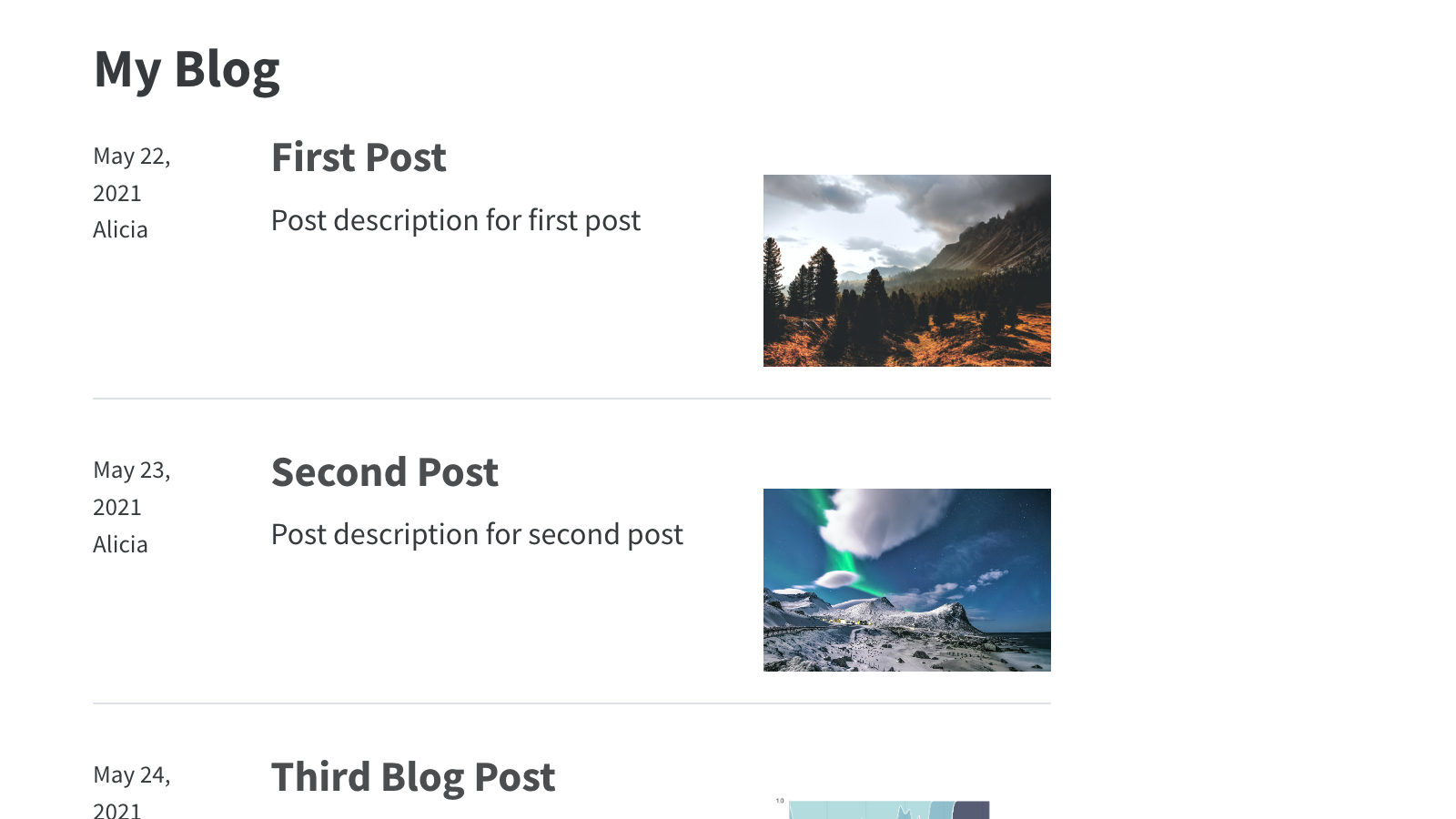
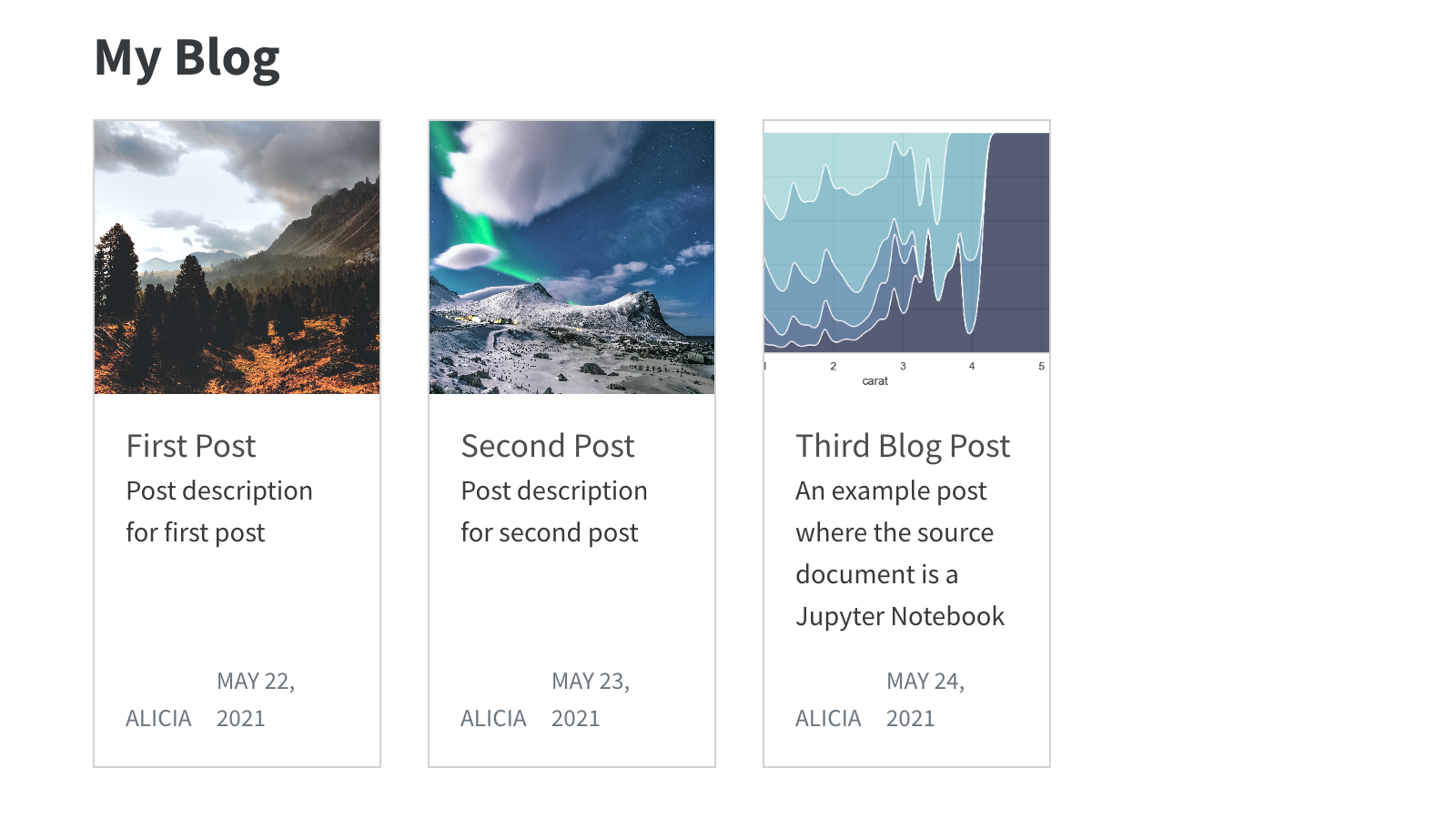
A listing is…

  • An automatically generated list of content
  • Styled via a template, (built-in type, or custom template)
  • Can be included on any page

Generated from documents YAML
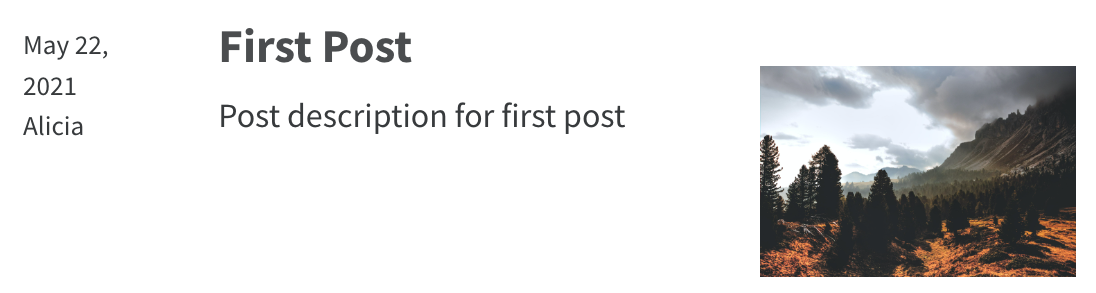
blog/third-post/index.qmd
---
title: "First Post"
description: "Post description for first post"
author: "Alicia"
date: "5/22/2021"
image: "cover.jpg"
categories:
  - Science
  - Technology
---

Why use a listing?

  • Great for large collections
  • Great for collections that grow

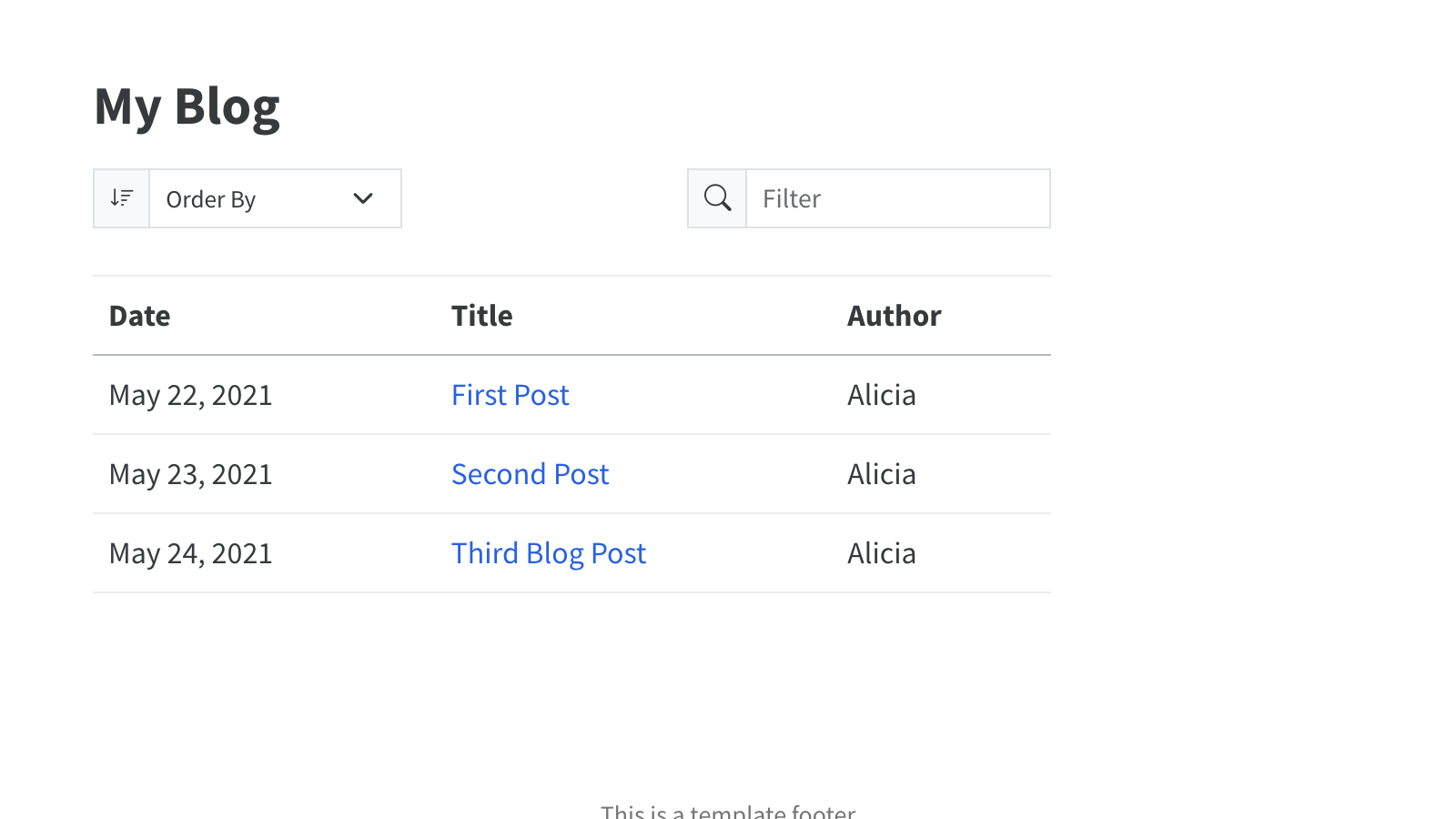
Default

Grid

Table

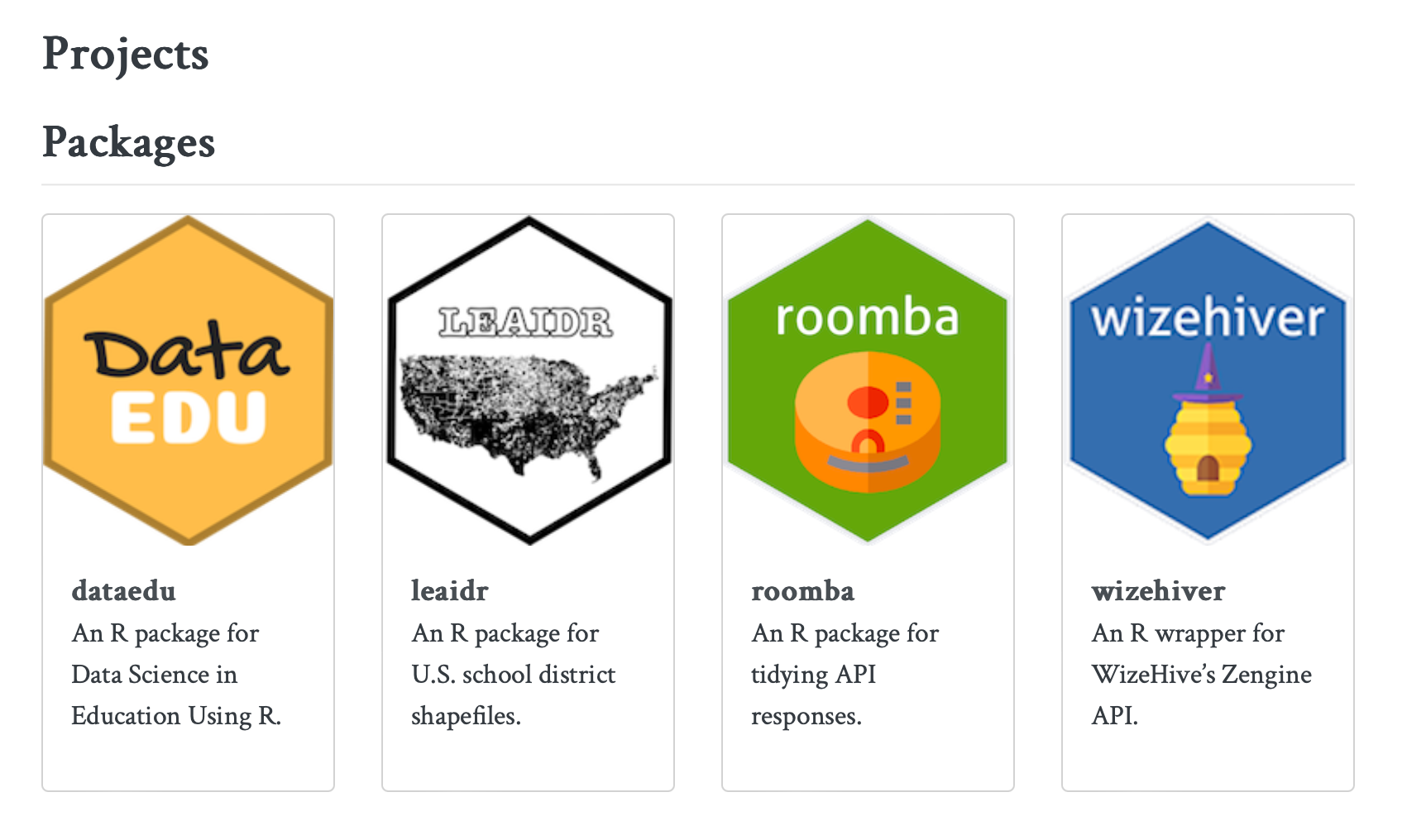
Use listings for projects

https://ivelasq.rbind.io/project
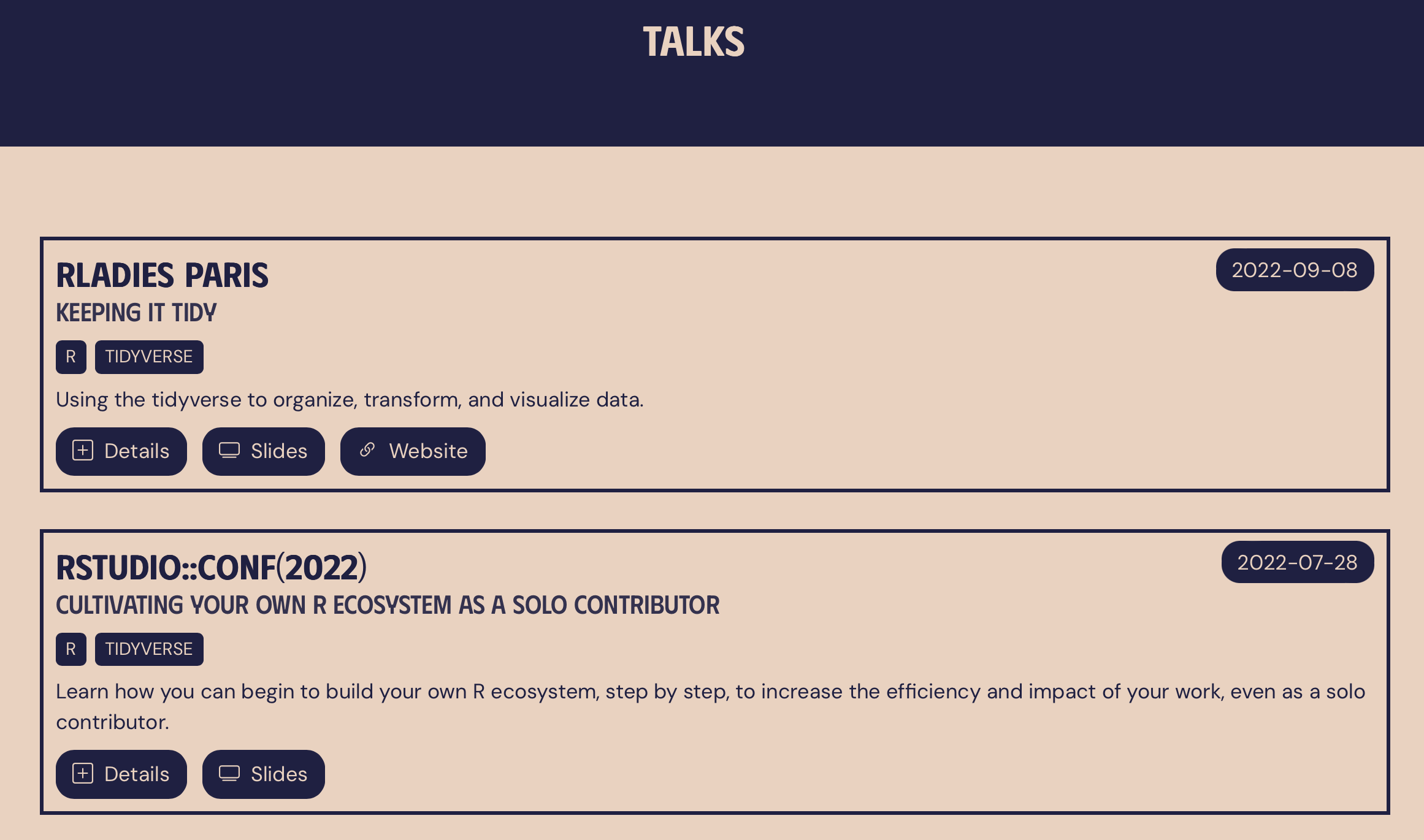
Use listings for talks

https://meghan.rbind.io/talks/
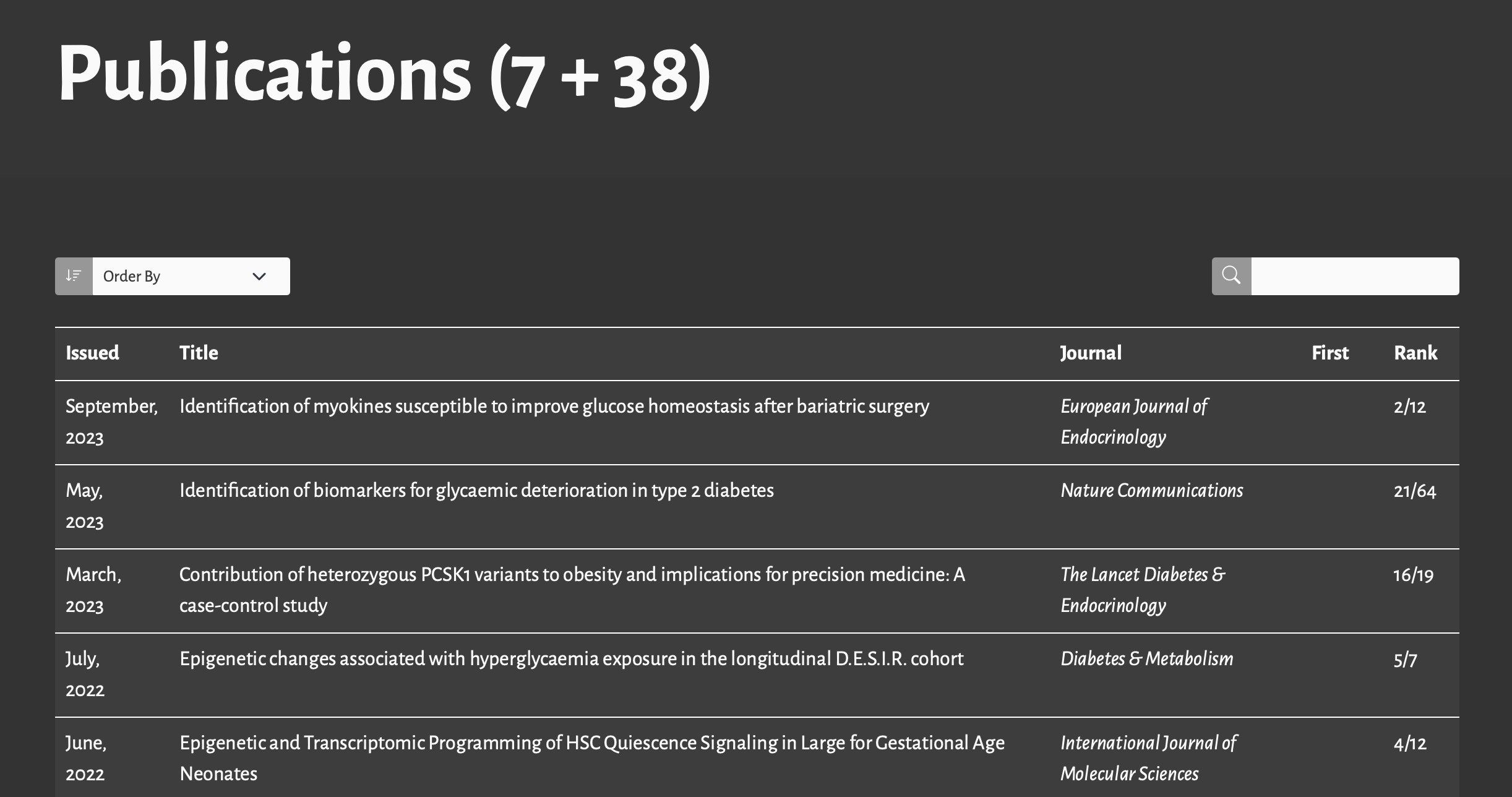
Use listings for publications

https://mickael.canouil.fr/publications
Use listings for …

https://charlotte.quarto.pub/listings/

The listed content can be a YAML file
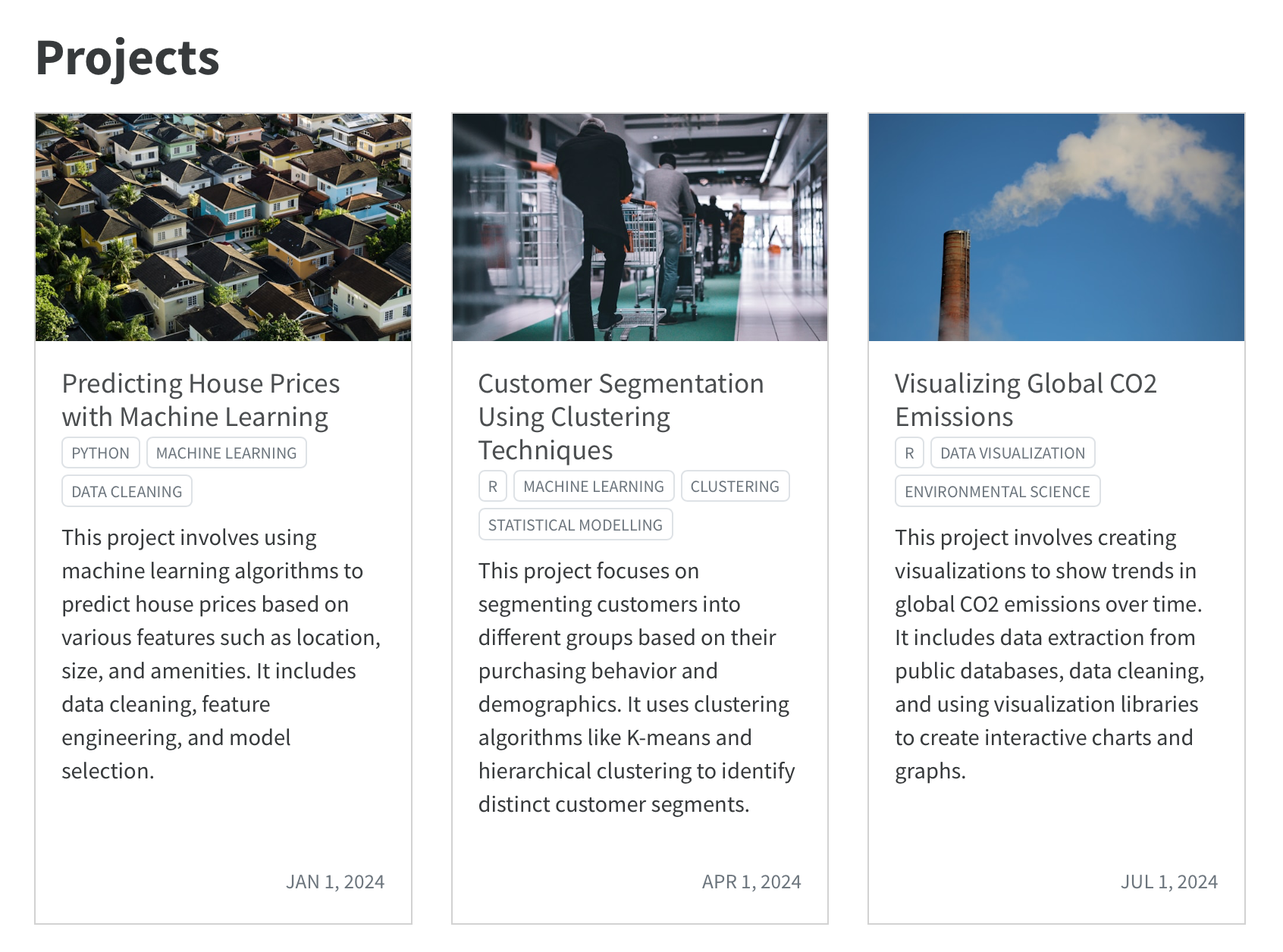
projects/index.qmd
---
title: Projects
listing:
  contents: projects.yml
---

With projects.yml having the following content:

project/projects.yml
- title: Predicting House Prices with Machine Learning
  path: https://example.com/house-prices
  image: images/breno-assis-r3WAWU5Fi5Q-unsplash.jpg
  description: "This project involves using machine learning algorithms to predict house prices based on
    various features such as location, size, and amenities."
  categories: [Python, Machine Learning, Data Cleaning]
  date: 2024-01-01
  ...

path can be a relative path to a file in your site, or a URL

You can use Listing Fields, or create custom ones.

The listed content can be a YAML file

Simple Customization: Select Fields

Use fields to specify which Listing Fields are displayed.

E.g. Exclude date:

listing:
  contents: projects.yml
  type: grid
  fields: ["image", "title", "categories", "description"]

Simple Customization: Rename Fields

Use field-display-names to provide a different label for a field

Mostly useful for type: table.

E.g. Rename title to Project

listing:
  contents: projects.yml
  type: table
  field-display-names: 
    title: Project

Advanced Customization

Example: https://www.andrewheiss.com/teaching/

Source: https://github.com/andrewheiss/ath-quarto/blob/main/teaching/index.qmd

  • Listing in a custom location on a page
  • More than one listing on a page
  • Custom Template

Custom Location

teaching/index.qmd
---
title: "Teaching"
listing:
  id: ay_23-24
  contents: ay_23-24.yml
---

Give the listing an id

teaching/index.qmd
## 2023–24

:::{#ay_23-24}
:::

## 2022–23

Use the id in a fenced div where you want it to appear

Multiple Listings

teaching/index.qmd
---
title: "Teaching"
listing:
  - id: ay_23-24
    contents: ay_23-24.yml
  - id: ay_22-23
    contents: ay_22-23.yml
---

Make listing an array, use ids

teaching/index.qmd
## 2023–24

:::{#ay_23-24}
:::

## 2022–23

:::{#ay_22-23}
:::

Place listings in the page by id

Let’s Add more Pages!

  • Create a new subfolder called list inside /projects
  • In this list sub-subfolder, create 3 quarto files: project_1.qmd, project_2.qmd, and project_3.qmd

Displaying a listing on projects/index.qmd is as simple as:

---
title: My Projects
listing: default
---

Explicit default options:

---
title: My Projects
listing:
  contents: /
  sort: "date"
  type: default
  categories: false
---
10:00

References

Huge thanks the following people who have generated and shared most of the content of this lecture:


Thanks for your attention and don’t hesitate to ask if you have any questions!
@damien_dupre
@damien-dupre
https://damien-dupre.github.io
damien.dupre@dcu.ie