
Lecture 1: Introduction to ePortfolios
BAA1104 - E-Portfolio and Business Analytics Challenges
Damien Dupré
Module Contact Details
Damien Dupré, PhD
- email: damien.dupre@dcu.ie
- phone: 00353 (0)1 700 6360
- office: Q233 DCU Business School
Module Content
Knowledge
- ePortfolio
- Project Organisation
Skills
- bash/zsh
- Git & GitHub
- Quarto
- Markdown & HTML/CSS
Slides
Available on the module’s loop page and, more importantly, online at:
What About You?
- Who uses Microsoft Windows, macOS, or Linux?
- Who already has an account on GitHub, GitLab, or an equivalent platform?
- Who has a personal website built with WordPress, Google Sites, or a similar service?
- Who knows how to read and write HTML files?
- Which coding environment do you currently use: Spyder, JupyterLab, Jupyter Notebook (collab or local), PyCharm, VS Code, Neovim, RStudio, Atom, Positron, or something else?
- Who knows what Quarto is? what bash or zsh is?
- Do you know where to find Notepad on Windows or TextEdit on macOS?
Module Assessment
90% ePortfolio
Website that showcases your coding skills, achievements, experiences, and personal reflections. It should include various media types—documents, images, videos, audio clips, presentations, and web links—that can be tailored for different audiences. Deadline: April 20, 2026
10% Kubicle Courses
Creating an ePortfolio

Example of ePortfolios
Mine!
Mickaël Canouil
Athanasia Mo Mowinckel
Sam Shanny-Csik
2023-2024 BAA1104 ePortfolios
ePortfolio Example 1
ePortfolio Example 2
ePortfolio Example 3
ePortfolio Example 4
ePortfolio Example 5
ePortfolio Example 6
ePortfolio Example 7
ePortfolio Example 8
ePortfolio Example 9
ePortfolio Example 10
2024-2025 BAA1104 ePortfolios
ePortfolio Example 11
ePortfolio Example 11
ePortfolio Example 12
ePortfolio Example 13
ePortfolio Example 14
ePortfolio Example 15
ePortfolio Example 16
ePortfolio Example 17
What is an ePortfolio?
Definition
- An ePortfolio is a digital collection of materials that showcases an individual’s achievements, skills, experiences, and learning.
- It serves as both a personal and professional development tool.
- Combines multimedia elements (text, images, videos, etc.) to enhance presentation.
ePortfolio are also about what you don’t include
- Quality over quantity! Don’t throw in every student project
- Avoid sharing irrelevant information like data cleaning (just link to the file with the code) or personal information like phone number
- Check for grammar errors/clarity
ePortfolio Platforms
- Google Sites: Free and user-friendly while having limited design options.
- Canva: Visually appealing templates.
- WordPress: Customisable and scalable website for diverse purpose.
- Loop Reflect/Mahara: Designed for education and collaboration.
- LinkedIn: Professional networking with portfolio integration.
…Just to name a few.
These services offer a platform to design an eportfolio/website and to host the eportfolio/website on their own servers.
Instead, we are going to manually create our eportfolio/website and to host it on a specific server.
ePortfolio Requirements
Technical Features
- Published with GitHub Pages
- Use of Git to upload files rather manual upload
- Use of Quarto rather than manual html pages
- Active code rather than inactive code (e.g., screenshots)
- Tidy project folder organisation
- Careful use of data, both databases and personal data
Components
- Introduction: About me/profile section.
- Evidence of Work: Projects, assignments, and achievements.
- Reflection: Insights on learning experiences.
- References/Contact: Networks and accessibility details.
- CV: Link to pdf accessible document.
Additional Criteria
Overall design, attention to details, and innovation.
Do and do not guidelines
Do take inspiration from other students work
Do adapt code you find online, for example on GitHub
Do not use complete HTML or CSS templates
Talk to your Computer
What is a command-line interface (CLI)?
A command-line interface (CLI) processes commands to a computer program in the form of lines of text. The program which handles the interface is called a command-line interpreter or command-line processor.
Operating systems implement a command-line interface in a shell for interactive access to operating system functions or services. Such access was primarily provided to users by computer terminals starting in the mid-1960s, and continued to be used throughout the 1970s and 1980s on VAX/VMS, Unix systems and personal computer systems including DOS, CP/M and Apple DOS.
What is a command-line interface (CLI)?
Command-Line Interface
- Text-based commands.
- Efficient for automation.
- Preferred by tech experts.
Graphical User Interface
- Visual elements (icons, windows).
- User-friendly.
- Immediate visual feedback.
- Common for everyday tasks.
Evolution of Computer Interfaces
- 1969: UNIX introduces Command Line Interface (CLI)
- 1980: MS-DOS popularizes Command Line Interface (CLI)
- 1984: Apple Macintosh brings GUI to mainstream
- 1985: Microsoft introduces Windows 1.0, a graphical user interface (GUI).
- 1991: Linux introduces CLI to open source
- 1995: Windows 95 merges GUI and CLI
- 2001: Mac OS X merges Unix and GUI
- 2004: Ubuntu simplifies Linux CLI
- 2020s: CLI continues its indispensable role, supporting automation, scripting, and advanced tasks.
And what is a shell?
In computing, a shell is a computer program which exposes an operating system’s services to a human user or other program. In general, operating system shells use either a command-line interface (CLI) or graphical user interface (GUI), depending on a computer’s role and particular operation. It is named a shell because it is the outermost layer around the operating system.
Terminal vs Shell
Vocabulary:
- Terminal: A program that runs a shell
- Shell: A program that interprets commands
- Bash: The most common shell on Linux
- zsh: The most common shell on MacOS
- PowerShell: The most common shell on Windows
- Cmd: The legacy shell on Windows
Windows Terminal
A new CMD or PowerShell terminal application for Windows OS

MacOS Terminal
A new zsh terminal on MacOS
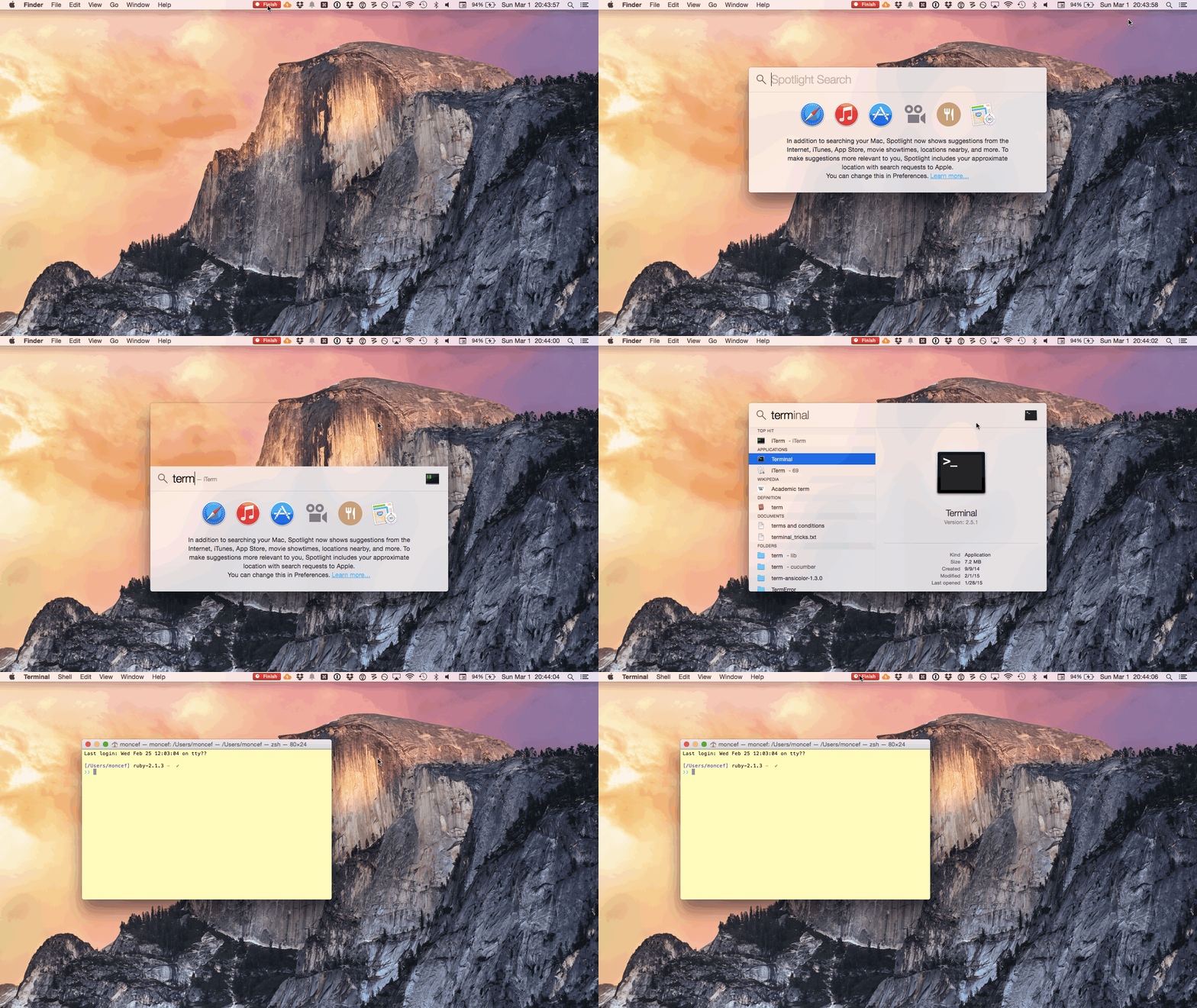
Okay, but why?!
Fast and efficient way to interact with your computer
Important part of your automation toolbox to create a reproducible data analysis pipeline
Accessing a remote server almost always requires some sort of command line skills
Important Commands
| Description | Win | Linux, MacOS |
|---|---|---|
| Copy files, folders | copy |
cp |
| Move files, folders | move |
mv |
| List folder content | dir |
ls |
| Create new folder | mkdir |
mkdir |
| Change current folder | cd |
cd |
| Show current path. | cd |
pwd |
| Locate a software | where |
which |
| Danger zone No undo! | ||
| Delete file(s) | del |
rm |
| Delete folder(s) | rmdir. |
rm |
Your Turn: Access your Terminal
1. Open a Terminal window
2. Show current path using
cdwith cmdpwdwith zsh or PowerShell
Note, Terminals always start from your home. You, it should print something like:
C:\Users\YourUserName/Users/YourUserName
3. Print the path of your python installation using
where pythonwith cmdwhere.exe pythonwith PowerShellwhich pythonwith zsh
Note, if python is not installed, noting will be printed
03:00
Paths, folders, and files
What is a path?
A path is a string of characters used to uniquely identify a location in a directory structure. It is composed by following the directory tree hierarchy in which components, separated by a delimiting character, represent each directory.
Resources can be represented by either absolute or relative paths
Delimiting characters
Delimiting characters / or \ vary by operating system
- MS Windows:
- Use a colon
:to specify the drive name (e.g.,C:,D:,E:) - Folders and files are separated by a backslash character (
\) - Example:
C:\Damien\Documents\projects\damien-dupre.github.io\index.qmd
- Use a colon
- Linux/macOS:
- No colon (
:) - Use only the slash (
/) character - Example:
/Users/Damien/Drive/projects/damien-dupre.github.io/index.qmd
- No colon (
Delimiting characters
Software, such as R, \(\LaTeX\), and Python, with a Linux/UNIX background behaves differently under MS Windows when it comes to specifying file/folder paths
That is, when specifying a path (e.g., in Python) in MS Windows, these programs do not like the backslash character (
\) (the backslash is used for “escaping” other characters)
Delimiting characters
In MS Windows, the following will not work!
Two solutions:
- Use the slash character
/instead of\, e.g.:
- Escape the backslash character via
\\, e.g.:
Delimiting characters
Note: Many programming languages/statistical packages (R, Python, …) can dynamically create a full path that follows the rules of the respective operating system
returns: E:folder1\\folder2\\file (in Windows)
A handy tool when working on both operating system: Path Copy Copy – Copy file paths from Windows explorer’s contextual menu
Mac users can left-click and press option to “copy as a Pathname”
Relative vs. Absolute Paths
An absolute path specifies a file or directory location from the root directory.
Examples:
- Mac/Linux:
- Windows:
When accessing folders and files that you have created, the root directory is followed by your home folder
Relative vs. Absolute Paths
So, let’s assume the project “damien-dupre.github.io”, the full absolute path is:
C:\Users\Damien\Projects\damien-dupre.github.ioUsers/Damien/Projects/damien-dupre.github.io
Relative vs. Absolute Paths
A relative path specifies a location relative to the current directory which is a “fixed location” on your computer
Often, this “fixed location” is the so-called “working directory”
- The dot
.denotes the current working directory - The dot dot
..denotes the parent directory, i.e., it points upwards in the folder hierarchy - Finally, the tilde symbol
~will bring you back to your home directory, e.g.cd ~
Examples:
Works differently based on where the command is run.
Relative vs. Absolute Paths
All other file- or folder-related operations are defined relative to this working directory
The huge benefit: when you share your project with a colleague or move it to a new computer, you only have to define the working directory once, everything else should work flawelessly
Navigating with Paths
Using cd in the Terminal, it is possible to move between directories with either:
- Absolute Paths
- Relative Paths
See here for more examples
Self-Contained Projects
Contains all necessary files for your project, eportfolio or any repository in general:
- data
- results
- documentation
- scripts
- images
- designs (css/sass)
- tabs/topics
Folder/File structure
data
- all raw data files, organised in meaningful ways
- never, ever write back to this folder, read only
- if using git, never commit to history, place in .gitignore
results
- write all analysis etc. results to treat as disposable, can be overwritten
- may also include figures etc if wanted
docs
- documentation
- Quarto files
src or py
- if you write functions that are used in several places
- this is the standard python folder for keeping these files that might be called in python scripts
scripts/analysis
- files with full analysis pipelines
- might have source calls to files in python
Folder/File structure
README.md
- markdown file describing the project content and intent
- maybe also explains which files to look in for what
- ideal to have if saving the folder to github
LICENCE
- dictates how code can be reused
- not covering that in this series, ask me at need
File Naming
An important part of project management, code automation, and data analytics in general is to have your files read by a piece of code or software.
Machines are clever, but extremely pedantic.
Be consistent, be meticulous.
Some machines are more clever than others, so name files in a way that the “dumbest” of them can deal with.
File Naming
- Don’t use white space
- decide on a separator and use consistently
- recommend the dash -
- Use small case letters
- certain machines care about capitalization
- Use numbers smartly
- numbers are awesome to use and can help organise files meaningfully
- but needs some thinking about before implementing
File Naming
Variables and filenames should have meaningful names in kebab-case or snake_case format, preferring all lower case.
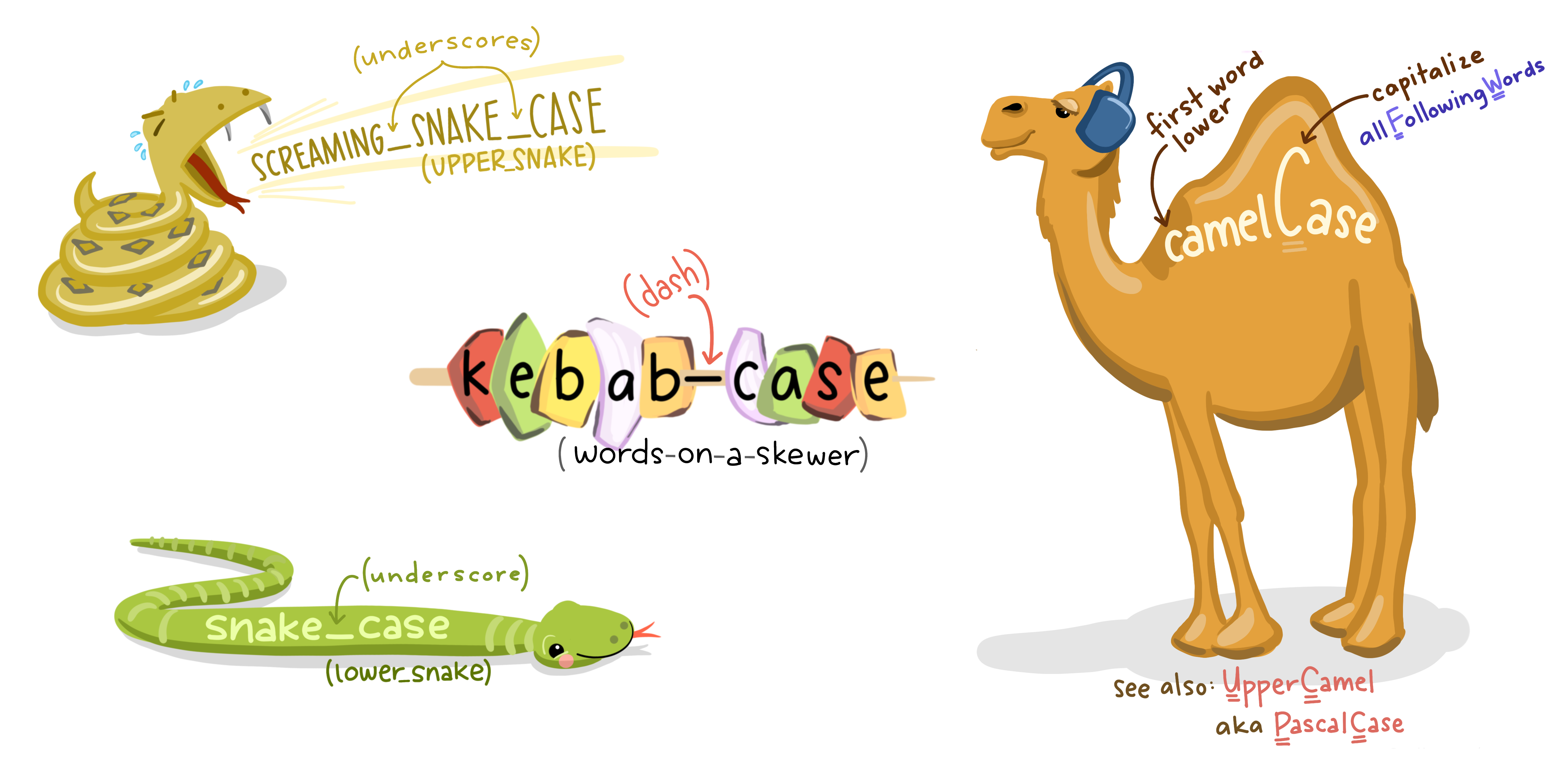
File Naming
Machines will first list files starting with numbers (ascdendingly) then in alphabetic order.
But they wont understand the difference between 1 and 10
File Naming
Using dates in file names may also ensure decent organisation but be consistent. Recommend using YYYY-MM-DD formatting
vs
File Naming
Consider using different space separators for different parts of the file name
This way you can use the file name it self, programatically, if needed
File Naming
Optimising file names for computers is great, but ultimately its us humans that need to choose files to work with. Naming files in a way that makes the file content obvious (or at least give an idea of content) by the file name is good for such interactions.
vs.
Image Types
Images from plots should use png or svg
.png supports transparency and has no quality loss upon re-saving
.svg can rescale to infinity without getting grainy
.jpg best for photos, quality loss on rescale, blurry edges and poor text rendering
Images can also some times be saved in pdf, but pdf while a vector format, cannot support transparency.
Tiff has fallen out of favour due to high file sizes, but are preferable to jpeg for photos.
Keep your Projects Tidy
Project Organisation
Keep your projects tidy
1 folder per project and all the project folders in 1 “Projects” folder.
.
|-- Projects
  |-- my-project-a
  |-- my-project-b
  |-- damien-dupre.github.io
Your Turn: Create your “Projects” folder
Open your Terminal again and run
cd ~to go back to your home directoryCreate a “Projects” folder using
mkdir Projects(cmd, powershell, zsh, bash)Move to this new folder directory using
cd Projects
Note, the message no such file or directory will be printed if it hasn’t worked
In this “Projects” folder, create a subfolder called “my_first_project” using
mkdir my_first_project(cmd, powershell, zsh, bash)Move to this folder using absolute path:
cd C:\Users\YourUsername\Projects\my_first_project(Windows)cd Users/YourUsername/Projects/my_first_project(MacOS/Linux)
Note, in case of error, check for typos!
05:00
Project Management
Why do we care about project management?
Portability
The ability to move the project without breaking code or needing adapting
- you will change computers
- you will reorganise your file structure
- you will share your code with others
Reproducibility
The ability to rerun the entire process from scratch
- not just for reviews
- not just for best-practice analytics
- also for future (or even present) you
- and for your collaborators/helpers
Project Workflows
Portability
- All necessary files should be contained in the project and referenced relatively
- All necessary outputs are created by code in the project and stored in the project
Reproducibility
- All code can be run in fresh sessions and produce the same output
- Does not force other users to alter their own work setup
Your Turn: Type of Files in an ePortfolio
- Go to the GitHub Repository of my own website https://github.com/damien-dupre/damien-dupre.github.io.
- Download and unZip this repository on your own Computer in the Projects folder.
- List all the file extensions of documents included in this folder and subfolders.
Note
- With the Windows OS, after downloading the repository, Click “Extract all” to unzip it.
05:00
Your Turn: Type of Files in an ePortfolio
Which file extensions have you found?
Web and Interactive Content
•   .html / .htm: HyperText Markup Language files for web content.
•   .css: Cascading Style Sheets for web design.
•   .js: JavaScript files for interactive elements.
Text and Document Formats
•   .doc / .docx: Microsoft Word documents.
•   .pdf: Portable Document Format, widely used for static, professional documents.
•   .txt: Plain text files.
•   .rtf: Rich Text Format, compatible with various word processors.
•   .odt: OpenDocument Text, used by open-source tools like LibreOffice.
Presentation Formats
•   .ppt / .pptx: Microsoft PowerPoint presentations.
•   .odp: OpenDocument Presentation format.
•   .key: Apple Keynote presentations.
Spreadsheet Formats
•   .xls / .xlsx: Microsoft Excel spreadsheets.
•   .csv: Comma-separated values, often used for data sharing.
•   .ods: OpenDocument Spreadsheet format.
Image Formats
•   .jpg / .jpeg: Compressed image files.
•   .png: High-quality image files supporting transparency.
•   .gif: Animated or static image files.
•   .bmp: Bitmap image files.
•   .tiff / .tif: High-resolution image files.
•   .webp: Compressed image format for the web.
•   .ico: Icon image files, often used for branding or UI mockups.
•   .heic: High Efficiency Image Format, used in modern Apple devices.
•   .svgz: Compressed Scalable Vector Graphics.
•   .raw: Camera raw image files from DSLRs.
Audio Formats
•   .mp3: Compressed audio files.
•   .wav: High-quality audio files.
•   .ogg: Open-source audio file format.
Video Formats
•   .mp4: A widely-used video format compatible with most devices.
•   .avi: Video format with higher quality, but larger file size.
•   .mov: Apple QuickTime video format.
•   .wmv: Windows Media Video format.
Other Formats
•   .svg: Scalable Vector Graphics, ideal for logos and illustrations.
•   .md: Markdown files, often used in coding or minimalist documentation.
•   .log: Log files for tracking progress or issues.
•   .yml / .yaml: Data serialisation formats, often for configuration files.
•   .zip / .tar.gz / .7z: Compressed archive formats for distributing multiple files.
•   .dat: Generic data files.
References
Huge thanks the following people who have generated and shared most of the content of this lecture:
Athanasia Monika Mowinckel: Mind your data - Creating Organised Research Projects
Bernd Weiß: Tools and Workflows for Reproducible Research in the Quantitative Social Sciences - Computer Literacy

Thanks for your attention and don’t hesitate to ask if you have any questions!
@damien_dupre
@damien-dupre
https://damien-dupre.github.io
damien.dupre@dcu.ie